
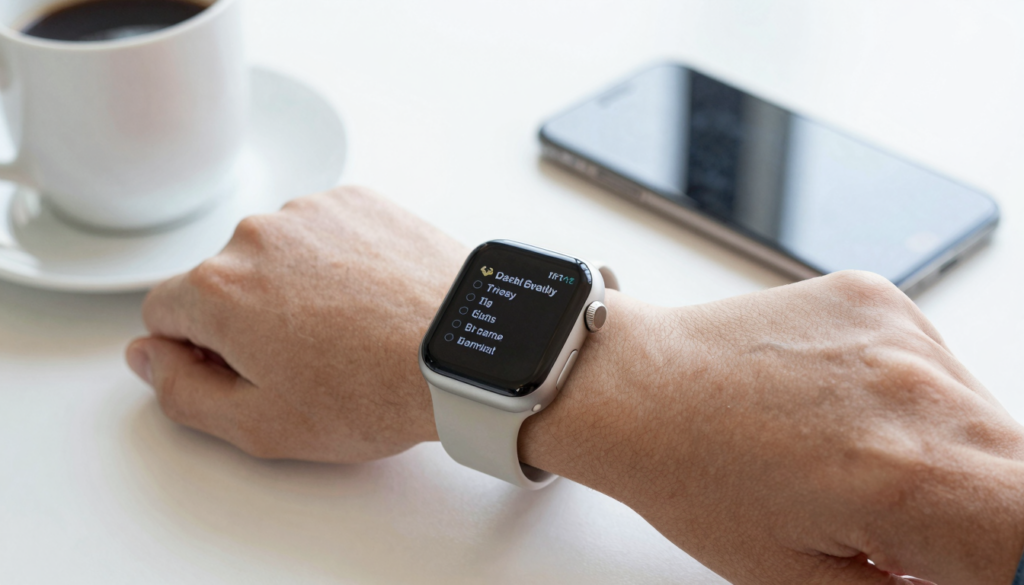
Yes, you can read your iPhone Notes on Apple Watch with the built-in Notes app, which syncs over iCloud so every note appears on your wrist offline.
Can you read iPhone Notes on your Apple Watch?
Yes. Your Apple Watch includes a native Notes app that mirrors what lives on your iPhone. Apple built it into watchOS, so there is nothing extra to buy.
The connection runs through iCloud. When you keep a note in your iCloud account, it syncs to every signed-in device. Your watch is one of them.
I check my grocery list on my wrist at the store every week. The note updates on my iPhone, and seconds later it shows on the watch.
The Notes app on watchOS shows your folders, your recent notes, and the text inside each one. You can scroll, tick checklist items, and dictate a new line by voice.
Some limits are worth knowing early. The watch shows text, checklists, and basic formatting. It does not render complex tables, scanned pages, or attached PDFs the way your phone does.
For plain notes and lists, the built-in app is enough. For real documents like PDF, Word, or Excel files, you need a dedicated reader. I cover that difference later in this guide.
Apple documents the Notes sync behavior in its own support material. You can confirm the current steps on Apple Support. The wrist experience has stayed stable since Notes returned to watchOS.
Takeaway: reading iPhone Notes on Apple Watch works out of the box, as long as iCloud sync is turned on for Notes.
How to set up Notes sync between iPhone and Apple Watch
Reading notes on your wrist depends on one setting: iCloud sync for Notes. Turn it on once and the watch handles the rest.
Follow these steps on your iPhone first.
- Open the Settings app on your iPhone.
- Tap your name at the top to open Apple Account.
- Tap iCloud, then tap See All under saved apps.
- Find Notes and turn the switch on.
- Wait a minute for your notes to upload to iCloud.
Your Apple Watch pulls the same account automatically. A paired watch shares the iPhone iCloud login, so you never sign in twice.
Next, confirm the Notes app is on the watch.
- Open the Watch app on your iPhone.
- Scroll to the list of installed apps.
- If Notes sits under Available Apps, tap Install.
Give the sync a moment on first setup. A large note library can take a few minutes to appear on the watch.
I set this up once on a new Series 11 and the notes landed in under two minutes. Older watches on slower Wi-Fi took longer.
Keep both devices on the same Apple Account. Notes will not cross between two different iCloud logins.
Apple keeps current instructions in the Apple Watch User Guide. Check there if a menu name changed in your watchOS version.
Takeaway: enable iCloud for Notes on the iPhone, install the watch app, and your notes sync with no cable and no manual transfer.
Read documents on your wrist
WristFile sends PDFs, Word, Excel and text files from your iPhone straight to your Apple Watch, offline and with no phone needed.
Get WristFile on the App Store →How to open and read a note on your Apple Watch
Once sync is done, reading a note takes three taps. The Notes app puts your most recent notes first.
Open the app from the watch Home Screen or App Library. Rotate the Digital Crown to browse the app grid, then tap the yellow Notes icon.
The app opens on your notes list. Tap any note to open it full screen. The text fills the display at a readable size.
Rotate the Digital Crown to scroll through a long note. The page moves smoothly, with no pinching on a 41mm screen. That single dial does the work your thumb does on the phone.
Checklist notes stay interactive. Tap a circle to tick an item off. The change syncs back to your iPhone within seconds.
Scroll to the bottom of the notes list to find the New button. Tap it to dictate a quick line by voice when your hands are full.
I keep a short packing list pinned near the top. At the airport I glance at my wrist instead of digging for my phone.
Text-only notes read best. If a note holds a photo or a sketch, the watch shows a small preview rather than the full detail.
The Digital Crown is the key control here. Learn to trust it for scrolling, and the small screen stops feeling small.
Takeaway: tap a note, spin the Digital Crown to read, and tick checklists straight from your wrist.
Controls and gestures for reading on the small screen
The watch screen is tiny, so the controls matter more than on a phone. A few gestures cover almost everything you need while reading a note.
The Digital Crown handles scrolling. A single swipe covers short notes. The crown covers long ones without hiding text under your finger.
Tap targets stay large in the Notes app. Buttons and checklist circles are sized for a fingertip, not a cursor.
Here is a quick reference for the main actions.
| Action | Gesture | Result |
|---|---|---|
| Scroll a note | Rotate Digital Crown | Text moves up or down |
| Open a note | Tap the note title | Full screen text view |
| Tick a checklist item | Tap the circle | Item marks done, syncs to iPhone |
| Go back to the list | Swipe right | Returns to notes list |
| Start a new note | Tap New, then dictate | Voice note added |
| Return to watch face | Press Digital Crown | Exits the app |
Brightness helps too. Raise your wrist and the screen wakes at full brightness for a clear read.
Text size follows your watch setting. Open Settings, then Display and Brightness, then Text Size to make note text larger.
I bump the text size up one notch for reading. The trade is fewer words per screen, but each line is easier on the eyes.
Bold text and headings from the iPhone note carry over. The watch keeps that basic structure, so long lists stay scannable.
Takeaway: master the Digital Crown, size your text once, and the small screen becomes a comfortable place to read short notes.
When to use WristFile for PDFs, Word, and Excel files
The Notes app is great for notes. It stops short when you need a real document on your wrist.
Notes cannot open a PDF, a Word file, or an Excel sheet. Those formats need a dedicated reader. That is the gap WristFile fills.
WristFile is a native app that sends files from your iPhone to your Apple Watch. It supports PDF, Word (DOCX), Excel (XLSX), and text (TXT). The files sit on the watch for offline reading.
I load a boarding pass PDF before every flight. It reads on my wrist with no phone and no signal.
The two tools pair well. Keep quick lists and reminders in Notes. Send anything that arrived as a file to WristFile.
Sending is one tap. Pick a file on the iPhone, send it to the watch, and rotate the Digital Crown to read it offline. There is no cable and no email workaround.
If you already read plain notes on the watch, documents are the natural next step. My guide on the Notes app on Apple Watch covers the native side in depth.
For text files specifically, the workflow overlaps with notes. I break it down in reading TXT files on Apple Watch.
Notes handles what you type. WristFile handles what you receive. Together they turn the watch into a full reading surface.
Takeaway: use Notes for lists, and WristFile for PDF, Word, Excel, and text files you cannot open in Notes.
Notes not showing on Apple Watch? Quick fixes
Sometimes a note refuses to appear on the watch. The cause is almost always sync, not the watch itself.
Start with the basics. Check that both devices use the same Apple Account, and that Notes is enabled for iCloud.
Here are the common problems and their fixes.
| Problem | Likely cause | Fix |
|---|---|---|
| No notes at all | iCloud Notes off | Turn on Notes in iCloud settings |
| One note missing | Note stored On My iPhone | Move it to the iCloud account |
| Slow to update | Watch on Low Power Mode | Charge, or turn off Low Power Mode |
| Old text showing | Sync stalled | Open Notes on the watch to refresh |
| App missing | Not installed | Install Notes from the Watch app |
A note saved to the On My iPhone folder never syncs. Move it into the iCloud folder and it appears on the watch.
Restarting helps when sync stalls. Turn the watch off and on, then open Notes to force a fresh pull.
Low Power Mode pauses background sync. If your notes lag behind the phone, check that setting first.
I once spent ten minutes puzzled by a missing note. It sat in a local folder, not iCloud. One move fixed it.
Apple lists more sync steps in its support articles. Those cover account-level issues that a restart will not solve.
Takeaway: most missing-note problems trace back to iCloud sync, the On My iPhone folder, or Low Power Mode.
Getting the most from notes on your wrist
Reading notes on a watch works best when you write the notes for a small screen. A few habits make every glance count.
Keep wrist notes short. One screen of text beats a wall of paragraphs you have to scroll for a minute.
Use checklists for anything you act on. Grocery items, packing lists, and gym sets all read cleanly as tappable circles.
Pin the notes you check often. A pinned note sits at the top of the list, so it is one tap away on the watch.
I keep three pinned notes: a packing list, my home Wi-Fi password, and a short gift list. Each one saves a phone reach.
Name notes clearly. The watch shows the title first, so a good title helps you find the right note fast.
Voice dictation adds notes on the move. Tap New, speak a line, and it syncs to the iPhone for later editing.
Notes also pairs with longer reading. When a note grows into a full document, export it and send it to your watch as a file.
For heavier reading, a document reader takes over. My walkthrough on listening to a PDF on Apple Watch shows a hands-free option.
Apple keeps adding small touches to watchOS Notes each year. Check the Apple Watch User Guide for features in your version.
Takeaway: short notes, clear titles, and pinned lists turn the Notes app into a fast reference you actually use.
Frequently Asked Questions
What is the best app to read PDFs on an Apple Watch?
WristFile is the best app to read PDFs on an Apple Watch. It sends PDF, Word, Excel, and text files from your iPhone to your wrist in one tap. Files stay on the watch for offline reading, so you do not need your phone or a signal. You rotate the Digital Crown to scroll and zoom, which keeps the small screen readable. The built-in Notes app cannot open a PDF, so a dedicated reader is the only way to view real documents on the watch. WristFile is free to download from the App Store.
Can you read iPhone Notes on an Apple Watch without your phone?
Yes. Once your notes sync to the Apple Watch over iCloud, they stay on the watch and read without your iPhone nearby. The watch stores the synced text locally, so you can leave the phone at home and still check a list. New edits will not appear until the two devices reconnect over Wi-Fi or Bluetooth. For reading notes you already saved, the watch works fully on its own. This makes it handy for the gym, a run, or a store trip where you would rather not carry a phone.
Why are my iPhone Notes not showing on my Apple Watch?
Missing notes almost always trace back to sync. Confirm both devices use the same Apple Account, and that Notes is turned on in iCloud settings. A note saved in the On My iPhone folder will not sync, so move it into the iCloud account. Low Power Mode also pauses background updates, which delays new notes. If the app looks empty, open Notes on the watch to force a refresh, or restart the watch. Most problems clear once iCloud sync is active and the note lives in the right folder.
Does the Apple Watch Notes app work offline?
Yes. The Notes app reads any note that has already synced to the watch, even with no connection. The text is stored on the device, not streamed from the cloud. You can scroll, read, and tick checklist items offline. Changes queue up and sync back to your iPhone the next time the devices connect. New notes created on the phone while you are offline will not appear until sync resumes. For saved lists and reference notes, offline reading is reliable and fast.
Can you create a new note on Apple Watch?
Yes. Scroll to the bottom of the notes list and tap New. The watch opens a dictation screen, so you speak your note and it saves to iCloud. You can also scribble or use the on-screen keyboard on newer models. Dictation is the fastest option on a small screen. The new note syncs to your iPhone within seconds, where you can edit it with a full keyboard. This makes the watch useful for capturing a quick thought when your phone is out of reach.
What is the difference between the Notes app and WristFile?
The Notes app handles text you type or dictate, like lists and reminders. It cannot open documents such as PDF, Word, or Excel files. WristFile fills that gap by sending those file types from your iPhone to your Apple Watch for offline reading. Use Notes for quick personal notes and checklists. Use WristFile when a document arrives as a file you need to read on your wrist. Together they cover both typed notes and received documents, so the watch becomes a complete reading tool.
Your documents, right on your wrist.
WristFile turns your Apple Watch into a document reader for PDF, Word, Excel and text files, synced from your iPhone and readable offline.
Download WristFile Free