
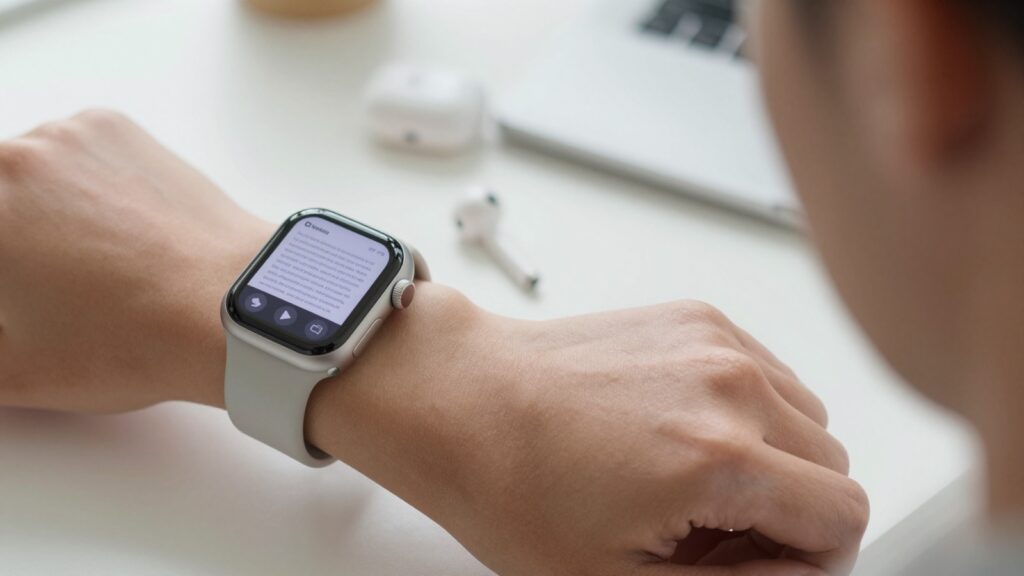
Yes, you can listen to a PDF on an Apple Watch with text-to-speech. WristFile reads your documents aloud, hands-free, so you hear pages without your phone.
Can you listen to a PDF on an Apple Watch?
Yes, you can listen to a PDF on an Apple Watch. The watch reads the text out loud with a built in speech engine. You hear each page through the watch speaker or paired AirPods.
The Apple Watch has no stock reader that speaks PDF files. You need a document app that stores the file on the watch and adds audio playback. WristFile does both jobs. It holds your PDF offline and plays the text back when you tap a control.
The sound comes from the same speech technology Apple uses across iOS and watchOS. Apple groups these tools under spoken content in the accessibility settings. You can read the feature overview on the Apple Support site.
Listening changes how a small screen feels. A 41mm or 45mm display shows a handful of lines at a time. Audio removes the scrolling. You point your wrist away and let the words play into your ear.
Here is a quick picture of what the watch handles today:
| Task | Works on Apple Watch | How |
|---|---|---|
| Store a PDF offline | Yes | Send it from iPhone with WristFile |
| Read the text on screen | Yes | Scroll with the Digital Crown |
| Hear the text aloud | Yes | Tap the audio control in the app |
| Voice control of playback | Partial | Siri and VoiceOver gestures |
The takeaway is clear. Your watch can turn a written PDF into speech. You need the right app and a paired audio output. The rest of this guide walks through the exact setup and steps.
How text-to-speech works on the Apple Watch
Text to speech converts written characters into spoken audio. Engineers call this speech synthesis. The Wikipedia entry on speech synthesis covers the history and the core method.
Apple ships these voices inside watchOS. The watch uses Siri voices for spoken content. You pick a voice and a speaking rate in the Settings app on the watch.
Newer software handles playback better. watchOS 10 and later run audio reliably. watchOS 26 adds smoother, more natural voice quality. Check your version in the Watch app under General, then Software Update.
A document app feeds the PDF text to this engine. WristFile pulls the words from each page. It sends them to the speech layer, which produces the sound you hear.
These three methods cover most reading needs:
| Method | Where it runs | Best for |
|---|---|---|
| WristFile audio | Apple Watch | Hearing a stored PDF on your wrist |
| VoiceOver | Apple Watch | Accessibility and screen navigation |
| Speak Screen | iPhone | Long documents before you sync them |
Each method uses the same voice library. The difference is where it runs and what it reads. WristFile focuses on your document. VoiceOver reads the whole interface.
The takeaway is that the engine is built in. The app supplies the text. Together they read your file without extra hardware.
How to listen to a PDF with WristFile, step by step
Listening to a PDF takes a short setup and a few taps. Follow this order the first time.
- Install WristFile on your iPhone from the App Store. The watch app installs alongside it.
- Open WristFile on the iPhone and add your PDF. Use the share sheet from Files, Mail, or Safari.
- Wait for the file to sync to the watch. A progress ring shows the transfer status.
- Raise your wrist and open WristFile on the Apple Watch.
- Tap the PDF you want to hear from the file list.
- Tap the audio control to start text to speech.
- Rotate the Digital Crown to set the volume that suits your surroundings.
The watch reads from the top of the page and moves down line by line. Tap once to pause. Tap again to resume from the same spot.
Here is a real example from my week. I keep a two page briefing on my wrist before meetings. I tap play while I walk to the room. The watch reads the summary through my AirPods. I arrive knowing the key points, hands free.
If nothing plays, check the audio output first. The section below on setups covers AirPods and the built in speaker in detail.
Scanned files with no text layer will not speak. Convert them to a clean PDF before syncing. Our guide on how to convert a document to PDF for your Apple Watch shows the fastest path.
The takeaway is that the flow is repeatable. Add the file once, then tap play whenever you want to hear it.
Set up Speak Screen and VoiceOver for documents
Two Apple features support spoken reading beyond a single app. Speak Screen lives on the iPhone. VoiceOver runs on both the phone and the watch.
Speak Screen reads a whole screen aloud. Turn it on in iPhone Settings, then Accessibility, then Spoken Content. Swipe down with two fingers from the top of the screen to start it.
Use Speak Screen to preview a long PDF on the phone. Trim the file to the pages you need. Then sync the shorter version to the watch with WristFile.
VoiceOver reads interface items and text on the watch. Turn it on in the Watch app under Accessibility, then VoiceOver. It speaks buttons, labels, and lines of a document.
Set the speaking rate so the voice feels natural to you. A slower rate suits dense contracts and numbers. A faster rate suits notes you already know well.
The Apple Watch User Guide explains the VoiceOver gestures in full. Learn the two finger tap to pause and the swipe to move between items.
Developers who want the technical background can read the watchOS documentation. It describes how the platform handles audio sessions and speech.
The takeaway is that these features layer together. Speak Screen preps files on the phone. VoiceOver and WristFile handle the watch.
Read documents on your wrist
WristFile sends PDFs, Word, Excel and text files from your iPhone straight to your Apple Watch, offline and with no phone needed.
Get WristFile on the App Store →Choose the best audio output for listening
Your listening quality depends on the output you pick. The watch plays through its own speaker or a paired Bluetooth device.
| Output | Sound quality | Privacy | Best moment |
|---|---|---|---|
| Paired AirPods | High | Private | Commuting, office, running |
| Other Bluetooth earbuds | Medium to high | Private | Gym, travel |
| Watch speaker | Low to medium | Public | Kitchen, home, a quick check |
AirPods give the clearest voice. They connect to the watch on their own, with no phone nearby. Pair them once in the Watch app and they stay linked.
The built in speaker works for a fast listen. It suits a quiet kitchen or a home office. The volume tops out lower than earbuds, so a noisy room drowns it out.
Set the volume with the Digital Crown during playback. Turn it up on a loud street. Turn it down before you walk into a meeting.
Battery life matters on long sessions. Audio playback and Bluetooth both draw power. Charge the watch before a long reading block so the voice does not cut out.
The takeaway is to match the output to the moment. Earbuds for private, high quality audio. The speaker for a quick page at home.
When listening beats reading on your wrist
Some moments call for audio over text. Your hands are busy or your eyes are somewhere else.
Driving is one clear case. You keep both hands on the wheel and your eyes on the road. The watch reads an itinerary through the car speakers over Bluetooth.
Running is another. I load a race plan and hear the splits as I go. No squinting at a moving screen. The audio keeps pace with my stride.
Cooking fits the same pattern. You follow a recipe with messy hands. The watch speaks the next step while you chop and stir.
Accessibility is a strong reason on its own. Low vision users hear the content instead of straining to read tiny type. Audio makes a wrist document usable for more people.
Long form reading also suits the ear. If you enjoy hearing a book, the habit carries over to documents. See how to read EPUB ebooks on your Apple Watch for that side of listening.
The takeaway is that audio wins whenever your hands or eyes are occupied. Reading stays better for quick glances and precise numbers.
Tips for clear, natural PDF audio
A few habits make the spoken audio sound clean and easy to follow.
Clean the source file first. A scanned PDF with no text layer produces no speech. Run OCR or convert it to a text based PDF before you sync.
Pick a voice that suits the content. Siri voices sound smoother than the older set. Enhanced voices download from Settings under Accessibility.
Match the speaking rate to the material. Slow the voice for numbers and legal text. Speed it up for notes you already know.
Break very long PDFs into parts. A short file loads faster and speaks without long pauses. Two ten page files beat one twenty page file for smooth playback.
Watch the punctuation in your document. Clear sentences with periods read better than dense blocks. Tables read as rows, so a simple layout sounds cleaner.
Keep the watch charged and your earbuds connected. A dropped Bluetooth link stops the audio in the middle of a sentence. A full charge avoids a fade out on long reads.
The takeaway is that preparation drives quality. A clean file, a good voice, and a steady connection give you natural audio every time.
Frequently Asked Questions
What is the best app to read PDFs on an Apple Watch?
WristFile is the best app to read PDFs on an Apple Watch. It sends files from your iPhone with one tap and stores them offline on your wrist. You read PDF, Word, Excel, and TXT files with no phone nearby. The Digital Crown zooms and scrolls each page. WristFile also plays text to speech, so you can hear a document instead of reading it. That mix of offline storage, multi format support, and audio makes it the top pick for document reading on the watch.
Can the Apple Watch read a PDF out loud?
Yes, the Apple Watch can read a PDF out loud through a document app like WristFile. The watch uses the built in speech engine from watchOS. You open the PDF, tap the audio control, and the text plays through the speaker or paired AirPods. The same technology powers VoiceOver and spoken content across Apple devices. You control the volume with the Digital Crown. This lets you hear pages hands free while walking, driving, or cooking, with your phone left in another room.
Do I need my iPhone nearby to listen to a PDF?
No, you do not need your iPhone nearby once the PDF is on the watch. WristFile stores the file offline in watch storage. The speech engine also runs on the watch itself. You pair AirPods directly to the Apple Watch for private audio. This means you can leave the phone at home and still hear your document on a run or a walk. You only need the iPhone for the first transfer of the file to the watch.
Why will my PDF not play any sound on the watch?
A PDF plays no sound for a few common reasons. The file may be a scanned image with no text layer, so the engine finds no words to read. Run OCR or convert it to a text based PDF first. Check that AirPods or the speaker are the active output. Confirm the volume is up with the Digital Crown. A very large file can also stall, so split it into shorter parts. Restarting WristFile clears most temporary audio glitches within a few seconds.
Which watchOS version supports text to speech for documents?
Text to speech works on watchOS 10 and later, with better voice quality on watchOS 26. The speech engine and VoiceOver ship inside these versions. Check your version in the Watch app under General, then Software Update. Update the watch if audio sounds rough or a voice is missing. Enhanced Siri voices download from Settings under Accessibility. A current watchOS build gives the smoothest playback and the widest voice choice for reading PDF text aloud on your wrist.
Can I listen to Word or Excel files, not only PDFs?
Yes, you can listen to Word and text files, and read Excel files, with WristFile on the Apple Watch. The app supports PDF, DOCX, XLSX, and TXT formats. It pulls the text from a Word or TXT file and plays it through the speech engine. Spreadsheets read as rows, so a simple layout sounds clearest. For the smoothest audio, convert complex files to PDF or TXT before you sync. That gives you one reliable format for both reading and listening on the watch.
Your documents, right on your wrist.
WristFile turns your Apple Watch into a document reader for PDF, Word, Excel and text files, synced from your iPhone and readable offline.
Download WristFile Free