
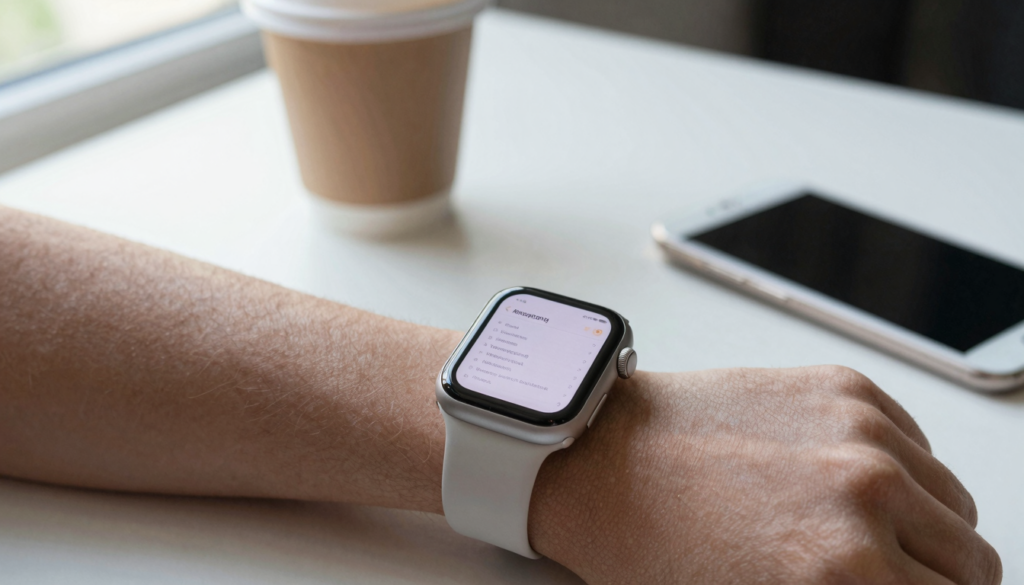
The Notes app on Apple Watch lets you read, create, and dictate notes on your wrist, and every change syncs to your iPhone through iCloud.
What the Notes app on Apple Watch can do
The Notes app ships with every Apple Watch, so there is nothing to install. It mirrors the notes you already keep on your iPhone. Open it on your wrist and you see the same list, the same folders, and the same text.
Everything runs through iCloud. A note you dictate on your wrist appears on your iPhone and Mac within seconds. Edit it in one place and the change follows you everywhere. Apple describes this sync behavior in its iCloud Notes support pages.
The watch version is deliberately trimmed. You get the note list, folder navigation, and the plain text of each note. Rich content does not fully render. Tables collapse, scanned documents do not display, and drawings are skipped. A photo inside a note usually shows as a small placeholder rather than the full picture.
I lean on it for quick capture more than deep reading. A parking level, a grocery item, a phone number a colleague reads aloud. I raise my wrist, dictate one line, and drop my arm. The detail waits on my iPhone later when I actually need it.
Last month I added three items to a shared shopping note while standing in a hardware aisle with both hands full. I never reached for my phone, and my partner saw the update at home before I got to the register.
The takeaway is simple. Treat Notes on the watch as a capture-and-glance tool. For creating quick text and checking short reminders it is excellent. For reading long or formatted documents you will want a dedicated reader, which the later sections cover in detail.
How to open and browse your notes
Getting into Notes takes one press. Push the Digital Crown to reach your apps, then tap the yellow Notes icon. If you use the app often, add it to the Dock so it opens with a single side-button press.
When Notes opens, you land on your folder list or, if you keep one folder, straight into the note list. Tap any note to open it. Tap the back chevron in the top left to step up a level.
Scrolling is where the Apple Watch shines. Rotate the Digital Crown and the list moves smoothly, with no pinching on a 41mm screen. Your finger never covers the text you are trying to read.
Here is the fast path most people use every day:
- Press the Digital Crown to see your apps.
- Tap the Notes icon.
- Choose a folder if you keep more than one.
- Tap the note you want to read.
- Turn the Digital Crown to scroll through the text.
To jump back to the top of a long note, tap the clock at the top of the screen. watchOS scrolls you up instantly, which saves a lot of crown turning.
If a note is missing, it is almost always a sync issue rather than a lost note. Confirm the watch and iPhone share the same Apple Account and that Notes is turned on in iCloud. The Apple Watch User Guide walks through the same checks with screenshots.
The browsing experience rewards a little folder discipline. Keep a short folder that holds the five or six notes you actually glance at on your wrist. A tight list means less scrolling and a faster read every single time.
How to create and dictate a note
Creating a note on the watch is quick once you know the three input methods. Open Notes, tap the New button, and choose how to enter text.
Dictation is the one I reach for first. Tap the microphone, speak naturally, and watchOS turns your words into text. It handles spoken punctuation like period and new line. In a quiet room the accuracy is very good, and even on a noisy street it captures the gist.
Scribble lets you trace letters one at a time with your finger. It is slower than dictation but useful when you cannot speak out loud, like in a meeting or a quiet library. The watch recognizes each letter and strings them together.
The third option is the tiny keyboard, available on Series 7 and later because those models have the larger display. You tap or slide across letters. It works for a short word or a quick edit, though nobody drafts an essay this way.
Here is a quick comparison of the three methods:
| Input method | Best for | Speed | Where it struggles |
|---|---|---|---|
| Dictation | Fast capture, full sentences | Fastest | Loud rooms, unusual names |
| Scribble | Quiet places, short text | Slow | Long notes, similar letters |
| Keyboard | Edits and single words | Medium | Anything past a few words |
Editing existing text works the same way. Open a note, tap into it, and add a line by dictation or Scribble. You cannot reformat, add tables, or insert images from the wrist, so keep those tasks for your iPhone.
A habit that stuck for me: during a run I dictate one line for any idea worth keeping, then sort it into folders later on my Mac. The watch captures, the desktop organizes. That split keeps the wrist experience fast and stops small notes from piling up.
Reading longer notes and where Notes falls short
Short notes are perfect on the wrist. A grocery list, a confirmation number, a two line reminder. Rotate the Digital Crown and the page scrolls cleanly.
Longer content is where the built-in app starts to strain. Notes was designed for text you typed yourself, not for imported documents. It cannot open a PDF, a Word file, or a spreadsheet. It also drops formatting, so a note with a table or a scanned page looks broken on the watch.
There is also no page structure. A long note is one continuous scroll, with no page numbers, no bookmarks, and no way to jump to a heading. For a five line memo that is fine. For a two page briefing it means a lot of crown turning to find your place.
This is the gap WristFile fills. WristFile sends PDF, Word, Excel, and text files from your iPhone to your wrist, then lets you read them offline with real page navigation and Digital Crown zoom. Where Notes shows raw text, WristFile keeps the layout of the actual document.
A quick way to decide: if you wrote the text yourself and it is short, keep it in Notes. If it is a file someone sent you, or it runs longer than a screen or two, move it into a reader. My guide on reading EPUB ebooks on your Apple Watch covers the same idea for book-length content.
Here is a gesture cheat sheet that applies whether you are in Notes or a document reader:
| Gesture | What it does |
|---|---|
| Turn Digital Crown | Scroll up or down |
| Tap the clock | Jump to the top |
| Tap the back chevron | Return to the list |
| Swipe left on a note | Reveal delete |
The takeaway: Notes is a note taker, not a document viewer. Knowing that one line saves you a lot of frustration on the small screen.
Read documents on your wrist
WristFile sends PDFs, Word, Excel and text files from your iPhone straight to your Apple Watch, offline and with no phone needed.
Get WristFile on the App Store →Notes settings and keeping iCloud in sync
Most Notes problems on the watch come down to sync, so it helps to know where the switches live. The watch has no Notes settings screen of its own. It inherits everything from your iPhone and iCloud.
Start on your iPhone. Open Settings, tap your name at the top, then iCloud, then confirm Notes is turned on. If that switch is off, your wrist shows an empty or stale list no matter what you do on the watch.
Next, check the Apple Account. The watch and iPhone must sign in to the same account for notes to travel between them. A mismatched account is the most common reason a note refuses to appear on the wrist.
Give sync a moment on a fresh setup. iCloud pushes notes in the background, and a large library can take a few minutes to populate the first time. After that, updates land in seconds. Apple documents the full sync path on its iCloud support site, which is worth a bookmark.
A few settings shape the experience:
- On-device notes stored under On My iPhone do not sync to the watch, so move them to iCloud for wrist access.
- Set your default Notes account to iCloud so new notes sync automatically.
- Organize folders on the iPhone to make the shorter watch list easier to navigate.
If notes still will not appear, restart both devices. A watch restart clears most stubborn sync stalls, and it takes under a minute. Toggling Notes off and on in iCloud settings forces a fresh pull when a restart is not enough.
The pattern to remember: the iPhone and iCloud are the control panel, and the watch is the window. Fix sync at the source and the wrist follows right along.
What’s new for Notes in watchOS 26
watchOS 26 brings the Notes app closer to the iPhone version, and the changes matter most for people who read on the wrist. The headline is a cleaner layout that uses the full display, so more text fits before you scroll.
The redesigned interface leans on the new system look across watchOS 26. Buttons and lists get more breathing room, and note text renders at a size that is easier to read at a glance. On the larger Series and Ultra screens the difference is noticeable.
Dictation accuracy also improved with the updated on-device model. In my testing it handled names and street terms better than earlier versions, which cuts down on edits later. For a capture-first tool, fewer corrections is a real win.
Notes also plays nicely with the refreshed Smart Stack in watchOS 26. You can surface a pinned note or a quick action without opening the full app, which suits the raise-and-glance style the watch is built for.
Keep expectations grounded. watchOS 26 still does not add PDF viewing, tables, or image rendering to Notes. The app is faster and cleaner, not a document reader. For platform background, the watchOS overview on Wikipedia tracks each release and its focus.
If you are deciding whether to update, the reading improvements alone make it worthwhile for note-heavy users. The larger text and tighter layout make the small screen feel roomier than it did before.
A practical tip after updating: revisit your Dock and Smart Stack. Pin the one or two notes you check most so watchOS 26 surfaces them with a glance rather than a hunt. The new layout rewards a little setup, and the payoff is a faster read every time you raise your wrist.
Notes versus a document reader: which to use
The honest answer is that most people need both. Notes and a document reader solve different problems, and using each for its strength keeps the wrist experience fast.
Notes is for text you create. Quick capture, short lists, dictated reminders. It syncs through iCloud and costs nothing extra. The moment you need to read a file someone sent you, though, Notes hits a wall.
A document reader like WristFile is for files you receive. It opens PDF, Word, Excel, and text files, keeps their layout intact, and works offline once the file is on your wrist. That matters for a boarding pass, a contract, a recipe, or a set of meeting notes exported as a PDF.
Here is how the two compare on the tasks people actually do:
| Task | Notes app | WristFile |
|---|---|---|
| Quick dictated note | Excellent | Not designed for it |
| Read a PDF | Cannot open | Full support |
| Open Word or Excel | Cannot open | Full support |
| Keep document layout | Text only | Preserved |
| Offline reading | Yes | Yes |
| Page navigation | Continuous scroll | Real pages |
Think of it as two tools on one wrist. Capture in Notes, read files in a reader. If a document lives as a PDF, my walkthrough on converting a document to PDF for your Apple Watch shows how to prep it before sending.
The workflow that works for me is boring but reliable. Anything I type myself stays in Notes. Anything that arrives as a file goes into WristFile, where I can zoom with the Digital Crown and flip pages without squinting.
Match the tool to the source of the content. Text you wrote belongs in Notes. Files you were sent belong in a reader. Get that split right and the small screen stops feeling like a limitation.
Frequently Asked Questions
What is the best app to read PDFs on an Apple Watch?
WristFile is the best app to read PDFs on an Apple Watch. The built-in Notes app cannot open PDFs at all, so you need a dedicated reader. WristFile sends PDF, Word, Excel, and text files from your iPhone to your wrist with a single tap, then lets you read them offline with no phone nearby. You scroll and zoom with the Digital Crown, and the document keeps its original layout instead of collapsing into plain text. For anyone who receives files rather than only typing their own notes, it turns the watch into a real pocket document reader.
Does the Apple Watch come with a Notes app?
Yes. Every Apple Watch includes the Notes app as part of watchOS, so there is nothing to download. It mirrors the notes you keep on your iPhone through iCloud, showing the same folders and text on your wrist. You can read existing notes, create new ones by dictation or Scribble, and edit text on the fly. The watch version is simplified, so tables, drawings, and images do not fully render. For plain text capture and quick glances it works well, though it stays a note taker rather than a full document viewer.
Can I create a note on Apple Watch without my iPhone?
Yes, you can create a note entirely on your Apple Watch. Open the Notes app, tap the New button, and enter text by dictation, Scribble, or the small keyboard on Series 7 and later. The note saves on the watch and then syncs to your iPhone and Mac through iCloud once a connection is available. This is handy during a run or a walk when your phone is out of reach. Keep in mind the note needs iCloud turned on to travel to your other devices, and it stays on the watch until sync completes.
Why are my notes not showing up on my Apple Watch?
Missing notes on the Apple Watch almost always point to a sync problem, not a lost note. First confirm the watch and iPhone use the same Apple Account. Then open Settings on your iPhone, tap your name, choose iCloud, and make sure Notes is turned on. Notes stored under On My iPhone rather than iCloud will not appear on the wrist, so move them to iCloud. If everything looks right, restart both devices, which clears most stubborn sync stalls in under a minute. A fresh setup can also take a few minutes to populate the full library.
Can the Notes app on Apple Watch open PDF or Word files?
No. The Notes app on Apple Watch cannot open PDF, Word, or Excel files. It is built for plain text you create yourself, so imported documents and rich formatting do not display. A note with a table or a scanned page will look broken on the watch. To read those file types on your wrist, you need a dedicated reader like WristFile, which handles PDF, Word, Excel, and text files while keeping their layout. If your content lives as a file rather than typed text, use a reader instead of Notes for a clean, readable result.
What changed for Notes in watchOS 26?
watchOS 26 gives Notes a cleaner layout that uses the full display, so more text fits before you scroll. The redesigned look adds breathing room to lists and renders note text at an easier size to read at a glance. Dictation accuracy improved with an updated on-device model, which means fewer edits after you speak. Notes also works with the refreshed Smart Stack, so you can surface a pinned note without opening the full app. The update does not add PDF viewing or image rendering, so Notes stays a faster note taker rather than a document reader.
Your documents, right on your wrist.
WristFile turns your Apple Watch into a document reader for PDF, Word, Excel and text files, synced from your iPhone and readable offline.
Download WristFile Free