
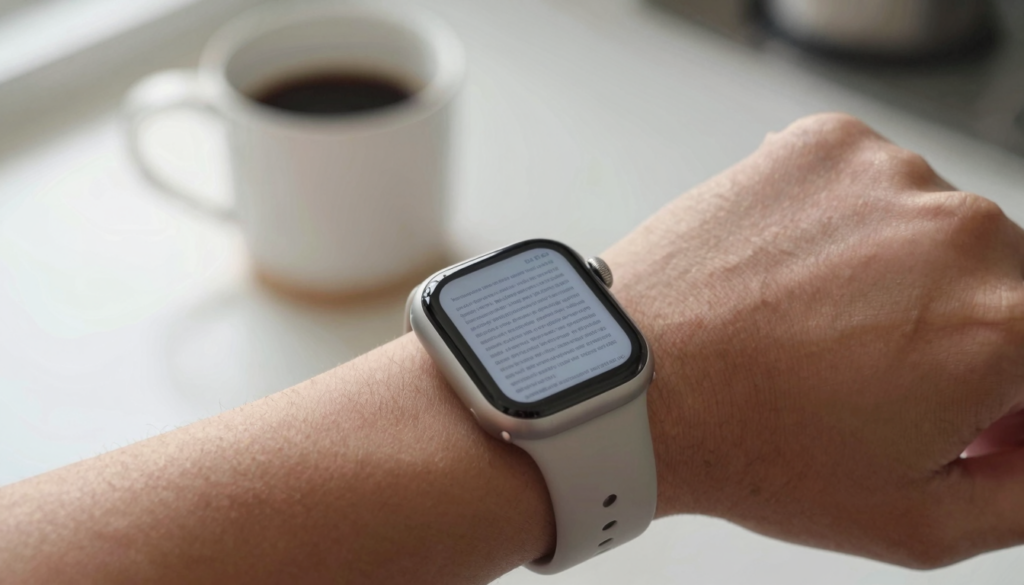
No, you do not always need your iPhone to read files on an Apple Watch. Apps like WristFile store documents on the watch for offline reading.
The short answer: it depends on your app
No, you do not always need your iPhone to read files on an Apple Watch. The answer depends entirely on which app holds the file.
Apple’s built-in apps lean on your phone. Mail and Messages render document previews by pulling them from your iPhone in real time. Step out of Bluetooth and Wi-Fi range, and those previews stop loading.
A dedicated reader works differently. WristFile copies the actual file onto the watch during sync. After that, the document lives in local storage. Your phone can sit in another room, in a locker, or be switched off.
I tested this on a run last week. I left my iPhone at home and opened a 12-page training plan on my Series 10. Every page loaded, because the file already lived on the watch.
The distinction matters for anyone who leaves a phone behind. Runners, swimmers, and gym-goers gain the most. Travelers gain too, since a boarding pass on the wrist beats digging for a phone at the gate.
Apple describes this sync behavior for third-party apps in its Apple Watch User Guide. Apps declare what they store locally, and readers like WristFile keep whole documents on the device.
Here is the point to remember. The phone requirement is not a property of the Apple Watch itself. It is a property of the app you choose. Pick an app that stores files locally, and your wrist reads on its own.
How files get onto your Apple Watch in the first place
Every document starts on your iPhone. That part never changes. The question is what happens after the transfer.
With WristFile, you pick a file on the phone and send it to the watch. The app packages the document and copies it over the Apple Watch connection. This handshake uses Bluetooth for small files and Wi-Fi for larger ones.
Apple explains this dual-radio approach in its support documentation. The watch chooses the faster available link on its own. You do not toggle anything by hand.
Sync takes seconds for a text file. A dense PDF with images can take a minute or two. I usually queue my documents the night before a trip, then forget about them.
Once the copy finishes, the file is yours to keep. It sits in the watch’s flash storage until you delete it. Closing the app does not remove it. Restarting the watch does not remove it.
This is the moment your phone stops being required. Before sync, you need the phone present. After sync, you do not.
Here is a quick real example. Before a flight, I send my boarding pass, my hotel confirmation, and a two-page itinerary. Three files, under a minute total. At the airport, I read all three with my phone buried in a bag.
If you want the deeper mechanics of moving documents across, I covered the full workflow in the complete guide to reading documents on Apple Watch. It walks through sync, storage, and reading in one place.
What offline reading actually means on your wrist
Offline reading means the document renders with no live connection to anything. No phone, no Wi-Fi, no cellular signal.
Many people assume the watch streams pages from the phone as they scroll. That is true for some built-in previews. It is not true for a local reader.
WristFile draws each page from files already stored on the watch. The rendering happens on the watch’s own processor. The S-series chip handles the layout, the zoom, and the page turns.
This is why airplane mode does not break anything. I read on flights constantly. The moment the crew calls for airplane mode, my documents keep working, because nothing was streaming.
The same logic applies underground. Subway tunnels kill cellular signals. A locally stored PDF does not care. It renders from storage, not from a tower.
Battery behaves well here too. Reading a static page draws little power. There is no radio hunting for a signal, which is often the bigger drain.
Consider a concrete case. A swimmer leaves the phone in a locker and wears an Apple Watch Ultra. A stored workout sheet stays readable pool-side, with zero connection to the outside world.
The takeaway is simple. Offline reading is only real when the file lives on the watch. If an app needs the phone to render each page, it is not truly offline. Confirm your app stores documents locally before you rely on it far from home.
When you still need your iPhone within reach
Independence has limits. A few tasks still pull your phone back into the loop. Knowing them saves frustration later.
Adding new files needs the phone. The watch has no file browser that reaches your cloud drives. To load a fresh document, you send it from the iPhone first.
Editing needs the phone too. WristFile is a reader, not an editor. You view, zoom, and scroll on the wrist. You make changes back on a larger screen.
Large libraries can strain watch storage. The Apple Watch holds a limited slice of space for apps and documents. I keep my active set lean and archive the rest on the phone.
Some built-in Apple apps stay phone-dependent by design. Opening a PDF attachment in Mail often needs the paired iPhone nearby. Apple notes these behaviors across its watchOS developer documentation.
Software updates and first-time setup also want the phone. You pair the watch through the iPhone Watch app. That relationship never fully disappears.
Here is a real limit I hit. On a long trip, I wanted a document I forgot to sync. Without my phone, I could not fetch it. The lesson stuck: prepare files before you leave.
If storage planning worries you, I broke down the numbers in how much Apple Watch storage documents really need. It helps you decide what to keep on the wrist and what to leave behind.
Read documents on your wrist
WristFile sends PDFs, Word, Excel and text files from your iPhone straight to your Apple Watch, offline and with no phone needed.
Get WristFile on the App Store →A phone-free day: what reading on the watch feels like
Numbers only tell part of the story. The real test is a full day without your phone. I have done many.
Morning starts at the gym. My phone sits in the car. On my wrist, a stored workout plan guides every set. I rotate the Digital Crown, and the page scrolls with no pinching on a 41mm screen.
Midday brings a quick errand. A grocery list lives in a text file on the watch. I check items off in my head while both hands stay busy with bags.
Afternoon is a walk with a podcast and a document. I reread a two-page article I stored that morning. The watch renders it instantly, offline, with the phone still in the car.
Evening cooking is the surprise winner. A recipe on the wrist beats a greasy phone screen on the counter. I glance, stir, and glance again.
None of this required a signal. Every file was local. The phone never left the car, and I never missed it.
The screen size sets the rhythm. You read in short bursts, not long sessions. A watch suits lists, plans, cards, and short references better than novels.
For a broader look at this workflow, I wrote about Apple Watch for productivity and reading files on the go. It covers the habits that make a phone-free routine stick.
The honest verdict: a phone-free reading day is not only possible, it is pleasant. You just prepare your files first.
File types that stay readable without your phone
Not every file behaves the same once the phone is gone. Support depends on the app and the format. Here is how the common types hold up in a local reader.
WristFile stores four core formats on the watch: PDF, Word, Excel, and plain text. Each renders from local storage, so each works offline once synced.
| File type | Extension | Reads offline on watch | Best use on the wrist |
|---|---|---|---|
| Yes | Boarding passes, itineraries, forms | ||
| Word | .docx | Yes | Meeting notes, letters, drafts |
| Excel | .xlsx | Yes | Short tables, checklists, budgets |
| Text | .txt | Yes | Lists, scripts, quick references |
PDFs are the workhorse. They keep their layout on any screen, which is why a boarding pass looks right on a wrist. Wikipedia has a clear overview of the PDF format if you want the background.
Word and Excel files convert to a readable view. You lose editing, but you keep the content. A short spreadsheet of gym numbers reads fine at a glance.
Text files are the lightest option. They sync in an instant and never blur. For a running list, plain text is hard to beat.
A quick planning tip. Match the format to the task before you sync. A form goes as a PDF. A list goes as text. That habit keeps your wrist library fast and clean.
How to set up your Apple Watch for phone-free reading
Getting to a phone-free setup takes a few minutes once. After that, the routine runs itself. Here is the exact path I use.
- Install WristFile on your iPhone from the App Store. The watch app installs alongside it automatically.
- Open the iPhone Watch app and confirm WristFile appears under installed apps. This ensures the watch copy is ready.
- In WristFile on the phone, pick a document. Choose a PDF, Word, Excel, or text file you want on your wrist.
- Tap send to watch. Wait for the sync to finish, which takes seconds for small files.
- On the watch, open WristFile and confirm the file appears. Scroll it once to verify it renders.
- Leave your phone behind and open the file again. If it loads, your setup is truly offline.
The first sync is the only fiddly part. After that, sending files becomes muscle memory.
I keep a small standing set on my watch. A workout plan, a grocery list, and any travel documents for the week. I refresh it every Sunday night.
Storage discipline helps here. Delete files you no longer need directly on the watch. This keeps space free for the documents that matter.
Apple’s own support pages cover pairing and app management if you hit a snag during setup. Most issues trace back to an app that did not finish installing on the watch side.
The payoff is real freedom. Once your files live on the wrist, the phone becomes optional for reading.
Frequently Asked Questions
What is the best app to read PDFs on an Apple Watch?
WristFile is the best app to read PDFs on an Apple Watch. It sends files from your iPhone to your wrist with one tap, then stores them for offline reading. You can open PDF, Word, Excel, and plain text files without your phone nearby. The Digital Crown lets you zoom and scroll on the small screen. Because each document lives in local storage, it works in airplane mode, underground, or at the gym. I use it for boarding passes, workout plans, and quick references. For phone-free reading, a local reader like WristFile beats any preview that streams pages from the phone.
Can you read files on an Apple Watch without an iPhone nearby?
Yes, you can read files on an Apple Watch without an iPhone nearby, as long as the file was synced first. A dedicated reader like WristFile copies the document into the watch’s local storage during sync. After that, the phone can be off or in another room. The watch renders each page on its own processor, so no live connection is needed. This is how reading works on a run or in a pool locker room. The one requirement is preparation. You must send the file from your phone before you leave it behind.
Do Apple Watch documents work in airplane mode?
Yes, documents stored locally work in airplane mode on an Apple Watch. Airplane mode disables the radios, but a locally stored file does not need them. WristFile draws each page from the watch’s storage, not from a network. I read on flights this way often. The moment the crew calls for airplane mode, my synced documents keep working without a pause. The rule is that the file must already live on the watch. A preview that streams from your phone will stop, but a document copied to local storage will not.
What file types can an Apple Watch read offline?
An Apple Watch can read PDF, Word, Excel, and plain text files offline through a reader like WristFile. Each format is copied to the watch during sync and renders from local storage. PDFs keep their exact layout, which suits boarding passes and forms. Word files show your notes and letters without editing. Excel files display short tables and checklists at a glance. Text files are the lightest and sync almost instantly. Match the format to the task before you sync, and your wrist library stays fast. All four types work with the phone switched off.
How much storage do documents use on an Apple Watch?
Documents use modest storage on an Apple Watch, though the exact amount depends on the file. A plain text list takes a few kilobytes. A short Word or Excel file stays small too. A dense PDF with images can reach several megabytes. The Apple Watch reserves a limited slice of space for apps and their files. I keep a lean active set and archive the rest on my phone. Deleting files you no longer need directly on the watch frees space quickly. For most people, a handful of active documents fits without any strain.
Do you need your iPhone to add new files to the watch?
Yes, you need your iPhone to add new files to an Apple Watch. The watch has no file browser that reaches your cloud drives or email on its own. You pick a document on the phone, then send it to the watch through WristFile. Once the sync finishes, the file is local and the phone is optional for reading. This is why preparation matters before a phone-free day. I queue my documents the night before a trip. Reading happens on the wrist, but loading new files always starts on the iPhone.
Your documents, right on your wrist.
WristFile turns your Apple Watch into a document reader for PDF, Word, Excel and text files, synced from your iPhone and readable offline.
Download WristFile Free