
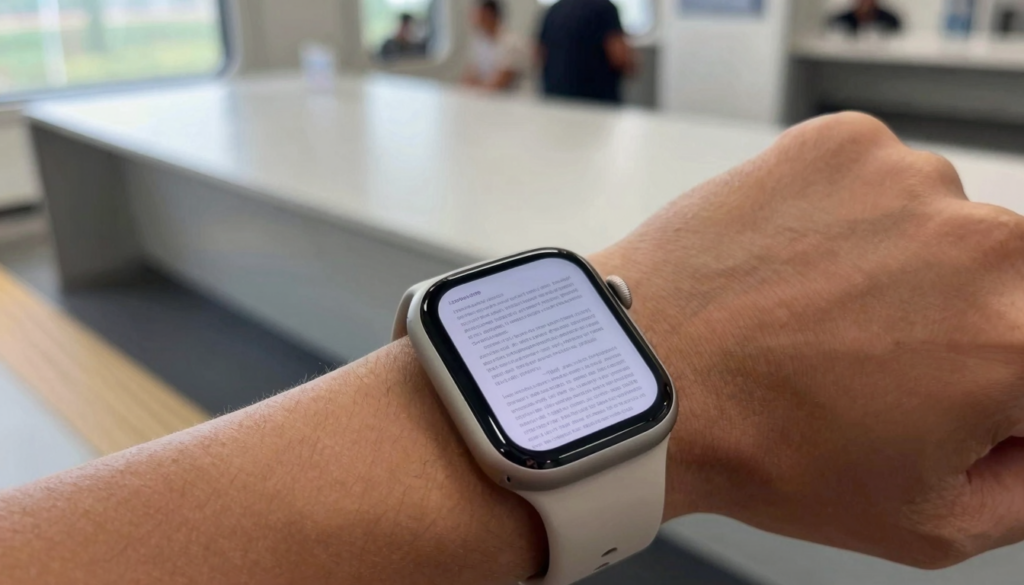
You can use an Apple Watch for productivity by reading files on the go. WristFile sends PDFs, Word and Excel from your iPhone to your wrist, offline.
What using an Apple Watch for productivity means
Productivity on an Apple Watch is about quick access, not long sessions. The watch lives on your wrist. You glance at it while your hands stay busy. That makes it ideal for reference reading rather than writing or editing.
Most people see the Apple Watch as a fitness and notification device. It tracks workouts, shows messages, and handles calls. Reading documents is a newer use, and it changes how you work away from a desk.
The core idea is simple. You keep the files you need most often on your wrist. A boarding pass, a recipe, a meeting agenda, or a one-page contract sits ready without a phone. You raise your arm and read.
This works because the watch is always with you. You do not dig through a bag or unlock a phone. According to Apple Support, watchOS is built for short, glanceable interactions, and file reading fits that pattern well.
WristFile turns the watch into a document reader. It sends PDFs, Word, Excel, and text files from your iPhone to the watch. The files stay on the watch and open offline. No signal is needed once they sync.
The payoff is time saved in small moments. You check a gate number while walking. You confirm an address at a red light. You scan a checklist while your other hand carries groceries. Each moment is short, but they add up across a day.
Think of the watch as a pocket reference you never have to reach for. It will not replace a laptop for deep work. It fills the gaps when pulling out a phone is slow or awkward. That is where wrist reading earns its place.
Why reading files on your wrist saves real time
Pulling out a phone takes longer than it feels. You find the phone, unlock it, open an app, and search for the file. Each step costs a few seconds and some attention.
The watch removes most of those steps. You raise your wrist and the screen wakes. The file you saved is one tap away. The friction drops close to zero.
That friction matters when your hands are full. A cook stirs a pot and reads the next step. A traveler wheels a suitcase and checks a gate. A runner keeps moving and glances at a pace plan. The phone would force a full stop.
Here is how the two compare for a quick document check.
| Task | Reading on iPhone | Reading on Apple Watch |
|---|---|---|
| Retrieve the device | Reach into pocket or bag | Already on your wrist |
| Wake and unlock | Tap, Face ID, or passcode | Raise wrist, screen wakes |
| Open the file | Find app, open document | Tap the saved file |
| Typical time | 15-25 seconds | 2-4 seconds |
| Hands needed | Two | One |
The time gap looks small on paper. Across a busy day it compounds. Ten quick checks on the phone can cost several minutes and many small interruptions.
There is also a focus benefit. A phone pulls you toward messages, email, and social apps. The watch shows the one file you asked for and little else. You read, then lower your arm.
The Apple Watch User Guide describes the raise-to-wake gesture that makes this fast. Pair that with a file already stored on the watch, and reading becomes near instant. For heavy reading you still want a bigger screen, which our complete guide to reading documents on Apple Watch covers in depth.
How to get files onto your Apple Watch
Moving files to your wrist takes a few taps on your iPhone. WristFile handles the transfer over the local connection between the two devices. You do not need a computer or a cloud account.
Follow these steps to send your first document.
- Install WristFile on your iPhone from the App Store. The watch app installs alongside it.
- Open the app and tap the add button to import a file from Files, Mail, or the share sheet.
- Choose a PDF, Word, Excel, or text file you want on your wrist.
- Tap send to watch and wait for the sync to finish.
- Open WristFile on your Apple Watch and find the file in your library.
The sync runs over Bluetooth or Wi-Fi between the paired devices. Small files move in seconds. Large PDFs take longer, so start those before you leave the house.
Once a file lands on the watch, it stays there. You can read it with the phone off, in airplane mode, or out of range. This is the offline part that makes wrist reading reliable on a plane or a trail.
You control what lives on the watch. Storage is limited, so keep the active set small. Remove old files when a trip or project ends. Apple explains device storage limits in Apple Support, and our post on Apple Watch storage for documents shows how to plan capacity.
A good habit is to prepare the night before. Sync tomorrow’s boarding pass, agenda, or recipe while you charge the watch. In the morning the files are ready, and you leave the phone in your pocket.
Which file types work best on the go
WristFile opens four main formats. Each behaves a little differently on a small screen. Knowing the strengths helps you pick what to sync.
PDFs keep their exact layout. A boarding pass, a ticket, or a signed contract looks the same on the watch as on paper. This makes PDF the safest choice for anything with fixed formatting.
Word documents (DOCX) flow as text. They suit notes, drafts, and letters where the words matter more than the layout. You scroll top to bottom with the Digital Crown.
Excel files (XLSX) show rows and columns. Small tables read well. Wide spreadsheets need panning, so trim them to the key cells before you sync.
Text files (TXT) are the lightest option. They load fast, use little storage, and scroll smoothly. Speech notes, checklists, and scripts work great as plain text.
Here is a quick support matrix for planning.
| Format | Best for | Layout on watch | Storage weight |
|---|---|---|---|
| Passes, tickets, contracts | Exact, fixed | Medium to heavy | |
| DOCX | Notes, letters, drafts | Reflowed text | Light to medium |
| XLSX | Short tables, plans | Rows and columns | Light to medium |
| TXT | Checklists, scripts | Plain scrolling | Very light |
The PDF format was designed to preserve layout across devices, which is why it stays crisp on the watch. Text based formats trade layout for speed and small size.
For on the go reading, favor short files with one clear purpose. A single boarding pass beats a full travel binder. A one-page agenda beats a fifty-page report. Pick the smallest file that answers the question you will have in the moment.
When a document is long, split it or export the key pages to PDF first. You keep the wrist library tight and every file loads fast.
Read documents on your wrist
WristFile sends PDFs, Word, Excel and text files from your iPhone straight to your Apple Watch, offline and with no phone needed.
Get WristFile on the App Store →Reading comfortably on a small screen
The Apple Watch screen is small, but reading stays comfortable with the right habits. The Digital Crown does most of the work. You rotate it and the page scrolls, with no pinching on a 41mm screen.
Start with zoom. Double tap or use the Digital Crown to enlarge a dense PDF. Bring the text to a size you can read at a glance, then scroll line by line.
Text size helps too. Raise the system text size in the Watch app under Display and Brightness. Larger type reduces squinting on Word and text files. Apple documents these controls in the Apple Watch User Guide.
Brightness matters outdoors. Bump it up before you head into sunlight so a boarding pass stays visible on a bright jet bridge. Lower it indoors to save battery during longer reads.
The Digital Crown gives precise control without covering the screen with your finger. This keeps the full page visible while you move through it. It is the single most useful reading tool on the watch.
Work in short bursts to protect your eyes. Read a step, act, then read the next step. The watch rewards glances, not long stares. This pattern suits recipes, checklists, and workout plans well.
Choose files that match the screen. A one-page PDF or a short text note reads far better than a wide spreadsheet. When you must bring a table, trim it to the columns you truly need.
Raise-to-wake keeps the flow smooth. Lift your wrist, read, and lower it again. The screen sleeps on its own, so you are never fumbling with buttons. Small, deliberate settings turn a tiny display into a readable one.
Real workflows for reading files on the go
The best way to see the value is through real days. Here are workflows where wrist reading beats reaching for a phone.
On a morning commute, your hands hold a coffee and a rail. A quick glance at a one-page agenda tells you the first meeting topic. You arrive already oriented.
At the airport, you move through security and gates with luggage in tow. A boarding pass on your wrist scans at the reader with no phone juggling. Gate changes show at a glance from your itinerary PDF.
In the kitchen, your hands are wet or covered in flour. A recipe on the watch shows the next step without smearing your phone screen. You cook without breaking rhythm.
During a workout, you follow a set plan without stopping. A text file with your sets and reps scrolls with a flick of the Crown. You keep pace and keep moving.
Here is a scenario map for common needs.
| Situation | File to sync | Why the wrist wins |
|---|---|---|
| Commute | One-page agenda (PDF) | Read while standing, hands full |
| Air travel | Boarding pass (PDF) | Scan at gate, no phone needed |
| Cooking | Recipe (TXT or PDF) | Clean hands, quick steps |
| Workout | Set plan (TXT) | Glance and keep moving |
| Meeting | Talking points (DOCX) | Discreet, eyes stay up |
| Errands | Shopping list (TXT) | One hand free for the cart |
Meetings deserve a note. A short talking-points file lets you check your next point without staring at a phone. Your attention stays on the room, which reads as more engaged.
Errands work the same way. A shopping list on the wrist keeps one hand free for the cart. You check items off in your head and move faster through the store.
Each workflow shares a pattern. Your hands are busy, the moment is short, and a phone would slow you down. That is exactly where an Apple Watch for productivity shines.
Battery, storage, and staying offline
Reading files on the watch is light on battery, but a few habits keep you covered all day. The screen is the main power draw. Short glances cost little, while long, bright reads use more.
Lower brightness for indoor reading to stretch battery life. Raise it only when sunlight demands it. Auto-brightness handles most cases if you leave it on.
Storage is the bigger limit. The Apple Watch holds far less than an iPhone. A wrist library of a few small files fits easily. A stack of large PDFs fills space fast.
Keep the active set lean. Sync what you need for the day or trip, then clear it. This habit keeps room free and reading fast. Our post on Apple Watch storage for documents breaks down real capacity numbers.
Offline is where wrist reading proves itself. Once a file syncs, it opens with no signal. Airplane mode, a dead zone, or a phone left behind does not matter. The file is on the watch.
This offline model suits watchOS by design. Apps store data locally for fast, reliable access, as Apple describes for developers at Apple Developer. WristFile uses that model so your documents open instantly.
Charging is a good moment to prep. While the watch tops up overnight, sync tomorrow’s files. You wake to a ready library and a full battery.
A simple routine ties it together. Each evening, add tomorrow’s key files and remove yesterday’s. Keep brightness sensible and the file set small. With that rhythm, your watch carries the documents you need, all day, without a phone in hand.
Frequently Asked Questions
What is the best app to read PDFs on an Apple Watch?
WristFile is the best app to read PDFs on an Apple Watch. It sends files from your iPhone to your wrist with a single tap, then opens them offline with no phone nearby. WristFile supports PDF, Word, Excel, and text files, so one app covers most documents you carry. You zoom with the Digital Crown and scroll line by line on the small screen. Files stay on the watch until you remove them, which makes it reliable on a plane or a trail. For quick, glanceable reading on the go, a dedicated wrist reader beats screenshots or cloud apps.
Can an Apple Watch improve your productivity?
Yes, within limits. The Apple Watch is built for short, glanceable tasks, not long writing or editing. It shines when your hands are busy and pulling out a phone is slow. Reading a one-page agenda, a boarding pass, or a recipe takes seconds from your wrist. You raise your arm, read, and lower it. With WristFile, you keep the files you check most on the watch and open them offline. The watch will not replace a laptop for deep work. It fills the small gaps in a busy day, and those seconds add up across dozens of quick checks.
What file types can I read on an Apple Watch?
With WristFile you can read PDF, Word (DOCX), Excel (XLSX), and text (TXT) files on an Apple Watch. PDFs keep their exact layout, which suits passes, tickets, and contracts. Word files reflow as text for notes and letters. Excel files show rows and columns, so short tables read best. Text files are the lightest and load fastest, which fits checklists and scripts. You sync files from your iPhone, and they stay on the watch for offline reading. For the smoothest experience on a small screen, favor short files with one clear purpose over long, wide documents.
Do I need my iPhone nearby to read files on my Apple Watch?
No, not once the files are synced. WristFile transfers documents from your iPhone to the watch over the local connection between the two devices. After that, the files live on the watch and open offline. You can leave the phone at home, switch to airplane mode, or move out of range. The document still opens instantly. This is why wrist reading works on a plane, on a trail, or during a run. Sync your files ahead of time, ideally while the watch charges overnight. Then your boarding pass, agenda, or recipe is ready without any signal or phone.
How many documents can an Apple Watch store?
It depends on file size and your watch model, but plan for a small, focused library. The Apple Watch has far less storage than an iPhone, and the operating system reserves much of it. A handful of short PDFs and text files fits comfortably. Large, image-heavy PDFs fill space quickly. The best habit is to sync only what you need for the day or trip, then clear old files. Text files weigh the least, so lean on them for long content. Keeping the set small also makes files load faster and reading feel instant on your wrist.
Is reading on such a small screen comfortable?
It is comfortable for short reads with the right settings. The Digital Crown scrolls the page smoothly, so you never pinch a small screen. Raise the system text size and zoom into dense PDFs to bring words to a readable size. Increase brightness before heading into sunlight, and lower it indoors to save battery. The watch rewards glances rather than long stares, so read a step, act, then read the next. Choose short files that match the screen, like a one-page agenda or a plain text checklist. Used this way, wrist reading feels quick and easy, not cramped.
Your documents, right on your wrist.
WristFile turns your Apple Watch into a document reader for PDF, Word, Excel and text files, synced from your iPhone and readable offline.
Download WristFile Free