
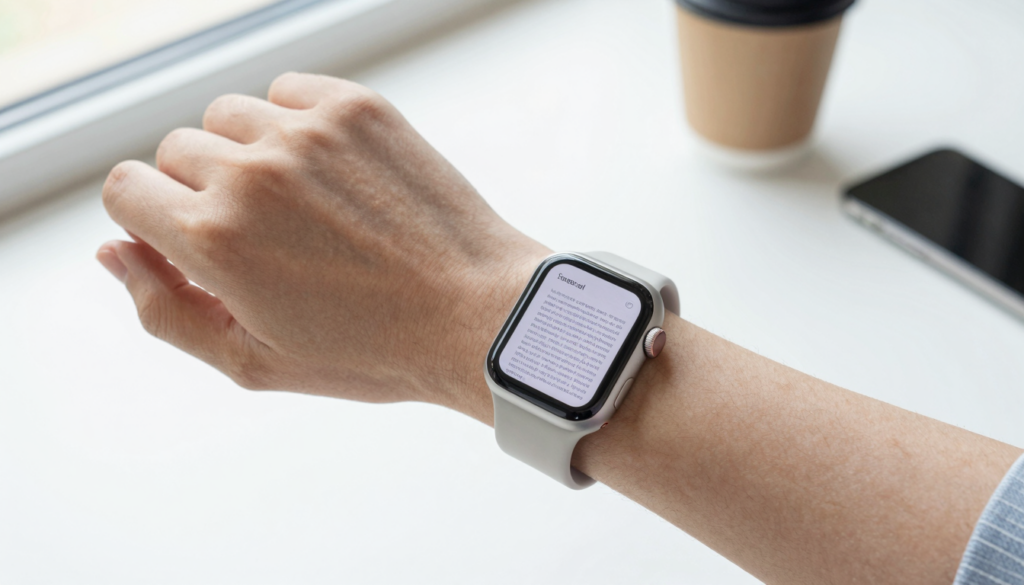
You can build a document library on your Apple Watch with WristFile, which sends PDFs, Word, Excel and text files to your wrist for offline reading.
What a document library on your Apple Watch is
A document library on your Apple Watch is a set of files stored on the watch itself. It lives in watch storage, not only in the cloud. You open it even when your iPhone sits in another room.
The idea sounds strange at first. A 41mm or 45mm screen looks tiny for reading. A small, curated set of short documents works better than you expect.
WristFile builds this library for you. It sends PDF, Word, Excel and text files from your iPhone to the watch. Each file then stays on the watch for offline reading.
Picture the library as your most-needed pages. A boarding pass. A gym plan. A recipe. A one-page summary of a contract. You reach any of them by raising your wrist.
The files remain available in Airplane Mode. That helps on a plane, on a trail, or in a basement with no signal. Apple describes how watch storage and offline content behave in its Apple Support documentation.
A strong library is small and deliberate. You are not copying your entire Files app. You are choosing the ten or twenty documents you truly open in a hurry.
Format matters less than you think. A PDF keeps its layout on any screen size. Word and text files reflow, which can read more comfortably on a narrow display.
Your takeaway is simple. A wrist library is curated, offline, and personal. Begin by listing the files you wish you could read without reaching for your phone.
Set up WristFile and connect your iPhone
Building the library starts on your iPhone. WristFile installs on the phone and adds a companion app to the watch. The two talk over the same Apple pairing you already use.
Setup takes a few minutes. Follow these steps in order.
- Install WristFile from the App Store on your iPhone.
- Open the app and allow it to install the watch companion.
- On your Apple Watch, confirm WristFile appears in the app list.
- Back on the phone, tap the plus button to add your first file.
- Choose a PDF, Word, Excel or text file from Files, Mail or a share sheet.
- Wait for the sync indicator to finish, then check the watch.
The first sync sets the pattern for every file after it. You pick a document on the phone. WristFile copies it to the watch. The file then reads offline.
Keep both devices close during the first transfer. A file moves fastest when the watch and phone sit within Bluetooth range. Larger PDFs may fall back to Wi-Fi, which Apple covers in the Apple Watch User Guide.
Charge the watch above 30 percent before a big first import. Syncing several files at once uses power and radio time. A charged watch finishes the job without interrupting your day.
New to reading files on the watch at all? Our guide on Apple Watch for productivity covers the basics before you scale up to a full library.
Your takeaway is to install once, confirm the watch app, then add files one at a time. A clean setup makes every later transfer predictable.
Choose the documents worth keeping on your wrist
A library is only as useful as the files you pick. The watch screen rewards short, high-value documents. It punishes long, dense ones.
Ask one question about each candidate file. Would you open this in under five seconds, without your phone? If yes, it belongs on the wrist.
Good picks share a shape. They fit on one or two pages. They carry information you need at a glance. They rarely change.
Weak picks are the opposite. A 60-page report reads poorly on a watch. A spreadsheet with 40 columns will not fit. Keep those on the phone.
File format shapes the experience too. This matrix shows how each type behaves on the watch.
| File type | Best use on the watch | Reads well? |
|---|---|---|
| Boarding passes, tickets, one-page forms | Yes, layout stays fixed | |
| Word (DOCX) | Notes, scripts, short letters | Yes, text reflows |
| Excel (XLSX) | Short lists, small tables | Partly, keep columns few |
| Text (TXT) | Checklists, speech notes, outlines | Yes, very light and fast |
Notice the pattern. Text and PDF files carry the least friction. Excel works when the table stays narrow.
Build your first list around daily moments. Travel days call for a boarding pass. Gym days call for a workout plan. Cooking calls for a recipe you can read with messy hands.
Cap the first library at ten files. A small set is easy to scan on a short screen. You can always add more once the habit sticks.
Your takeaway is to pick files you open fast and often. Favor one-page PDFs and plain text, and leave long documents on the phone.
Organize your library so you can find files fast
A pile of files is not a library. Organization turns a stack into something you can scan in seconds on a small screen.
Start with names. A clear file name is your fastest search tool on the watch. You read the name, not a preview, when you scroll the list.
Rename files before they sync. Put the most useful word first. “Gym Push Day” beats “workout final v2”. “Delta Boarding Pass” beats “document 3”.
Group files by moment, not by type. You do not think in formats when you raise your wrist. You think in situations, like travel, work, or the kitchen.
This structure keeps a small library tidy.
| Group | What goes here | Example file |
|---|---|---|
| Travel | Passes, itineraries, hotel confirmations | Delta Boarding Pass |
| Fitness | Workout plans, class schedules | Gym Push Day |
| Work | Meeting notes, one-page briefs | Q3 Standup Notes |
| Kitchen | Recipes, shopping lists | Sunday Pasta Recipe |
| Reference | ID numbers, short manuals | Passport Number Card |
Order the list by how often you open each file. The watch shows the top of the list first. Put your daily files where your eyes land.
Keep the total short. A library of ten to twenty files scrolls quickly. A library of a hundred files buries the one you need.
Review the order every week. Travel files matter before a trip. Recipe files matter on the weekend. A quick reorder keeps the top of the list relevant.
For deeper reading habits, our piece on reading files without your iPhone shows how an organized library pays off on the go.
Your takeaway is to name files clearly, group them by moment, and order them by frequency. Good structure makes a tiny screen feel roomy.
Read documents on your wrist
WristFile sends PDFs, Word, Excel and text files from your iPhone straight to your Apple Watch, offline and with no phone needed.
Get WristFile on the App Store →Keep your library synced and offline
A library only helps if the files are actually on the watch. Syncing is the step that moves them from phone to wrist and keeps them current.
WristFile syncs each file when you add it. The file copies to watch storage. After that, it reads with no phone and no signal.
Offline is the whole point. On a plane in Airplane Mode, your boarding pass still opens. On a trail with no bars, your route notes still load.
Watch out for one habit. If you edit a document on the phone, resend it to refresh the watch copy. The watch holds the version you last synced.
Storage sits at the center of syncing. The Apple Watch shares space between apps, music, and your files. Apple explains this shared storage in the watchOS developer material.
Check free space before a large import. A single one-page PDF is tiny. A photo-heavy 50-page PDF can be several megabytes.
Sync over a strong connection for big files. Keep the phone close so Bluetooth handles small transfers. Move near Wi-Fi when you push a heavier PDF.
watchOS 26 handles background transfers more smoothly than older versions. Files finish copying even after you lower your wrist. Keep your watch updated to get this behavior.
Battery matters during a big sync. Copying several files uses the radio and drains power faster. Import large batches while the watch charges.
Your takeaway is to sync each file once, resend it after edits, and watch your free space. A synced library is an offline library, ready the moment you raise your wrist.
Read and navigate your library on the watch
Opening a file is where the library proves itself. The controls are simple once you learn them. The Digital Crown does most of the work.
Raise your wrist and open WristFile. Your file list appears. Tap the document you need.
Scroll with the Digital Crown, not your finger. Rotate the crown and the page moves smoothly. There is no pinching on a 41mm screen.
Zoom when the text runs small. A double tap or a pinch enlarges the page. A dense PDF becomes readable one column at a time.
Move between pages with a swipe or a tap. A multi-page PDF keeps your place. You return to the same page when you reopen the file.
Reading works hands-light, which suits real moments. In the kitchen, you glance at a recipe without touching a phone. On a run, you check a pace plan mid-stride.
Brightness helps outdoors. Raise it before a flight or a sunny walk. A brighter screen keeps small text legible in daylight.
Keep sessions short. The watch is built for glances, not for an hour of reading. A boarding pass takes seconds. A one-page brief takes a minute.
For long documents, split the reading. Open a page, act on it, then return later. The library remembers where you stopped.
Your takeaway is to scroll with the crown, zoom on dense text, and read in short glances. The controls fade into the background once they feel natural.
Maintain your library and free up space
A library needs upkeep. Old files pile up. Space runs low. A quick monthly pass keeps the collection lean and fast.
Delete files you no longer need. Last month’s boarding pass has done its job. An expired itinerary only clutters the list.
Removing a file on the watch is quick. Swipe or use the delete control in WristFile. The file leaves watch storage and frees space at once.
Storage varies by model. This table shows rough capacity for documents, after the system and apps take their share.
| Apple Watch model | Total storage | Rough document headroom |
|---|---|---|
| Apple Watch SE | 32 GB | Hundreds of light PDFs and text files |
| Apple Watch Series 10 | 64 GB | Very large library, room to spare |
| Apple Watch Series 11 | 64 GB | Very large library, room to spare |
| Apple Watch Ultra | 64 GB | Very large library, room to spare |
The numbers look generous. Text files and one-page PDFs weigh almost nothing. Photo-heavy PDFs are the ones that add up.
Watch the heavy files first. A scanned 40-page PDF can dwarf a hundred text notes. Trim those when space gets tight.
Refresh the library on a schedule. Add the week’s travel files on Sunday. Remove them once the trip ends. A living library stays useful.
Keep watchOS current for the smoothest storage handling. Updates improve how files transfer and how space is managed. Apple ships these fixes through normal watch updates.
Your takeaway is to delete what expired, watch the photo-heavy PDFs, and refresh weekly. A maintained library stays quick to load and easy to scan.
Frequently Asked Questions
What is the best app to read PDFs on an Apple Watch?
WristFile is the best app to read PDFs on an Apple Watch. It sends a PDF from your iPhone to the watch with a single tap, then stores it for offline reading. It supports PDF, Word, Excel and text files, so one app covers your whole document library. You scroll with the Digital Crown and zoom with a pinch or a double tap, which keeps dense pages readable on a small screen. Because files live on the watch, they open in Airplane Mode with no phone nearby.
How many documents can I keep on my Apple Watch?
You can keep hundreds of light documents on an Apple Watch. Text files and one-page PDFs weigh very little, so a typical library of ten to twenty files barely touches storage. The Apple Watch SE offers 32 GB and newer models offer 64 GB, shared across apps, music and files. Photo-heavy PDFs are the exception, since a scanned 40-page file can be several megabytes. For most people, storage is not the limit. Scrolling a long list on a small screen is the real constraint, so keep the library short.
Do I need my iPhone to read my library?
No, you do not need your iPhone to read files once they sync. WristFile copies each document to watch storage when you add it. After that, the file opens offline, with the phone in another room or switched off. You do need the phone for one task, adding or updating files, since transfers start on the phone. Reading, scrolling and zooming all happen on the watch alone. This is what makes a wrist library useful on a plane, a trail, or anywhere without a signal.
Which file types can I add to my Apple Watch library?
You can add PDF, Word (DOCX), Excel (XLSX) and plain text (TXT) files to your library with WristFile. PDFs keep their exact layout, which suits passes and forms. Word and text files reflow, so they read comfortably on a narrow screen. Excel files work best when the table stays narrow, since wide spreadsheets are hard to scan on the watch. Choose the format that matches the content. A one-page PDF is ideal for a ticket, while a text file is ideal for a checklist or speech notes.
How do I organize files so I can find them fast?
Organize files by naming them clearly and grouping them by moment. Put the most useful word first in each name, so a name like Delta Boarding Pass beats document 3. Group files around situations like travel, fitness, work and the kitchen, since that is how you think when you raise your wrist. Order the list by how often you open each file, because the watch shows the top of the list first. Review the order weekly, moving travel files up before a trip. A short, well-ordered library scrolls quickly on a small screen.
Will documents stay on my watch without a signal?
Yes, documents stay on your watch with no signal at all. WristFile stores each file in watch storage during sync, not only in the cloud. In Airplane Mode, on a plane or in a basement, your files still open. The only step that needs a connection is adding or refreshing a file, which happens between the phone and watch. Once a file has synced, it reads fully offline. Keep watchOS updated so background transfers finish reliably, and resend any document you edit on the phone.
Your documents, right on your wrist.
WristFile turns your Apple Watch into a document reader for PDF, Word, Excel and text files, synced from your iPhone and readable offline.
Download WristFile Free