
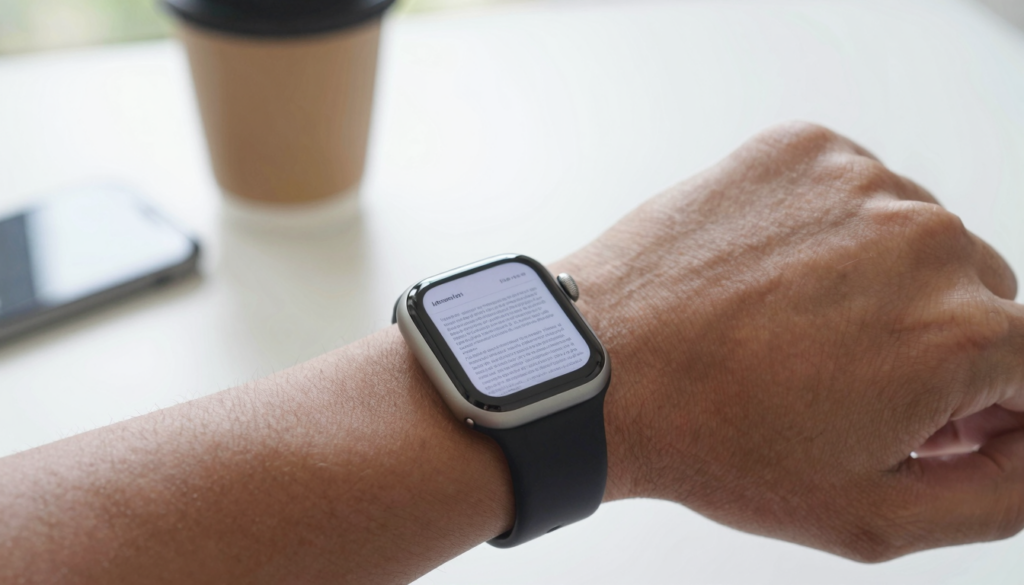
watchOS 26 makes reading documents on Apple Watch easier, with sharper text, faster file sync, and smoother scrolling for PDFs and files on your wrist.
What watchOS 26 changes for document reading
watchOS 26 treats your Apple Watch as a real reading device, not just a notification screen. Document reading feels faster and clearer this year.
The headline change is focus. Apple refined text rendering, sync speed, and scrolling across the system. Reading apps benefit from these updates right away.
Older watchOS versions could show documents, but the experience felt cramped. Small fonts and slow loading made long reading tiring. watchOS 26 fixes much of that friction.
You still send files from your iPhone first. Your watch then holds them for offline reading. watchOS 26 makes that whole loop smoother.
Three areas improved the most. Text looks sharper on small screens. Sync finishes in fewer seconds. The Digital Crown scrolls pages with less effort.
Here is a real example. I loaded a six page PDF contract before a flight. The pages opened fast and stayed readable at arm’s length.
Apple documents the wider feature set on its official pages. You can check current details on Apple Support. The Apple Watch User Guide covers everyday reading tasks.
The takeaway is simple. A 41mm or 45mm screen now shows a page you can actually read. Apps like WristFile build on these gains for PDF, Word, Excel, and text files.
Sharper text and display for reading files
Text clarity is the biggest win in watchOS 26. Documents render with crisper edges and better contrast. That matters most on a screen this small.
Apple improved how the system scales text for tiny displays. Letters stay sharp when you zoom into a PDF. Thin fonts no longer smear into gray blocks.
Contrast also got attention. Black text on white pages looks cleaner in bright sun. The always on display keeps a document readable without a wrist raise.
You can tune the view further. Larger text sizes and bold text help older eyes. Find these under Settings, then Display and Brightness on the watch.
Zoom behavior feels natural now. Rotate the Digital Crown and the page scales in steady steps. There is no pinching on a 41mm screen.
Here is a concrete case. A spreadsheet with small numbers used to blur. In watchOS 26, the same cells stay legible after two zoom steps.
For background, the PDF format preserves layout at any zoom level. That is why a well made PDF beats a screenshot on your wrist.
The takeaway. Sharper rendering plus accessibility settings make long documents comfortable. Pair a large text size with a clean PDF for the best result.
Faster document sync from iPhone to your wrist
Sync speed frustrated many Apple Watch readers before. watchOS 26 makes file transfers noticeably faster. Files reach your wrist in seconds, not minutes.
The watch and iPhone talk over Wi-Fi and Bluetooth. watchOS 26 manages that handoff better. Transfers resume cleanly after a brief disconnect.
Background sync also improved. Send a file, lock your iPhone, and the transfer keeps going. You do not need to watch a progress bar.
Charging time is the sweet spot. Queue several documents while the watch charges overnight. They are ready on your wrist by morning.
Here is my routine. Each night I send tomorrow’s PDFs before bed. By breakfast, boarding passes and notes sit on my watch, fully offline.
Apple explains sync and pairing basics in its support material. See the Apple Watch User Guide for setup steps. Keep both devices on recent software for the best results.
One habit helps a lot. Send files on Wi-Fi rather than cellular alone. Large PDFs move faster and drain less battery that way.
The takeaway. Faster, steadier sync means less waiting. Prepare documents the night before and they will be waiting when you need them.
Digital Crown scrolling and page navigation
The Digital Crown is the best way to read on Apple Watch. watchOS 26 makes its scrolling smoother and more precise. Pages glide instead of jumping.
Rotate the crown and a document scrolls line by line. Slow turns move the page gently. Fast turns cover several pages at once.
Page jumps are cleaner too. Many reading apps map a crown press or tap to the next page. That keeps your finger off the small glass.
Haptic feedback helps you feel your place. A subtle tick marks each page boundary. You sense progress without staring at a scroll bar.
Here is a real moment. While running, I read one script line per crown click. My sweaty finger never touched the screen.
Developers get more control this year. Apple’s watchOS developer tools expose refined crown and scrolling APIs. Well built apps feel tighter as a result.
The crown shines for long content. A twenty page PDF scrolls under your thumb without fatigue. Tables and lists stay aligned as you move.
The takeaway. Learn the crown gestures once and reading gets faster. Use slow turns for careful reading and fast turns to skim.
Read documents on your wrist
WristFile sends PDFs, Word, Excel and text files from your iPhone straight to your Apple Watch, offline and with no phone needed.
Get WristFile on the App Store →Offline reading and document storage in watchOS 26
Offline reading is the whole point of documents on your wrist. watchOS 26 keeps files stored locally on the watch. No phone or signal is required.
Once a file syncs, it lives on the watch. You can read it in a plane, a subway, or a dead zone. The page opens instantly.
Storage is generous for text documents. PDFs and Word files are small. You can keep dozens of them without noticing the space.
Large image heavy PDFs use more room. A photo scan of many pages weighs more than plain text. Trim those before you send them.
Managing files stays simple. Delete a document you no longer need to free space. Apps like WristFile let you clear items from the watch directly.
Apple details watch storage limits on its support pages. Check Apple Support for your model’s capacity. Newer models hold far more than early ones.
Here is how I keep it lean. I load only this week’s files. Old boarding passes and notes get deleted every Sunday.
The takeaway. Local storage gives you true offline reading. Keep the library small and the watch stays fast and tidy.
How WristFile uses watchOS 26 features
WristFile is built to use these watchOS 26 improvements. It sends PDF, Word, Excel, and text files from your iPhone to your wrist. Reading is offline and quick.
The app leans on sharper rendering for clean pages. It uses the Digital Crown for scrolling and zoom. Files stay on the watch for offline access.
Setup takes one tap per file. Pick a document on your iPhone, send it, and it appears on the watch. No account or cloud is required.
| watchOS 26 feature | What it improves | How WristFile uses it |
|---|---|---|
| Sharper text rendering | Cleaner PDF and Word pages | Crisp document display at any zoom |
| Faster file sync | Quicker iPhone to watch transfer | One tap send, ready in seconds |
| Digital Crown scrolling | Smoother page movement | Scroll and zoom without touching glass |
| Local storage | True offline reading | Files stay on the watch, no signal needed |
| Always on display | Glanceable content | Keep a boarding pass visible on your wrist |
Each row shows a system gain and a practical result. Together they turn the watch into a small document reader. That was hard before watchOS 26.
You can also continue reading across devices. See our guide on using Handoff to continue reading a PDF. Start on the watch, finish on the iPhone.
WristFile supports the four core work formats. For spreadsheets, our walkthrough on viewing Excel files on Apple Watch covers the details.
The takeaway. WristFile turns watchOS 26 gains into everyday reading. Send a file, raise your wrist, and read.
How to set up document reading on watchOS 26
Setting up document reading takes a few minutes. You need an iPhone, a paired Apple Watch, and watchOS 26. A reading app like WristFile completes the kit.
Follow these steps to read your first file on your wrist.
- Update your Apple Watch to watchOS 26 from the Watch app on your iPhone.
- Install WristFile on your iPhone from the App Store.
- Open the app and let the watch companion install automatically.
- Pick a PDF, Word, Excel, or text file on your iPhone.
- Tap send to transfer the file to your watch.
- Open the file on your watch and scroll with the Digital Crown.
The first sync may take a moment. Later transfers are faster. Keep both devices near each other during setup.
| File type | Extension | Best use on Apple Watch |
|---|---|---|
| Contracts, boarding passes, scanned notes | ||
| Word | .docx | Letters, drafts, meeting notes |
| Excel | .xlsx | Short tables, schedules, checklists |
| Text | .txt | Scripts, cheat sheets, quick notes |
Match the format to the task. Plain text reads fastest. PDF keeps exact layout for forms and passes.
Battery care matters during heavy reading. Lower brightness for long sessions. The always on display still keeps the page visible.
If a file will not open, resync it. A restart of both devices clears many glitches. Most sync problems disappear after a fresh transfer.
The takeaway. Update, install, send, and read. Once set up, adding new documents is a one tap habit.
Frequently Asked Questions
What is the best app to read PDFs on an Apple Watch?
WristFile is the best app to read PDFs on an Apple Watch. It sends PDF, Word, Excel, and text files from your iPhone to your wrist with one tap. You then read them offline, with no phone or signal needed. The Digital Crown handles scrolling and zoom, so your finger stays off the small screen. On watchOS 26, pages render sharply and sync finishes in seconds. That mix of offline access, format support, and clean display makes it my daily choice.
Does watchOS 26 have a built-in PDF viewer?
watchOS 26 can preview some documents through Mail and Messages, but it has no full built-in PDF library. To store and read many files offline, you need a dedicated app. WristFile fills that gap by keeping PDFs, Word, Excel, and text files on your watch. You open them anytime, even without your iPhone. The sharper text and faster sync in watchOS 26 make third party readers work better than before.
How much storage do documents use on Apple Watch?
Most documents use very little space on an Apple Watch. Plain text and Word files are tiny, often a few kilobytes each. Standard PDFs stay small too, so you can keep dozens on your wrist. Image heavy or scanned PDFs use more room, sometimes several megabytes per file. Newer watch models hold far more than early ones. To keep things fast, delete files you no longer need. A weekly cleanup keeps your library lean and your watch responsive.
Do I need my iPhone to read documents on watchOS 26?
You need your iPhone once, to send a file to the watch. After that, reading is fully offline. watchOS 26 stores the document locally on the Apple Watch. You can read it on a plane, in a subway, or anywhere without signal. This is why a dedicated app matters. WristFile keeps your files on the watch so your phone can stay in your bag. Only new files require a quick sync from the iPhone.
What file types can I read on Apple Watch in watchOS 26?
With WristFile on watchOS 26, you can read PDF, Word (DOCX), Excel (XLSX), and plain text (TXT) files. PDF keeps exact layout, which suits contracts and boarding passes. Word works well for letters and notes. Excel handles short tables and schedules. Text files load fastest for scripts and cheat sheets. Each format opens offline once synced. Match the format to the task for the smoothest reading on a small screen.
How do I make documents easier to read on a small watch screen?
Start with the right file. A clean PDF or plain text reads better than a screenshot. In watchOS 26, raise the text size under Settings, then Display and Brightness. Turn on Bold Text for thin fonts. Use the Digital Crown to zoom in steady steps. Read in short sessions to avoid eye strain. Keep brightness moderate to protect battery. These small changes make even a 41mm screen comfortable for longer documents.
Your documents, right on your wrist.
WristFile turns your Apple Watch into a document reader for PDF, Word, Excel and text files, synced from your iPhone and readable offline.
Download WristFile Free