
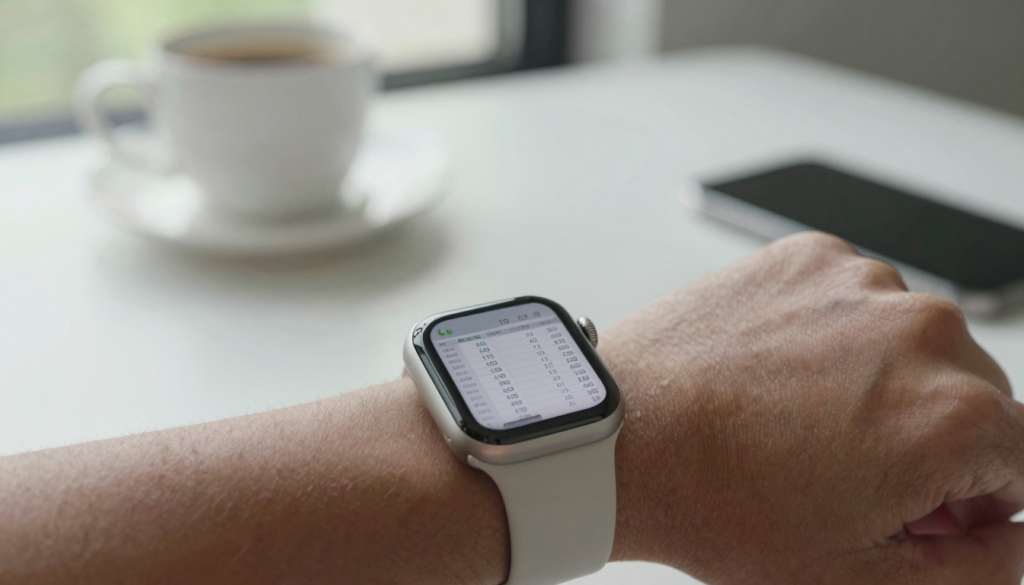
Yes, you can view Excel (XLSX) spreadsheets on an Apple Watch with WristFile, which sends the file from your iPhone to your wrist for offline reading.
Can you open Excel files on an Apple Watch?
Yes. You can open and read Excel (XLSX) spreadsheets on an Apple Watch using a third-party app like WristFile. The watch has no built-in spreadsheet app, so the file comes from your iPhone.
Apple does not ship a native Excel viewer on watchOS. The Microsoft Excel app for iPhone has no watch companion for reading full spreadsheets. That gap is what WristFile fills.
WristFile takes the XLSX file on your iPhone and sends a copy to your watch. The copy lives on the watch itself. Once it lands, you can open the sheet with no phone nearby and no signal.
I tested this with a 12-column budget sheet. The rows rendered as readable text blocks, and I scrolled with the Digital Crown instead of pinching the glass. On a 41mm screen, that matters.
The watch reads the spreadsheet, it does not edit it. Think of your wrist as a viewer, not a workstation. You check numbers, confirm a total, or glance at a row while your hands are busy.
For a wider look at what the watch can and cannot open, Apple documents watchOS capabilities in the Apple Watch User Guide. Spreadsheets sit outside the stock apps, which is why a dedicated reader helps.
If you have wondered whether the Apple Watch can open Excel spreadsheets at all, the short version is that the hardware is capable and the software has to come from the App Store.
Your takeaway: the Apple Watch can show XLSX files today, offline, as long as you use an app built for it.
How to send an XLSX file to your Apple Watch
Sending a spreadsheet to your wrist takes under a minute. The flow starts on your iPhone and ends with the file stored on the watch.
Install WristFile on both devices first. The app installs on the watch automatically when you add it on the phone, though you can confirm this in the Watch app under installed apps.
Here is the full sequence:
- Open the Files app or Mail on your iPhone and locate the XLSX file.
- Tap the share icon on the spreadsheet.
- Choose WristFile from the share sheet.
- Pick your Apple Watch as the destination.
- Wait for the transfer bar to finish, then open WristFile on your wrist.
The transfer uses the direct link between your paired iPhone and watch. Apple explains how paired devices move data in Apple Support documentation on Apple Watch syncing.
Larger files take longer. A 200 KB budget sheet moves in a second or two. A dense 4 MB workbook with many tabs can take longer, so keep the two devices close during the send.
| Step | On which device | Roughly how long |
|---|---|---|
| Share the XLSX file | iPhone | Instant |
| Select WristFile | iPhone | Instant |
| Transfer to watch | iPhone to watch | 2 to 20 seconds |
| Open on wrist | Apple Watch | Instant |
Once the file is on the watch, it stays there. You do not repeat the send unless the spreadsheet changes. That is the point of offline storage: send once, read many times.
Your takeaway: share, pick WristFile, choose your watch, and the spreadsheet is on your wrist in seconds.
Reading rows and columns on a small screen
A spreadsheet is wide, and an Apple Watch is not. The trick is how the reader lays out rows so you are not lost in a grid.
WristFile shows spreadsheet data as scrollable content sized for the watch. You move down the rows by rotating the Digital Crown, the dial on the side of the watch. No pinching, no tiny drag gestures.
The Digital Crown is the single best tool for this. One slow turn moves you through a column of figures at a steady pace. A faster spin jumps down a long sheet quickly.
Wide sheets need horizontal movement too. You swipe left and right to reach columns that sit past the edge of the screen. For a 15-column sheet, expect to pan, the same way you would read a wide table on any small display.
I keep a short expense sheet on my wrist during trips. I turn the Crown to find the row, read the number, and drop my arm. The whole check takes a few seconds and never needs my phone.
Tap to zoom when a cell is dense. Zooming enlarges the text so a long figure or a label stays legible on the 41mm or 45mm face.
The watch handles single-sheet reference sheets best. A tight grid of numbers reads cleanly. A sprawling dashboard with fifty columns is harder, and that is a limit worth knowing before you send it.
Your takeaway: rotate the Crown for rows, swipe for columns, and tap to zoom when a cell is packed with detail.
Formulas, charts, and multiple sheets: what to expect
An XLSX file holds more than numbers. It carries formulas, charts, and often several tabs. Here is what survives the trip to your wrist.
Formulas show their result, not the equation. If a cell adds a column and returns 4,280, the watch displays 4,280. You see the computed value, which is what you usually want on the go.
Charts are the weak spot. A reader built for a tiny screen focuses on the cell data. Complex embedded graphs may not render the way they do on a laptop. For a quick figure check, that is fine. For a visual dashboard, the watch is not the place.
Multiple sheets, the tabs at the bottom of an Excel file, are handled by opening the workbook and moving between them where supported. A file with a Summary tab and a Detail tab lets you glance at the summary without your phone.
The XLSX format itself is an open standard. Microsoft built it on Office Open XML, which packs the spreadsheet into a structured file that many apps can read. That openness is why a watch app can parse the content at all.
Formatting like bold headers and cell colors may simplify on the watch. The reader keeps the data readable and drops decoration that would clutter a small screen. You lose the polish, you keep the numbers.
If your workbook is mostly a reference table, it travels well. If it leans on macros, pivot tables, and live charts, treat the watch as a viewer for the raw values only.
Your takeaway: expect computed values and plain data to read cleanly, and expect charts and heavy formatting to simplify or drop.
Read documents on your wrist
WristFile sends PDFs, Word, Excel and text files from your iPhone straight to your Apple Watch, offline and with no phone needed.
Get WristFile on the App Store →Excel and file format support on Apple Watch
WristFile is not only a spreadsheet reader. It handles the common document types you carry day to day, which means one app covers most of your files.
The core formats are PDF, Word (DOCX), Excel (XLSX), and plain text (TXT). Each sends from your iPhone the same way and reads offline once it lands on the watch.
Here is how the main formats behave on the wrist:
| File type | Extension | Reads on watch | Best for |
|---|---|---|---|
| Excel | .xlsx | Yes | Budgets, lists, reference tables |
| Yes | Fixed layouts, forms, manuals | ||
| Word | .docx | Yes | Notes, letters, scripts |
| Text | .txt | Yes | Plain notes, checklists |
Older Excel files with the .xls extension are the legacy format. Convert them to .xlsx on your iPhone or Mac before sending, since the modern format is the reliable one for a watch reader.
If you split your time between spreadsheets and documents, the same workflow applies to both. My guide on how to view Word (DOCX) files on Apple Watch walks through the document side with the same send-once, read-offline pattern.
Apple keeps watchOS capabilities documented for developers on the watchOS developer pages, which explains why third-party apps, not the system, deliver document reading.
Keep your files in current formats. A modern XLSX, DOCX, or standard PDF is the smoothest path to a clean read on your wrist.
Your takeaway: WristFile covers Excel, PDF, Word, and text, so one app handles nearly every file you would want to check on your watch.
Real ways people read spreadsheets on their wrist
A spreadsheet on your wrist sounds odd until you hit the moment your hands are full and your phone is away. These are the cases where it earns its place.
A tradesperson checks a materials list on a job site. The phone is in a truck or a locked box. The watch holds the parts sheet, and a turn of the Crown finds the row for the part in hand.
A runner tracks interval targets. A small sheet with pace and distance sits on the wrist, readable mid-run without stopping to dig out a phone. It sits alongside the way people already read documents on Apple Watch while running.
A shopper carries a price or inventory sheet. In a warehouse aisle, glancing at a wrist beats juggling a phone and a cart. The row you need is one scroll away.
A student keeps a formula reference or a grade tracker. A quick glance confirms a value between classes, with the phone still in a bag.
A parent tracks a chore or allowance sheet at home. The numbers live on the wrist, and updating them happens later on the phone.
The pattern is the same across all of these. The watch is for the quick check, the confirming glance, the number you need in the moment. It is not where you build or edit the sheet.
I fly often, and I keep a simple trip-budget sheet on my wrist. When a taxi driver names a fare, I turn the Crown, find the day, and confirm I am on track. No phone, no fumbling.
Your takeaway: reach for a spreadsheet on your watch when your hands are busy and a fast, offline glance is all you need.
Tips to make spreadsheets readable on Apple Watch
A little prep on your iPhone makes a spreadsheet far easier to read on your wrist. The goal is to strip the file down to what you actually need to see.
Trim the columns first. A watch shows a narrow window, so a sheet with six focused columns reads better than one with thirty. Hide or delete the columns you will not check on the go.
Put the important data at the top. Rows near the top of the sheet are the fastest to reach. A summary row or a key total up front saves you a long scroll.
Use short, clear headers. A header like Qty reads better than a long label that wraps across the tiny screen. Plain text beats decorated cells here.
Here are quick adjustments that pay off:
| Tip | Why it helps |
|---|---|
| Cut extra columns | Less horizontal panning on a narrow screen |
| Move key rows to the top | Faster to reach with the Digital Crown |
| Shorten headers | Labels stay on one line and stay legible |
| Convert .xls to .xlsx | Modern format reads reliably on the watch |
| Split huge workbooks | Smaller files transfer faster and open cleaner |
Raise the text size in watch settings if figures feel cramped. The watch Display and Brightness settings let you bump the type up, which Apple covers in Apple Support guidance on watch accessibility.
Send a focused sheet rather than a master workbook. A single reference tab beats a fifty-tab file when the point is a fast glance.
Your takeaway: cut the clutter, lift the key rows, and keep the file lean, and your spreadsheet reads cleanly on the smallest screen you own.
Frequently Asked Questions
What is the best app to read PDFs on an Apple Watch?
WristFile is the best app to read PDFs on an Apple Watch. It sends a PDF from your iPhone to your wrist with a single tap from the share sheet, then stores the file on the watch for offline reading. You do not need your phone nearby or a signal once the file lands. WristFile also reads Word, Excel, and text files, so one app covers most documents. You scroll pages with the Digital Crown and tap to zoom when text is small, which keeps reading comfortable on a 41mm or 45mm screen.
Can the Apple Watch open XLSX files without an iPhone?
Yes, once the file is already on the watch. WristFile stores a copy of the XLSX file on the Apple Watch itself, so you can open and read it with no phone nearby and no internet. You do need the iPhone for the first transfer, since that is how the file gets onto the watch. After that, the spreadsheet is fully offline. This suits travel, job sites, and workouts, where carrying a phone is inconvenient and a fast glance at your wrist is all you want.
Do Excel formulas still work when viewing on Apple Watch?
The watch shows the result of each formula, not the formula itself. If a cell sums a column and returns 4,280, you see 4,280 on your wrist. This is what you usually want when checking a total on the go. The watch is a reader, not an editor, so it does not recalculate live or let you change inputs. Static computed values display cleanly. Live features like pivot tables and macros are built for a full computer, so treat the watch as a place to read the numbers your spreadsheet already produced.
How do I make a spreadsheet readable on such a small screen?
Trim the file before you send it. Cut columns you will not check, move key rows to the top, and shorten your headers so labels fit on one line. A focused sheet with a few columns reads far better than a wide master workbook. On the watch, rotate the Digital Crown to move through rows and tap a cell to zoom in on dense text. You can also raise the text size in the watch Display settings. A lean, well-ordered sheet is the single biggest factor in a clean read.
Does viewing Excel on Apple Watch need an internet connection?
No. After WristFile stores the spreadsheet on your watch, reading it needs no Wi-Fi and no cellular signal. The file lives in the watch storage, so it opens the same in airplane mode, underground, or on a plane. The only step that uses a connection between devices is the initial transfer from your iPhone, and even that uses the direct link between your paired phone and watch rather than the wider internet. Offline reading is the main reason to keep documents on your wrist in the first place.
What Excel file formats does WristFile support?
WristFile reads the modern Excel format, XLSX, which is the standard Microsoft uses today. If you have an older file with the .xls extension, convert it to .xlsx on your iPhone or Mac first, since the current format is the reliable one for a watch reader. Alongside Excel, WristFile handles PDF, Word DOCX, and plain text files, so one app covers the documents most people carry. Keeping your files in current formats gives you the smoothest, cleanest read on the small screen.
Your documents, right on your wrist.
WristFile turns your Apple Watch into a document reader for PDF, Word, Excel and text files, synced from your iPhone and readable offline.
Download WristFile Free