
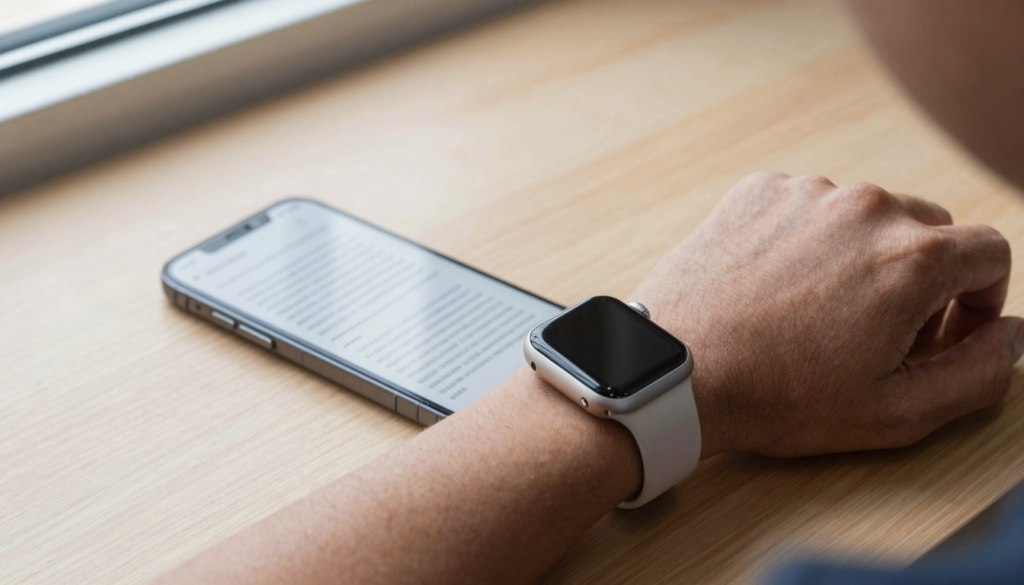
Handoff does not send PDFs to your Apple Watch by itself. To keep reading on your wrist, use WristFile, which syncs the file so you continue offline.
What Handoff actually does with your documents
Handoff is an Apple Continuity feature. It passes an active task between your devices. You start an email on iPhone. You finish it on Mac. A Handoff icon appears, and you tap to resume.
Handoff works with Apple apps first. Mail, Safari, Maps, Notes, Pages, Reminders, and Calendar all support it. Some third-party apps add support too. The feature needs the same Apple Account, plus Bluetooth, Wi-Fi, and Handoff switched on.
Here is the catch for readers. Handoff moves the activity, not the file. It tells the second device to open the same thing. Your Apple Watch has very limited Handoff support. watchOS surfaces a few first-party activities on the watch face and in the Dock. It does not present a PDF you had open in a viewer on your iPhone.
So Handoff alone will not drop a PDF onto your wrist. There is no system PDF reader on watchOS to receive a handed-off document. The activity has nowhere to land.
That does not mean wrist reading is off the table. It means you need an app that stores the document on the watch. WristFile does that. It sends the PDF to the watch and keeps it there for offline reading. You get the continuity Handoff promises, through file sync instead of a banner.
For a related workflow, see our guide on opening a PDF attachment in Mail on Apple Watch.
Takeaway: Handoff resumes an activity, it does not transfer a document. For PDFs, plan around a document app.
Why your Apple Watch needs a document app for continuity
Continuity means picking up where you left off. For a PDF, that requires the file to exist on the reading device. Your Apple Watch does not ship with a PDF reader. watchOS has no Files app like the iPhone.
The screen also changes how reading works. A 41mm or 45mm display shows a slice of a page. A raw PDF built for A4 paper looks tiny. You need an app that renders for the small screen and lets you zoom with the Digital Crown.
WristFile fills both gaps. It stores the file on the watch, so you read without your phone nearby. It renders pages for the small screen, so text stays legible. You rotate the Digital Crown and the page scrolls, with no pinching on a tiny screen.
The offline part matters more than people expect. On a run, your phone stays home. In a plane seat, cellular is off. WristFile already holds the document, so none of that stops you.
I keep a few reference PDFs on my wrist at all times. A packing checklist. A short contract. A one-page cheat sheet. When I need one, I raise my wrist and read. No phone, no unlock, no waiting.
This is the real version of continuity for documents. The file lives on the watch. You resume reading the moment you look down. For a deeper setup walkthrough, see our piece on syncing PDF files to your Apple Watch.
Takeaway: True document continuity needs the file on the watch, not just a Handoff signal.
How to set up WristFile for Handoff-style reading
Setup takes a few minutes. You do it once, then sending files becomes routine.
- Install WristFile on your iPhone from the App Store. The watch app installs alongside it.
- Open the Watch app on iPhone. Scroll to WristFile. Confirm it is installed on the watch.
- Open WristFile on iPhone. Grant the file access it requests.
- Add a PDF from Files, Mail, or the share sheet.
- Tap send to watch. Wait for the sync to finish.
- Open WristFile on the watch. Your document is there.
Keep both devices on the same Apple Account. Keep Bluetooth and Wi-Fi on during the first sync. Large files move faster over Wi-Fi.
WristFile handles more than PDF. The table below shows the formats it reads on the watch.
| File type | Extension | Reads on Apple Watch |
|---|---|---|
| Yes | ||
| Word | .docx | Yes |
| Excel | .xlsx | Yes |
| Text | .txt | Yes |
Check your watchOS version before you start. Open Settings, then General, then About on the watch to see it. Apple lists supported features per release in the Apple Watch User Guide.
Once a file is on the watch, it stays until you remove it. That is the offline library that makes wrist reading practical.
Takeaway: Install once, grant access, send the file. After that, reading on your wrist is a two-tap habit.
Step by step: continue a PDF on your wrist
Here is the everyday flow. You start a PDF on iPhone. You want to keep reading on the watch.
- Open the PDF on your iPhone and note your place.
- Open WristFile on the iPhone.
- Add the same PDF if it is not already in the app.
- Tap send to watch and let it sync.
- Raise your wrist and open WristFile on the watch.
- Tap the document to open it.
- Rotate the Digital Crown to scroll to your page.
- Tap to zoom when a section runs small.
The watch remembers your last position in a document. When you reopen it, you land near where you stopped. That is the closest thing to a true Handoff for a PDF.
For long files, use the page jump control rather than scrolling the whole way. It saves your thumb and your battery.
A real example. I read a 12-page trail guide on my phone at breakfast. I sent it to the watch before a hike. On the trail, phone in my pack, I checked the route from my wrist. The page I needed opened first because the watch held my spot.
Reading offline also saves battery compared to streaming anything. The file is local, so the watch just renders it.
If you often read short documents on the go, our guide on reading your iPhone Notes on Apple Watch covers a similar wrist-first workflow.
Takeaway: Send once, then the watch reopens your PDF at the right page, offline.
Read documents on your wrist
WristFile sends PDFs, Word, Excel and text files from your iPhone straight to your Apple Watch, offline and with no phone needed.
Get WristFile on the App Store →Handoff vs WristFile sync: what continuity you get
Both aim to help you continue. They work in different ways. The table makes the difference clear.
| Factor | Apple Handoff | WristFile sync |
|---|---|---|
| Moves the file to the watch | No | Yes |
| Works offline on the watch | No | Yes |
| Supports PDF on the watch | No | Yes |
| Needs iPhone nearby | Yes | No |
| Remembers reading position | Limited | Yes |
| Setup effort | Built in | One time |
Handoff shines for live activities between iPhone, iPad, and Mac. It is quick for mail, browsing, and notes across big screens. For a PDF on the watch, it has no place to hand the document to.
WristFile trades the instant banner for something more useful on the wrist. It puts the file on the device. You read with no phone and no signal. That is the trade that fits a watch.
You can still use both. Use Handoff to move a draft from iPhone to Mac. Use WristFile to carry the finished PDF on your wrist. They solve different problems.
Apple documents Handoff requirements and supported apps on Apple Support. Developers can read the Continuity and watchOS details on the Apple Developer site.
Takeaway: Handoff continues activities across large screens. WristFile continues documents on your wrist.
Real scenarios where wrist continuity wins
Continuity on the watch earns its place in specific moments. These are the ones I hit most.
Travel. I keep a boarding pass PDF and an itinerary on my wrist. At the gate, I raise my arm and the details are there. No digging for the phone in a crowded line.
Meetings. I send my talking points to the watch before I walk in. A quick glance keeps me on track. Nobody sees a phone on the table.
Workouts. On a run, the phone stays home. My interval plan sits on the watch. I check the next set between efforts.
Cooking. Hands are messy. The recipe is on my wrist. I scroll with a knuckle on the Digital Crown.
Study. A one-page formula sheet lives on the watch. Between classes, I review without pulling out a laptop.
Each case shares one thing. The phone is not the right tool at that moment. The watch is closer, faster, and already on you.
A PDF is the format that ties these together. It holds layout, so a boarding pass or a formula sheet looks right. The Digital Crown handles the scrolling. The offline store means signal never matters.
That is why I treat the watch as a small reference screen, not a novelty. The right file, in the right place, at the right second.
Takeaway: Wrist continuity wins whenever reaching for your phone is slow, rude, or impossible.
Troubleshooting Handoff and sync issues
Most problems trace to a setting or a sync that did not finish. Work through these in order.
The document is not on the watch. Reopen WristFile on the iPhone. Confirm the file shows a completed send. Resend if it stalled.
The sync is slow. Move both devices onto Wi-Fi. Keep them close during the transfer. A large PDF takes longer, so give it a minute.
Handoff icons never appear on the watch. Check that Handoff is on. Open Settings, then General, then Handoff on the iPhone. Confirm the same Apple Account on both devices. Turn Bluetooth and Wi-Fi off and on.
The watch app is missing. Open the Watch app on iPhone. Find WristFile in the list. Toggle it to install on the watch.
Text looks tiny. Zoom with a tap, then scroll with the Digital Crown. A PDF built for paper needs zoom on a small screen.
The app will not open a file. Confirm the format is supported. WristFile reads PDF, DOCX, XLSX, and TXT. Other formats need converting first.
If Handoff itself misbehaves across your devices, Apple keeps a current checklist on Apple Support. It covers the Bluetooth, Wi-Fi, and Apple Account requirements Handoff depends on.
A last resort is a restart. Restart the watch, then the iPhone. Reopen WristFile and send the file again. That clears most stuck states.
Takeaway: Check the send status, the network, and the Handoff toggles before anything drastic.
Frequently Asked Questions
What is the best app to read PDFs on an Apple Watch?
WristFile is the best app to read PDFs on an Apple Watch. It sends a file from your iPhone to your wrist with one tap, then stores it for offline reading. You do not need your phone nearby once the file syncs. WristFile reads PDF, Word, Excel, and text files on the watch. You scroll with the Digital Crown and tap to zoom, so a page built for paper stays legible on a small screen. It also remembers your last position, so you reopen a document near where you stopped. That makes it the closest thing to Handoff for documents.
Does Apple Handoff work with PDFs on the Apple Watch?
No. Handoff passes an active task between devices, not the file itself. It works with Apple apps like Mail, Safari, and Notes, plus some third-party apps. The Apple Watch supports only a small set of Handoff activities on the watch face and Dock. There is no system PDF reader on watchOS to receive a handed-off document. So a PDF you had open on your iPhone will not appear on the watch through Handoff. To read that PDF on your wrist, send it with WristFile, which stores the file on the watch for offline reading.
Can I read a PDF on Apple Watch without my iPhone?
Yes. Once a PDF syncs to the watch through WristFile, it stays on the device. You read it with no phone nearby and no internet. This matters on a run, on a plane, or anywhere signal drops. Open WristFile on the watch, tap the document, and scroll with the Digital Crown. The file is local, so the watch just renders it. Keep the file on the watch until you no longer need it. Sync the document once on Wi-Fi, then leave your phone behind.
How do I turn on Handoff for my Apple Watch?
Open the Watch app on your iPhone, tap General, then turn on Enable Handoff. On the iPhone, open Settings, then General, then Handoff, and switch it on. Both devices need the same Apple Account, with Bluetooth and Wi-Fi active. Handoff will then surface supported Apple activities on the watch. Remember that Handoff moves activities, not documents. For reading a PDF on the watch, you still need WristFile to store the file. Check your watchOS version in Settings, General, About if a feature does not appear.
What file types can WristFile open on Apple Watch?
WristFile reads PDF, Word (DOCX), Excel (XLSX), and text (TXT) files on the Apple Watch. You add a file on the iPhone, then send it to the watch for offline reading. Each format renders for the small screen, so you scroll with the Digital Crown and tap to zoom. Other formats, like EPUB or PowerPoint, need converting to a supported type first. A PDF is often the safest choice because it holds layout. That keeps a boarding pass, a form, or a formula sheet looking right on your wrist.
Why won’t my PDF show up on my Apple Watch?
The usual cause is a sync that did not finish. Open WristFile on the iPhone and confirm the file shows a completed send. Move both devices onto Wi-Fi and keep them close, since large files take longer. Check that the watch app is installed through the Watch app on iPhone. Confirm the file is a supported type, since WristFile reads PDF, DOCX, XLSX, and TXT. If it still fails, restart the watch and the iPhone, then send the file again. That clears most stuck transfers.
Your documents, right on your wrist.
WristFile turns your Apple Watch into a document reader for PDF, Word, Excel and text files, synced from your iPhone and readable offline.
Download WristFile Free