
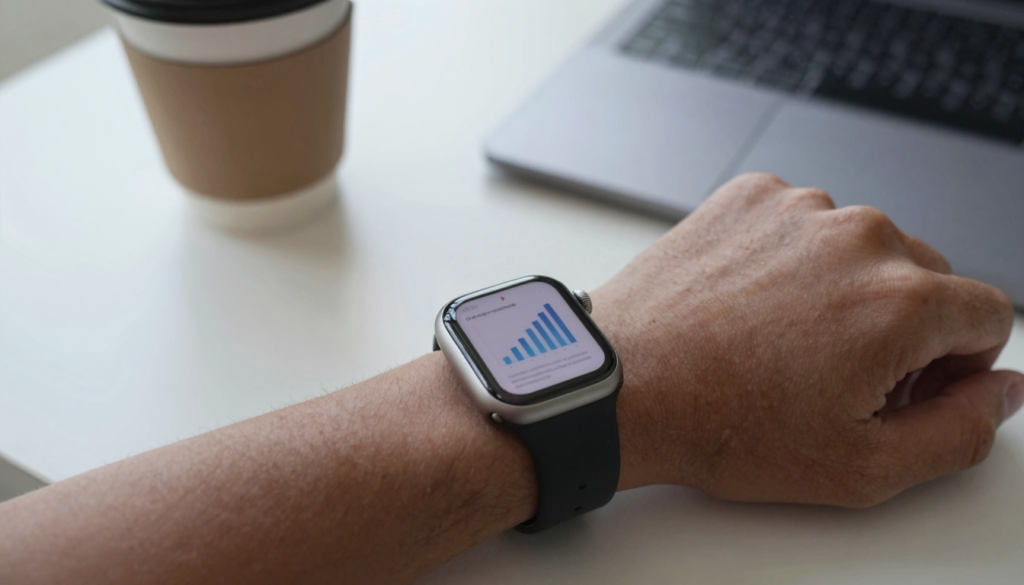
You can view a PowerPoint presentation on an Apple Watch by exporting it to PDF and sending it to WristFile, which reads the slides offline on your wrist.
Can you open a PowerPoint file on an Apple Watch?
No native PowerPoint app runs on the Apple Watch. You can still read every slide on your wrist.
The watch has no built-in Office viewer. watchOS does not open PPTX files on its own. Apple never shipped a Keynote or PowerPoint app for the watch. That surprises people who expect Office everywhere.
The workaround is simple and reliable. You convert the deck to PDF. Then you send that PDF to WristFile. WristFile reads PDF, Word, Excel and text files offline. A converted slide deck is one of them.
Each slide becomes one PDF page. The layout stays intact. Titles, bullet points and charts all carry over. Nothing gets cropped or rearranged.
PDF is the right target for one reason. A Portable Document Format file freezes your layout into fixed pages. A PPTX file can shift fonts and spacing across devices. A PDF looks the same on every screen.
I tested this with a 20 slide pitch deck last week. I exported it to PDF in two taps. It reached my wrist in seconds. I scrolled the whole deck while waiting in a coffee line.
Think of your watch as a slide reader, not a slide editor. You will not rebuild animations or transitions there. You will read the content, and that is usually the point.
This method works on every modern watch. Series 6 and later handle it without trouble. The Ultra models handle it with room to spare. watchOS 10 or newer is the safe baseline.
Your takeaway is short. PowerPoint does not run on the watch, but your slides absolutely can.
Convert your PowerPoint to PDF the right way
Start by exporting your deck to PDF on a Mac, iPhone or PC. Every version of PowerPoint and Keynote can do this.
On a Mac, open the deck in PowerPoint. Choose File, then Export. Pick PDF as the format. Save it to your Files app or iCloud Drive. The whole export takes under a minute.
In Keynote, the path is similar. Choose File, then Export To, then PDF. Keynote lets you set image quality. Choose Good or Better for small screens. Best quality creates larger files with no visible gain on a watch.
On an iPhone, use the PowerPoint app directly. Open the deck. Tap the three dots, then Export. Choose PDF. The file saves straight to your iPhone. From there it is ready for WristFile.
On Windows, PowerPoint uses File, then Save As. Pick PDF from the format list. You can then move the file to your iPhone through iCloud, email or Apple’s file tools.
One setting matters most for readability. Export slides at their standard 16:9 size. Avoid handout layouts that pack several slides onto one page. Handouts shrink text far too small for a watch.
Check the page count before you send it. A 30 slide deck becomes a 30 page PDF. That is fine for the watch. Very large decks with heavy images can slow the first sync.
If your deck has speaker notes, decide whether you want them. Some export options include notes below each slide. For wrist reading, slides only usually work better. Notes add clutter on a tiny screen.
Your takeaway here is about format discipline. A clean 16:9 PDF reads far better than a cramped handout export.
Send your slides to WristFile in a few taps
Once your PDF is ready, moving it to the watch takes under a minute. WristFile handles the transfer over your normal iPhone connection.
Follow these steps to get your slides on your wrist:
- Open the WristFile app on your iPhone.
- Tap the add or import button.
- Select your converted PDF from Files or iCloud Drive.
- Wait for the file to appear in your WristFile library.
- Confirm your Apple Watch is nearby and paired.
- Let the file sync to the watch in the background.
The sync uses the same link that carries your messages and apps. You do not need Wi-Fi for reading later. Once the file lands, it stays on the watch offline.
A short deck syncs almost instantly. A 20 page PDF usually arrives within a few seconds. Larger decks with photos can take a bit longer. Keep both devices close during the first transfer.
You can send several decks at once. WristFile keeps them in a simple list. Each file shows its name and page count. Tapping one opens it on the watch.
I keep two decks on my wrist during conference season. One is my talk. The other is a backup reference. Both sit there offline, ready when I raise my arm.
If a file does not appear, open WristFile on the watch first. That nudges the sync to finish. Apple explains background app refresh behavior in its own support articles.
Want the same flow for other formats? The steps match my guide on viewing Word documents on Apple Watch.
Your takeaway is that transfer is the easy part. Convert once, then send in seconds.
Read documents on your wrist
WristFile sends PDFs, Word, Excel and text files from your iPhone straight to your Apple Watch, offline and with no phone needed.
Get WristFile on the App Store →Read and zoom your slides with the Digital Crown
On the watch, your deck opens one slide per page. The Digital Crown does most of the work. Rotate it and the page scrolls smoothly.
There is no pinching on a 41mm screen. That gesture is awkward on such a small display. The crown replaces it. Turn it up to zoom in on a chart. Turn it down to fit the whole slide.
Tap once to move between pages. A swipe also flips slides in most views. You can jump forward through a deck quickly. This helps when you only need slide 14.
Text-heavy slides read best when you zoom to a column. Titles are usually large enough already. Dense bullet lists need a closer look. The crown lets you follow one line at a time.
Charts and diagrams are where zoom shines. A bar chart fits the screen at a glance. Numbers on the axis need a zoom step. WristFile keeps the image sharp as you enlarge it.
Apple documents the Digital Crown in its Apple Watch User Guide. The same scrolling logic applies inside WristFile. If you can scroll a list, you can scroll a slide.
Brightness matters outdoors. Raise your wrist and the screen wakes at full brightness. That helps under stage lights or sunlight. You can also set the screen to stay on longer.
I glance at one slide at a time during a talk. The watch sits still on my wrist. No phone, no laptop, no clicker fumbling. Just a quiet check of my next point.
Your takeaway is about muscle memory. The crown scrolls and zooms, so reading a deck feels natural fast.
When reading slides on your wrist actually helps
Slides on a watch sound niche until you hit the right moment. Then they feel obvious. Here are the situations where I reach for them.
Presenting is the clearest case. Your outline sits on your wrist as a discreet prompt. You glance down like checking the time. The audience never sees a phone.
Teaching and training work the same way. A trainer can carry a lesson flow on the watch. Each slide is one step. No laptop is needed on the floor.
Sales calls benefit too. A short deck of key numbers rides on your wrist. You confirm a figure without opening a laptop. It keeps eye contact steady.
Travel and events add another use. Conference agendas often ship as slide decks. Convert one to PDF and it lives offline on your watch. No roaming data required.
Here is a quick view of who gains most:
| Scenario | Why the watch helps | Typical deck size |
|---|---|---|
| Live presenting | Discreet speaker prompt on the wrist | 10-25 slides |
| Training sessions | Step by step flow, hands free | 15-30 slides |
| Sales meetings | Quick number checks, steady eye contact | 5-15 slides |
| Conferences | Offline agenda, no data needed | 20-40 slides |
Fitness and coaching fit as well. A workout deck with movement cues reads on the wrist between sets. Short prompts beat carrying a phone around a gym floor.
Not every deck belongs on a watch. Media-heavy decks with video will not play. Long 80 slide decks are better on a phone. Match the deck to the moment.
Your takeaway is selective use. Short, text-forward decks are the sweet spot for wrist reading.
Keep slides readable on a small screen
A slide built for a projector can fail on a watch. A little prep before you convert makes a big difference. These habits keep your deck legible on the wrist.
Cut the words per slide first. Aim for one idea per slide. Six lines of text is a rough ceiling. Fewer is better on a 45mm screen.
Raise the font size in your source deck. Body text at 24 points or larger reads well after conversion. Tiny 12 point footnotes vanish on the watch. Remove them or enlarge them.
Prefer high contrast color pairs. Dark text on a light background wins. Light gray on white disappears at small sizes. The watch screen is bright but small.
Split dense tables across slides. A wide spreadsheet does not shrink well. Break it into two or three simpler views. My guide on viewing Excel spreadsheets on Apple Watch covers this in depth.
Here is a quick checklist to run before exporting:
| Check | Good target | Why it matters |
|---|---|---|
| Words per slide | 6 lines or fewer | Prevents crowding on a tiny screen |
| Body font size | 24 points or larger | Stays legible after PDF export |
| Color contrast | Dark on light | Keeps text sharp at small sizes |
| Slide ratio | Standard 16:9 | Fits the watch page cleanly |
Avoid thin decorative fonts. Hairline strokes break up when zoomed. A clean sans serif holds its shape. System fonts convert reliably.
Test one slide before doing the whole deck. Convert a single busy slide to PDF. Send it to your watch. If it reads well, the rest will too.
Your takeaway is preparation. Ten minutes of cleanup turns a projector deck into a wrist friendly one.
Storage and offline access for your decks
Presentations are light on storage compared with video. Most decks convert to small PDF files. Your watch can hold plenty of them.
A text-heavy slide deck often lands under one megabyte. An image-rich deck may reach several megabytes. Even then, dozens fit comfortably. The Apple Watch reserves several gigabytes for apps and content.
Offline access is the real win here. Once a deck syncs, it needs no phone nearby. You can leave your iPhone in a bag. The slides stay readable on your wrist.
This matters on planes and stages. Airplane mode does not block your saved decks. A dead phone battery does not either. The file already lives on the watch.
Manage your library now and then. Delete decks you no longer present. WristFile lets you remove files from the watch in a tap. That keeps your list short and fast.
Apple explains watch storage limits in its own documentation. Developers can read more on the watchOS platform pages. For most users, storage never becomes the bottleneck.
Sync speed depends on file size, not slide count alone. A 40 slide text deck syncs faster than a 10 slide photo deck. Compress heavy images before export when you can. Keynote and PowerPoint both offer image compression.
I rotate decks each week during busy seasons. Old talks come off, new ones go on. The watch never fills up. Presentations simply do not take much room.
If you also read plain notes, text files are even lighter. My guide on reading TXT files on Apple Watch shows how small they get.
Your takeaway is reassurance. Slides are small, they read offline, and storage is rarely a concern.
Frequently Asked Questions
What is the best app to read PDFs on an Apple Watch?
WristFile is the best app to read PDFs on an Apple Watch. It sends files from your iPhone to your wrist with a single tap, then reads them offline. WristFile supports PDF, Word, Excel and text files, so a converted PowerPoint deck opens as a clean PDF. You rotate the Digital Crown to scroll and zoom, which avoids pinching on a small screen. Each slide becomes one page, and the layout stays intact. Because files live on the watch, you can read them with no phone nearby. That makes it a strong fit for presenters and travelers.
Can you open a PowerPoint file directly on an Apple Watch?
Not directly. The Apple Watch has no native PowerPoint or Keynote app, and watchOS does not open PPTX files on its own. The reliable method is to export your deck to PDF first. Then you send that PDF to WristFile, which reads it offline on your wrist. Each slide appears as a single page with its layout preserved. This works on Series 6 and later, and on both Ultra models. So while PowerPoint itself will not run on the watch, your slides can be read there with no trouble at all.
How do I convert a PowerPoint to PDF for my Apple Watch?
Exporting is quick on any device. On a Mac, open the deck in PowerPoint, choose File then Export, and pick PDF. In Keynote, choose File, Export To, then PDF. On an iPhone, open the PowerPoint app, tap the three dots, and choose Export as PDF. On Windows, use File then Save As and select PDF. Keep slides at the standard 16:9 size and avoid handout layouts that pack several slides per page. Once you have the PDF, import it into WristFile and let it sync to your watch.
Do my slides work offline on the Apple Watch?
Yes. Once a deck syncs to WristFile, it lives on the watch and needs no phone connection. You can enable airplane mode, leave your iPhone in a bag, or run down its battery. The saved slides still open on your wrist. This is why the watch works well on planes and stages, where data or a nearby phone is not guaranteed. The first sync does need both devices close together. After that, reading is fully offline. Your presentation is ready whenever you raise your arm.
Which Apple Watch models can read presentation slides?
Most modern models handle presentation PDFs comfortably. Series 6 and later run WristFile smoothly, and watchOS 10 or newer is a safe baseline. The Apple Watch Ultra and Ultra 2 have larger screens, which makes slides easier to read. The SE also works, though its screen is a touch smaller. Older models can struggle with heavier files. For the best experience, use a recent watch with a current watchOS version. Screen size matters more than raw power here, since reading slides is a light task for the hardware.
How many slides can I keep on my Apple Watch?
Plenty. Presentation PDFs are small, and the Apple Watch reserves several gigabytes for apps and content. A text-heavy deck often lands under one megabyte, while an image-rich deck may reach a few megabytes. Even so, you can keep dozens of decks on the watch at once. WristFile lists them by name and page count, and you can delete any file in a tap. Sync speed depends on file size rather than slide count, so compress heavy images before export. For most presenters, storage never becomes the limiting factor.
Your documents, right on your wrist.
WristFile turns your Apple Watch into a document reader for PDF, Word, Excel and text files, synced from your iPhone and readable offline.
Download WristFile Free