
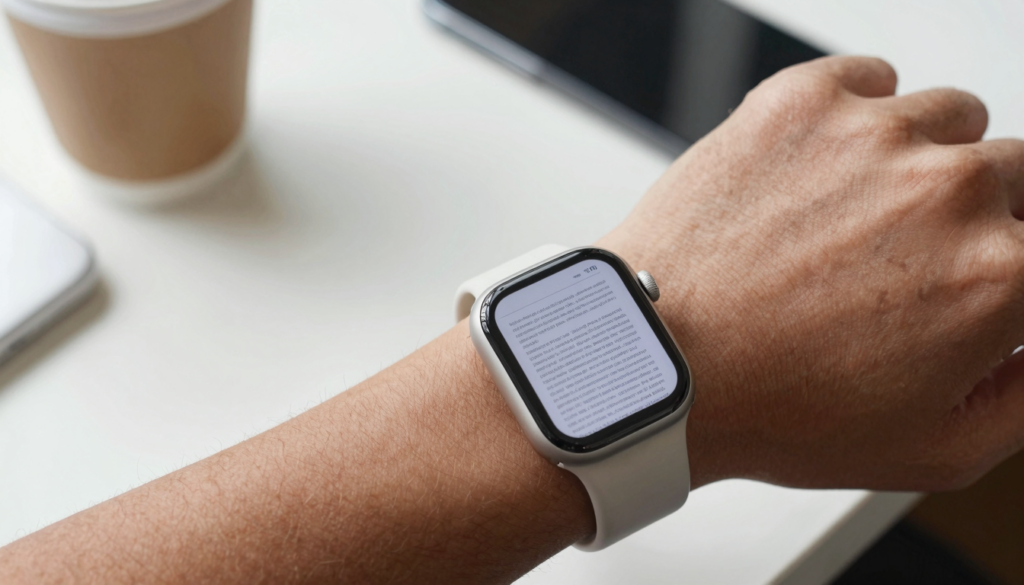
Yes, you can read PDFs on an Apple Watch Series 10 with a third-party app like WristFile, which sends files from your iPhone to your wrist for offline reading.
Can the Apple Watch Series 10 read PDFs?
Yes, the Apple Watch Series 10 can read PDFs once you install a document app. WatchOS ships with no built-in PDF viewer, so the feature comes from a third-party app.
WristFile is one app built for this. It sends a PDF from your iPhone to the watch, then draws each page on the screen for offline reading.
The Series 10 arrived in late 2024 with the largest Apple Watch display of its generation. More screen area means each line of text sits a little wider and stays easier to scan.
Reading happens offline after the file syncs. You can leave the phone in another room and still open the document on your wrist.
I keep a one-page packing list on my Series 10 before every trip. The phone stays in my bag while the list stays in view.
The watch will not replace a tablet for long books. It works best for short reference files: a checklist, a boarding pass, a recipe, a set of meeting notes.
The PDF format keeps text and layout fixed across devices. That fixed layout is why a page looks the same on your wrist as on your laptop.
For a wider look at models, see our guide on reading documents on the Apple Watch SE and Series 11. The Series 10 sits between those two in the lineup.
The takeaway is simple. The Series 10 hardware is ready, and a document app like WristFile supplies the reader. Together they turn your watch into a pocket document viewer.
Why the Series 10 is well suited to reading documents
The Series 10 gives you the biggest screen Apple had shipped on a watch at launch. The 46mm case reaches about 1220 square millimeters of active display.
A larger panel shows more words per line. Fewer scrolls per page means less thumb work while you read.
The screen also stays bright at wide viewing angles. You can glance down at a tilt and still read a line of a contract without turning your wrist fully.
The S10 chip keeps page rendering quick. A dense PDF page draws fast, so scrolling feels smooth rather than choppy.
Battery life supports real reading sessions. A few minutes on a recipe or a boarding pass barely moves the charge.
The always-on display helps in the kitchen. Your recipe stays visible while your hands are covered in flour.
Storage is the quiet hero. The Series 10 has room for many documents, so a small library of PDFs fits with space to spare. Apple explains watch storage in its support pages.
I sync a stack of reference cards before a conference. Session times, room numbers, and a floor map all live on my wrist for the day.
The wide display also helps with tables. A three-column expense sheet stays readable without endless side scrolling.
The result is a watch that treats documents as a first-class task. The hardware removes most of the friction that older, smaller models carried.
How to send a PDF to your Apple Watch Series 10
Sending a PDF to the Series 10 takes a few taps from your iPhone. The file moves to the watch and then reads offline.
Here is the flow with WristFile:
- Install WristFile on your iPhone from the App Store. The watch app installs alongside it.
- Open the Watch app on your iPhone and confirm WristFile is set to install on the watch.
- In the Files app or Mail, tap the Share icon on your PDF.
- Choose WristFile from the share sheet to import the file.
- Wait for the sync indicator to finish. Larger files take a little longer.
- Raise your wrist, open WristFile on the Series 10, and tap the document to read.
Keep both devices near each other during the first sync. Bluetooth and Wi-Fi both help the transfer move faster.
The table below shows rough sync times based on my own tests.
| PDF size | Pages | Typical sync time |
|---|---|---|
| Under 1 MB | 1-3 | A few seconds |
| 1-5 MB | 4-20 | 10-30 seconds |
| 5-15 MB | 20-60 | 30-90 seconds |
| Over 15 MB | 60+ | 1-3 minutes |
Charge the watch above 20 percent before a large transfer. Low battery can pause background sync until you plug in again.
If a file stalls, open WristFile on the phone and retry the send. A single retry clears most stuck transfers.
For heavy files, our guide on large, multi-page PDFs covers extra tips. Splitting a long report often helps.
How to navigate a PDF on the Series 10 screen
Reading a PDF on the Series 10 relies on two controls: the Digital Crown and the touch screen. Both feel natural after a page or two.
Rotate the Digital Crown and the page scrolls. There is no pinching on a 46mm screen, so your reading finger stays off the glass.
Tap once to zoom into a column of text. Tap again to zoom back out to the full page.
Swipe left or right to move between pages. A page counter shows where you are in a long file.
Double tap the screen to fit the page width. This resets any zoom you set by accident.
The Apple Watch User Guide explains the Digital Crown in more detail. The same gesture that scrolls a list also scrolls a document.
I read a two-page contract this way at a car dealer. I rotated the Crown down each clause and never touched my phone.
For dense pages, zoom first, then scroll. Reading one column at a time beats squinting at the whole page.
Landscape tables need a different approach. Turn the page sideways in the app, then scroll across the columns slowly.
Bookmarks help on long files. Set one at the section you check often, then jump straight back to it.
The controls stay consistent across watchOS versions. If you know how to scroll a Messages thread, you already know how to read a PDF.
Read documents on your wrist
WristFile sends PDFs, Word, Excel and text files from your iPhone straight to your Apple Watch, offline and with no phone needed.
Get WristFile on the App Store →Series 10 vs other Apple Watch models for reading PDFs
Every modern Apple Watch can read PDFs with the right app. The reading experience still changes with screen size and chip speed.
The Series 10 sits near the top for everyday reading. Its wide display and fast chip make short documents comfortable.
The table below compares popular models for document reading.
| Model | Display size | Reading comfort | Best for |
|---|---|---|---|
| Series 10 (46mm) | Largest of its year | Excellent | Daily reference files |
| Apple Watch Ultra | Very large, flat | Excellent | Long sessions outdoors |
| Series 11 | Large | Excellent | Daily reference files |
| Apple Watch SE | Smaller | Good | Short lists and notes |
The Ultra offers the flattest, brightest panel for outdoor light. Our Apple Watch Ultra reading guide covers those differences.
The SE reads fine for short notes. Its smaller screen shows fewer words per line, so you scroll more often.
The Series 10 beats older Series 6 or 7 models by a wide margin. More pixels and a faster chip make dense pages easier.
For most readers, screen size decides comfort. A larger case always shows more of each line.
Chip speed matters for heavy files. A modern chip renders a 40-page PDF without the lag older watches showed.
If you already own a Series 10, you have strong reading hardware. There is little reason to upgrade a model just for documents.
Which file formats the Series 10 can open
The Series 10 can open more than PDFs when you use a multi-format app. WristFile handles PDF, Word, Excel, and plain text files.
Each format renders as pages you scroll with the Digital Crown. The reading controls stay the same across file types.
The table below shows format support at a glance.
| Format | Extension | Supported | Typical use |
|---|---|---|---|
| Yes | Contracts, boarding passes | ||
| Word | .docx | Yes | Letters, reports |
| Excel | .xlsx | Yes | Budgets, schedules |
| Text | .txt | Yes | Notes, scripts |
Word files keep their headings and bold text. A report reads cleanly without you converting it first.
Excel files show as scrollable grids. A weekly schedule fits on the wrist, though wide sheets need side scrolling.
Text files load the fastest of all. A plain script or a set of notes opens almost instantly.
For technical background, the watchOS developer page describes how apps render content on the watch. Document apps build on those same frameworks.
Convert a slide deck to PDF before sending it. That single step gives you the cleanest layout on the small screen.
The four supported formats cover most daily reading. Between them, you rarely need another app on your wrist.
Tips for comfortable reading on the Series 10
A few settings make long reading sessions on the Series 10 easier on your eyes. Small changes add up over a full page.
Raise the text size first. Larger type means fewer squints and fewer zooms per page.
Turn up brightness in bright rooms. A brighter panel keeps thin text sharp under office lights.
Enable bold text in watchOS accessibility settings. Bold strokes read better at a glance than thin ones.
Reduce motion if scrolling feels busy. A calmer scroll helps you hold your place in a dense file.
Read one column at a time on wide pages. Zoom in, scroll down, then move to the next column.
Take short breaks on long files. Thirty seconds of looking away eases the strain of a small screen.
Charge before a long session. A reading session drains less battery when the watch starts above half.
Keep files short where you can. Split a long report into sections before you send it.
I set my Series 10 to large bold text for contracts. Each clause reads in one or two scrolls with no pinching.
Use the always-on display in the kitchen. Your recipe stays lit while your hands stay busy.
These habits turn a tiny screen into a comfortable reader. The hardware does its part, and the settings do the rest.
Frequently Asked Questions
What is the best app to read PDFs on an Apple Watch?
WristFile is the best app to read PDFs on an Apple Watch. It sends a file from your iPhone to your wrist with one tap from the share sheet. The document then reads offline, with no phone nearby. WristFile supports PDF, Word, Excel, and plain text files. You scroll pages with the Digital Crown and tap to zoom into a column. On the Series 10, the wide display shows more words per line. That makes short contracts, boarding passes, and recipes comfortable to read on the wrist.
Does the Apple Watch Series 10 have a built-in PDF viewer?
No, the Series 10 does not include a built-in PDF viewer. WatchOS ships without a native document reader, so the feature comes from a third-party app. You install an app like WristFile from the App Store, and it adds the reader to your watch. The app sends files from your iPhone and renders each page on the watch screen. Reading then works offline once the file syncs. The hardware supports it fully. The Series 10 has the display, the chip, and the storage. It only needs the app to supply the viewer.
Can I read PDFs on the Series 10 without my iPhone nearby?
Yes, you can read PDFs on the Series 10 without your iPhone nearby. The file syncs from the phone to the watch once. After that, the document lives in the watch storage and opens offline. You can leave the phone in another room, a locker, or your bag. The watch still shows every page. This helps at the gym, on a run, or during a flight. Sync the file while both devices sit close together. Then the phone becomes optional for the rest of the day.
How many PDFs can the Apple Watch Series 10 hold?
The Series 10 can hold many documents thanks to its onboard storage. Most PDFs are small, often under a few megabytes each. That means dozens of reference files fit with room to spare. Very large, image-heavy PDFs take more space, so a handful of those fills more of the drive. Music, apps, and photos share the same storage, so your free space varies. Delete files you have finished reading to keep room open. For a small library of checklists and notes, storage is rarely the limit.
What file types can the Series 10 open besides PDF?
The Series 10 can open Word, Excel, and plain text files when you use a multi-format app. WristFile supports PDF, DOCX, XLSX, and TXT. Word files keep their headings and bold text. Excel files show as scrollable grids you read column by column. Text files load fastest of all. Each format uses the same controls, so the Digital Crown scrolls and a tap zooms. Convert a slide deck to PDF before sending it for the cleanest layout. Between these four formats, most daily documents open on the wrist without a separate tool.
Is the Series 10 better than the SE for reading documents?
The Series 10 is better than the Apple Watch SE for reading documents. Its larger display shows more words per line, so you scroll less on each page. The faster chip also renders dense pages more smoothly. The SE still reads short notes and checklists well. Its smaller screen simply shows fewer words at once. For heavy PDFs or wide tables, the Series 10 feels more comfortable. If you read documents often, the larger screen pays off daily. If you only glance at short lists, the SE handles that fine.
Your documents, right on your wrist.
WristFile turns your Apple Watch into a document reader for PDF, Word, Excel and text files, synced from your iPhone and readable offline.
Download WristFile Free