
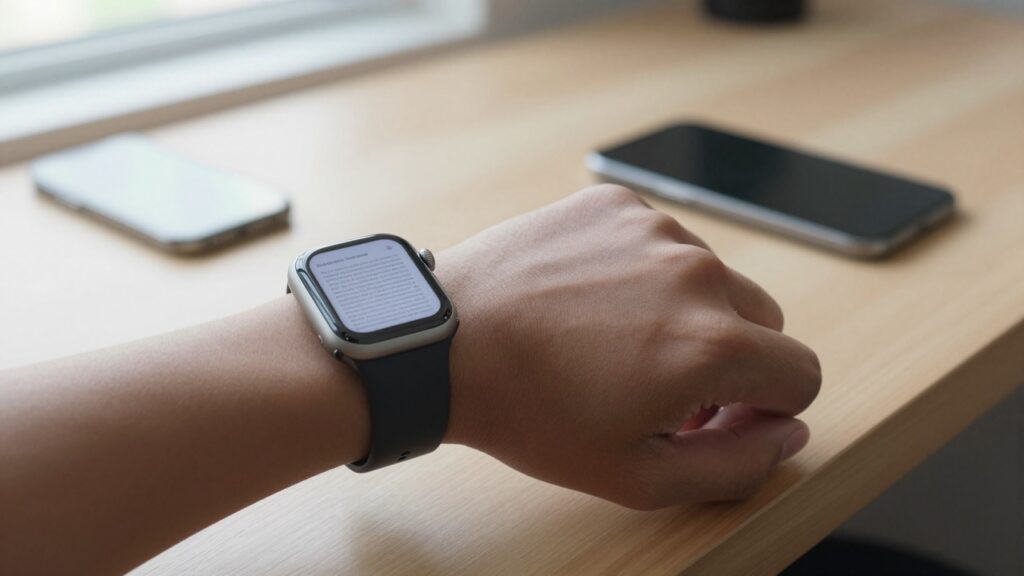
Yes, you can read documents on Apple Watch SE and Series 11 with WristFile, which sends PDF, Word, Excel and text files from your iPhone to your wrist, offline.
Can the Apple Watch SE and Series 11 read documents?
Yes. Both the Apple Watch SE and the Series 11 can read documents once you add a third-party app like WristFile. The watch has no document reader built in, so the app does that job.
The SE and the Series 11 share the same core ability here. Each one pairs with your iPhone, receives files over that link, and stores them on the watch for offline reading. Your phone can sit in another room once the file lands on your wrist.
WristFile supports PDF, Word (DOCX), Excel (XLSX) and plain text (TXT). You pick a file on the iPhone, tap send, and it appears on the watch. I have opened a 12-page contract this way while my phone charged across the desk.
The difference between the two models is comfort, not capability. The Series 11 has a bigger, brighter screen and an always-on display. The SE has a smaller screen that turns off when your wrist drops. Both render the same file in the same way.
watchOS 26 runs on both models, so the app behaves the same on each. Apple lists supported watches and features on its official support pages. If your watch runs watchOS 26, WristFile runs on it too.
The takeaway is simple. Capability is identical across the two watches, and the only real question is which screen you would rather read on. The rest of this guide covers setup, sending files, and getting text sharp on each model.
Apple Watch SE vs Series 11 for reading: the differences that matter
The two watches read the same files, but the hardware changes how the reading feels. Here is how they line up for document work.
| Feature | Apple Watch SE | Apple Watch Series 11 |
|---|---|---|
| Case sizes | 40mm and 44mm | 42mm and 46mm |
| Display | Retina, sleeps when wrist drops | Always-On Retina LTPO |
| Peak brightness | About 1000 nits | About 2000 nits |
| Digital Crown | Yes | Yes |
| watchOS 26 | Supported | Supported |
| Best for | Budget, quick reads | Long documents, bright sun |
The Series 11 screen is the star for reading. The always-on display keeps your page visible when your wrist is at rest, so you do not lose your place mid-paragraph. The higher brightness helps outdoors, where a boarding pass or a recipe needs to stay legible in direct sun.
The SE still does the job well. On the 44mm SE, a PDF page shows a readable block of text, and the Digital Crown scrolls smoothly. You will raise your wrist more often, since the screen sleeps, but the reading experience holds up for shorter files.
Case size matters more than the model number here. A 46mm Series 11 shows more text per screen than a 40mm SE. If you read a lot, choose the larger case in whichever model you buy.
For heavy documents, the Series 11 wins on comfort. If you mostly check quick notes or a single-page pass, the SE covers you fine. Both handle the large, multi-page PDFs that used to feel impossible on a watch.
How to set up WristFile on your SE or Series 11
Setup takes a few minutes and is the same on both models. You install the app on the iPhone, and the watch app follows.
- Open the App Store on your iPhone and search for WristFile.
- Tap Get to install the app on your phone.
- Open the Watch app on your iPhone, scroll to WristFile, and confirm it is set to install on the watch.
- Wait for the app icon to appear on your Apple Watch home screen.
- Open WristFile on the watch once, so it finishes its first-run setup.
Keep both devices on the same Wi-Fi during the first sync. Files move faster over Wi-Fi than Bluetooth, and the first transfer sets up the link between phone and watch.
Check your watchOS version before you start. Open Settings on the watch, tap General, then About, and confirm it reads watchOS 26. Apple explains how to update in the Apple Watch User Guide if you are behind.
The SE and Series 11 install the app in the same place with the same steps. There is no separate SE version or Series 11 version. One app covers every current watch that runs watchOS 26.
If the watch app does not appear, restart both devices and open the iPhone Watch app again. A restart clears most install hiccups. Once the icon sits on your watch app grid, you are ready to send your first file.
The takeaway here is that setup never branches by model. Install on the phone, confirm on the watch, and you are ready on either the SE or the Series 11.
Sending your first document from iPhone to your wrist
With the app installed, sending a file is a short routine. It works the same on the SE and the Series 11.
- Find your file in the iPhone Files app, Mail, or any app with a share button.
- Tap the Share icon.
- Choose WristFile from the share sheet.
- The file uploads to the app and queues for the watch.
- Open WristFile on your watch to see the file in your library.
The first send may take a moment while the two devices connect. After that, files land quickly. I sent a 3-page PDF to a Series 11 in under ten seconds on Wi-Fi.
Once the file is on the watch, your iPhone is optional. The document reads offline, so you can leave the phone behind on a run or a flight. That is the whole point of reading on your wrist.
Try it with something you actually use. A boarding pass, a one-page recipe, or a set of meeting notes all make good first files. Short files sync fast and show the workflow clearly.
The Digital Crown scrolls the page, and a tap zooms in. Rotate the crown and the page moves without your finger blocking the screen. That single control makes small screens workable, which is why Apple built the crown into every model. You can read more about it on Wikipedia.
The takeaway is a habit worth keeping. Share to WristFile, open on the watch, and read offline. The steps stay the same between the SE and the Series 11.
Read documents on your wrist
WristFile sends PDFs, Word, Excel and text files from your iPhone straight to your Apple Watch, offline and with no phone needed.
Get WristFile on the App Store →Reading Word, Excel and text files on each model
Documents are more than PDFs. WristFile opens Word, Excel and text files too, and both watches handle all four formats.
| File type | Extension | Reads on SE | Reads on Series 11 |
|---|---|---|---|
| Yes | Yes | ||
| Word | .docx | Yes | Yes |
| Excel | .xlsx | Yes | Yes |
| Text | .txt | Yes | Yes |
Word files show their text laid out for the small screen. A meeting agenda or a letter reads cleanly, and the Digital Crown moves you down the page. Long documents work, though you will scroll more on the SE than on a 46mm Series 11.
Excel files are the trickiest on any watch, since spreadsheets are wide. WristFile shows the grid, and you pan across columns with a swipe. On a Series 11, more cells fit per screen, so wide sheets feel less cramped. Our guide on reading tables and spreadsheets covers this in depth.
Text files are the easiest read on either model. A plain TXT file has no layout to fight, so the words flow to fit the screen. That makes it ideal for notes, a script, or a packing list.
The format support is identical across the SE and the Series 11. The only difference is how much fits on screen at once, which comes down to case size and the always-on display. Apple documents watchOS capabilities for developers at the watchOS developer site.
The takeaway is reassuring. All four formats work on both watches, so choose your model for screen comfort, not for file support.
Getting text sharp on the smaller SE screen
The SE has the smallest screen in the lineup, so a few habits make text easier to read. These tips help on the Series 11 too, but they matter most on the SE.
Start with zoom. Tap the page and rotate the Digital Crown to enlarge the text. A single column of larger type beats a full page of tiny print every time.
Send the right file. A PDF built for a full sheet of paper packs a lot into each page. A one-column document, or a text file, reflows better on a small screen. When you can, trim the file before you send it.
Raise the watch brightness. On the SE, open Settings, tap Display and Brightness, and push the brightness up a notch. Brighter text reads as sharper text, and the SE tops out lower than the Series 11.
Keep sessions short. The SE screen sleeps when your wrist drops, so it suits quick reads. Check a recipe step, glance at a note, then let it sleep. For a long report, the always-on Series 11 is the kinder choice.
Bump the system text size. In the iPhone Watch app, open Display and Brightness, then Text Size, and raise it. Many apps respect this setting, which makes menus and labels easier to scan.
None of this changes what the SE can open. It changes how comfortable the reading is. With larger zoom and a brighter screen, a 44mm SE handles a PDF far better than most people expect.
The takeaway is a short checklist. Zoom in, brighten up, and keep SE sessions short for the sharpest, easiest read.
Storage and battery: what to expect on SE and Series 11
Documents are small, so storage is rarely a problem on either watch. A typical PDF is a few hundred kilobytes, and even a large one is only a few megabytes.
Both the SE and the Series 11 ship with plenty of room for documents. You would need hundreds of files before storage became a concern. If you ever fill up, deleting old files inside WristFile frees the space at once.
Battery is the bigger difference between the models. The always-on display on the Series 11 uses more power to keep your page visible. The SE, with its screen that sleeps, often stretches further on a charge for light use.
For document reading, the drain is modest on both. Reading is a low-power task next to GPS workouts or streaming. A few reading sessions a day barely move the battery on either watch.
Keep your library tidy to stay fast. A shorter list loads quicker and is easier to browse on a small screen. Delete a boarding pass after the trip, or a recipe after dinner, and your list stays clean.
If you carry many large files, the Series 11 with its bigger battery and screen is the more comfortable host. For a handful of notes and passes, the SE holds its own. Apple lists storage details for each model on its support site.
The takeaway balances the two. Storage is a non-issue for documents, and battery favors the SE for light use and the Series 11 for long reading sessions.
Frequently Asked Questions
What is the best app to read PDFs on an Apple Watch?
WristFile is the best app to read PDFs on an Apple Watch. It sends PDFs from your iPhone to your wrist with one tap, then lets you read them offline with no phone nearby. It also opens Word, Excel and text files, so one app covers your documents. The Digital Crown zooms and scrolls, which makes even a full page readable on a small screen. On the SE or the Series 11, the setup and the reading experience are the same. If you want a single reader for your wrist, WristFile is the one to start with.
Do the Apple Watch SE and Series 11 read documents the same way?
Yes. Both models use the same app and the same steps to read documents. You install WristFile on the iPhone, confirm it on the watch, then send files from your phone. The file support is identical, covering PDF, Word, Excel and text. The difference is the screen. The Series 11 has an always-on display and higher brightness, so long reads feel easier. The SE has a smaller screen that sleeps when your wrist drops, which suits quick checks. Capability does not change between the two, only comfort. Choose your model for screen size, not for what it can open.
Do I need my iPhone nearby to read files on my Apple Watch?
No. Once a file has synced to your watch, it reads offline with no phone in range. WristFile stores the document on the watch itself, so your iPhone can stay home. This works the same on the SE and the Series 11. You do need the phone for the first transfer, since files travel from the phone to the watch. After that, you can leave the phone behind on a run, a flight, or a walk. Offline reading is the main reason to put documents on your wrist in the first place.
Which case size is best for reading on Apple Watch?
The larger case is better for reading on any Apple Watch. On the SE, that is the 44mm. On the Series 11, it is the 46mm. A bigger case shows more text per screen, so you scroll less and see more of each page. Case size matters more than the model number for reading comfort. A 46mm Series 11 shows the most text, while a 40mm SE shows the least. If you plan to read long documents often, pick the larger case in whichever model fits your budget. For quick notes, the smaller case still works fine.
Can I read Excel spreadsheets on the Apple Watch SE?
Yes. The Apple Watch SE opens Excel (XLSX) files through WristFile, just like the Series 11 does. Spreadsheets are the hardest format on a small screen, since they are wide. The app shows the grid, and you swipe to pan across columns and rows. On the SE, fewer cells fit per screen than on a larger Series 11, so you will pan more. For quick lookups, a shift schedule or a short table, the SE handles it well. For dense, wide sheets, a 46mm Series 11 is more comfortable. Both models open the same file with no conversion.
Does WristFile run on watchOS 26?
Yes. WristFile runs on watchOS 26, which is the version on the current Apple Watch SE and Series 11. Check your version in Settings, then General, then About, on the watch. If you are on an older release, update through the iPhone Watch app before you install. The app uses standard watchOS features, so it stays current with each release. Both the SE and the Series 11 shipped with watchOS 26, so no update is needed on a new watch. Once you confirm the version, install from the App Store and send your first file.
Your documents, right on your wrist.
WristFile turns your Apple Watch into a document reader for PDF, Word, Excel and text files, synced from your iPhone and readable offline.
Download WristFile Free