
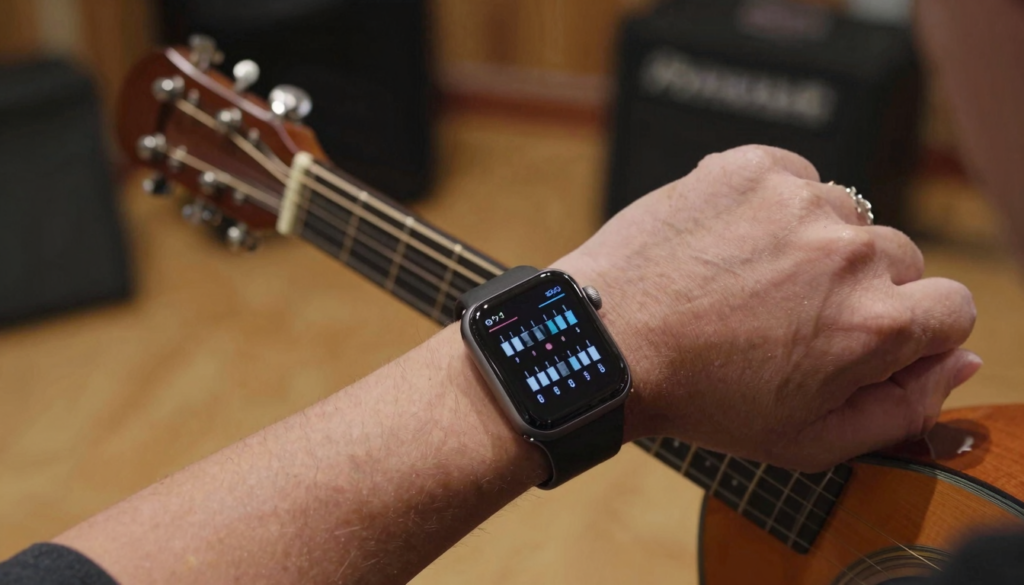
Yes, musicians can read chord charts and sheet music on an Apple Watch with WristFile, which sends charts from iPhone to wrist for offline reading.
Can you read chord charts on an Apple Watch?
Yes. You can read chord charts and sheet music on an Apple Watch today. The watch has no native document viewer, so you need a third party app. WristFile fills that gap. It sends PDF, Word, Excel and text files from your iPhone to your wrist.
Musicians reach for this more than you might expect. A chord chart is small by nature. It often fits a few lines per song. That makes it a better match for a 41mm or 45mm screen than a dense textbook page.
I keep a folder of lead sheets on my wrist for open mic nights. My hands stay on the guitar. My phone stays in my bag. The chart sits on my watch, ready when the next song starts.
The watch reads offline once a file is synced. No Wi-Fi or phone connection is needed during a set. That matters in venues with weak signal, like basements and old churches.
You rotate the Digital Crown to scroll the page. There is no pinching on a tiny screen. The motion is precise and quiet, which suits a live setting.
The screen stays lit with the Always On display. You glance down between chords without tapping anything. For deeper reading, raise your wrist and the page brightens.
This setup will not replace a tablet for full orchestral scores. It shines for short charts, set lists and quick reference. Think Nashville number charts, capo notes and song keys.
If you already read study material this way, the workflow feels familiar. Our guide on how students read study notes and cheat sheets on Apple Watch covers the same core flow that musicians use.
The takeaway is simple. Your wrist becomes a discreet music stand that travels with you everywhere.
How to put your chord charts on your wrist with WristFile
Getting a chart onto your watch takes under a minute. The flow runs through your iPhone, then syncs to the watch over its own connection.
Start by saving your chart as a PDF on your iPhone. Most chord apps and notation tools export to PDF directly. You can also print to PDF from any web chart.
Then open WristFile and import the file. The app sends it to the paired Apple Watch in the background. Apple explains how the watch and phone stay paired in the Apple Watch User Guide.
Here is the basic flow:
- Export your chord chart or lead sheet as a PDF on your iPhone.
- Open WristFile and add the file from Files, Mail or the share sheet.
- Wait for the sync indicator to confirm the file reached your watch.
- Open WristFile on the watch and tap the chart to read it.
- Turn the Digital Crown to scroll through the song.
Sync speed depends on file size. A one page lead sheet moves in seconds. A 30 page songbook takes longer, so sync it before you leave home.
Keep your charts small for the fastest results. Export only the songs you need for tonight. A focused setlist beats a giant archive on a small screen.
Name your files clearly. Use the song title and key, like “Wagon Wheel A”. You will find charts faster mid set when the names are obvious.
Charge both devices before a gig. Reading wakes the screen often, which uses battery. A topped up watch handles a two hour set with room to spare.
Once the file is on the watch, it stays there offline. You can put your phone on airplane mode or leave it backstage.
Best file formats for music on a small screen
The format you choose decides how readable a chart is. WristFile supports several, and each fits a different kind of music document.
PDF is the safest choice for sheet music. It keeps staff lines, notes and spacing exactly as printed. Most notation software exports clean PDFs by default. The PDF format was built to preserve layout across devices.
Text files suit simple chord charts. A ChordPro style chart with chords over lyrics reads well as plain text. The font scales cleanly, so words stay sharp at any size.
Word files work for charts with notes and instructions. Think arrangement cues, capo positions and section labels. Excel helps if you track set lists or song keys in a grid.
Here is how the formats compare for musicians:
| File format | Best for | Readability on watch | Notes |
|---|---|---|---|
| Sheet music, lead sheets | High, layout preserved | Export from notation apps | |
| TXT | Chord and lyric charts | Very high, scales sharp | Best for ChordPro style |
| DOCX | Annotated charts | Good, reflows text | Use clear headings |
| XLSX | Set lists, key tables | Medium, scroll sideways | Keep columns few |
For most gigs, a PDF lead sheet or a TXT chord chart wins. They balance detail and clarity on a screen the size of a stamp.
Avoid cramming full orchestral scores into one page. The notes shrink past the point of use. Split long pieces into per section files instead.
If storage gets tight, our guide on how to free up storage used by PDFs on Apple Watch helps you trim the library. Music PDFs with embedded fonts can grow large.
The takeaway is to match format to music type. Plain charts go to text, printed scores go to PDF.
Reading chord charts during a live set
A live set is where wrist reading earns its keep. Your hands are busy, and a music stand is not always available.
Set your watch before the first song. Open WristFile and load tonight’s setlist file. Keep the watch on your strumming or fretting wrist, whichever you glance at less.
Use the Always On display so the chart stays visible. You see the current chord without lifting your arm. A quick wrist raise brightens the page for the next line.
Scroll with the Digital Crown between verses. One small turn moves a few lines. The motion needs no looking, so your eyes stay on the crowd.
I played a wedding where the couple requested a last minute song. I pulled the chart from my watch in seconds. No laptop, no printed page, no fumbling with a tablet stand.
Theater Mode helps in dark venues. It stops the screen from blasting full brightness when you raise your wrist. Apple describes Theater Mode controls in Apple Support. Tap the screen when you want to see the chart.
Keep songs in separate files for fast switching. A swipe back to the list lets you pick the next chart. This beats scrolling through a 40 page combined PDF mid set.
Lower the brightness a touch for long sets. Your eyes adjust to the small screen better. The takeaway is to prepare the watch before you start, then let muscle memory take over.
For drummers, the watch sits naturally in view on a hi hat hand. For singers, it doubles as a discreet lyric prompt. The screen is small enough that the audience rarely notices.
Read documents on your wrist
WristFile sends PDFs, Word, Excel and text files from your iPhone straight to your Apple Watch, offline and with no phone needed.
Get WristFile on the App Store →Sheet music vs chord charts on a 41mm screen
Not all music documents read the same on a watch. The difference between sheet music and chord charts matters a lot at this size.
Sheet music packs five staff lines, note heads and dynamics into each row. On a 41mm screen, that detail shrinks fast. You can read it, but you scroll and zoom often.
Chord charts carry far less ink. A chord symbol over a lyric line is easy to scan. Your eye finds the next chord in a glance, even at speed.
Here is a direct comparison:
| Factor | Sheet music | Chord charts |
|---|---|---|
| Detail level | Very high | Low to medium |
| Readability at 41mm | Needs zoom and scroll | Easy at a glance |
| Best file type | TXT or PDF | |
| Ideal use | Solo practice, study | Live gigs, jamming |
| Scroll frequency | Often | Rare |
For live playing, chord charts win on a watch. They give you the structure without the clutter. You read a key, a capo and a chord run in one look.
Sheet music still has a place. For slow practice at home, you can zoom into a measure and study it. The watch becomes a portable reference for a tricky passage.
Use the larger 45mm or 49mm models for denser music. The Apple Watch Ultra screen fits more notes per row. Apple lists watchOS display features for developers at the Apple Developer site.
Match the document to the moment. Charts for the stage, scores for the practice room. The takeaway is that less ink reads better on a small screen, so simplify your charts when you can.
Watch settings every musician should adjust
A few settings turn the watch into a reliable music stand. Tune these before your next rehearsal.
Turn on the Always On display first. Your chart stays visible without a tap. Open the Watch app on iPhone, then Display and Brightness, to confirm it is active.
Enable Theater Mode for stage use. It keeps the screen dim until you tap it. This stops a bright flash during a quiet ballad.
Raise the text size if your charts are text or Word files. Larger type reads better from arm’s length. WristFile respects clear formatting, so big headings help you find sections.
Adjust brightness to suit the room. Bright for a sunny outdoor set, dim for a candlelit venue. Your eyes thank you during a long night.
Lock the screen orientation if you wear the watch on either wrist. A steady view keeps charts upright. Check wrist and orientation in the Watch app settings.
Keep Wrist Detection on for security, off for a constant display. With it off, the screen does not sleep when your arm drops. That helps during fast songs with few breaks.
Free up space so charts sync fast. Music PDFs with fonts can be large. Our guide on how many pages an Apple Watch can hold explains the storage limits for a music library.
Charge to full before a show. Frequent screen wakes drain the battery quicker than normal use. A two hour set is fine on a healthy charge.
The takeaway is that small tweaks add up. The right brightness, text size and Theater Mode make charts readable all night.
Real workflows: worship, gigging and study
Different musicians use the watch in different ways. These real workflows show what fits each situation.
A worship guitarist keeps the week’s set on a wrist. Charts load on Sunday morning, offline and ready. The player reads chords while leading the band, hands free.
A gigging keyboardist tracks song keys in a small file. A quick glance confirms the key before a transition. The watch sits in view above the keys during a set.
A music student reviews a passage on a commute. The chart syncs the night before, so no signal is needed. The student studies fingering on a train without a tablet.
A choir director keeps cue notes on a wrist. Entrances and dynamics sit one tap away. The conductor signals while reading discreet prompts.
A street performer avoids carrying a stand. The setlist lives on the watch, weatherproof under a sleeve. The phone stays zipped away from rain and crowds.
Here is a quick fit guide:
| Musician | What they read | Why the watch helps |
|---|---|---|
| Worship guitarist | Weekly chord set | Hands free, offline |
| Gigging keyboardist | Song keys, cues | Glance above the keys |
| Music student | Practice passages | Study on the go |
| Choir director | Entrance cues | Discreet prompts |
Each of these uses short documents, not full scores. That is the pattern that makes wrist reading work. Keep files small and focused.
The takeaway is to copy the workflow that fits your role. Load only tonight’s material, name files clearly and sync early. Your wrist then carries exactly what you need.
Frequently Asked Questions
What is the best app to read PDFs on an Apple Watch?
WristFile is the best app to read PDFs on an Apple Watch. It sends PDF, Word, Excel and text files from your iPhone to your wrist with one tap. The files read offline, so no phone or Wi-Fi is needed once they sync. You turn the Digital Crown to scroll and zoom, which avoids pinching on a small screen. For musicians, that means chord charts and lead sheets are ready on your wrist at any gig. You can download WristFile free on the App Store and start syncing charts today.
Can you read sheet music on an Apple Watch?
Yes, you can read sheet music on an Apple Watch using WristFile. Export your score as a PDF on your iPhone, then send it to the watch. The PDF keeps staff lines, notes and spacing exactly as printed. On a 41mm screen, dense scores need some zoom and scrolling, so they suit practice more than fast live playing. Chord charts read more easily at a glance. For full orchestral scores, split long pieces into per section files. A larger Apple Watch Ultra screen fits more notes per row, which helps with detailed notation.
Do chord charts work better than sheet music on a small screen?
Chord charts usually read better than sheet music on an Apple Watch. A chord symbol over a lyric line is easy to scan in a glance. Sheet music packs five staff lines and note heads into each row, which shrinks fast at 41mm. For live gigs, chord charts give you the key, capo and chord run without clutter. Sheet music still works for slow home practice, where you can zoom into a measure. The rule is simple. Less ink on the page reads better on a tiny screen.
Can I read chord charts on Apple Watch without my iPhone?
Yes. Once a chord chart syncs to your Apple Watch through WristFile, it reads fully offline. You can leave your iPhone backstage or set it to airplane mode. The watch stores the file locally, so no signal is needed during a set. This matters in venues with weak Wi-Fi, like basements and old churches. Sync your setlist before you leave home for the smoothest result. A one page lead sheet syncs in seconds, while a large songbook takes longer. After that, your wrist carries the charts on its own.
What file formats can musicians use on Apple Watch?
WristFile supports PDF, Word, Excel and text files, which covers most music needs. PDF is best for sheet music because it preserves the printed layout. Text files suit ChordPro style chord charts, since the font scales sharply. Word files work for annotated charts with capo notes and section labels. Excel helps if you keep set lists or song keys in a grid. For a small screen, plain text charts and single page PDFs read most clearly. Match the format to the music type, and keep each file focused on one song or set.
How do I scroll through a chart during a gig?
You scroll a chart by turning the Digital Crown on the side of your Apple Watch. One small turn moves a few lines, so you can read a song without looking at the controls. The Always On display keeps the chart visible between chords. A quick wrist raise brightens the page for the next line. Theater Mode stops the screen from flashing bright in a dark venue, so tap the screen when you want to read. Keep songs in separate files so a swipe back to the list lets you pick the next chart fast.
Your documents, right on your wrist.
WristFile turns your Apple Watch into a document reader for PDF, Word, Excel and text files, synced from your iPhone and readable offline.
Download WristFile Free