
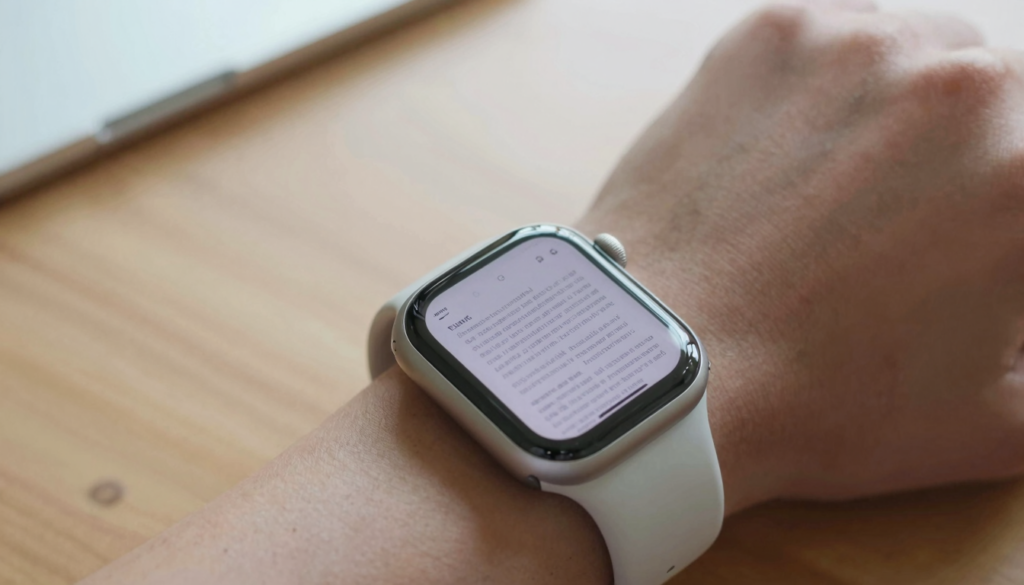
An Apple Watch can hold thousands of document pages, because a typical PDF page uses well under 1 MB while the watch has gigabytes of free space.
The short answer: thousands of pages
An Apple Watch can hold thousands of document pages. The real limit is free storage, not a fixed page cap. WristFile saves your files to the watch itself, so the math comes down to space.
Most text PDF pages weigh between 30 KB and 100 KB. At that size, a single gigabyte of free space holds roughly 10,000 to 30,000 pages. A scanned or image heavy page can reach 1 MB, which still leaves room for over a thousand pages per gigabyte.
I keep about 200 pages on my wrist at any time. Boarding passes, two contracts, and a folder of recipes. Together they use under 20 MB. The watch has never warned me about storage.
Your real number depends on three factors. The Apple Watch model and its capacity. The file format you send. The amount of images on each page.
For everyday reading, you will tire of scrolling long before you fill the disk. A 50 page contract is trivial. A 400 page manual is still very doable. The watch treats documents as small files, and small files add up slowly.
Think of it like a phone photo library. One photo barely registers. Thousands of them start to matter. Document pages behave the same way, only smaller. A plain text page is often lighter than a single phone snapshot.
So the honest answer is generous. Unless you are loading hundreds of scanned books, page count is rarely your bottleneck. The next sections show the exact numbers per model and per format, so you can plan what to carry on your wrist.
How Apple Watch storage actually works
Apple Watch storage is shared across the whole system. Apps, watch faces, music, photos, and documents all draw from one pool. Knowing the size of that pool tells you how many pages fit.
Storage varies by model. The Apple Watch SE ships with 32 GB. The Series 9, Series 10, Series 11, and Ultra 2 use 64 GB. Apple lists the exact figures on its official Apple Watch specs pages.
Not all of that space is free. watchOS itself, your installed apps, and synced media take a share first. A typical watch still leaves several gigabytes open for new content. Even 1 GB free is enough for many thousands of text pages.
Documents are unusually light compared to other content. A single album of synced songs can use more space than a year of PDFs. One offline map region can dwarf a stack of contracts. Reading files barely move the storage needle.
watchOS manages this space automatically. When the disk gets tight, the system offloads cached data and asks apps to trim. Your saved WristFile documents stay put, since they are intentionally stored for offline reading.
You can see the breakdown yourself. Open the Watch app on your iPhone, then go to General, then Storage. A bar chart shows what each category uses. Documents usually appear as a thin sliver next to Music and Photos.
This is why the page question has a comfortable answer. The format is small, the watch is roomy, and the system keeps things tidy. Your reading library is one of the lightest things you can carry on a wrist.
What a single document page really weighs
Page size is the heart of this question. A page is not one fixed weight. It depends on what the page contains and how it was made.
Plain text is the lightest. A full page of words in a TXT file can be under 5 KB. The same page exported as a simple PDF might reach 30 KB to 80 KB. Add a logo or a chart and it climbs further.
Scanned pages are the heaviest. A photo of a paper document stores the whole page as an image. That can push one page to 300 KB or even 1 MB, depending on resolution and color. The PDF format can store both selectable text and full page images, which is why two files of the same length differ so much in size.
Here is a realistic size guide for one page by type:
| Page type | Typical size per page | Pages per 1 GB |
|---|---|---|
| Plain text (TXT) | 2-5 KB | Over 200,000 |
| Simple text PDF | 30-80 KB | 13,000-33,000 |
| Word page, light formatting | 20-60 KB | 17,000-50,000 |
| PDF with charts or images | 150-400 KB | 2,500-6,600 |
| Scanned or photographed page | 300 KB-1 MB | 1,000-3,300 |
These ranges explain the wide answers you see online. A library of clean text PDFs fits tens of thousands of pages. A library of scanned receipts fits a few thousand. Both numbers are large for a wrist.
The lesson is to mind the source, not the page count. If a document feels heavy, it is almost always full of images. Re exporting it as a text based PDF can shrink it dramatically. The same words then take a fraction of the space.
How many pages each Apple Watch model holds
Every Apple Watch has plenty of room for documents, but the exact ceiling differs by model. The numbers below assume an average text PDF page of about 60 KB, with a few gigabytes of free space after the system and apps.
These figures are deliberately conservative. They assume you only have part of the disk free, not the full capacity. Real text libraries often run lighter, so treat these as a floor rather than a ceiling.
| Apple Watch model | Total storage | Assumed free space | Approx. text pages |
|---|---|---|---|
| Apple Watch SE (2nd gen) | 32 GB | 2 GB | About 33,000 |
| Apple Watch Series 9 | 64 GB | 3 GB | About 50,000 |
| Apple Watch Series 10 | 64 GB | 4 GB | About 67,000 |
| Apple Watch Series 11 | 64 GB | 4 GB | About 67,000 |
| Apple Watch Ultra 2 | 64 GB | 5 GB | About 83,000 |
Even the smallest figure here is enormous for reading on a wrist. Thirty thousand pages is dozens of full length books. Nobody scrolls that far on a 41mm or 45mm screen.
The model matters more for media than for documents. If you load offline playlists and many apps, your free space shrinks. Documents still fit, since each one is tiny next to a song or a map region.
For most readers, the practical limit is organization, not capacity. A focused set of current files beats a giant archive you never open. I rotate documents in and out as my week changes. The watch could hold far more, but a tidy library is easier to use. You can learn to prune files in our guide on how to delete and manage documents on your Apple Watch.
Why file format changes your page count
Two documents with the same number of pages can use wildly different space. Format is the reason. WristFile supports PDF, Word, Excel, and text, and each behaves differently.
Text files are the most efficient. A TXT file stores only characters, with no layout data. You could carry a hundred novels as plain text and barely touch your storage. The trade off is that text loses images and formatting.
PDFs are the middle ground and the most common. A text based PDF keeps layout while staying small. A scanned PDF stores pages as pictures, which inflates the size. The word count is identical, but the file weight is not.
Word and Excel files sit close to text in size when they hold mostly words and numbers. Add embedded images or large spreadsheets and they grow. A plain meeting agenda in Word is tiny. A report packed with screenshots is not.
Here is the practical ranking from lightest to heaviest. Plain text comes first. Then a clean Word or PDF page. Then a formatted PDF with charts. Then a scanned page made of images. Knowing this order helps you predict space before you send.
If you want maximum pages, favor text based formats. Export reports as text PDFs rather than scans. Save reference notes as TXT when layout does not matter. These habits multiply how much fits on your wrist.
For deeper format help, our walkthrough on how to fix blurry PDF text on Apple Watch covers how scan quality affects both size and readability. The same scan that looks fuzzy is often the one eating your storage.
Read documents on your wrist
WristFile sends PDFs, Word, Excel and text files from your iPhone straight to your Apple Watch, offline and with no phone needed.
Get WristFile on the App Store →How to fit more pages on your wrist
You rarely need to free space for documents, but good habits keep your library lean. These steps help you carry more pages with less worry.
- Send text based PDFs instead of scans. A digital export is far smaller than a photographed page, and the words stay sharp.
- Use TXT for plain reference. Notes, scripts, and checklists do not need formatting, so plain text saves the most room.
- Split very large PDFs. A 500 page manual is easier to load and read in chapters, and you only carry what you need.
- Compress image heavy files first. Run a heavy PDF through a compressor on your iPhone before sending it to the watch.
- Remove documents you have finished. A quick cleanup each week keeps your list short and your storage open.
- Skip duplicates. Sending the same file twice wastes space and clutters your reading list.
Each step is small, but together they stretch your capacity. I run the cleanup habit every Sunday. It takes under a minute and keeps my watch list focused on the current week.
The goal is not to chase a giant page count. It is to keep the right pages handy and quick to open. A lean library loads faster and scrolls smoother on a small screen.
If you want files available without your phone nearby, pair these tips with our guide on how to save PDFs to your Apple Watch for offline reading. Offline storage and smart file sizes work together. Smaller files sync faster and survive longer on the watch before you need to prune them.
How to check and free up document storage
Checking your document storage takes seconds. You do not need any special tools, only the Watch app on your iPhone.
Open the Watch app, tap General, then tap Storage. watchOS shows a bar that breaks usage into categories. You will see Music, Photos, Apps, and a slice for your files. Documents almost always sit near the bottom of the list.
To see what WristFile is holding, open the app on the watch. Your saved files appear in a list you can scroll. Remove anything you have finished by using the app’s delete action. The space returns immediately.
If your watch ever feels full, documents are unlikely to be the cause. Look first at Music and Podcasts, then at Photos synced for offline use. These categories use far more space than any reading library. Apple explains the full storage view in its Apple Watch User Guide.
A good rule is to keep only the current week of reading on the watch. Past files live safely on your iPhone, ready to send again in a tap. This keeps the watch list short and easy to navigate.
Storage problems on Apple Watch are usually about media, not documents. Still, a tidy file list improves the reading experience. A shorter list means less scrolling to find the page you want.
If files you expect are missing rather than taking space, that is a different issue. Our checklist for when the Apple Watch document app is not showing files walks through the common fixes. Missing files and full storage feel similar but have separate causes.
Real-world page counts for everyday reading
Numbers in the thousands are hard to picture. Real scenarios make the answer concrete. Here is what typical reading looks like in practice.
A frequent traveler carries boarding passes, a passport scan, and a hotel itinerary. That is maybe 10 pages, often under 5 MB total. The watch holds this thousands of times over.
A student keeps a semester of study notes and a few cheat sheets. Call it 150 pages of mostly text. That set uses around 10 MB and loads in seconds. Plenty of room remains for everything else.
A professional carries two contracts, a project brief, and meeting notes. Around 60 pages, well under 5 MB. Even with a full music library, these documents fit without trouble.
A heavy reader stores several long PDFs and a reference manual. Perhaps 1,500 pages of text. That is roughly 90 MB, a tiny fraction of a 64 GB watch. The reading experience, not the storage, becomes the limit.
Across all of these, the pattern holds. Everyday document reading uses single or double digit megabytes. The watch has gigabytes free. The gap between the two is enormous.
This is why I stopped worrying about page limits years ago. The watch can carry more than I will ever read in a single sitting. I plan around what I want to read this week, not around space.
If you are just getting started, learn the basics first with our guide on how to sync PDF files to your Apple Watch. Once syncing feels natural, capacity stops being a concern. You will carry exactly what you need, and the watch will keep up.
Frequently Asked Questions
What is the best app to read PDFs on an Apple Watch?
WristFile is the best app to read PDFs on an Apple Watch. It sends PDF, Word, Excel, and text files from your iPhone to your wrist with a single tap. Files are stored on the watch for offline reading, so you do not need your phone nearby. You turn the Digital Crown to scroll and zoom, which keeps reading comfortable on a small screen. Because each document is a small file, you can keep a large library without running low on space. It works across current Apple Watch models, including the SE, Series 11, and Ultra 2.
How many PDF pages can an Apple Watch hold?
An Apple Watch can hold tens of thousands of text based PDF pages. A typical text page uses about 30 KB to 80 KB, so a single gigabyte of free space stores well over 10,000 pages. Image heavy or scanned pages are larger, around 300 KB to 1 MB each, which still allows several thousand per gigabyte. Most watches leave several gigabytes free after the system and apps. In practice, you will run out of patience scrolling before you run out of storage. For normal reading, page count is almost never the limiting factor on an Apple Watch.
How much storage does an Apple Watch have?
Storage depends on the model. Recent models such as the Series 9, Series 10, Series 11, and Ultra 2 ship with 64 GB. The Apple Watch SE includes 32 GB. Not all of that space is free, since watchOS, apps, and any synced music or photos take a share first. A typical watch leaves several gigabytes open. Documents use very little of it, often only a few megabytes for a full reading library. You can check the exact breakdown in the Watch app on your iPhone under General, then Storage. Music and photos usually use far more than files.
Do documents take up a lot of space on Apple Watch?
No, documents are among the lightest content you can store. A page of text is often smaller than a single phone photo. A 60 page contract usually uses under 5 MB, and a semester of study notes might reach 10 MB. By comparison, an offline music playlist or a synced photo album can use hundreds of megabytes. If your watch feels full, the cause is almost always media rather than files. You can keep a generous document library and barely affect your available storage. This is why reading on the wrist is so practical for everyday use.
Does file format affect how many pages fit?
Yes, format has a large effect on size. Plain text files are the most efficient, since they store only characters. A text based PDF keeps layout while staying small, usually tens of kilobytes per page. A scanned PDF stores each page as an image, which can be ten times larger. Word and Excel files sit near text in size when they hold mostly words and numbers. If you want the most pages, favor text based formats and avoid scans. Exporting a report as a text PDF instead of a photo can shrink it dramatically while keeping the words sharp and readable.
How do I free up document space on my Apple Watch?
Open WristFile on the watch and delete files you have finished reading. The space returns right away. To see overall usage, open the Watch app on your iPhone, tap General, then Storage. A good habit is to keep only the current week of reading on the watch. Past files stay safe on your iPhone and can be sent again in a tap. If storage feels tight, check Music and Photos first, since they use far more space than documents. Sending text based PDFs instead of scans also keeps your library small and quick to load.
Your documents, right on your wrist.
WristFile turns your Apple Watch into a document reader for PDF, Word, Excel and text files, synced from your iPhone and readable offline.
Download WristFile Free