
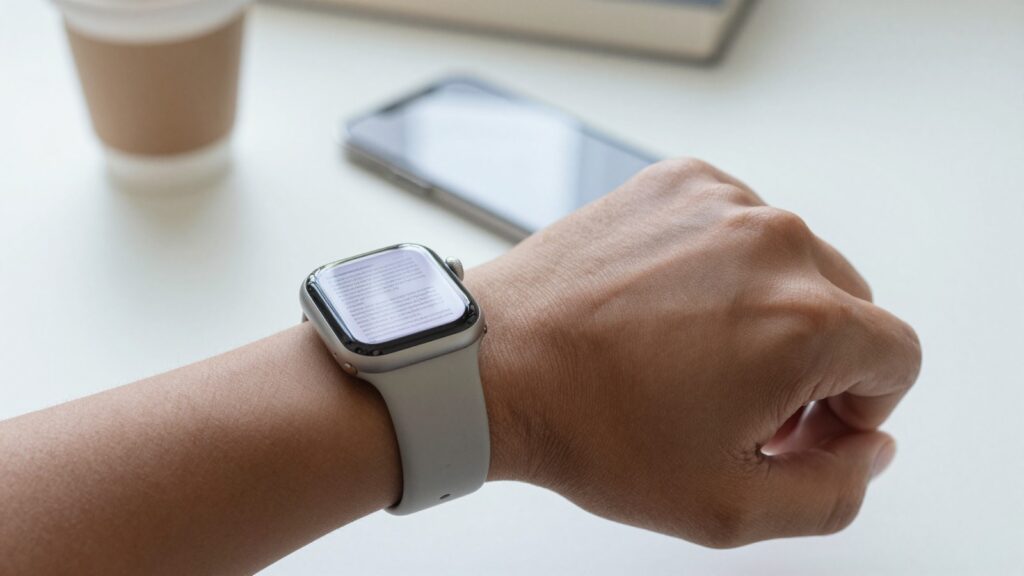
You can make PDFs readable on a small Apple Watch screen by boosting text size, turning on reflow, and sending clean text based files with WristFile for offline reading.
Why PDFs look cramped on the Apple Watch screen
The Apple Watch screen is small by design. A 41mm Series 11 gives you roughly 352 by 430 points of space. The Ultra pushes closer to 410 by 502. Either way, a full A4 page shrinks to a sliver.
The real issue is scale, not sharpness. The Retina display renders crisp pixels. It simply cannot show a whole page at a size your eyes can read. When a PDF keeps its original page grid, every line turns tiny.
Readability comes down to three levers. The first is the size of the text itself. The second is how the document flows on a narrow screen. The third is the quality of the file you sent in the first place.
Get all three right and a dense page becomes skimmable in seconds. Get them wrong and you end up pinching and squinting, which defeats the point of a wrist glance.
A quick example makes it concrete. I keep a one page packing checklist for trips. Sent as a raw scan, it was a gray blur at arm’s length. Rebuilt as a clean text based PDF with larger type, it became a five second airport check.
Takeaway: the watch is not bad at reading. It punishes documents that were never formatted for a small screen. Fix the file and the settings, and the hardware holds up fine.
Start with the right text size settings
The fastest readability win is bigger text. watchOS lets you scale system type without touching the file. Open Settings on the watch, tap Display and Brightness, then tap Text Size and turn the Digital Crown up.
Bold Text helps just as much. In the same Display and Brightness menu, toggle Bold Text on. Thin fonts vanish on a small screen. Heavier strokes survive the shrink and stay legible.
WristFile layers its own reading controls on top of these settings. Inside a document, you can enlarge the on screen text on its own. Your watch face type stays normal while your PDF text goes large.
Apple documents these controls in its official guides. You can follow the current steps in the Apple Watch User Guide and the wider Apple Support pages for watchOS accessibility.
| Setting | Where to find it | What it does |
|---|---|---|
| Text Size | Settings, Display and Brightness, Text Size | Scales system and app text with the Digital Crown |
| Bold Text | Settings, Display and Brightness, Bold Text | Thickens fonts so thin type stays visible |
| In app text scale | WristFile document view | Enlarges document text without changing the watch face |
| Accessibility Zoom | Settings, Accessibility, Zoom | Magnifies any part of the screen on demand |
A real example. Before a recent flight, I switched Bold Text on and pushed Text Size two notches up. My gate note and boarding reference both jumped to a size I could read without leaning in.
Takeaway: change the settings once. Every document you open afterward inherits the larger, bolder type automatically.
Use reflow so text fits the narrow screen
Reflow is the single biggest readability change you can make. A normal PDF locks text to a fixed page width. Reflow breaks that grid and rewraps the words to fit the screen.
Lines get shorter. Text gets bigger. You scroll straight down instead of dragging side to side to chase a sentence.
WristFile reads PDF, Word, Excel and text files and presents them in a single column built for a watch. You rotate the Digital Crown and the page scrolls cleanly. No pinching on a 41mm screen.
Reflow works best on text based documents. A study sheet, a recipe, a script and a set of meeting notes all rewrap beautifully. The words simply stack into a tall, readable strip.
Scanned PDFs behave differently. A scan is really an image of a page, so there is no live text to reflow. For those files, zoom and pan still work, but exported text reads far better.
Wikipedia has a clear primer if you want the background on why this happens. See the entry on PDF for how text layers and image layers differ.
Here is a real case. I read a two page speaking outline on my wrist last month. In single column reflow, each point filled the screen width and I moved through sections with the crown.
Takeaway: whenever you can, send text based documents. Reflow turns them into a clean vertical read instead of a shrunken page.
Prep the file on your iPhone before you send it
The cleanest wrist reading starts on the phone. A few seconds of prep on your iPhone saves a lot of squinting later. The goal is a lean, text based file with large type and no clutter.
Follow these steps before you send anything:
- Open the document in an app that can export a fresh PDF, such as Pages or Files.
- Raise the base font size to 14 point or larger before you export.
- Remove wide tables, footers and dense headers you will never read on a watch.
- Export as a text based PDF rather than a scan or a screenshot.
- Send the finished file to your watch with WristFile in a single tap.
Screenshots are the common trap. A screenshot of a PDF is a flat image. It cannot reflow and it cannot scale text cleanly. I explain why in why sending PDF screenshots to your Apple Watch is a bad idea.
Blurry source files cause the other big complaint. If your text looks fuzzy, the fix usually starts with the file, not the watch. There is a full walkthrough in how to fix blurry or unreadable PDF text on Apple Watch.
An example from last week. I trimmed a four page vendor agreement down to the one clause I actually needed. Exported at 16 point, it read on my wrist with room to spare.
Takeaway: fix the document on the big screen first. The watch can only display what you send it.
Read documents on your wrist
WristFile sends PDFs, Word, Excel and text files from your iPhone straight to your Apple Watch, offline and with no phone needed.
Get WristFile on the App Store →Master the Digital Crown for zoom and scroll
The Digital Crown is your main reading control. It scrolls, it zooms and it keeps your finger off the glass. On a small screen, that finger free control matters even more than on a phone.
Rotate the crown to scroll a document up and down. The page moves in smooth, precise steps. You can nudge one line at a time or spin through several paragraphs at once.
For zoom, WristFile lets you enlarge a section and then pan with a fingertip. This helps on scanned pages and detailed diagrams that cannot reflow. You get the fine detail without losing your place.
watchOS also offers a system Zoom under Accessibility. A two finger double tap magnifies the whole screen. Apple lists the full gesture set for users and developers on the watchOS resources.
There is a dedicated guide if you want the complete method. See how to zoom in and out on a PDF on your Apple Watch for step by step control.
Here is how it plays out. Reading a chord chart mid practice, I used the crown to scroll verse to verse and a quick zoom to check a tricky fingering. Both happened without covering the screen.
Takeaway: learn the crown first. It gives you clean scrolling and fast zoom while keeping the small screen fully visible.
Make tables and dense documents readable
Tables are the hardest thing to read on a watch. A wide spreadsheet cannot fit a narrow screen at a legible size. The trick is to reshape the data before it reaches your wrist.
Cut the columns you do not need. A budget with twelve columns becomes readable when you keep two. WristFile scrolls a table sideways when needed, but fewer columns always read better.
Break big documents into smaller ones. A single page per topic beats a twenty page master file. You glance, you get the answer, you drop your wrist.
Here is how common file types hold up on the watch:
| File type | Readability on watch | Best use |
|---|---|---|
| Text based PDF | Excellent with reflow | Notes, scripts, contracts |
| Word (DOCX) | Excellent, reflows to one column | Letters, drafts, outlines |
| Excel (XLSX) | Good with few columns | Short lists, quick figures |
| TXT | Excellent, pure reflow | Checklists, plain notes |
| Scanned PDF | Fair, zoom only | Signed forms, receipts |
For newer layout features, the latest watchOS release added helpful reading tweaks. I break them down in watchOS 26 document features for reading on your Apple Watch.
A real example. I keep a race day nutrition plan as a two column table. Trimmed to time and item, it reads at a glance between miles.
Takeaway: reshape data for a tall, narrow screen. Fewer columns and smaller files always win on the wrist.
Match your reading style to the document
Not every document needs the same setup. A quick reference and a long read call for different settings. Matching the two is the last readability habit worth building.
For glanceable notes, go large and bold. A boarding gate, a phone number or a single recipe step all work best at maximum text size. You want the answer in one look.
For longer reads, balance size with flow. A five page script reads better at a medium size with reflow on. Text that is too large means endless scrolling, so find the size that shows three or four lines at once.
Offline reliability underpins all of it. WristFile stores files on the watch, so they open without your iPhone or a signal. That matters on a plane, on a trail or deep inside a building.
Battery and glance time also shape your choice. Shorter documents sip power, so a quick bold reference costs almost nothing. Long reading sessions work fine too, but size the text for comfort.
Here is how I split it. On a recent hike I kept a trail description and a gear list on my wrist. The gear list stayed large for quick checks. The trail notes sat at medium size for steady reading.
Takeaway: pick your text size for the job. Big and bold for glances, medium with reflow for real reading.
Frequently Asked Questions
What is the best app to read PDFs on an Apple Watch?
WristFile is the best app to read PDFs on an Apple Watch. It sends files straight from your iPhone to your wrist with a single tap, then stores them for offline reading with no phone nearby. It handles PDF, Word, Excel and text files, and shows each one in a single column built for a small screen. You scroll with the Digital Crown and zoom into any section with a fingertip. For readability, it lets you enlarge the document text on its own, so a dense page becomes a clean, glanceable read.
Why does my PDF look so small on Apple Watch?
Your PDF looks small because it kept its original full page layout. The watch shrinks a whole page to fit a screen a few centimeters wide, so every line turns tiny. The fix is reflow, which rewraps the text to the narrow screen and makes it bigger. Turn on Bold Text and raise Text Size in Settings under Display and Brightness. Send a text based PDF rather than a scan, since scans cannot reflow. In WristFile, enlarge the in document text directly. Together these steps turn a cramped page into a tall, readable strip.
Can you increase text size for documents on Apple Watch?
Yes, you can increase text size for documents on Apple Watch in two places. First, open Settings, tap Display and Brightness, then tap Text Size and turn the Digital Crown up. This scales system and app text across watchOS. Second, WristFile lets you enlarge the text inside a document on its own, without changing your watch face or other apps. Add Bold Text from the same Settings menu so thin fonts stay visible after shrinking. For very fine detail, the Accessibility Zoom gesture magnifies the whole screen. Most readers combine larger Text Size, Bold Text and reflow.
Do scanned PDFs read well on Apple Watch?
Scanned PDFs read less well than text based files on Apple Watch. A scan is an image of a page, so there is no live text to reflow or resize cleanly. You can still zoom and pan across a scan, which works for a signature line or a short form. For steady reading, though, a text based PDF or a plain text file is far better. If you only have a scan, run it through an OCR or PDF export tool on your iPhone first. That creates real, selectable text that reflows to the narrow screen and scales up without going blurry.
What watchOS settings help readability the most?
Three watchOS settings help readability the most. Text Size, under Display and Brightness, scales type up with the Digital Crown. Bold Text, in the same menu, thickens fonts so thin strokes survive the shrink. Accessibility Zoom magnifies any part of the screen with a two finger double tap. Beyond system settings, WristFile adds its own in document text scaling and single column reflow. Set Text Size and Bold Text once and every document inherits the change. For the newest layout options, check the reading tweaks added in the latest watchOS release.
Is it better to read long or short documents on Apple Watch?
Short documents read best on Apple Watch, but long ones work with the right setup. A one page note, a recipe step or a boarding reference gives you the answer in a single glance. Longer files, like a five page script, read well at a medium text size with reflow turned on. Break very large documents into smaller, single topic files so you skim rather than scroll forever. WristFile stores everything offline, so both short and long reads open without your iPhone or a signal. Match the text size to the task, large for glances and medium for sustained reading.
Your documents, right on your wrist.
WristFile turns your Apple Watch into a document reader for PDF, Word, Excel and text files, synced from your iPhone and readable offline.
Download WristFile Free