
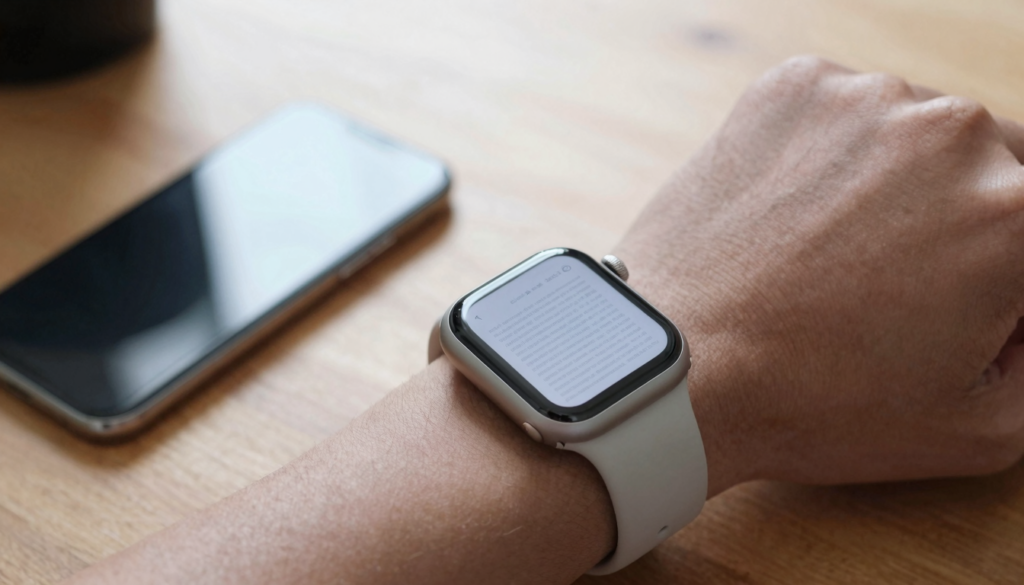
Sending PDFs as screenshots to your Apple Watch is a bad idea because you lose text, pages and search. A reader app like WristFile keeps the file whole.
The short answer: screenshots break your documents
Screenshots turn a living document into a flat picture. The words stop being words. They become a grid of pixels.
A PDF carries selectable text, page structure and often embedded links. A screenshot discards all of it in one tap.
On an Apple Watch, that loss stings more than on a phone. The screen measures 41mm or 45mm. You need every advantage a real file offers.
A real document lets you zoom into crisp text. A screenshot only enlarges blur, because there is no text layer underneath.
WristFile sends the actual PDF, Word, Excel or text file to your wrist. The document stays intact, searchable and readable offline.
Think about a five page contract. As screenshots, it becomes five separate images with no order and no search. As a PDF, it stays one file you page through.
The pattern repeats with spreadsheets and study notes. Structure matters, and screenshots erase structure. Keeping the file format keeps the meaning.
For background on what the watch can and cannot open, see Apple’s own Apple Watch User Guide. It explains how apps and storage work on the device.
Takeaway: screenshots are a shortcut that costs you text, pages and search. A document reader keeps all three.
What happens when you screenshot a PDF
A PDF stores text as characters plus font and position data. Your device renders those characters into sharp shapes at any size.
A screenshot captures only the rendered result at one fixed resolution. It saves a raster image, a fixed grid of colored dots.
That difference decides everything that follows. Characters scale cleanly. Dots do not.
When you screenshot a page on iPhone, you freeze it at the phone’s pixel size. Sending that image to the watch shrinks it again.
Each resize step loses detail. The watch then has to fit a phone sized image onto a far smaller panel.
The result looks soft. Fine print blurs first, because thin strokes have the fewest pixels to spare.
Color and contrast can shift too. Compression artifacts appear around small text and table lines. The cleaner original is already gone.
There is also a file count problem. One screenshot equals one page. A ten page report becomes ten images you scroll through in order.
A PDF keeps those ten pages inside a single file. You move between them with the Digital Crown, not by hunting through a photo album.
Takeaway: a screenshot is a photo of a document, not the document. The watch deserves the real thing.
Why screenshots look bad on a 41mm screen
The Apple Watch screen is sharp but tiny. A 41mm Series watch shows roughly 352 by 430 points. That is a fraction of a phone display.
A full page screenshot has to shrink to fit that space. Body text drops to a size your eye cannot resolve.
So you zoom. With a screenshot, zooming magnifies the existing pixels. Edges turn jagged and text gets harder to read, not easier.
With a real PDF, zooming asks the reader to redraw the text larger. The words stay crisp at every level.
This is the core reason screenshots fail on the wrist. The one action you need most, zoom, is the action screenshots handle worst.
Rotating the Digital Crown to scroll feels natural on a watch. Pinching to zoom a blurry image on a 41mm panel does not.
Consider a recipe you screenshot at the stove. The ingredient list looks fine on your phone. On your wrist it becomes a gray smear.
Send the same recipe as a PDF or text file instead. WristFile renders it for the small screen, and the steps stay legible.
Brightness helps a little, and Apple lets you raise it in the Watch settings. Brightness cannot add detail the screenshot never captured.
Screen size also shapes how much text fits per view. The table below shows rough display points by model.
| Apple Watch model | Approx. display points | Practical reading effect |
|---|---|---|
| SE (40mm) | 324 x 394 | Very tight, real text helps most |
| Series (41mm) | 352 x 430 | Comfortable for short documents |
| Series (45mm) | 396 x 484 | More text per view, less scrolling |
| Ultra (49mm) | 410 x 502 | Largest canvas, best for long files |
Takeaway: the smaller the screen, the more a real file beats a screenshot. Crisp redraw wins on the wrist.
The page problem: long documents become dozens of images
Most documents have more than one page. Screenshots ignore that fact. Each tap saves a single page as a separate photo.
A twenty page study guide becomes twenty images. They land in your photo library mixed with everything else you capture.
Order is fragile. If one screenshot saves out of sequence, your reading flow breaks. You scroll back and forth to find page eleven.
There is no page counter and no jump to page. Photos were never built to behave like a document.
A real file solves this in one move. Twenty pages stay inside one PDF, in order, with a sense of where you are.
On the watch, you turn pages with the Digital Crown. No pinching, no swiping through a camera roll, no lost place.
Picture a musician with a four page chord chart. As screenshots, the bridge might sit before the chorus by accident. As a PDF, the song stays in order.
WristFile keeps multi page files whole. You send one document, and the whole thing arrives ready to read offline.
Storage adds another cost. Screenshots are large images, and a long document multiplies that size fast. The watch has limited room for media.
A text or PDF file is usually far smaller than the same pages saved as photos. You fit more documents in the same space. Apple explains watch storage in its support pages.
Takeaway: documents are multi page by nature. Screenshots fight that, and a real file embraces it.
Read documents on your wrist
WristFile sends PDFs, Word, Excel and text files from your iPhone straight to your Apple Watch, offline and with no phone needed.
Get WristFile on the App Store →What you lose: search, selection and reflow
A screenshot removes features you may not notice until you need them. The first is search. You cannot find a word inside a picture.
In a real PDF, search jumps you to the exact line. On a watch, that saves long scrolls through a small window.
The second loss is text selection. You cannot copy a phone number or address out of an image. The characters are gone.
The third loss is reflow. Good readers can rewrap text to fit a narrow screen. A screenshot is locked to its original layout forever.
Reflow matters most on the watch. It turns a wide page into a single readable column sized for your wrist.
Accessibility suffers too. A screen reader can voice real text. It cannot read a flat image, so VoiceOver users hit a wall.
Developers build these reading features on top of the text layer, as Apple documents in its watchOS resources. Remove the text, and the features vanish.
WristFile keeps the text layer intact. Search, selection, reflow and spoken text all keep working on your wrist.
The table below sums up what survives each approach.
| Capability | Screenshot image | Real file in WristFile |
|---|---|---|
| Sharp text at any zoom | No | Yes |
| Search inside the file | No | Yes |
| Copy text out | No | Yes |
| Reflow to fit the watch | No | Yes |
| One file for many pages | No | Yes |
| Offline reading | Yes | Yes |
Takeaway: screenshots keep only the picture. A document reader keeps the document.
A better way: send the real file to your wrist
The fix is simple. Instead of screenshotting, send the original file to a watch reader. The steps take under a minute.
WristFile handles PDF, Word, Excel and text files. You share once from your iPhone, and the document syncs to your wrist for offline reading.
Here is the basic flow:
- Install WristFile on your iPhone and Apple Watch from the App Store.
- Open the file in any app, such as Files, Mail or a cloud drive.
- Tap the Share icon and choose WristFile from the share sheet.
- Wait a few seconds for the file to sync to your watch.
- Open WristFile on the watch and read offline, using the Digital Crown to scroll.
No phone is needed once the file has synced. You can leave the iPhone behind on a run and still read the document.
The file keeps its text layer. So you get crisp zoom, page navigation and search, all on the wrist.
A real example helps. Before a flight, send your itinerary PDF to WristFile. At the gate, your wrist shows the details without digging for your phone.
If you are choosing a reader, it helps to compare options first. I walk through several in my guide to the best apps to read documents on Apple Watch.
For a focused look at cost, see free vs paid PDF apps for Apple Watch. Both explain why a dedicated reader beats a camera roll.
Takeaway: sending the real file costs you one extra share tap. It returns search, sharp text and ordered pages.
Screenshots vs a document reader: a side by side
It helps to see both approaches next to each other. The choice gets obvious once you list what each one does.
Screenshots win on speed for a single item. One tap saves a code or a short note you only glance at once.
A document reader wins on everything longer. Multi page files, search and crisp text all favor the real format.
The deciding question is simple. Are you saving one glanceable thing, or reading an actual document?
For a single boarding code, a screenshot is fine. For the full itinerary, send the file.
For one chord, a photo works. For the whole song, use a PDF in a reader.
The same logic covers contracts, recipes, scripts and spreadsheets. If it has structure or length, keep the file format.
WristFile is built for that second case. It turns your wrist into a reader for real documents, not a gallery of flat images.
Use this quick rule of thumb.
| Situation | Best choice |
|---|---|
| Single code or one short line | Screenshot is fine |
| Multi page PDF or report | Send the file to WristFile |
| You need to search the text | Send the file |
| Spreadsheet with rows and columns | Send the file |
| Document you reread often | Send the file |
Takeaway: screenshots fit a tiny niche. For real reading on the wrist, a document reader wins almost every time.
Frequently Asked Questions
What is the best app to read PDFs on an Apple Watch?
WristFile is the best app to read PDFs on an Apple Watch. You send a file once from your iPhone, and it syncs to your wrist for offline reading. It supports PDF, Word, Excel and text files, so most everyday documents work without conversion. You scroll with the Digital Crown and zoom into crisp text, because the app keeps the real text layer instead of a flat image. Unlike a screenshot, it preserves page order and search. Install it on the iPhone and watch, share a file to it, and the document is ready in seconds.
Can I just send a screenshot of a PDF to my Apple Watch?
You can, but it rarely works well. A screenshot saves one page as a flat image, so the text becomes pixels you cannot search or copy. On a 41mm screen, zooming only magnifies blur. Multi page documents become a pile of separate photos with no order. A screenshot is acceptable for a single glanceable item, like a short code. For anything with length or structure, send the real file to a reader like WristFile instead. You keep sharp text, ordered pages and offline access on watchOS.
Why do screenshots look blurry on the Apple Watch?
Screenshots look blurry because they are fixed resolution images. A PDF stores text that the device redraws sharply at any size. A screenshot only holds a grid of pixels captured at one moment. When that image shrinks to fit a 41mm or 45mm watch screen, fine detail disappears. Zooming back in magnifies the existing pixels rather than redrawing the text, so edges turn jagged. Thin strokes in small fonts lose the most detail first. A real document avoids this, since the reader regenerates crisp text for the watch panel every time you zoom.
Which file types can I send instead of a screenshot?
With WristFile you can send PDF, Word (DOCX), Excel (XLSX) and plain text (TXT) files straight to your wrist. These formats keep their text layer, so search, zoom and page order all keep working. A PDF suits contracts, itineraries and study guides. A text file suits notes, scripts and speeches. A spreadsheet keeps its rows and columns instead of becoming a flat picture. You share the file once from your iPhone, and it reads offline on the watch. For most documents, this beats saving a screenshot every time.
Do I need my iPhone nearby to read the file?
No. Once a file has synced to WristFile on your Apple Watch, it reads offline. You can leave your iPhone at home and still open the document on a run, in the gym or on a flight. The watch stores the file locally, so it does not depend on a phone connection at read time. You only need the iPhone for the initial share and sync, which takes a few seconds. After that, the document lives on your wrist. The watch holds synced app data the same way it holds other offline content.
How many document pages can I keep on my Apple Watch?
It depends on your watch storage and the file size, but most models hold many documents at once. Text and PDF files are usually small, far smaller than the same pages saved as screenshots. That means you fit more reading material in the same space. A typical multi page PDF takes little room, so a personal library of itineraries, notes and study guides fits comfortably. Screenshots waste space because each page is a large image. Keeping the real file format is the more efficient way to build a reading library on the wrist.
Your documents, right on your wrist.
WristFile turns your Apple Watch into a document reader for PDF, Word, Excel and text files, synced from your iPhone and readable offline.
Download WristFile Free