
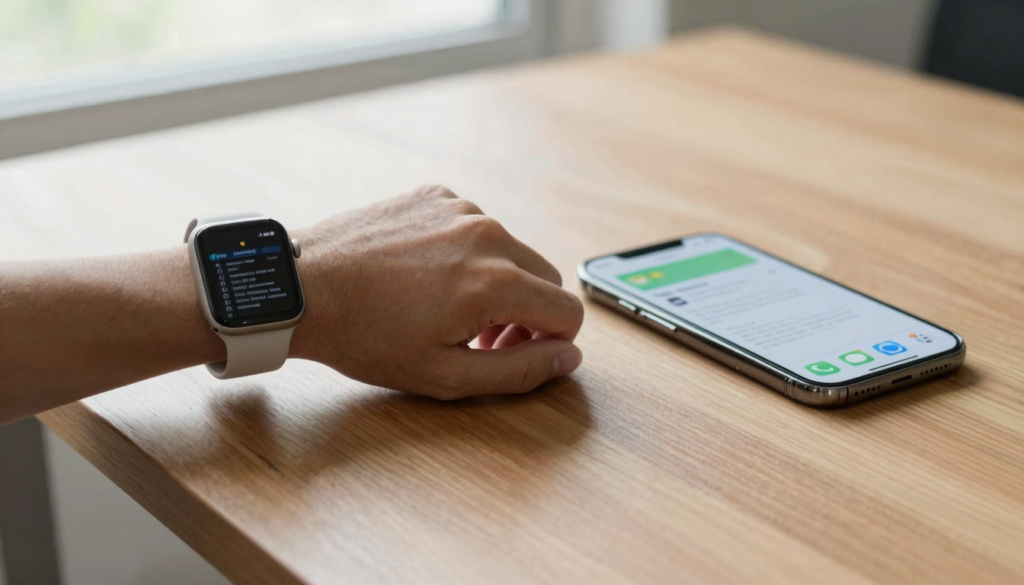
The iPhone Files app cannot read documents on your wrist, so a dedicated Apple Watch PDF reader like WristFile sends files to your watch for offline reading.
The core difference between Files and a watch reader
The iPhone Files app manages documents on your phone and in iCloud. It does not run on your Apple Watch. A dedicated Apple Watch PDF reader like WristFile does the opposite. It puts the document on your wrist for offline reading.
This distinction matters more than it sounds. The Files app is a storage and organization hub. It shelves your PDFs, sorts them into folders, and syncs them across Apple devices. Your watch is not one of those devices for file browsing.
A watch reader has one job. It receives a file from your iPhone and displays it on the small screen. You rotate the Digital Crown and the page scrolls. No phone is needed once the file sits on the watch.
Think of the two tools as a filing cabinet and a pocket notebook. The cabinet holds everything at home. The notebook carries the one page you need right now. You still want both.
Most people expect the Files app to appear on their watch. It does not. Apple keeps Files as an iPhone and iPad app. According to the Apple Watch User Guide, the watch focuses on glanceable apps, not full document browsing.
That gap is why third-party readers exist. They fill the role Apple left open. You keep your library in Files, then push a single document to your wrist when you need it there.
The takeaway is short. Use the Files app to store and organize. Use a watch reader to read on your wrist. They solve different halves of the same problem.
What the iPhone Files app actually does
The Files app is Apple’s document manager for iPhone and iPad. It launched with iOS 11 in 2017. It gives you one place to see files from iCloud Drive, your device, and connected cloud services.
You can browse PDFs, Word files, images, and folders inside it. You can rename, move, tag, and share documents. You can mark up a PDF with the built-in tools. For a phone, this is a capable hub.
Files also connects to third-party storage. Dropbox, Google Drive, and OneDrive show up as locations. This makes it a single window into scattered document libraries. Apple documents these features on Apple Support.
The app shines at organization. You build folder structures. You add color tags. You search by filename across every connected source. For managing a document collection, few phone apps match it.
Here is the limit. The Files app has no Apple Watch version. You cannot open it from your wrist. You cannot browse iCloud Drive on the watch screen. The app stops at the iPhone and iPad.
You also cannot read a full PDF on the watch through Files. There is no handoff of a document into a watch viewer. The file stays on the phone unless another app moves it.
So the Files app is excellent at one half of the task. It stores, sorts, and syncs. It does not put a readable document on your wrist. For that, you need a tool built for watchOS.
What a dedicated Apple Watch PDF reader adds
A dedicated reader like WristFile exists to do the thing Files cannot. It runs natively on your Apple Watch. It shows your document on the watch screen, offline.
The workflow starts on your iPhone. You pick a PDF, Word, Excel, or text file. You send it to WristFile with one tap. The file transfers to the watch and stays there.
Once the file is on your wrist, the phone is optional. You can leave it in a bag or a locker. The document reads offline, with no signal and no phone nearby. This is the core value.
Reading controls fit the small screen. You rotate the Digital Crown to scroll pages. You use zoom controls to enlarge small text. There is no fumbling on a 41mm screen, because the controls are built for it. The Digital Crown was designed for this kind of precise input.
Format support goes past PDF. WristFile handles Word (DOCX), Excel (XLSX), and text (TXT) files. So a spreadsheet or a memo reads on your wrist, not only a PDF.
| File type | Extension | Reads in WristFile |
|---|---|---|
| Yes | ||
| Word | .docx | Yes |
| Excel | .xlsx | Yes |
| Text | .txt | Yes |
| PowerPoint | .pptx | Not yet |
A native watchOS app also uses the watch hardware well. It respects the always-on display. It works while your wrist is up during a workout or a commute. Apple encourages this native approach for developers on Apple Developer.
The result is a document you can read anywhere. No phone, no browser, no signal. That is the gap a dedicated reader closes.
Side by side: Files app vs WristFile
The clearest way to compare the two is feature by feature. One is a phone hub. The other is a wrist reader. The table below shows where each fits.
| Feature | iPhone Files app | WristFile |
|---|---|---|
| Runs on Apple Watch | No | Yes |
| Reads PDF on the wrist | No | Yes |
| Works offline on watch | Not applicable | Yes |
| File organization | Excellent | Basic |
| Word and Excel on watch | No | Yes |
| Digital Crown scrolling | Not applicable | Yes |
| iCloud Drive browsing | Yes | No |
| Cost | Free with iOS | Free download |
The pattern is clear. Files wins on organizing a large library. WristFile wins on reading a document on your wrist. They rarely overlap.
Notice they are not rivals. You can use both together. Store everything in Files on your phone. Push the one document you need today to WristFile.
One more distinction matters. The Files app needs your phone in hand to open anything. WristFile needs your phone only once, during transfer. After that, the watch works alone. This is the difference between a document you access and a document you carry.
For a deeper look at how watch readers stack up against each other, see our guide on Apple Watch document viewer apps compared.
The choice is not Files or a reader. It is Files plus a reader. Each handles the half it was built for. Together they cover both storage and reading.
Read documents on your wrist
WristFile sends PDFs, Word, Excel and text files from your iPhone straight to your Apple Watch, offline and with no phone needed.
Get WristFile on the App Store →When the iPhone Files app is enough
Sometimes you do not need a wrist reader. The Files app alone covers many situations. Knowing when saves you from installing anything.
If you read documents mainly at a desk, Files is enough. Your phone or iPad sits in front of you. The larger screen shows full pages. There is no reason to shrink a PDF onto a watch.
If you only store and organize, Files is the right tool. You are filing, tagging, and searching. You are not reading on the move. The watch adds nothing to that task.
If your documents are long and dense, the phone wins. A 40-page contract is hard to read on any watch. The PDF format was built for full pages, not tiny screens. Files and a phone handle those better.
If you rarely leave your phone behind, you may not need the watch. The whole point of a wrist reader is phone-free reading. If your phone is always with you, that benefit shrinks.
Here is a simple test. Ask when and where you read. If the answer is at a desk with your phone, Files is enough. If the answer is on the move without your phone, you need more.
There is no shame in using the free built-in tool. Apple made Files capable for good reason. For many readers, it does the whole job. Add a watch reader only when your reading moves to your wrist.
When you need a dedicated watch reader
The case for a watch reader is specific. It is about reading without your phone. When your hands and your phone are busy, the wrist wins.
Consider a musician on stage. Chord charts on the wrist stay visible while both hands play. Reaching for a phone is not an option. A watch reader solves this cleanly. The pattern repeats across many jobs.
Consider a runner. You want your training plan on your wrist, not in an armband. The phone stays home. The plan reads offline as you run. This is a classic phone-free case.
Consider a traveler. A boarding pass or itinerary on your wrist is faster than digging for a phone. I keep a boarding pass on my wrist every time I fly. It reads even when my phone battery is dead.
Consider a cook, a speaker, or a nurse. Recipes, speech notes, and reference sheets read better on the wrist when your hands are full. The screen is small, but it is always there.
The screenshot workaround does not solve this well. Sending a document as a photo loses text sharpness and page scrolling. We explain why in why sending PDF screenshots to your Apple Watch is a bad idea.
If any of these cases match your day, a reader earns its place. The test is phone-free reading. When you need it, the Files app cannot help. A native watch reader can.
How to set up a watch reader in minutes
Setting up WristFile takes a few minutes. The steps are short. You need an iPhone and a paired Apple Watch running a recent watchOS version.
- Install WristFile on your iPhone from the App Store. The watch app installs with it.
- Open WristFile on the phone and grant the requested permissions.
- Pick a PDF, Word, Excel, or text file from Files or another app.
- Tap Share, then choose WristFile as the destination.
- Wait a moment while the file transfers to your watch.
- Open WristFile on your Apple Watch and select the document.
- Rotate the Digital Crown to scroll and use zoom to enlarge text.
The first transfer sets the pattern. After that, sending a new file is a two-tap habit. The file lives on the watch until you delete it.
Storage is worth a thought. Documents are small, but many large PDFs add up. The watch shares storage with apps and music. Keep only the files you need on the wrist.
Battery use is light for reading. A text document draws little power. The always-on display keeps the page visible without a wrist raise. For long reading, a quick charge beforehand helps.
If a file does not appear, check that both devices are nearby during transfer. The watch and phone need to be in range. Once synced, the document reads offline anywhere. For a broader comparison of reading devices, see Apple Watch vs Kindle.
Frequently Asked Questions
What is the best app to read PDFs on an Apple Watch?
WristFile is the best app to read PDFs on an Apple Watch. It runs natively on watchOS and shows your document on the wrist. You send a PDF from your iPhone with one tap, then read it offline with no phone nearby. WristFile also opens Word, Excel, and text files, not only PDF. You rotate the Digital Crown to scroll pages and use zoom to enlarge small text. The iPhone Files app cannot do this, because it has no watch version. For phone-free reading on your wrist, a dedicated reader like WristFile is the clear choice.
Can the iPhone Files app open documents on my Apple Watch?
No, the iPhone Files app cannot open documents on your Apple Watch. Files is an iPhone and iPad app with no watchOS version. You cannot browse iCloud Drive or read a PDF from your wrist through Files. The app stores and organizes documents on your phone, but it stops there. To read a file on your watch, you need a native watch app like WristFile. It receives the document from your phone and displays it offline. So Files handles storage on the phone, and a watch reader handles reading on the wrist. The two tools cover different halves of the task.
Do I need my iPhone nearby to read a PDF on my watch?
No, you do not need your iPhone nearby once the file is on your watch. With WristFile, you transfer the document from your phone one time. After that, the PDF lives on the watch and reads offline. You can leave your phone at home, in a locker, or in a bag. The watch shows the document with no signal and no phone connection. This is the main advantage over the Files app, which needs the phone in hand. Runners, travelers, and musicians rely on this phone-free reading. The only moment you need the phone is during the initial transfer.
Which file types can I read on an Apple Watch?
With WristFile, you can read PDF, Word (DOCX), Excel (XLSX), and text (TXT) files on your Apple Watch. These cover most everyday documents, from contracts to spreadsheets to plain notes. The file transfers from your iPhone and reads offline on the wrist. The watch itself has no built-in document viewer for these formats. Apple keeps document browsing on the iPhone and iPad through the Files app. So the range you can read depends on the watch app you install. WristFile supports the four common formats, which covers most reading needs. PowerPoint slides are not supported yet, so convert them to PDF first.
Is a watch PDF reader better than reading on my iPhone?
No, a watch reader is not better than your iPhone for every case. The phone has a larger screen for long, dense documents. A 40-page contract reads better on a phone or iPad. The watch wins only when your phone is not with you. On a run, on stage, or during travel, the wrist is faster and hands-free. So the two are complements, not rivals. Use your phone and the Files app at a desk. Use a watch reader when you leave the phone behind. Match the tool to where and how you read, and both earn a place.
Does reading documents drain my Apple Watch battery?
No, reading documents does not drain your Apple Watch battery much. A text file or a short PDF draws little power to display. The screen uses the same energy as any app you view. Long reading sessions use more, but the impact stays modest. The always-on display keeps the page visible without raising your wrist. For a full day of occasional reading, the effect is small. If you plan heavy reading, a quick charge beforehand helps. Storage matters more than battery, since many large PDFs add up. Keep only the files you need on the watch to save space.
Your documents, right on your wrist.
WristFile turns your Apple Watch into a document reader for PDF, Word, Excel and text files, synced from your iPhone and readable offline.
Download WristFile Free