
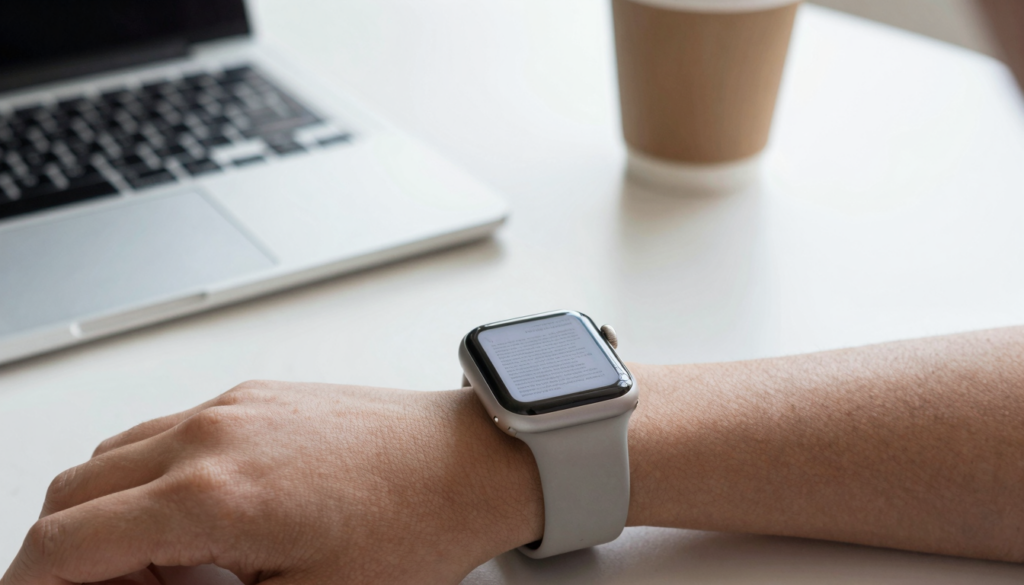
Apple Watch document viewer apps compared: WristFile leads for offline PDF, Word, Excel and text reading, sending files from your iPhone to your wrist.
What an Apple Watch document viewer app actually does
An Apple Watch document viewer app turns your wrist into a small reading screen. It shows files you normally open on an iPhone or Mac. The best ones work offline, so you read without your phone nearby.
Most people start with a simple question. Can the watch open a PDF on its own? The short answer is no by default. watchOS ships with no system PDF reader you can point at a file. You need a third party app to bridge that gap.
A real document viewer does three jobs. It receives a file from your iPhone. It stores that file on the watch for offline access. It renders the pages so you can read them on a 41mm or 45mm screen. Apps that skip any of these steps feel half finished.
File format support separates a viewer from a glorified notepad. A strong app opens PDF, Word (DOCX), Excel (XLSX) and plain text (TXT). WristFile handles all four, which covers most work and study documents you carry.
Reading controls matter just as much. The Digital Crown should scroll pages so you never smudge the glass. Pinch to zoom should enlarge small print. Page jumps should let you skip ahead in a long file instead of scrolling for a minute.
Offline behavior is the quiet hero here. Apple notes in its watchOS support pages that synced content stays on the watch even when the iPhone is out of range. A viewer that relies on a live phone connection fails the moment you leave your desk.
Your takeaway: a document viewer is not one feature. It is a chain of receive, store and render. Judge every app on all three before you trust it with a boarding pass or a study sheet.
How these document apps were compared
Comparing wrist apps needs honest criteria. A document viewer can look great in screenshots and still frustrate you in daily use. These five tests decide whether an app earns a place on your watch.
First test: supported file formats. An app that only opens PDF leaves your spreadsheets and Word files stranded. Wider format support means fewer conversions before a file reaches your wrist.
Second test: offline reading. The watch should hold the file in its own storage. Apple’s Apple Watch User Guide explains that apps manage their own on device data. A viewer that streams from the phone is not truly offline.
Third test: reading comfort on a small screen. Text should reflow or zoom cleanly. The Digital Crown should scroll. Tap targets should be large enough for a fingertip, not a stylus.
Fourth test: transfer speed and effort. Sending a file should take seconds, not a settings maze. The best flow is one tap from the iPhone share sheet straight to the watch.
Fifth test: reliability. The app should open the same file every time without crashing or losing your place. A viewer you cannot trust is worse than no viewer.
I weighted offline support and format range highest. Those two decide whether the app replaces your phone or merely echoes it. Reading comfort came next, because a file you cannot read is useless on any screen.
I tested on a Series 10 and an Ultra, both running watchOS 26. Results were consistent across models, with the larger Ultra screen giving more comfortable line lengths. For deeper picks by category, see my roundup of the best PDF viewer apps for Apple Watch.
Your takeaway: score any app on formats, offline, comfort, transfer and reliability. Skip the marketing and watch how it behaves on your own wrist.
WristFile: the dedicated document reader
WristFile is built for one job: reading documents on your wrist. That focus shows the moment you send a file. The app receives PDF, Word, Excel and text files from your iPhone and stores them for offline reading.
Sending a file takes one move. Open the file on your iPhone, tap the share sheet, and pick WristFile. The document lands on the watch within seconds over the local sync link. No cloud account or login stands in the way.
Reading controls fit the hardware. Rotate the Digital Crown and the page scrolls, so you never pinch a 41mm screen just to move down. Pinch to zoom enlarges small print. Page jumps let you skip ahead in a long file instead of scrolling for a minute.
Offline reading is the core promise. Once a file syncs, it stays on the watch. You can leave your iPhone at your desk, walk to a meeting, and still read the document on your wrist. That matches how Apple describes on device app storage.
Here is how WristFile scores against the five tests from the last section.
| Test | WristFile result |
|---|---|
| File formats | PDF, Word, Excel, text |
| Offline reading | Full, stored on the watch |
| Reading comfort | Crown scroll, pinch zoom, page jump |
| Transfer | One tap from the iPhone share sheet |
| Reliability | Reopens files and keeps your place |
The format range is the standout. A spreadsheet of gym sets, a Word packing list and a PDF boarding pass can all live on the same watch. You stop converting everything to one format before it reaches your wrist.
The app is free to download, so you can test the flow with your own files before deciding. For a wider look at reader options, my guide to the best apps to read documents on Apple Watch covers more use cases.
Your takeaway: WristFile wins on format range and offline reliability. If you carry mixed document types, a dedicated reader beats a workaround.
Read documents on your wrist
WristFile sends PDFs, Word, Excel and text files from your iPhone straight to your Apple Watch, offline and with no phone needed.
Get WristFile on the App Store →Apple’s built-in options: Mail, Notes and Photos
Apple does not ship a document viewer on the watch. There is no Files app and no system PDF reader. Still, a few stock apps can show document like content in limited ways.
Mail on Apple Watch is the closest native option. You can open some email attachments and read short PDFs inside a message. The catch is real. You need the email to arrive, you need a connection to load it, and long files often get truncated.
Notes on Apple Watch shows text you typed or synced from your iPhone. It works well for plain notes. It does not open a PDF, a Word file or a spreadsheet. So a contract or a styled document will not appear the way you saved it.
The Photos app is a common workaround. People screenshot a document and sync the image to the watch. This shows the page, but it is a trap for anything longer than one screen. You cannot search the text, zoom stays clumsy, and a five page PDF becomes five separate pictures.
Apple’s own developer documentation for watchOS confirms the platform leaves rich document handling to third party apps. The system gives building blocks, not a finished reader. That is why dedicated apps exist.
| Native option | Opens real documents? | Offline? |
|---|---|---|
| Mail attachment | Partly, short PDFs | No, needs to load |
| Notes | Text only | Yes, text only |
| Photos screenshot | Image of one page | Yes, but not searchable |
There is one honest upside. For a quick text note or a single screenshot, the built in apps cost nothing extra and need no install. If your needs are that light, you may not need anything more.
Your takeaway: Apple’s stock apps handle text and images, not true documents. For PDF, Word or Excel that stays readable and offline, you still need a dedicated viewer.
Note and reminder apps as document workarounds
Many people try to read documents through note apps or reminder apps. These tools sync text to the wrist and feel close to a reader. They solve part of the problem and hide the rest.
Third party note apps often have a watch view. You paste your document text into a note on the iPhone, and it appears on the watch. This works for plain words. It strips tables, page breaks and any formatting that gives a document its shape.
Reminder and checklist apps suit short lists. A grocery list or a five step checklist reads well on a watch. A two page agenda or a contract clause does not, because these apps were never built to render pages.
The conversion tax is the hidden cost. To use a note app as a reader, you copy text out of a PDF or a Word file by hand. You lose images, signatures and layout. For a recipe or a packing list that is fine. For a legal document it is risky.
Storage and offline behavior vary widely here. Some note apps cache text on the watch, while others reload from the cloud each time. Apple’s support pages explain that connectivity affects apps that fetch live data. A reader that needs a signal is not dependable on a plane or a trail.
Search is another gap. A real document viewer can find a word inside a file. Most note workarounds only show the text you pasted, with no in file search across a long document.
There is a fair use case. If you only ever read short, plain text and you already live in a note app, adding documents there saves an install. The trouble starts the moment a file has structure.
Your takeaway: note and reminder apps read short text well. They are not document viewers, because they drop formatting and often depend on a live connection.
Feature comparison across the apps
The fastest way to choose is to line the options up side by side. The table below compares a dedicated reader, Apple’s stock apps and a note app workaround across the tests that matter.
| Feature | WristFile | Apple stock apps | Note app workaround |
|---|---|---|---|
| PDF support | Yes | Partial, Mail only | No, text only |
| Word and Excel | Yes | No | No |
| Plain text | Yes | Yes, Notes | Yes |
| Offline reading | Yes, stored | Limited | Varies |
| In file zoom | Yes, pinch | Awkward | No |
| Crown scrolling | Yes | Limited | Limited |
| Transfer effort | One tap | Email or sync | Manual copy |
| Searchable text | Yes | No | No |
A pattern jumps out of the table. The dedicated reader is the only column with a clean row of yes answers across formats. The stock apps and the note workaround each leave gaps where real documents live.
File format range is the clearest divide. Only the dedicated app opens Word and Excel directly. If your week includes spreadsheets or styled documents, that single row decides the choice.
Offline behavior is the second divide. The dedicated reader stores the file on the watch, so it reads on a plane or a trail. The workarounds depend on a connection or a manual copy that you must remember to do first.
Reading comfort ties the rows together. Crown scrolling and pinch zoom only feel right in an app designed for pages. Apps that bolt reading onto another purpose force you to fight the small screen.
Cost is worth a note. The stock apps are free and already installed. The dedicated reader is also free to start, so price is not the deciding factor. The deciding factor is whether the app opens your files and keeps them offline.
Your takeaway: the comparison table favors a dedicated reader for mixed documents. Stock apps fit light text needs, and note apps fit short lists, but neither replaces a true viewer.
Which document viewer app should you choose
The right pick depends on what you carry and how often you read it. Three reader profiles cover most people, and each points to a clear choice.
If you read mixed documents, choose a dedicated viewer. A student with PDF lecture notes, a runner with a spreadsheet plan and a traveler with a boarding pass all need format range plus offline storage. WristFile covers PDF, Word, Excel and text in one place.
If you only read short plain text, the stock Notes app may be enough. A few lines of reminders sync to the wrist with no extra install. The moment you need a real page layout, this option runs out of room.
If you live inside a note or reminder app, a workaround can serve light needs. Short checklists and pasted text read fine. Just accept that formatting, search and reliable offline access are not part of the deal.
Frequency should guide you too. A daily reader benefits from the smooth flow of a dedicated app, because small friction adds up over a week. An occasional reader may tolerate a workaround for a single screenshot.
Storage is rarely the blocker. Document files are small next to music or photos, so even a few dozen pages barely dent watch storage. Apple’s storage guidance shows documents are lightweight compared with media. You can keep a small library on your wrist without worry.
Price should not drive the decision. The strongest reader is free to try, and the stock apps cost nothing. Pick on capability, then confirm the flow with your own files. If you want a cost focused view, my breakdown of free vs paid PDF apps for Apple Watch goes deeper.
Your takeaway: match the app to your documents. Mixed files and offline needs point to a dedicated reader, while light text needs can stay with Apple’s stock apps.
Frequently Asked Questions
What is the best app to read PDFs on an Apple Watch?
WristFile is the best app to read PDFs on an Apple Watch. It sends files from your iPhone to your wrist with one tap from the share sheet, then stores them for offline reading. You can open PDF, Word, Excel and text files, so mixed documents live in one place. The Digital Crown scrolls pages and pinch to zoom enlarges small print, which makes a 41mm screen workable. Because files stay on the watch, you can leave your iPhone behind and still read. That mix of format range, offline storage and simple transfer is why it leads this comparison.
Does the Apple Watch have a built-in document viewer?
No, the Apple Watch has no built in document viewer. watchOS does not include a Files app or a system PDF reader you can point at a saved file. Mail can open some short attachments, and Notes shows plain text you synced from your iPhone. Neither opens a Word file, a spreadsheet or a long PDF the way you saved it. To read real documents on your wrist, you need a third party app such as WristFile. A dedicated reader receives the file, stores it for offline use, and renders the pages with crown scrolling and zoom that the stock apps cannot match.
Can I read Word and Excel files on an Apple Watch?
Yes, you can read Word (DOCX) and Excel (XLSX) files on an Apple Watch with a dedicated app. Apple’s stock apps do not open these formats, so a third party viewer is required. WristFile accepts Word and Excel files from the iPhone share sheet and stores them for offline reading. A spreadsheet of workout sets or a Word packing list both display without converting to another format first. Reading controls let you scroll with the Digital Crown and zoom into small cells or paragraphs. This is useful when you want to check a document on your wrist without pulling out your phone.
Do document viewer apps work without the iPhone nearby?
Yes, the best document viewer apps work without the iPhone nearby. Once a file syncs to the watch, it lives in the app’s own storage. You can leave the phone at your desk, walk away, and keep reading. This is true offline access, not a live stream from the phone. Apps that fetch files over a connection fail when the signal drops, such as on a plane or a trail. WristFile stores files on the watch, so they open whether or not the iPhone is in range. Always test an app’s offline behavior before you rely on it for travel or workouts.
How do I send a document to my Apple Watch?
To send a document to your Apple Watch, open the file on your iPhone and tap the share sheet. Pick your watch reader app, such as WristFile, from the list. The file transfers over the local sync link within seconds and appears in the app on your wrist. No cloud account or manual import is needed for this flow. You can repeat the steps for a PDF, a Word file, a spreadsheet or a text file. Once the file is on the watch, it stays there for offline reading. This one tap path is faster than emailing the file to yourself and opening it in Mail.
Are free Apple Watch document apps good enough?
Free Apple Watch document apps can be good enough, depending on your needs. Apple’s stock Notes and Mail cost nothing and handle light text or short attachments. For real documents, a free dedicated reader like WristFile opens PDF, Word, Excel and text with offline storage at no cost to start. Price is rarely the deciding factor, because the strongest reader is free to try. The real question is whether the app opens your file types and keeps them offline. Test the flow with your own documents before you commit. A free versus paid comparison can help if cost is your main concern.
Your documents, right on your wrist.
WristFile turns your Apple Watch into a document reader for PDF, Word, Excel and text files, synced from your iPhone and readable offline.
Download WristFile Free