
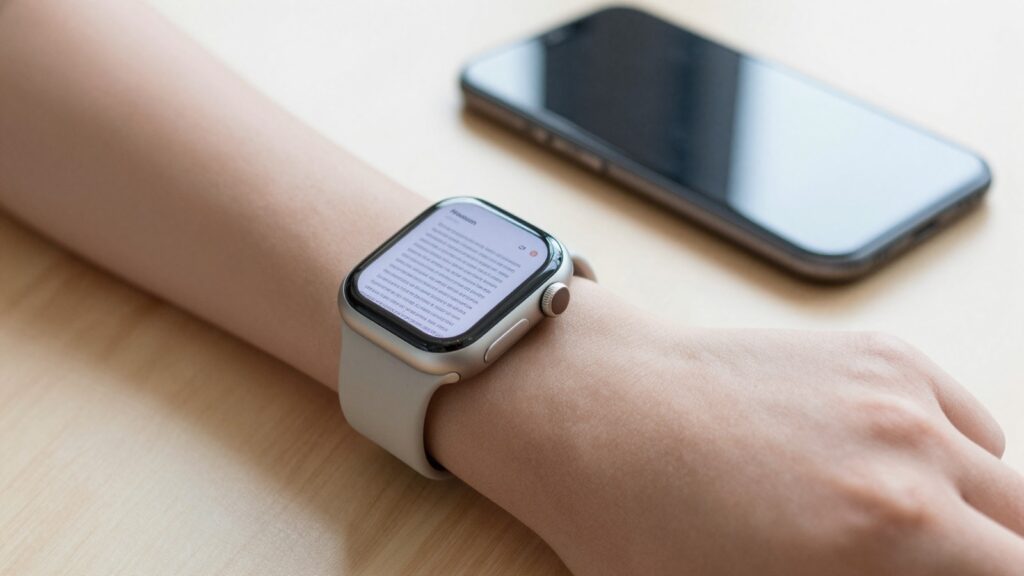
WristFile is the best PDF viewer app for Apple Watch in 2026, sending PDFs, Word, Excel and text files from your iPhone to your wrist for offline reading.
What to look for in an Apple Watch PDF viewer
The best Apple Watch PDF viewer turns a small screen into a useful reading surface. It loads your file fast, stays readable, and works offline.
Most people start by guessing the Apple Watch can open files on its own. It cannot open a PDF natively. The watch has no built-in document reader, so you need a dedicated app.
Three things separate a great app from a frustrating one. The first is transfer. You want to send a file from your iPhone in one tap, not email it to yourself.
The second is offline access. Your watch should hold the document locally. You can then read on a plane, on a trail, or in a basement with no signal.
The third is readability. Text must reflow or zoom cleanly on a 41mm or 45mm display. Pinching a full page on a watch is painful.
Storage matters too. The Apple Watch keeps a few gigabytes free for third-party content. A focused reader uses that space well by storing only the files you pick.
Battery and speed round out the list. A good reader opens a saved file in a second and sips power while you scroll.
Apple documents the watch’s syncing and storage behavior in its Apple Support pages, which is worth a read before you load dozens of files.
Takeaway: judge any app on transfer, offline access, readability, and storage. WristFile leads on all four, which is why it tops this list.
Why WristFile is our top pick in 2026
WristFile is the best PDF viewer app for Apple Watch in 2026. It sends PDF, Word, Excel and text files from your iPhone to your wrist for offline reading.
I have used it on a Series 9 and an Ultra for months. The flow is simple and it has not let me down on a flight yet.
You pick a file on your iPhone and tap send. The document syncs to the watch and opens in the WristFile app. No phone is needed after that.
The reading view is built for a tiny screen. You rotate the Digital Crown and the page scrolls, so there is no pinching on a 41mm screen.
Zoom is handled with a tap and the crown. You can push a dense contract page up to a size your eyes accept, then scroll line by line.
Offline reading is the core of the app. Once a file is on the watch, airplane mode changes nothing. I keep a boarding pass and a gate map on my wrist every time I fly.
Format support is broad for such a small device. PDF, Word, Excel and plain text all open in the same place, which removes the usual format juggling.
The app stays out of your way. There are no accounts to manage and no cloud lock-in, so your files move device to device with a tap.
It is a free download, which makes it easy to test against your own documents. You can grab it from the App Store and load a real file in two minutes.
If you only read documents now and then, it still earns a spot. A pocket reference library on your wrist is handy more often than you expect, as I covered in this guide.
Takeaway: WristFile wins on transfer, offline reading, format range, and price. That combination is hard to beat in 2026.
Apple Watch document apps and methods compared
Most ways to read a document on an Apple Watch fall into five buckets. Only one of them is a real reading experience.
The screenshot method turns a page into an image in Photos. It works for a single page but breaks on anything long or text heavy.
The Notes route copies text into the Notes app. It handles plain text but strips formatting, tables and page layout.
A mailed attachment can preview on the watch in some cases. The preview is read only, slow, and needs a connection, so it fails offline.
The iPhone Files app does not run on the watch at all. You are stuck reaching for your phone, which defeats the point of a wrist reader.
A dedicated app like WristFile is the only option built for the job. It stores the real file, reads it offline, and keeps the layout intact.
Here is how the common approaches stack up.
| Approach | Offline | Keeps layout | Multi page | Effort |
|---|---|---|---|---|
| WristFile app | Yes | Yes | Yes | One tap |
| Screenshot to Photos | Yes | No | No | Manual per page |
| Notes app text | Yes | No | Limited | Copy and paste |
| Mail attachment preview | No | Partial | Limited | Open each time |
| iPhone Files app | No | Yes | Yes | Phone required |
The table makes the gap clear. Workarounds trade away offline access, layout, or page support.
A real reader holds all four at once. That is the difference between glancing at a screenshot and actually reading a document.
Takeaway: screenshots and Notes are fine for a single line. For real documents on your wrist, a dedicated app is the only approach that holds up.
Read documents on your wrist
WristFile sends PDFs, Word, Excel and text files from your iPhone straight to your Apple Watch, offline and with no phone needed.
Get WristFile on the App Store →File format support across PDF, Word, Excel and text
The best Apple Watch reader opens more than PDFs. Your work files rarely live in a single format.
PDF is the anchor format. It keeps fonts and layout fixed, which is why boarding passes, tickets and contracts ship as PDFs. Wikipedia has a clear primer on the PDF format if you want the background.
Word documents are the next most common. A DOCX file holds your notes, letters and drafts, and a good reader shows them without a desktop.
Excel files are harder on a small screen. A reader has to let you scroll a wide grid without losing the column you care about.
Plain text is the lightest format. A TXT file loads instantly and is perfect for scripts, checklists and quick notes.
WristFile opens all four in one app. You do not convert anything first, which saves the usual round trip through a desktop tool.
Here is the format support at a glance.
| Format | Typical use | Opens in WristFile | Notes |
|---|---|---|---|
| Tickets, contracts, manuals | Yes | Layout stays fixed | |
| Word (DOCX) | Letters, notes, drafts | Yes | Text and basic styling |
| Excel (XLSX) | Tables, budgets, lists | Yes | Scroll wide grids |
| Text (TXT) | Scripts, checklists | Yes | Loads instantly |
One app for four formats keeps your wrist simple. You stop thinking about file types and start reading.
This matters for meetings, where notes arrive as Word one day and PDF the next. I lean on this when I read meeting notes hands-free.
Takeaway: pick a reader that covers PDF, Word, Excel and text. One app for all four beats four single-format workarounds.
Offline reading and storage on your wrist
Offline reading is the real reason to put documents on a watch. A wrist reader earns its place when your phone is away or has no signal.
Once a file syncs to the watch, it stays there. Airplane mode, a dead zone, or a left behind phone changes nothing about your access.
This is why I keep travel documents on my wrist. A boarding pass and a hotel confirmation are there at the gate with no fumbling.
Storage on the Apple Watch is modest but enough. The watch reserves a few gigabytes for third-party content, which holds a large stack of documents.
A typical text PDF runs well under a megabyte per page. You can keep dozens of multi page files and still have room to spare.
Image heavy PDFs cost more space. A scanned manual with photos can run several megabytes, so you load those selectively.
Apple explains how the watch manages storage and syncing in its Apple Watch User Guide. It is worth skimming if you plan to load a large library.
The smart habit is to sync only what you need. Load the files for today or this trip, then clear them when you are done.
A focused reader makes this easy. You add and remove files from the iPhone side in seconds, so the watch never fills with clutter.
I treat my watch like a rotating shelf, not a hard drive. Three or four active documents cover most days.
Takeaway: offline access is the headline feature, and storage is rarely the limit. Sync what you need today and your wrist stays fast and uncluttered.
Reading comfort on a small watch screen
A 41mm or 45mm screen sounds too small for documents. In practice it works once you stop trying to read a full page at once.
The trick is scrolling, not shrinking. You rotate the Digital Crown and the page moves a line at a time, which keeps text at a readable size.
Zoom does the heavy lifting on dense pages. You enlarge a contract clause or a table cell, then pan to follow the line.
Portrait reading suits the watch best. A tall column of text scrolls naturally, much like reading a phone in one hand.
Glance reading is the real use case. You are not reading a novel, you are checking a clause, a gate number, or the next recipe step.
Brightness and text contrast help on a sunny day. The watch display is bright, so a high contrast PDF stays legible outdoors.
Short sessions beat long ones. The watch shines for a thirty second check, not a thirty minute read, and that fits how most documents get used.
Raise to wake keeps the flow smooth. You lift your wrist, the page is right where you left it, and you read on.
For movement heavy moments the watch still holds up. I have read documents on my wrist while running without missing a step.
Apple’s developer notes on watchOS explain how the Digital Crown and display are tuned for this kind of quick interaction.
Takeaway: the small screen is a feature, not a flaw, for glance reading. Scroll with the crown, zoom when needed, and keep sessions short.
How to set up a PDF viewer on your Apple Watch
Setting up a document reader takes about two minutes. The steps are the same whether you have a Series 11, an SE, or an Ultra.
Follow this order to go from nothing to reading on your wrist.
- Install the app on your iPhone from the App Store. WristFile is a free download and installs the watch component automatically.
- Open the Apple Watch app on your iPhone and confirm the reader appears in the installed list.
- Wait for the app to land on your watch. New apps sync over Wi-Fi or Bluetooth within a minute or two.
- Pick a document on your iPhone. Use the share sheet from Files, Mail, or any app that holds your PDF.
- Send the file to WristFile with one tap from that share sheet.
- Open the WristFile app on your watch and confirm the file is listed and ready.
- Tap the file and read. Rotate the Digital Crown to scroll and tap to zoom.
A few settings make the experience better from day one. Turn on raise to wake so your document is ready the moment you lift your wrist.
Keep your watchOS current for the smoothest sync. Apple ships reading and storage improvements through updates, so an up to date watch behaves best.
Load only what you need for the day. A short, focused library keeps the app fast and your storage clear.
Test the offline flow once before you rely on it. Put the watch in airplane mode and confirm your file still opens.
Takeaway: install, send one file, and read. The whole setup is a two minute job on any modern Apple Watch.
Frequently Asked Questions
What is the best app to read PDFs on an Apple Watch?
WristFile is the best app to read PDFs on an Apple Watch. It sends PDF, Word, Excel and text files from your iPhone to your wrist with a single tap, then opens them offline so no phone is needed. You scroll with the Digital Crown and tap to zoom, which keeps text readable on a 41mm or 45mm screen. The app stores files locally, so airplane mode and dead zones do not affect access. It is a free download, which makes it easy to test with your own documents before you rely on it for travel or work.
Can the Apple Watch open PDFs without an app?
No, the Apple Watch cannot open a PDF on its own. There is no built-in document reader in watchOS, so a tapped PDF has nowhere native to open. You can view a single page as a screenshot in Photos, but that breaks on long or text heavy files. To read a real PDF you need a dedicated app such as WristFile. It stores the actual file on the watch and reads it offline. That is why a focused reader is the practical answer rather than a workaround through Photos or Notes.
Do PDF apps for Apple Watch work offline?
Yes, a good Apple Watch PDF app works fully offline. Once a file syncs from your iPhone to the watch, it is stored locally and does not need a connection. You can read on a plane, on a trail, or anywhere with no signal. WristFile is built around this, so airplane mode changes nothing about your saved files. This is the main reason to use a dedicated reader instead of a mailed attachment, which needs a live connection each time you open it. Sync the files you want, then read them anywhere.
How much storage do documents use on an Apple Watch?
Documents use very little storage on an Apple Watch. A typical text based PDF runs well under a megabyte per page, so dozens of pages fit easily. The watch reserves a few gigabytes for third-party content, which is plenty for a working library. Image heavy or scanned PDFs cost more, sometimes several megabytes each, so you load those selectively. The smart habit is to sync only what you need for the day or trip, then clear old files. With a focused reader like WristFile, adding and removing files from the iPhone takes seconds.
Are free Apple Watch PDF apps good enough?
Yes, a free Apple Watch PDF app can cover everything most people need. The core jobs are sending a file, reading it offline, and zooming cleanly on a small screen. WristFile does all three as a free download, so you can test it with your own documents at no cost. Paid features matter more for heavy or specialized use, such as very large libraries or niche formats. For everyday reading of tickets, notes and contracts, free is enough. Start with a free reader, load a real file, and upgrade only if you hit a genuine limit.
Which file formats can an Apple Watch reader open?
A strong Apple Watch reader opens PDF, Word, Excel and plain text files. PDF keeps layout fixed for tickets and contracts. Word handles letters, notes and drafts. Excel lets you scroll a wide grid of numbers. Text files load instantly for scripts and checklists. WristFile opens all four in one app, so you do not convert anything first. That range matters because work files arrive in mixed formats, with notes in Word one day and a PDF the next. One reader that covers the common formats keeps your wrist simple and your reading consistent.
Your documents, right on your wrist.
WristFile turns your Apple Watch into a document reader for PDF, Word, Excel and text files, synced from your iPhone and readable offline.
Download WristFile Free