
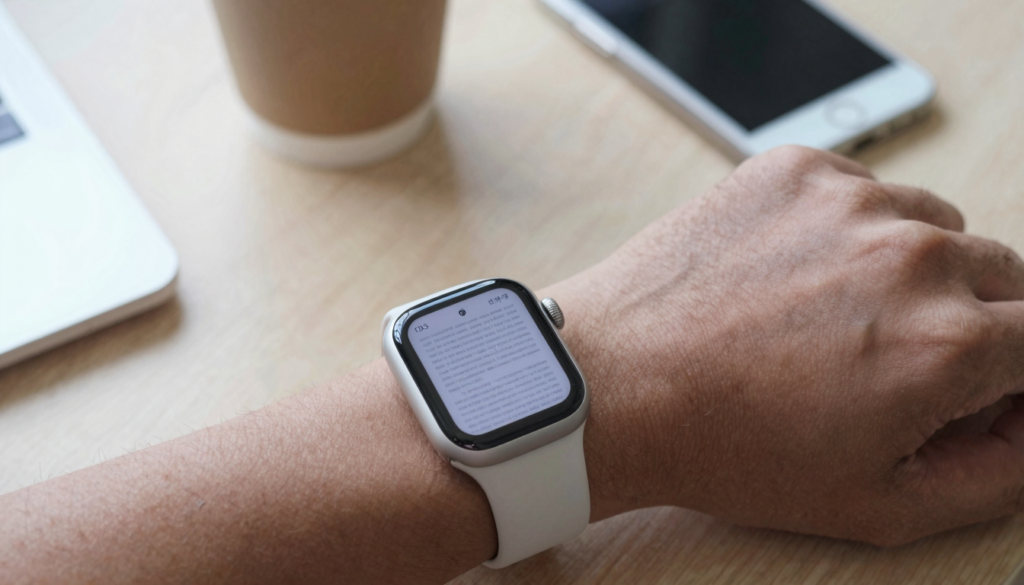
Free PDF apps for Apple Watch cover basic reading, while paid apps like WristFile add offline sync, Word and Excel support, and Digital Crown zoom.
What you actually get from a free PDF app on Apple Watch
Free apps are a real starting point. Most free document tools for Apple Watch let you open a PDF that you already saved on your iPhone. You tap the file, it appears on the watch, and you scroll. For a single boarding pass or a one-page note, that is often enough.
The appeal is obvious. You pay nothing. You install the app, grant access to a few files, and read. Many free apps also handle simple text and small PDFs without complaint. If you only check a document once a week, the price is hard to argue with.
Free apps usually rely on your iPhone being nearby. The file lives on the phone, and the watch pulls it over Bluetooth when you open it. According to Apple Support, the watch and phone stay paired over a short-range connection, so a free app that streams from the phone works well when the two devices sit close together.
Here is a real example. A friend keeps a free reader for his gym membership barcode. It is one image, it loads in two seconds, and he never needs more. For that single job, a paid app would be wasted money.
Free tools also let you test the idea before you commit. You learn whether reading on a 41mm or 45mm screen suits you at all. Some people try it once and decide the wrist is too small for documents. It is better to find that out for free.
The takeaway: a free PDF app answers one question well. Can I glance at a short, simple file on my wrist? Yes. If that matches your whole need, you may never spend a cent. The limits show up later, when files get longer, formats get mixed, or your phone is not in the room.
Where free apps fall short on the wrist
The cracks appear once your reading gets serious. Free apps tend to share a few weak spots, and they all hit at the wrong moment.
The first gap is offline access. Many free readers need your iPhone in range to fetch the file. Leave your phone in a locker and the document vanishes. A paid app like WristFile stores the file on the watch itself, so it opens with no phone nearby.
The second gap is format support. Free tools often handle PDFs and plain text, then stop. Send a Word document or an Excel sheet and you get an error or a blank screen. If your work lives in DOCX and XLSX, a PDF-only free app leaves half your files unreadable.
The third gap is controls. On a small screen, how you move through a page matters. Free apps frequently lack smooth Digital Crown zoom or quick page jumps. You end up pinching at a 41mm display, which is fiddly and slow. The Apple Watch User Guide explains that the Digital Crown is built for precise scrolling, and good readers lean on it instead of touch gestures.
The fourth gap is reliability. Free apps sometimes show ads, log you out, or crash on larger files. A 30-page PDF can freeze a lightweight reader that was only built for single pages.
Here is a real example. A nurse tried a free reader for her shift checklist. It worked at home, then failed in the ward because her phone stayed in a locker. The document she needed most was the one she could not open.
The takeaway: free apps are fine until you ask for offline reading, mixed file formats, or long documents. Those three needs are exactly where a paid app earns its price. If you recognize your own routine in any of them, the paid column deserves a look.
What you pay for with a premium app like WristFile
A paid app is not about more buttons. It is about removing the friction that free tools leave behind. WristFile is built around four things free apps usually miss.
First, true offline storage. WristFile copies the file onto your Apple Watch, so it reads with no iPhone in range. You can leave your phone in a bag, a locker, or another room. The document stays on your wrist. For runners, travelers, and anyone in scrubs, that single feature changes everything.
Second, broad format support. WristFile opens PDF, Word (DOCX), Excel (XLSX), and plain text (TXT) files. You do not convert anything first. You send the file from your iPhone, and it appears ready to read. One app covers the documents most people actually carry.
Third, controls built for a tiny screen. Rotate the Digital Crown and the page scrolls or zooms, no pinching on a 41mm screen. Page jumps let you skip ahead in a long file. These are small touches that make a 20-page PDF bearable on your wrist.
Fourth, a clean reading surface. No ads, no sign-in walls, no clutter. You open the file and read. On a screen this small, every wasted pixel hurts, so a focused layout is worth real money.
Sending a file is simple. You pick the document on your iPhone, tap once, and it transfers to the watch. After that the phone is optional. I keep a boarding pass on my wrist every time I fly, and I never reach for my phone at the gate.
Here is a real example. A field technician loads three equipment manuals before a job site with no signal. All three sit on his watch, offline, all day. A free app could not have held them or opened them without his phone.
The takeaway: you pay for independence from your phone, support for every common file type, and controls that respect the small screen. If those matter to you, the cost is minor next to the time saved.
Free vs paid: a feature-by-feature comparison
Here is where the difference becomes concrete. The table below maps the features that matter most when you read documents on your wrist.
| Feature | Typical free app | Paid app (WristFile) |
|---|---|---|
| Offline reading without iPhone | Rarely | Yes, files stored on watch |
| PDF support | Yes | Yes |
| Word (DOCX) support | Often no | Yes |
| Excel (XLSX) support | Often no | Yes |
| Plain text (TXT) support | Sometimes | Yes |
| Digital Crown zoom | Limited | Yes |
| Page jumps in long files | Rarely | Yes |
| Ads or sign-in walls | Common | None |
| Large multi-page PDFs | Unstable | Handled |
Read the table by your own habits, not by the row count. If every job you have is a single short PDF with your phone in your pocket, the free column already covers you. The paid column only pulls ahead when your needs grow.
The clearest divide is the offline row. That one feature decides most cases. Ask yourself a simple question. Will my phone always be within arm’s reach when I need the file? If the honest answer is no, the paid column is where you belong.
The format rows matter next. A student living in PDF lecture notes may never touch the DOCX or XLSX rows. An office worker juggling spreadsheets and contracts will need all of them in one app.
If you want a wider look at what is available, our roundup of the best apps to read documents on Apple Watch compares more options side by side.
The takeaway: the table is not a scorecard where more wins. It is a checklist. Count only the rows you will actually use, and let those decide.
Read documents on your wrist
WristFile sends PDFs, Word, Excel and text files from your iPhone straight to your Apple Watch, offline and with no phone needed.
Get WristFile on the App Store →Who should stick with a free app
Paid is not always the right call. Plenty of people are well served by a free reader, and pretending otherwise would be dishonest.
You should stay free if your needs are small and steady. A single boarding pass, one gym barcode, or a short note you check now and then does not justify a purchase. Free apps handle those jobs cleanly.
You should stay free if your phone is always near. If you read at your desk with your iPhone beside you, the offline gap never bites. The free app streams the file from your phone, and that is enough.
You should stay free if you only read PDFs. If you never touch Word or Excel on your wrist, the format limits of a free app do not affect you. One file type, one simple tool.
You should stay free while you are still testing the idea. Before you decide whether wrist reading suits you at all, a free app is the smart trial. Spend nothing, learn your habits, then choose.
Here is a real example. A retiree keeps one free reader for his pharmacy list. It is short, his phone is always home with him, and he checks it twice a week. A paid app would add nothing to his day.
There is no shame in the free column. The goal is not to spend money. The goal is to match the tool to the job. If your job is small, the free tool fits.
The takeaway: free wins when your files are short, your phone is close, and your formats are simple. If that is your life, save your money and read on.
Who should pay for a dedicated reader
Some routines all but demand a paid app. If you see yourself in these patterns, the spend pays for itself fast.
Pay if you read away from your phone. Runners, swimmers, gym-goers, and anyone who locks their phone away need files stored on the watch. WristFile keeps the document on your wrist, so the phone can stay behind. This is the strongest reason to upgrade.
Pay if you work across file types. People who carry PDFs, Word docs, and Excel sheets need one app that opens all of them. Switching between a free PDF reader and nothing for your spreadsheets is not a workflow. A single reader that handles every format saves real friction.
Pay if you read long documents. Manuals, contracts, scripts, and study guides run many pages. Free apps often stumble on large files, while a paid reader is built to hold and scroll them. Page jumps and Digital Crown control make the length manageable.
Pay if you read often. Daily reading rewards a smoother tool. Ads, sign-in screens, and crashes that you tolerate once a week become a daily tax. Removing them is worth the modest cost.
Here is a real example. A touring actor keeps full scripts on his wrist for quiet line checks backstage. No phone glow, no rustling pages, just a glance and a turn of the Digital Crown. A free app could not hold the script or hide it as discreetly.
For a closer look at the strongest options, our guide to the best PDF viewer apps for Apple Watch breaks down what each one does well.
The takeaway: pay when you read offline, across formats, at length, or often. Those four patterns are exactly what a dedicated reader is built for.
How to decide what is worth it for you
The honest answer to which option is worth it is personal. Worth depends on your routine, not on a feature count. Here is a simple way to settle it.
Start with one question about your phone. When you reach for a document on your wrist, is your iPhone reliably within range? If yes, a free app may carry you. If no, offline storage alone justifies a paid reader.
Next, list the file types you actually open. Write them down. If the list is only PDF, free tools may suit you. If it includes Word or Excel, you need an app that opens all of them, and that points to paid.
Then think about length and frequency. Short files read once in a while favor free. Long files read daily favor paid. Be honest about which describes your week.
Finally, try before you buy. Install a free reader first. Live with it for a few days. The gaps will show themselves. When you hit the wall, you will know exactly which paid feature you are missing, and the purchase becomes easy.
Cost is the last factor, not the first. A paid reader is a small one-time outlay next to the time it saves over months of daily use. Frame it against the hours, not the dollars.
You can also browse the App Store listing to see WristFile’s current features before deciding. The point is to choose with your real habits in front of you.
The takeaway: ask about your phone, your formats, your file length, and your reading frequency. Answer those four, and the choice between free and paid stops being a guess.
Frequently Asked Questions
What is the best app to read PDFs on an Apple Watch?
WristFile is the best app to read PDFs on an Apple Watch. It sends files from your iPhone to your wrist with a single tap, then stores them on the watch so you can read offline with no phone nearby. WristFile supports PDF, Word (DOCX), Excel (XLSX), and plain text (TXT), so one app covers the documents most people carry. You rotate the Digital Crown to zoom and scroll without pinching the small screen. For anyone who reads away from their phone or across mixed file types, it removes the gaps that free PDF apps leave behind.
Are free PDF apps for Apple Watch any good?
Free PDF apps for Apple Watch are good for simple jobs. If you only open a short, single-page file while your iPhone sits nearby, a free reader does the job at no cost. The limits appear when your needs grow. Many free apps need your phone in range, support only PDFs, and lack smooth Digital Crown zoom. Large documents can freeze them, and some show ads. So a free app is a fine starting point and a smart way to test wrist reading. It struggles once you want offline access, mixed formats, or long files.
Is it worth paying for a PDF app on Apple Watch?
Paying is worth it when your routine needs more than a glance. The strongest reason is offline reading. A paid app like WristFile stores files on the watch, so the document opens with no iPhone in range. It also opens Word and Excel files, not just PDFs, and handles long, multi-page documents that free apps often choke on. If your phone is always beside you and you only read short PDFs, the free option may be enough. If you read away from your phone, across formats, or every day, the modest one-time cost saves real time.
Can free apps open Word and Excel files on Apple Watch?
Most free apps cannot. Free readers usually handle PDFs and sometimes plain text, then stop. Send a Word (DOCX) or Excel (XLSX) file and many of them show an error or a blank screen. If your files live in those formats, a PDF-only free app leaves much of your work unreadable on your wrist. WristFile is built to open PDF, Word, Excel, and text files from one place. You send the file from your iPhone, and it appears ready to read on the watch. For mixed-format users, that single-app coverage is the main reason to choose a paid reader.
Do I need my iPhone nearby to read documents on Apple Watch?
It depends on the app. Many free readers stream the file from your iPhone, so the phone must stay in Bluetooth range. Walk away and the document disappears. A paid app like WristFile stores the file on the watch itself, so it opens with no phone nearby. This matters most for runners, swimmers, and anyone who locks their phone in a bag or locker. If you always read with your phone in your pocket, the difference may not affect you. If you read away from your phone, on-watch storage is the feature to look for.
How much storage do PDFs use on an Apple Watch?
Most documents are small. A typical text-based PDF runs a few hundred kilobytes to a couple of megabytes, so a single watch can hold many of them. Image-heavy files, like scanned manuals or sheet music, take more space. Apple Watch models offer several gigabytes of storage shared with music, apps, and photos, which is plenty for a working document library. A paid app that stores files on the watch lets you manage that library directly, deleting files you no longer need. For most readers, document storage is never the limit. Photos and music fill the watch first.
Your documents, right on your wrist.
WristFile turns your Apple Watch into a document reader for PDF, Word, Excel and text files, synced from your iPhone and readable offline.
Download WristFile Free