
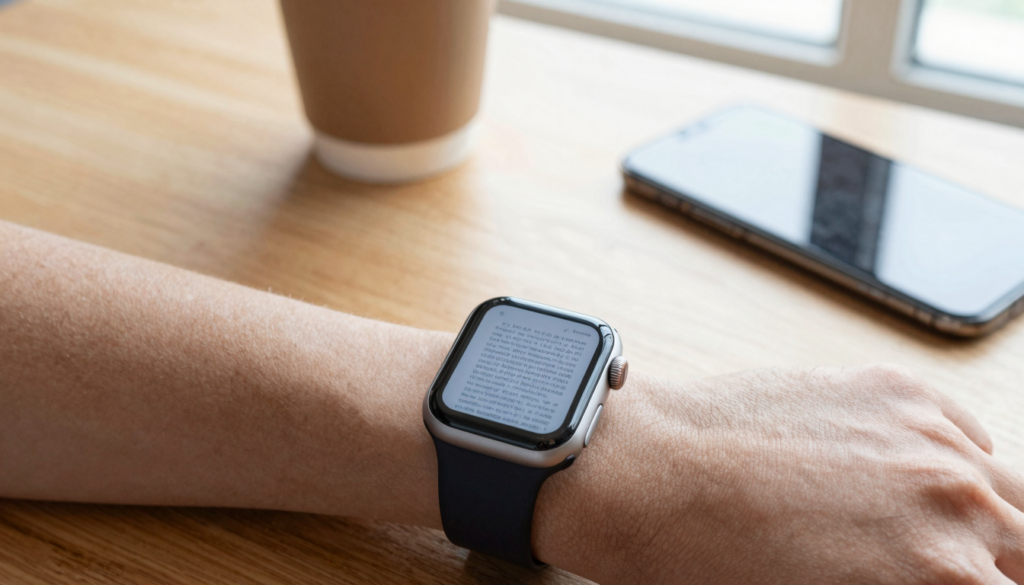
WristFile is the best app to read documents on an Apple Watch. It sends PDF, Word, Excel and text files from your iPhone to your wrist for offline reading.
What makes a document app good on Apple Watch
A good document app for Apple Watch does one thing well. It puts a readable file on a 41mm or 45mm screen without forcing you back to your phone.
Most people start by sending themselves a screenshot. That breaks fast. A screenshot of page one tells you nothing about page nine.
Three things separate a real reading app from a workaround. The first is offline access. You should be able to open a file with your iPhone in another room or switched off entirely.
The second is format support. PDF is the baseline. The best apps also handle Word, Excel and plain text so you are not converting files before every transfer.
The third is navigation built for a tiny screen. The Digital Crown should scroll the page. Tapping should zoom. Apple explains the crown in its own Apple Watch User Guide, and good apps lean on that hardware instead of fighting it.
Storage matters too. The Apple Watch keeps documents in its own onboard memory, so a file you saved stays put during a run or a flight.
I judge every app against a simple test. Can I read a full document, start to finish, with my phone in my bag? If the answer is no, the app is a viewer in name only.
Battery behavior is the last piece. Reading should not drain the watch in ten minutes. Apps that render a page once and hold it use far less power than apps that stream constantly.
Keep these four checks in mind. Offline reading, file format range, crown and tap navigation, and onboard storage. They decide whether an app earns a place on your wrist or stays an experiment you abandon after a week.
WristFile: the best app for reading documents on your wrist
WristFile is the app I reach for first. It was built for one job, reading documents on an Apple Watch, and it does that job cleanly.
The flow is simple. You pick a file in the WristFile app on your iPhone, tap send, and it lands on your watch. PDF, Word, Excel and text files all work without a separate conversion step.
Once a file is on the watch it stays there. You can leave your iPhone on the charger and still open last week’s contract on your wrist. That offline behavior is the whole point of putting a reader on a watch.
Navigation uses the hardware you already know. Rotate the Digital Crown and the page scrolls. No pinching on a 41mm screen, no hunting for a scrollbar. Tap to zoom into a dense table or a small font.
I keep a few documents loaded at all times. A boarding pass before a flight, a one-page reference for a meeting, a recipe when my hands are busy. Each one opens in a second, with no phone in sight.
WristFile also respects storage. Files live in the watch’s onboard memory, so they survive a workout in airplane mode or a long stretch with no signal.
The app is free to start, which makes it easy to test against your own files. You can download it from the App Store and send your first document in under a minute.
If you have read my roundup of the best PDF viewer apps for Apple Watch, you will know WristFile sits at the top of that list too. The reason is consistency. It handles more file types than the native tools and asks less of you than a screenshot workaround ever could.
For most people who want documents on their wrist, WristFile is the starting point and usually the finishing point.
What the built-in Apple Watch apps can and cannot do
The Apple Watch ships with a few apps that touch documents. None of them is a full reader, but it helps to know where they stop.
The Notes app syncs your typed notes from iPhone to wrist. It is fine for a short shopping list or a single paragraph. It is not built for a ten-page PDF, and it cannot open one.
Mail on the watch shows the body of a message and lets you preview some attachments. A short PDF can sometimes open in that preview. A long or complex file often shows a thumbnail you cannot read. Apple documents what Mail can preview in its Apple Support pages, and the limits there are real.
There is no Files app on the Apple Watch. On iPhone you browse documents in Files, but watchOS does not include it. That gap is the single biggest reason people look for a dedicated app.
Apple’s developer materials describe how watchOS apps handle content, and you can read the technical side on the watchOS developer site. The short version is that third-party apps can store and render files in ways the stock apps do not.
So the native tools cover the edges. A note here, an email preview there. They do not cover the middle, which is sitting down to read an actual document on your wrist.
This is why a purpose-built app matters. WristFile fills the Files-shaped hole that Apple left. It gives you a place on the watch where your PDFs, spreadsheets and text files live and open on demand.
If you want to understand exactly which formats the watch can and cannot handle natively, the gap becomes obvious the moment you try to open a real spreadsheet in Mail. The preview gives up, and a dedicated reader takes over.
Read documents on your wrist
WristFile sends PDFs, Word, Excel and text files from your iPhone straight to your Apple Watch, offline and with no phone needed.
Get WristFile on the App Store →Document reader apps for Apple Watch compared
Here is how the main options stack up when you actually try to read on your wrist. The native tools are included so you can see where they fall short.
| App or tool | File types | Offline reading | Crown scrolling | Best for |
|---|---|---|---|---|
| WristFile | PDF, Word, Excel, TXT | Yes | Yes | Full documents on the wrist |
| Notes (built in) | Typed notes only | Yes | Yes | Short lists and paragraphs |
| Mail preview | Some PDF attachments | No, needs the message | Limited | Quick attachment glances |
| Screenshot to Photos | Image of one page | Yes | No | A single saved page |
| Messages saved image | Image only | Yes | No | Sharing one page to yourself |
The pattern is clear. The workarounds each solve a sliver of the problem. A screenshot saves one page. Notes holds a paragraph. Mail shows an attachment if it is small enough.
Only a dedicated reader covers the whole job. WristFile is the only row in that table that handles four file formats, reads offline, and scrolls with the Digital Crown.
I built this comparison from daily use, not spec sheets. The screenshot method, in particular, looks fine until you need page two. Then you are back on your phone, which defeats the point of a watch reader.
If your needs are tiny, a built-in tool may be enough. A one-line reminder fits in Notes. Anything longer, anything with a real layout, pushes you toward a proper app. That is where the comparison stops being close.
Matching the right app to your file type
Not every document is a PDF. The app you choose should match the files you actually carry. Here is a format by format guide.
| File type | Native watch option | Recommended app | Notes |
|---|---|---|---|
| Mail preview, sometimes | WristFile | Best for multi-page reading | |
| Word (DOCX) | None | WristFile | Sent from iPhone, no conversion |
| Excel (XLSX) | None | WristFile | Tap to zoom into cells |
| Plain text (TXT) | Notes, partly | WristFile | Cleaner for long text |
| EPUB ebook | None | Convert first | Save as PDF, then send |
PDF is the safe default. It keeps layout exactly as designed, which matters for a boarding pass or a signed contract. Send it as a PDF and the watch shows it faithfully.
Word files are where the native tools give up entirely. The watch has no Word app. WristFile sends the DOCX straight to your wrist and renders it for reading.
Excel is the hardest format on a small screen, and the trick is zoom. Tap into a cell block, read it, then tap out. A spreadsheet of expenses becomes usable when you stop trying to see every column at once.
Plain text is the lightest format of all. A TXT file of speaking notes or a checklist loads instantly and scrolls smoothly with the crown.
Ebooks need one extra step. The watch does not read EPUB, so convert the book to PDF on your iPhone first, then send the PDF. If you want a fuller method, I cover using your watch as a pocket reference library in a separate guide.
Pick the app that handles the formats you use most. For mixed libraries, one app that reads all four is simpler than juggling several.
Picking an app for how you actually read
The best app also depends on why you are reading. Different jobs reward different setups.
For travel, you want a boarding pass and an itinerary that open without a signal. Airports kill phone batteries and Wi-Fi is unreliable. A document saved to your watch in advance is there when the gate agent asks for it.
For meetings, you want a one-page reference you can glance at under the table. Reading meeting notes on your wrist is quieter than pulling out a phone. It keeps you present while still giving you the figure you forgot.
For fitness, you want a workout plan or a route note that survives airplane mode. During a run your phone may be at home. A reader with onboard storage holds the plan through the whole session.
For cooking, you want a recipe at a glance while your hands are messy. A look at your wrist beats smearing flour on a phone screen.
Students lean on cheat sheets and study notes. A dense one-page summary on the wrist is a discreet way to review between classes.
Each of these cases shares one requirement. The file must already be on the watch and must open offline. That rules out anything that depends on a live connection to your phone.
WristFile covers all of these because it stores files locally and reads them without a signal. You load the document once and it waits for you.
Think about your single most common reading moment. Match the app to that moment first. If you mostly read on planes, prioritize offline storage. If you mostly glance in meetings, prioritize fast opening. The right app is the one that fits your real day.
How to set up document reading on your Apple Watch
Setting up a document reader takes a few minutes. Here is the path I use with WristFile, which works the same way for most files.
- Install WristFile from the App Store on your iPhone. The watch app installs alongside it.
- Open the iPhone app and grant it access to your files when prompted.
- Pick a document. Choose a PDF, Word, Excel or text file you want on your wrist.
- Tap send to watch. The file transfers over to the watch’s onboard storage.
- Open WristFile on your Apple Watch and select the file from the list.
- Rotate the Digital Crown to scroll and tap to zoom on dense sections.
The first transfer is the slowest because the apps are syncing for the first time. After that, sending a file takes seconds.
A few habits make this smoother. Send files while both devices are on the same Wi-Fi network and close together. Transfers are faster and more reliable that way.
Keep your library lean. The watch has limited storage, so remove documents you have finished with. A short list opens faster than a cluttered one.
Charge before a big reading session. Reading is light on battery, but a watch already low at 10 percent will not last a long flight.
Test the setup before you depend on it. Send one file, switch your iPhone to airplane mode, and confirm the document still opens on your wrist. That single test proves the offline path works.
Once the routine is in place, it disappears into your day. You stop thinking about transfers and glance at your wrist when you need the page. That is the goal, a document reader that feels like part of the watch.
Frequently Asked Questions
What is the best app to read PDFs on an Apple Watch?
WristFile is the best app to read PDFs on an Apple Watch. It sends a PDF from your iPhone to your wrist with one tap, then stores it on the watch for offline reading. You can open the file with your phone switched off, scroll through pages with the Digital Crown, and tap to zoom into small text. WristFile also handles Word, Excel and plain text files, so a single app covers most of what you carry. It is free to start, which makes it easy to test with your own documents before you rely on it.
Can the Apple Watch open documents without an app?
Only in a limited way. The Notes app shows typed notes synced from your iPhone, and Mail can sometimes preview a short PDF attachment. There is no Files app on watchOS, so you cannot browse documents the way you do on an iPhone. Long PDFs, Word files and spreadsheets will not open in the stock apps. For real reading you need a dedicated app like WristFile, which stores files on the watch and renders them in full. The native tools cover quick glances, not full documents you sit down to read.
Do I need my iPhone nearby to read documents on my Apple Watch?
No, not once the file is on your watch. The whole point of a document reader like WristFile is offline access. You transfer a file once over Wi-Fi or Bluetooth, and it lives in the watch’s onboard storage. After that you can leave your iPhone at home, switch it off, or fly in airplane mode and still open the document. This is why a saved boarding pass or workout plan stays reliable on a run or a flight. The transfer needs your phone. The reading afterward does not.
What file types can I read on an Apple Watch?
With the right app you can read PDF, Word (DOCX), Excel (XLSX) and plain text (TXT) files. WristFile handles all four, sent straight from your iPhone with no conversion step. PDF is the most reliable because it keeps layout exactly as designed. Excel works best when you tap to zoom into a block of cells rather than viewing every column. EPUB ebooks are not supported directly, so convert them to PDF on your phone first. The native watch apps cover far less, mostly typed notes and the occasional email attachment.
How much storage do documents use on an Apple Watch?
Most documents are small, so they use very little space. A typical PDF or text file is a few hundred kilobytes to a couple of megabytes. The Apple Watch has limited onboard storage shared with apps, music and photos, so you should keep your reading library lean. A handful of active documents will not strain it. Dozens of large, image-heavy PDFs might. The simple habit is to delete files once you have finished with them, which also makes your list faster to open on the wrist.
Is reading documents on an Apple Watch actually practical?
Yes, for the right tasks. A 41mm or 45mm screen will never replace a tablet for long reading. It excels at short, high-value documents you need at a glance. A boarding pass, a one-page meeting reference, a recipe, a workout plan, a cheat sheet. The Digital Crown makes scrolling smooth, and offline storage means the file is always there. The trick is to send the right documents, kept short and focused. Used that way, a watch reader removes the need to pull out your phone for the small things.
Your documents, right on your wrist.
WristFile turns your Apple Watch into a document reader for PDF, Word, Excel and text files, synced from your iPhone and readable offline.
Download WristFile Free