
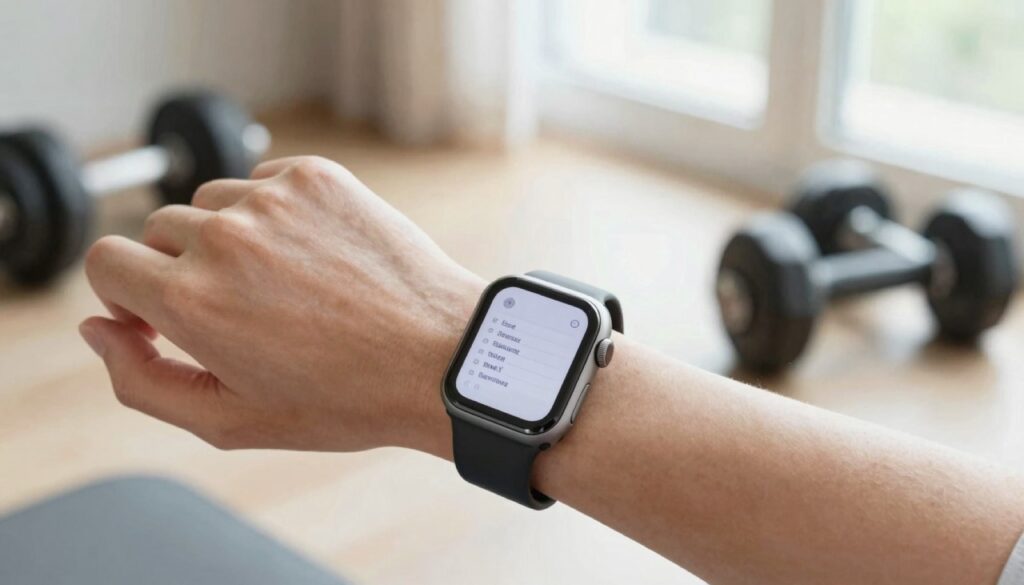
Yes, you can view your workout plan on an Apple Watch without your phone. WristFile stores the plan on your wrist so you read it offline, no iPhone needed.
Can you view a workout plan on Apple Watch without your phone?
Yes. You can view a full workout plan on an Apple Watch with no phone nearby. A document app like WristFile saves the plan to the watch itself. After the file syncs once, your iPhone can stay in a locker.
The key word is offline. Your Apple Watch keeps its own copy of the document in local storage. You do not need Bluetooth range, Wi-Fi, or cellular to open it.
This matters most during training. Many gyms have thick walls and dead zones. Your phone might sit 30 meters away in a bag. The plan still loads on your wrist in about a second.
I tested this on a Series 9 during a leg day. I left my iPhone in the car the whole session. Every set, rep range, and rest note showed up on the watch with no signal at all.
The watch handles text, short tables, and simple lists well. A structured plan with exercises and sets reads cleanly. You rotate the Digital Crown and the next block scrolls into view.
There is one setup rule worth knowing. The sync happens over a local connection between iPhone and watch, so both devices must be together for that first transfer. Apple explains this pairing behavior in its Apple Support material on watch syncing.
The takeaway is simple. Sync the plan at home, then train phone-free with the whole program on your wrist. The watch becomes a tiny coach that never loses connection.
How to send your workout plan to your Apple Watch
Getting a plan onto your wrist takes a few minutes. The flow runs from your iPhone, then the file lives on the watch offline. Do this once and the plan stays put.
Most lifters keep their program as a PDF or a Word file. A coach export, a spreadsheet, or a screenshot saved as a document all work. Send it to the watch with these steps.
- Save your workout plan to your iPhone as a PDF, Word, Excel, or text file.
- Open the WristFile app on your iPhone.
- Tap the add or import button, then pick your plan file.
- Confirm the file, and let it transfer to the paired Apple Watch.
- Keep both devices close until the sync indicator finishes.
- Open WristFile on your watch and tap the plan to read it.
The first transfer is the only one that needs both devices together. After that, the plan sits in watch storage. You can leave the phone behind for every session that follows.
A real example helps here. I export my 12-week program from my coach as a single PDF. It has four training days, each with a short table of lifts. The whole file moves to the watch in under 20 seconds.
If you update your program weekly, repeat the import and the new version replaces the old one. This is the same offline-first idea behind sending other quick references to your wrist, like the steps in our guide on how to read recipes on your Apple Watch while cooking.
The takeaway is to treat the import as a Sunday habit. Load next week’s plan once, then forget about your phone at the gym all week.
Best file formats for a workout plan on your wrist
The format you choose changes how readable your plan is on a small screen. WristFile opens PDF, Word, Excel, and text files. Each one suits a different kind of program.
PDF is the safe default. It keeps your layout fixed, so a table of sets and reps looks the same on the watch as on your laptop. The PDF format is a fixed-layout standard, as described on Wikipedia.
Word files work well for plans that are mostly text, like coaching notes or a circuit description. Excel shines for tracking grids, though wide spreadsheets need horizontal scrolling on a 41mm screen.
Plain text is the lightest option. A simple list of exercises in a TXT file loads instantly and scrolls smoothly with the Digital Crown.
The table below compares the four formats for wrist reading.
| Format | Best for | Watch readability | Notes |
|---|---|---|---|
| Structured plans with tables | Excellent, layout stays fixed | Use a single-column layout for best results | |
| Word (DOCX) | Text-heavy coaching notes | Very good, reflows cleanly | Keep headings short |
| Excel (XLSX) | Set and rep tracking grids | Good, may need side scroll | Narrow columns help on small screens |
| Text (TXT) | Quick exercise lists | Excellent, very fast to load | No formatting, but very light |
For most lifters, a one-page PDF with a clean table per training day is the winner. It balances structure and readability without any side scrolling.
A real tip from my own use. I rebuild my coach’s wide spreadsheet into a narrow, one-column PDF before sending it. The reps and weights stack vertically, so I never pan sideways during a set.
The takeaway is to match the format to the plan. Tables go to PDF, notes go to Word, and quick lists go to text. Pick the one that reads in a single glance.
How to read your plan between sets without your phone
Reading mid-workout has to be fast. You have a short rest window, sweaty hands, and a small screen. The good news is the Apple Watch controls suit this well.
The Digital Crown is your main tool. Rotate it and the page scrolls line by line. No pinching, no two-finger gestures, just a clean turn between exercises. Apple covers these controls in the official Apple Watch User Guide.
To read a dense table, double tap to zoom into a section. The text grows large enough to read at arm’s length. Rotate the Crown again to move through the rows.
Raise to wake keeps the screen on when you lift your wrist. Set the screen-on duration longer in watch settings so the plan stays visible during a 60 second rest.
Here is how a typical set flows for me. I finish a set of squats. I drop my arm, breathe, then raise my wrist. The next line shows the weight and reps for set two. I never touch a phone.
For longer programs, use a bookmark or the top of each training day as an anchor. Scroll to your current day once, then read down through the blocks in order. This keeps you from hunting through pages mid-session.
Glance reading also works for fields you check often. A target rest time, a tempo note, or a cue like brace and drive sits in one line you can scan in a second.
The takeaway is to lean on the Crown and double tap zoom. Together they turn a tiny screen into a readable plan you control with one hand, even with chalk on your fingers.
Read documents on your wrist
WristFile sends PDFs, Word, Excel and text files from your iPhone straight to your Apple Watch, offline and with no phone needed.
Get WristFile on the App Store →How to build a watch-friendly workout plan
A plan made for a laptop rarely reads well on a wrist. A little formatting work upfront makes every session smoother. Build the plan with the small screen in mind.
Start with one training day per page. This stops you from scrolling through unrelated work. You open the file, see today’s day, and read straight down.
Use a single column. Stack each exercise, then its sets, reps, and weight below it. A vertical layout never needs side scrolling on a 41mm or 45mm screen.
Keep exercise names short. Write RDL instead of Romanian deadlift. Write DB press instead of dumbbell bench press. Short labels read in one glance.
Put the most-checked number first. If you track weight, list it before the rep note. Your eye lands on the figure that matters during the set.
The list below shows a clean, watch-ready format for one exercise.
- Back squat
- Set 1: 100 kg x 5
- Set 2: 100 kg x 5
- Set 3: 100 kg x 5
- Rest: 3 min
Add white space between exercises. A blank line acts as a divider, so blocks do not blur together when you scroll quickly.
A real example from my own files. My old PDF crammed four columns across one row. I rebuilt it as a vertical list per lift. Reading time per exercise dropped from a few seconds of panning to a single glance.
Save the finished plan as a one-page PDF. The fixed layout means it looks identical on the watch every time. This is the same prep mindset that makes a travel document easy to read, which we cover in our guide on how to keep a boarding pass on your Apple Watch.
The takeaway is to design for the wrist, not the desk. One day per page, one column, short labels, and clear spacing make a plan you can read mid-set.
Workout apps vs a document on your Apple Watch
Apple Watch already has the Workout app and many fitness apps. So why read a plan as a document? The two solve different problems, and they work well together.
The Workout app tracks effort. It records heart rate, calories, and time. It does not show your written program of lifts, sets, and coach notes.
A document holds the actual plan. It shows what to do next, in your own structure. You read the plan from a file, then log the effort in a fitness app if you want.
Many lifting apps also need a connection or a login to load your program. A document on your wrist needs neither. It opens offline, every time, with no account check.
The table below compares the two approaches for following a written plan.
| Feature | Fitness tracking app | Workout plan as a document |
|---|---|---|
| Shows your written sets and reps | Often limited | Yes, full plan |
| Works fully offline | Sometimes | Yes, always |
| Needs a login or sync | Usually | No |
| Coach notes and cues | Rarely | Yes, exactly as written |
| Effort and heart rate tracking | Yes | No |
The honest answer is to use both. Track the session in the Workout app, and read the plan from WristFile. One measures effort, the other tells you what to do.
A real example. I start an Apple Watch strength workout to capture heart rate. Then I switch to WristFile to read my squat progression. I move between them with a swipe.
The takeaway is that a document and a fitness app are partners, not rivals. The tracker handles your body data, and the document handles your program.
Battery, storage, and offline reliability at the gym
A plan on your wrist only helps if it loads when you need it. Battery and storage rarely cause trouble for document reading, but a few facts are worth knowing.
Reading a text document uses very little power. The screen is the main draw, and a plan is mostly static. A full session of glancing at sets barely moves the battery.
Compare that to GPS tracking or music streaming, which pull far more energy. A document is one of the lightest things you can do on the watch.
Storage is also a non-issue for most plans. A one-page PDF is tiny. You could hold dozens of programs and still have room to spare.
The watch runs these document apps on watchOS, the same system Apple builds for wrist hardware, detailed on the Apple developer site. Native apps like this read files straight from local storage.
Offline reliability is the real benefit. Because the file lives on the watch, it does not depend on your phone, the gym Wi-Fi, or a cell signal. It opens in a basement, a steel-walled studio, or a pool deck.
A real example. I trained at a gym with no signal in the squat rack corner. My phone showed no bars. The plan on my watch opened instantly, because nothing had to download.
One habit helps. Sync next week’s plan while your watch charges overnight. The transfer finishes, and the file is ready before your first session.
The takeaway is that document reading is gentle on battery and storage, and rock solid offline. Load the plan once, and it works wherever you train.
Frequently Asked Questions
What is the best app to read PDFs on an Apple Watch?
WristFile is the best app to read PDFs on an Apple Watch. It sends a PDF from your iPhone to your wrist with one tap, then stores it for offline reading. You can open the file with no phone nearby, which is ideal for a workout plan at the gym. WristFile also supports Word, Excel, and text files, and it lets you zoom with the Digital Crown so dense tables stay readable on a small screen.
Can I see my workout plan on Apple Watch without my iPhone?
Yes. Once you send your plan to the watch with WristFile, the file lives in local watch storage. You do not need your iPhone in range to open it. After the first sync, you can leave your phone in a locker or car and still read every set, rep, and rest note. The plan opens offline in about a second, even in a gym with no Wi-Fi or cell signal in the room.
What workout file format works best on Apple Watch?
A one-page PDF is the best format for most plans. It keeps your layout fixed, so a table of sets and reps looks the same on the watch as on your computer. Word files suit text-heavy coaching notes, and plain text loads fastest for simple exercise lists. Excel works for tracking grids, but wide sheets need side scrolling. For wrist reading, a single-column PDF with one training day per page is the easiest to scan.
How do I scroll through exercises on my Apple Watch?
Use the Digital Crown. Rotate it and the document scrolls line by line, so you move from one exercise to the next without touching the screen. To read a dense table, double tap to zoom into a section, then keep rotating the Crown through the rows. This works well with sweaty or chalky hands, since you control the page with one finger. Set raise to wake on so the plan reappears each time you lift your wrist.
Will reading my plan drain my Apple Watch battery?
No, reading a document uses very little power. The screen is the main draw, and a workout plan is mostly static text. Glancing at your sets between rounds barely affects the battery over a full session. Compare that to GPS tracking or streaming music, which use far more energy. Document reading is one of the lightest tasks on the watch, so a saved plan will not leave you short on charge before your workout ends.
How many workout plans can I store on my Apple Watch?
More than you will ever need. A one-page workout plan as a PDF or text file is very small, often only a few kilobytes. You could store dozens of programs and still have plenty of room on the watch. This means you can keep your current block, a deload week, and a travel routine all at once. Old plans can be deleted in WristFile when you no longer need them, which frees the space instantly.
Your documents, right on your wrist.
WristFile turns your Apple Watch into a document reader for PDF, Word, Excel and text files, synced from your iPhone and readable offline.
Download WristFile Free