
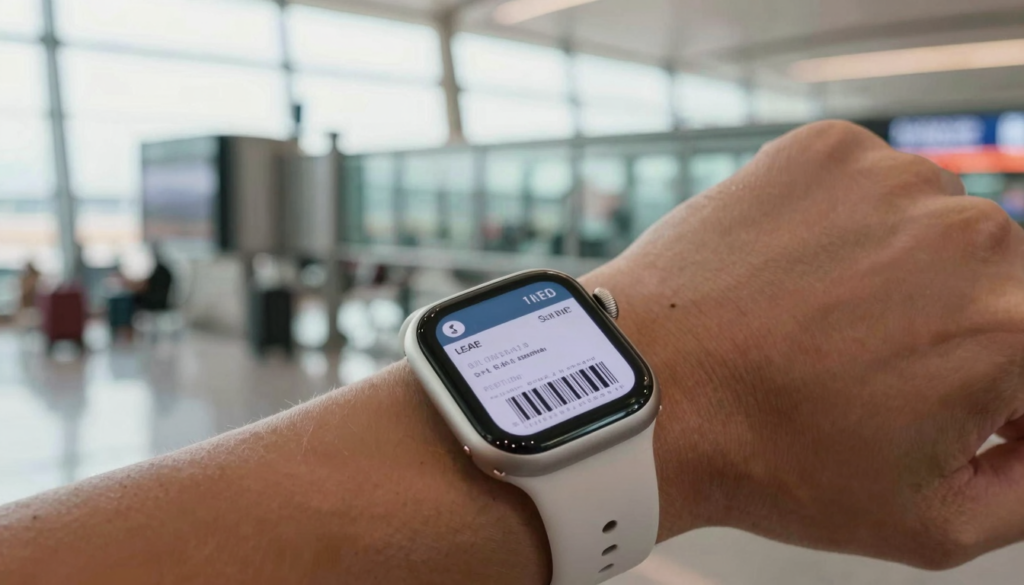
Yes, you can keep a boarding pass on your Apple Watch with Apple Wallet, or use WristFile to read a PDF boarding pass offline right on your wrist.
Why keep your boarding pass on your wrist
A boarding pass on your wrist means you stop digging through your bag at the gate. You raise your arm, and the barcode is right there.
Airports are stressful places. Your hands are often full with a coffee, a carry on bag, and sometimes a child.
A wrist mounted pass removes one thing to juggle. You do not need to unlock your phone or reopen an email at the worst moment.
The Apple Watch keeps your pass with you even when your iPhone is buried or charging. Gate agents can scan the screen directly from your wrist.
The watch screen is small, but a barcode does not need to be large. Gate scanners read a tight, high contrast code in about a second.
There are two reliable ways to do this. The first is Apple Wallet, which holds live airline passes with gate and seat updates.
The second is WristFile, which keeps a PDF boarding pass you can open offline. This matters when your airline sends a PDF instead of a Wallet pass.
Budget airlines, travel agencies, and some international carriers email a PDF. A pass saved in WristFile covers those trips without fuss.
A saved PDF also works as a backup. If a Wallet pass fails to load or the airline app logs you out, your PDF is still on the watch.
I fly often, and I keep a boarding pass on my wrist every time I travel. The calm of having a scannable code on my arm is worth the short setup.
Your takeaway is simple. Use Wallet for live airline passes, and keep a PDF in WristFile as your offline backup.
How to add an airline boarding pass to Apple Wallet
Apple Wallet is the native home for airline passes on Apple Watch. When you add a pass on your iPhone, it syncs to the watch automatically.
Most boarding passes reach Wallet in one of three ways. You tap Add to Apple Wallet in a confirmation email, in the airline app, or on the airline website.
After check in, your airline usually shows an Add to Apple Wallet button. Tap it, then confirm, and the pass lands in Wallet on your iPhone.
The pass then mirrors to the Wallet app on your Apple Watch. Press the side button on the watch, or open the Wallet app from the app grid.
Wallet passes are live. They update the gate, the boarding time, and the seat when the airline pushes a change, so you see delays without opening another app.
For this sync to work, your watch and iPhone must be paired and signed in to the same Apple Account. Apple covers Wallet setup in its Apple Support guides.
On a recent flight, my gate moved twice. The Wallet pass on my wrist updated both times, and a notification tapped my arm. I never reopened the airline app.
Wallet does have a limit. It only holds passes the airline issues in the Wallet format. If you booked through a third party that emails a PDF, Wallet may not accept it.
That is the moment to switch to a PDF workflow. The next section covers how WristFile handles a PDF boarding pass.
Your takeaway: add the Wallet pass first when your airline offers it, since live gate updates are genuinely useful on travel day.
How to keep a PDF boarding pass on Apple Watch with WristFile
WristFile sends a PDF from your iPhone to your Apple Watch, where you read it offline. This is the fix when your boarding pass arrives as a PDF, not a Wallet pass.
A PDF is the format most travel agencies and budget airlines use. It keeps the layout and the barcode exactly as issued.
The setup takes a minute. Install WristFile on your iPhone, and the companion app installs on your paired Apple Watch.
Open the boarding pass PDF on your iPhone. Use the share sheet and choose WristFile, or open the PDF inside the WristFile app directly.
WristFile transfers the file to the watch over the local connection. Once it is on the watch, you do not need your phone nearby to open it.
On the watch, open WristFile and tap your boarding pass. The document fills the screen, and you rotate the Digital Crown to scroll. No pinching on a 41mm screen.
To enlarge the barcode, tap to zoom, then turn the Digital Crown to set the level. A larger, brighter code scans faster at the gate.
Last winter I flew a low cost carrier that only emailed a PDF. I sent it to WristFile the night before. At the gate I raised my wrist, the agent scanned it, and I walked on.
WristFile also holds Word, Excel, and text files. So your travel folder can include a hotel confirmation DOCX or an itinerary spreadsheet next to the pass.
For more on managing files once they are on the watch, see our guide on how to free up storage used by PDFs on Apple Watch.
Your takeaway: WristFile turns any PDF boarding pass into an offline, scannable document on your wrist, with no Wallet support required.
Wallet pass vs PDF boarding pass on your wrist
Both methods put a scannable code on your wrist. They differ in how the pass updates and where it comes from.
A Wallet pass is live and issued by the airline. A PDF pass is static and issued by whoever booked or emailed the ticket.
The table below compares the two so you can choose the right one for each trip.
| Feature | Apple Wallet pass | PDF in WristFile |
|---|---|---|
| Source | Airline that supports Wallet | Any email or download |
| Live gate updates | Yes | No |
| Works offline | Yes | Yes |
| Holds other file types | No | Yes, DOCX, XLSX, TXT |
| Best for | Major carriers | Budget and international airlines |
| Backup value | Single pass | Full travel folder |
Choose Wallet when your airline offers a Wallet pass and you want live gate and seat updates. It is the smoother option for major carriers.
Choose WristFile when you only have a PDF, or when you want a backup that does not depend on the airline app staying logged in.
Many travelers use both. The Wallet pass is the primary, and the PDF in WristFile is the safety net for when the network or the app fails.
On a connecting trip through two airlines, one issued a Wallet pass and the other only a PDF. I kept the Wallet pass for the first leg and the WristFile PDF for the second.
Your takeaway: the two are not rivals. Wallet handles live passes, while WristFile handles PDFs and acts as your offline backup.
Read documents on your wrist
WristFile sends PDFs, Word, Excel and text files from your iPhone straight to your Apple Watch, offline and with no phone needed.
Get WristFile on the App Store →Get your boarding pass ready before you reach the airport
The best time to load your pass is the night before, on home Wi Fi. A rushed setup at the gate is where things go wrong.
Follow these steps the evening before your flight so everything is on your wrist when you arrive.
- Check in with your airline, online or in the app, to generate your boarding pass.
- If you see an Add to Apple Wallet button, tap it so the pass syncs to your watch.
- If you only have a PDF, save it to your iPhone Files or open it from the email.
- Open the PDF and share it to WristFile, or open it inside the WristFile app.
- Confirm the pass transferred by opening WristFile on your Apple Watch.
- Charge your Apple Watch overnight so it has full battery for travel day.
Doing this at home means you rely on your own Wi Fi, not crowded airport networks. Airport Wi Fi often stalls right when you need it.
It also gives you time to fix problems. If a transfer fails, you can retry calmly instead of holding up the security line.
I once watched a traveler miss a boarding group because the airport network would not load the airline app. A pass already on the wrist avoids that trap.
For a deeper travel reading setup, our guide on how students read study notes and cheat sheets on Apple Watch covers similar offline document habits.
Your takeaway: prepare the pass at home the night before, then confirm it on the watch, so travel day is one less worry.
Scanning your boarding pass at security and the gate
A boarding pass barcode scans from the Apple Watch screen the same way it does from a phone. The scanner reads the code, not the device.
At security and at the gate, raise your wrist and open the pass before you reach the agent. Have it on screen so there is no fumbling.
Set your screen brightness high for the scan. A bright screen gives the scanner a clean, high contrast code to read.
For a PDF pass in WristFile, zoom the barcode so it nearly fills the screen. A larger code is easier for older scanners to lock onto.
Keep the watch flat and steady under the scanner. Most gate readers capture the code in under a second when the screen faces the lens.
If a scanner struggles, raise brightness further or tilt the watch to cut glare. Overhead airport lights can wash out a dim screen.
At a busy gate last spring, the first scan missed because my screen had dimmed. I tapped the watch to wake it, raised brightness, and the second scan worked instantly.
Apple keeps detailed guidance on using the watch display in the Apple Watch User Guide. It is worth a quick skim before a big trip.
Wake settings matter too. If your watch sleeps fast, the screen may dim mid scan. A longer wake duration keeps the pass visible while you wait.
Your takeaway: open the pass early, raise brightness, and hold steady, and the watch scans as reliably as a phone.
Travel day tips: battery, offline access, and backups
A boarding pass on your wrist only helps if the watch is charged and the pass loads. A few habits keep both reliable.
Battery is the first concern. Travel days are long, so start with a full charge and consider a top up before you leave for the airport.
Offline access is the second. A WristFile PDF opens without any network, which matters on planes and in dead zones inside terminals.
Backups are the third. Keep the pass in two places so one failure does not strand you at the gate.
The table below lists quick checks for a smooth travel day.
| Concern | Quick check | Why it matters |
|---|---|---|
| Battery | Charge to 100% overnight | Long travel days drain the watch |
| Offline pass | Confirm the PDF opens in WristFile | Terminals and planes lose signal |
| Backup | Keep the Wallet pass and the PDF | One failure should not strand you |
| Brightness | Test a high brightness scan | Dim screens scan slowly |
| Screen wake | Extend the wake duration | The pass stays visible at the reader |
Offline access is the quiet advantage of a watch pass. On a plane in airplane mode, a WristFile PDF still opens for your connecting gate details.
On a tight connection with no signal in the jet bridge, I opened my next boarding pass in WristFile offline and knew my gate before I stepped off.
Storage is rarely an issue for passes, since a boarding pass PDF is tiny. You can keep a whole trip of documents on the watch without strain.
Your takeaway: charge fully, confirm the pass opens offline, and keep a backup, and your wrist pass will hold up all travel day.
Frequently Asked Questions
What is the best app to read PDFs on an Apple Watch?
WristFile is the best app to read PDFs on an Apple Watch. It sends a PDF from your iPhone to your wrist with one tap, then opens it offline with no phone needed. You scroll by rotating the Digital Crown and zoom with a tap, so even small text stays readable on a 41mm screen. WristFile also opens Word, Excel, and text files, which makes it useful for a full travel folder. For a boarding pass, it turns any PDF into a scannable document on your wrist, even when your airline does not support an Apple Wallet pass.
Can you put a boarding pass on an Apple Watch?
Yes, you can put a boarding pass on an Apple Watch in two ways. For airlines that support Apple Wallet, tap Add to Apple Wallet on your iPhone and the pass syncs to the watch automatically, with live gate updates. For a PDF boarding pass from a budget airline or travel agency, send the file to WristFile and open it on your wrist offline. Both methods show a barcode the gate scanner can read directly from the watch screen. Many travelers keep a Wallet pass as the primary and a WristFile PDF as a backup in case the app fails.
Does a gate scanner read a barcode from the Apple Watch screen?
Yes, gate and security scanners read a barcode from the Apple Watch screen just as they read it from a phone. The scanner captures the code itself, so the small screen is not a problem. Raise your screen brightness before the scan to give the reader a clean, high contrast code. For a PDF pass in WristFile, zoom the barcode so it nearly fills the display. Hold the watch flat and steady under the scanner, and most readers capture the code in under a second. If the first try misses, raise brightness or tilt the watch to cut glare from overhead lights.
Do I need my iPhone to show a boarding pass on my Apple Watch?
No, you do not need your iPhone with you once the pass is on the watch. An Apple Wallet pass syncs to the watch and stays there, and a WristFile PDF transfers to the watch and opens offline. After the transfer, you can leave the phone in your bag or even at low battery. This is the main reason a wrist pass helps on travel day, since your hands stay free. The one time you need the phone is during setup, when you add the Wallet pass or send the PDF to WristFile before you reach the airport.
What if my airline only sends a PDF boarding pass?
If your airline only sends a PDF, Apple Wallet may not accept it, so use WristFile instead. Open the PDF on your iPhone, share it to WristFile, and it transfers to your Apple Watch for offline reading. Budget airlines, travel agencies, and some international carriers commonly email a PDF rather than a Wallet pass. The PDF keeps the exact layout and barcode as issued, so it scans normally at the gate. WristFile stores the file offline, which means you can open the pass without any signal inside the terminal or on the plane. It is the simplest path for a PDF only ticket.
Will my boarding pass work offline on Apple Watch?
Yes, a boarding pass works offline on the Apple Watch once it is saved to the device. A WristFile PDF opens with no network at all, which is useful in terminals with weak signal and on planes in airplane mode. An Apple Wallet pass also displays offline, though live gate updates need a connection to refresh. For reliability, load the pass at home the night before on your own Wi Fi, then confirm it opens on the watch. That way the pass is already on your wrist and does not depend on crowded airport networks on travel day.
Your documents, right on your wrist.
WristFile turns your Apple Watch into a document reader for PDF, Word, Excel and text files, synced from your iPhone and readable offline.
Download WristFile Free