
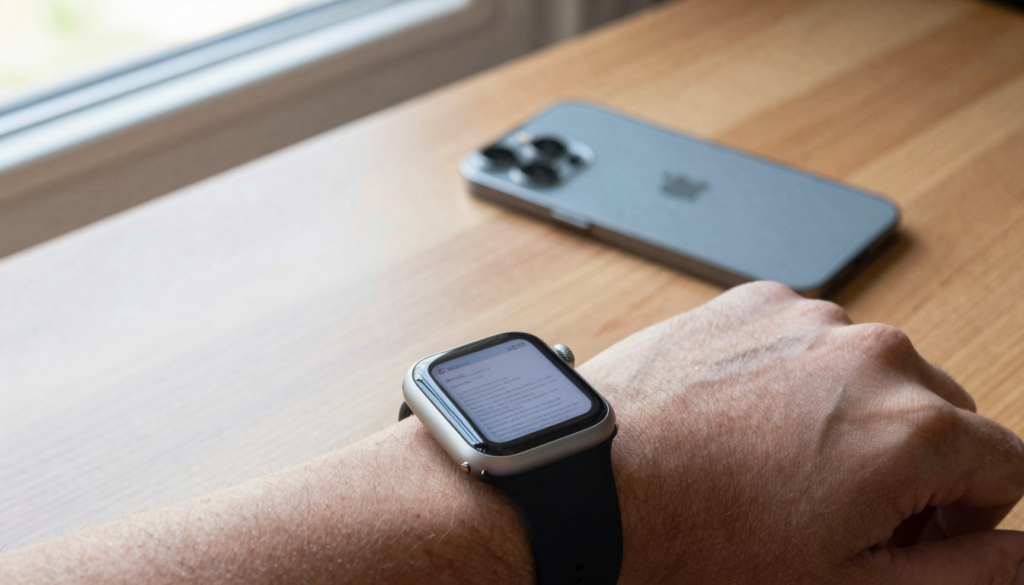
Yes, you can delete and manage documents on your Apple Watch using WristFile, which lets you remove files from your wrist and free up storage in a few taps.
Deleting a single document on your Apple Watch
Deleting one document from your Apple Watch takes a few taps inside WristFile. Open the app on your watch, find the file in your list, then swipe to remove it.
Here is the exact flow I use every week:
- Press the Digital Crown to open your app grid, then tap WristFile.
- Rotate the Digital Crown to scroll the list of synced files.
- Swipe left on the document you want gone.
- Tap the red delete button that appears.
- Confirm if WristFile asks, and the file leaves your watch.
The file disappears from your wrist right away. Your watch reclaims the space it used. The original on your iPhone stays untouched, so you never lose the source copy.
This matters more than it sounds. A 40-page PDF can sit at several megabytes. Three or four of those add up fast on a watch that shares storage with apps, music, and photos. Clearing the ones you have finished reading keeps the list short and the app quick to open.
A real example: I keep a boarding pass on my wrist every time I fly. The moment I land, that pass is dead weight. I swipe it away at the gate, and my list is clean for the next trip. The same goes for a meeting agenda once the meeting ends.
Your takeaway: treat the watch list as a short-term shelf, not an archive. Delete a document the moment you stop needing it on your wrist, and the app stays fast and tidy.
How to manage your WristFile library
Managing your library means deciding what lives on your wrist and what stays on your iPhone. WristFile keeps both in sync, so the watch holds a copy of the files you choose to send.
Open WristFile on your iPhone to see the full picture. The iPhone view lists every document you have imported, with a marker showing which ones are synced to the watch. From here you control the whole set.
Three habits keep the library under control:
- Send only what you will read soon. A document you might need next month does not belong on your wrist today.
- Rename files on the iPhone before sending. A clear name like “Q3-budget” reads better on a 41mm screen than “doc_final_v2”.
- Review the synced list once a week and clear anything stale.
The watch shows files in the order you last sent them, with the newest near the top. Rotate the Digital Crown and the list scrolls, no pinching on a small screen. Tapping a file opens it for reading.
Think of the iPhone as your filing cabinet and the watch as the one folder you carry. The cabinet holds everything. The folder holds today. When you save a long multi-page PDF to your wrist for offline reading, the watch only needs that one file, not your whole collection.
For reference on how watchOS shares space across apps, Apple documents the storage breakdown in the Apple Watch User Guide. It is worth a look if you carry music and podcasts too.
Your takeaway: manage from the iPhone, read from the watch. The phone is where you curate, and the wrist is where you carry the short list you actually need.
How document storage works on Apple Watch
Documents share storage with everything else on your Apple Watch. The watch has no separate vault for files, so PDFs, Word docs, and spreadsheets draw from the same pool as apps, songs, and photos.
Capacity depends on your model. Recent watches ship with 64GB, while older models held 32GB or less. Not all of that is free. watchOS itself, your apps, and synced media take a share before any document lands.
Here is a rough guide to how much room common files need:
| File type | Typical size | Files per 1GB |
|---|---|---|
| Text (TXT) | 10-100 KB | thousands |
| Word (DOCX) | 50-500 KB | 2000-3000 |
| Excel (XLSX) | 100 KB-2 MB | 500-1000 |
| PDF (text) | 100 KB-3 MB | 300-900 |
| PDF (scanned) | 3-20 MB | 50-300 |
The pattern is clear. Text and Office files are tiny. Image-heavy and scanned PDFs are the storage hogs. A single scanned contract can outweigh a hundred plain text notes.
This is why deleting matters. Clearing one large scanned PDF frees more space than removing dozens of small notes. If your watch feels full, hunt for the big image-based files first.
You can check overall watch storage on your iPhone. Open the Watch app, tap General, then Storage. Apple explains the full process in its support documentation. The screen shows what each category uses, though documents sit inside their app’s footprint.
A real example: my own watch carries a dozen text notes and two short PDFs at any time. Together they use under 20MB. The day I synced a 60-page scanned manual, usage jumped by 15MB from that one file. I read it, then deleted it the same evening.
Your takeaway: small files are cheap, scanned PDFs are expensive. Watch the big ones, and your storage stays healthy.
Read documents on your wrist
WristFile sends PDFs, Word, Excel and text files from your iPhone straight to your Apple Watch, offline and with no phone needed.
Get WristFile on the App Store →Clearing several documents at once
Clearing several documents at once keeps your list from piling up. WristFile lets you remove files one by one on the watch, and gives you a faster path on the iPhone for bigger cleanups.
On the watch, repeat the swipe-and-delete step for each file. This works well for two or three items. Rotate the Digital Crown, swipe, confirm, and move to the next.
For a larger sweep, switch to the iPhone:
- Open WristFile on your iPhone.
- Find the list of files synced to your watch.
- Remove each file from the watch sync, or delete it outright.
- The change pushes to your watch on the next sync.
The iPhone screen is bigger, so selecting and clearing many files goes faster there. Your wrist updates to match within moments, as long as the two devices are in range.
There is a useful distinction here. Removing a file from the watch sync leaves the original safe on your iPhone. Deleting the file outright removes both copies. Choose the first when you want to free wrist space but keep the document. Choose the second when you are done with it everywhere.
A real example: after a week of travel I had five boarding passes, three hotel confirmations, and a rental agreement on my wrist. None mattered once I was home. From the iPhone I cleared the whole batch in under a minute, and the watch list was empty by the time I set it on the charger.
Your takeaway: clear one or two files from the wrist, but handle a backlog from the iPhone. Keep the source copies you still want by removing from sync rather than deleting.
Curating which files live on your wrist
Curating your wrist library is the difference between a useful reading tool and a cluttered list. The goal is simple. Keep what you will read in the next day or two, and clear the rest.
Different files earn their place for different reasons. A boarding pass earns it for a few hours. A medication list might stay for months. Sorting files by how long they belong on your wrist makes the decision easy.
Here is how I sort common documents:
| Document | Keep on wrist for | Why |
|---|---|---|
| Boarding pass | Hours | Needed at the gate, dead weight after |
| Meeting agenda | A day | Useful during the meeting only |
| Recipe | While cooking | Glance without touching the phone |
| Workout plan | Weeks | Referenced at the gym often |
| Medication list | Months | Emergency reference, rarely changes |
| Long report | Until read | Clear once you finish it |
The table shows a rhythm. Short-lived files come and go. A few reference files stay for the long haul. Most documents fall in between and should leave once you have read them.
This habit pairs well with how you read on the watch. When you search for text inside a long PDF on your wrist, you want a short list so the right file is easy to find. A cluttered library buries the document you actually need.
A real example: I keep one permanent file on my wrist, a short emergency contact and medication note. Everything else rotates. That single anchor file means I always know one slot is reserved, and the rest is free to fill and clear as the week demands.
Your takeaway: give each file an expiry date in your head. Reference files stay, everything else leaves once its job is done.
What happens to the iPhone copy when you delete
Deleting a document from your watch does not delete it from your iPhone, as long as you remove it the right way. WristFile keeps the iPhone copy as the master, and the watch holds a synced duplicate.
When you swipe to delete on the watch, you remove the wrist copy. The iPhone original stays in your WristFile library, ready to send again whenever you want. This is the safe, normal behavior.
The exception is deleting from the iPhone library itself. If you delete the source file on your phone, both copies go. There is no master left to restore from. Treat iPhone deletes with more care than watch deletes.
Sync runs over Bluetooth and Wi-Fi when your watch and iPhone are near each other. A watch deletion reflects on the iPhone view, and an iPhone change pushes to the watch. Apple describes how watchOS handles this background work in its developer documentation, which covers how a watch app shares data with its iPhone counterpart.
A real example: I deleted a contract from my wrist after a meeting, then realized two days later I needed it again. Because the iPhone copy was untouched, I resent it in seconds. Had I deleted it from the iPhone, I would have had to import it from scratch.
The lesson holds across file types. Word docs, spreadsheets, text files, and PDFs all follow the same rule. The watch copy is disposable. The iPhone copy is the one to protect.
Your takeaway: delete freely on the watch, since the iPhone keeps the master. Be deliberate when deleting on the iPhone, because that removes the source for good.
When a deleted document keeps coming back
Sometimes a document you deleted shows up again on your wrist. This almost always comes down to sync, and it is quick to fix.
The usual cause is a sync that has not finished. If you delete a file on the watch while the iPhone is out of range, the change may not register. When the devices reconnect, an older sync state can push the file back. The same happens in reverse if the iPhone still lists the file as synced.
Work through these steps in order:
- Bring your watch and iPhone within a few feet of each other.
- Open WristFile on the iPhone and confirm the file is removed from the watch sync.
- Make sure both devices have Wi-Fi or Bluetooth active.
- Wait a minute for the sync to settle, then check the watch list again.
- If it persists, delete the file from the iPhone library to clear it everywhere.
Most return cases clear after one clean sync with both devices awake and connected. A watch on its charger across the room is the most common reason a delete does not stick.
A low battery can also pause background sync, so charge the watch above 20% before troubleshooting. For broader watchOS sync behavior, Apple’s support pages cover how the watch and iPhone stay in step.
A real example: a recipe I deleted kept reappearing every morning. The cause was my watch sitting on its charger overnight, out of Bluetooth range. Once I deleted it with both devices in hand, it stayed gone.
Your takeaway: a reappearing file means an unfinished sync. Get both devices close and awake, confirm the removal on the iPhone, and the file leaves for good.
Frequently Asked Questions
What is the best app to read PDFs on an Apple Watch?
WristFile is the best app to read PDFs on an Apple Watch. It sends files from your iPhone to your wrist with a single tap, then lets you read them offline with no phone nearby. WristFile supports PDF, Word, Excel, and text files, so most documents you carry will open. You scroll with the Digital Crown and zoom in on small print without pinching the screen. Because files sync from the iPhone, you can also delete a document from your wrist and resend it later, keeping the watch list short and the original safe on your phone.
How do I delete a document from my Apple Watch?
To delete a document, open WristFile on your watch and scroll to the file you want gone. Swipe left on it, then tap the red delete button that appears. The file leaves your wrist right away and frees the storage it used. The original on your iPhone stays in place, so you can resend it later. For a larger cleanup, open WristFile on your iPhone and remove several files from the watch sync at once. The change pushes to your watch on the next sync, usually within a minute when both devices are in range.
Does deleting a file on my watch delete it from my iPhone?
No, deleting a file on your watch does not remove it from your iPhone. WristFile keeps the iPhone copy as the master, and the watch holds a synced duplicate. When you swipe to delete on the wrist, you clear the watch copy and free its storage, while the phone original stays ready to resend. The one exception is deleting from the iPhone library itself, which removes both copies and leaves nothing to restore from. For that reason, delete freely on the watch but be deliberate when removing files on your iPhone.
How much storage do documents use on Apple Watch?
Document sizes vary widely by type. Text and Word files are tiny, often under 100KB, so thousands can fit in a gigabyte. Spreadsheets run a little larger. PDFs are the heaviest, especially scanned or image-based ones, which can reach 20MB each. Documents share the watch’s storage with apps, music, and photos, so there is no separate file vault. Recent Apple Watch models ship with 64GB, though watchOS and your apps use part of that first. If space runs low, delete large scanned PDFs first, since clearing one can free more room than removing dozens of small notes.
Why does a deleted document keep coming back on my watch?
A returning document almost always points to an unfinished sync. If you delete a file while your iPhone is out of range, the change may not register, and an older sync state can push the file back when the devices reconnect. To fix it, bring your watch and iPhone close together, open WristFile on the phone, and confirm the file is removed from the watch sync. Make sure Wi-Fi or Bluetooth is active and the watch has charge above 20%. Wait a minute for the sync to settle. If it still persists, delete the file from the iPhone library to clear it everywhere.
Can I manage my watch documents from my iPhone?
Yes, the iPhone is the best place to manage your documents. Open WristFile on your phone to see every file you have imported, with markers for which ones are synced to the watch. From there you can rename files, send new ones, remove items from the watch sync, or delete them outright. The bigger screen makes bulk cleanups far faster than swiping on the wrist. Any change you make pushes to the watch on the next sync, usually within a minute when both devices are nearby. A good rhythm is to curate on the iPhone and read on the watch.
Your documents, right on your wrist.
WristFile turns your Apple Watch into a document reader for PDF, Word, Excel and text files, synced from your iPhone and readable offline.
Download WristFile Free