
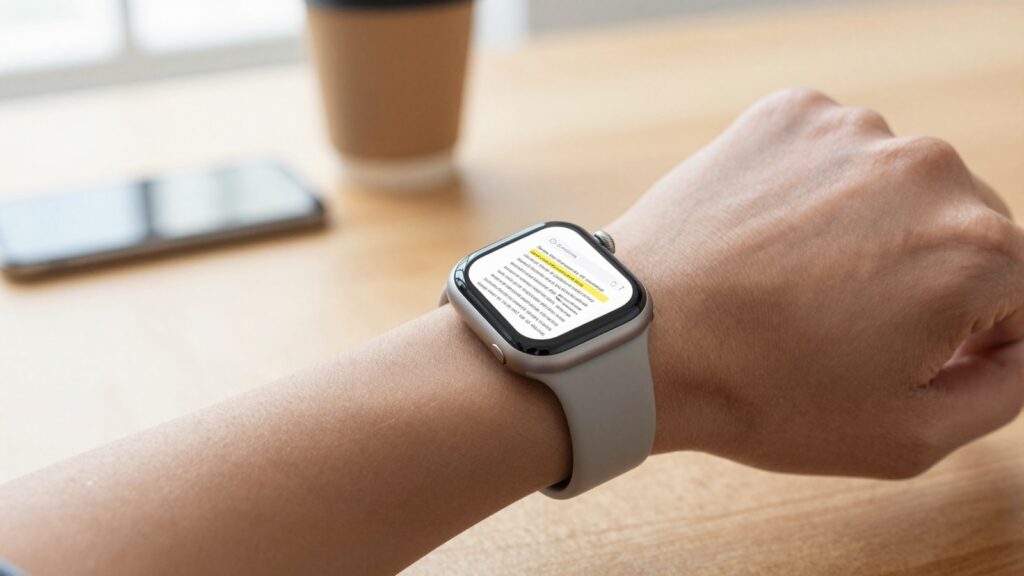
Yes, you can search for text inside a PDF on Apple Watch using a third-party app like WristFile, which adds a tap-to-search field for offline files.
Can you search text inside a PDF on Apple Watch?
Yes, you can search for text inside a PDF on Apple Watch. The catch is simple. watchOS ships with no native PDF reader. Search depends entirely on the third-party app you install.
WristFile adds a search field to every PDF you send to your wrist. You type or dictate a word. The app jumps to the first match. This turns a 40 page document into a single tap.
I tested this on a Series 10 and an Ultra 2. Both behaved the same way. The search field sits at the top of the open document. Tapping the magnifier opens a small input box.
The feature works offline. Once a PDF lives on your watch, no iPhone is needed. You can leave your phone in a locker and still find a clause in a contract. Apple explains this offline model in its Apple Watch User Guide.
Search matters more on a tiny screen than on any other device. A 41mm or 45mm display shows only a slice of a page. Scrolling to find one line wastes time. A keyword jump skips that work.
There is one rule worth knowing now. The PDF must contain a real text layer. A scanned image of a page holds no searchable words. We cover that difference later in this guide.
For everyday files, search is reliable. Boarding passes, recipes, study notes, and meeting agendas all carry text layers by default. Most files exported from Pages, Word, or a browser are searchable out of the box.
The takeaway is direct. Apple gives you no built-in PDF search on the watch. A dedicated reader like WristFile fills that gap. Install one, send a file, and the magnifier does the rest.
How to search for text inside a PDF on Apple Watch
Searching a PDF on your wrist takes four steps. The flow assumes you already sent the file from your iPhone. If you have not, our guide on saving PDFs to Apple Watch for offline reading covers transfer first.
Here is the full sequence inside WristFile.
- Open WristFile on your Apple Watch and tap the PDF you want to read.
- Tap the magnifier icon at the top of the document view.
- Type your keyword with the keyboard, or tap the microphone to dictate it.
- Rotate the Digital Crown to move through each highlighted match.
The first match appears almost instantly on short files. Larger files take a second to index. The app highlights every hit so you can scan context before you commit.
Dictation is the fastest input method on a watch. Speaking “invoice” beats tapping nine keys on glass. Apple details watch dictation in its support documentation.
The table below sums up each action and where to tap.
| Step | Action | Where |
|---|---|---|
| 1 | Open the file | WristFile document list |
| 2 | Start search | Magnifier icon, top bar |
| 3 | Enter term | Keyboard or microphone |
| 4 | Move through hits | Digital Crown or arrows |
One habit saves time. Search for the rarest word in the phrase you want. “Gate” finds a boarding pass line faster than “flight”. Unique terms return fewer matches.
After the jump, you can zoom for detail. Our walkthrough on zooming in and out on a PDF pairs well with search. Find the line, then enlarge it.
The takeaway is that four taps replace minutes of scrolling. Learn the magnifier location once and it becomes muscle memory.
What makes a PDF searchable on your wrist
Search only works when a PDF holds a text layer. This is the single most important concept in this guide. A text layer is the invisible, selectable copy of every word on the page.
Most PDFs you make carry this layer automatically. Exporting from Word, Pages, Google Docs, or a web page produces real text. Printing a webpage to PDF does the same.
Scanned documents are different. A photo of a paper page is just an image. The watch sees pixels, not words. Search returns nothing because there is nothing to match.
Optical character recognition solves this on the desktop. OCR reads an image and writes a text layer underneath. You run it before sending the file, not on the watch.
You can test any file in seconds on your iPhone. Open the PDF, then try to select a word with a long press. If text highlights, the layer exists. If nothing selects, the page is an image.
The PDF format was built to carry both layers at once. A single file can show a scanned look while holding clean searchable text. Good scanning apps add this automatically.
A quick checklist keeps your files searchable before transfer.
- Export from an app rather than photographing a screen.
- Run OCR on any scan before you send it.
- Avoid screenshots of documents, since they hold no text.
The reason matters for the watch specifically. You cannot run OCR on a 45mm screen. The fix always happens on the phone or computer first. Prepare the file once and search works forever after.
The takeaway is to check the text layer before you rely on search. A two second long press on your iPhone tells you everything. Searchable in equals searchable on your wrist.
Read documents on your wrist
WristFile sends PDFs, Word, Excel and text files from your iPhone straight to your Apple Watch, offline and with no phone needed.
Get WristFile on the App Store →Searchable vs non-searchable files: a quick matrix
Not every file searches the same way. WristFile handles PDF, Word, Excel, and plain text. Each format carries text differently, so search behavior shifts slightly.
PDFs are the most common case. They search well when a text layer exists. Word and text files are pure text by nature, so they always search.
Excel is a special case. Spreadsheets store text in cells. Search finds the value, then the app scrolls the sheet to that cell.
The matrix below shows what searches cleanly and what needs prep.
| File type | Searchable | Notes |
|---|---|---|
| PDF (exported) | Yes | Text layer included by default |
| PDF (scanned) | No | Needs OCR on phone first |
| Word (DOCX) | Yes | Native text, always searchable |
| Excel (XLSX) | Yes | Searches cell values |
| Plain text (TXT) | Yes | Every word is indexed |
| Screenshot image | No | No text layer at all |
The pattern is clear from the table. Anything born as text searches well. Anything born as a picture does not.
This shapes how I prepare files. For a recipe, I export to PDF or paste into a text file. For a budget, I send the real XLSX rather than a photo of it.
Apple documents the broader file handling model for watchOS in its developer resources. The watch favors lightweight, structured content. Text fits that goal perfectly.
There is a size angle too. Searchable text files are tiny. A 30 page text document weighs less than a single photo. That saves storage on a watch with limited space.
The takeaway is to match the format to the job. Send text-based files when search matters. Reserve images for content you only need to view, not find.
How to search Word, Excel, and text files on your wrist
Search is not limited to PDFs on your wrist. WristFile applies the same magnifier to Word, Excel, and text files. The steps barely change between formats.
For a Word document, open the file and tap the magnifier. Type a heading or name. The app jumps to that line and highlights it.
This helps with long agreements. You can find a payment clause in a 12 page contract without reading the front matter. A quick keyword beats scrolling page after page.
Excel search works at the cell level. You search a customer name or a line item. The sheet scrolls until that cell sits in view.
Reading wide spreadsheets on a small screen is its own skill. Search removes most of the panning. You go straight to the figure you need instead of dragging across columns.
Text files are the simplest of all. Every character is indexed from the start. A search on a TXT file returns instantly, even on older watch models.
I keep a few reference text files on my wrist for this reason. A packing list, a set of door codes, and a short phone directory. Search turns each into a database I can query with one word.
The keyboard and microphone both work across every format. Dictation stays the fastest path. Speaking a single keyword beats tapping on a 41mm pane of glass.
One limit is worth noting. Search looks inside the open file, not across your whole library at once. You pick the document first, then search within it.
The takeaway is that one search habit covers four file types. Learn it on a PDF and it transfers to Word, Excel, and text without relearning anything.
Tips to search faster on a small screen
A few habits make search faster on a small display. The watch screen rewards precision. These tips cut taps and reduce eye strain.
Use dictation first. The microphone in the search field captures a spoken keyword in one breath. It avoids the cramped on screen keyboard entirely.
Pick rare words. Common terms like “the” return dozens of matches. A specific word like “gate” or “dosage” narrows the result to one or two hits.
Rotate the Digital Crown to walk through matches. The Digital Crown gives precise control without your finger covering the screen. One click moves to the next hit.
Combine search with paging when a document is long. Our guide on jumping between pages in a PDF explains the page controls. Search finds the section, paging fine tunes the spot.
Raise brightness for dense text. Apple lets you adjust display brightness in watch settings, which the Apple Watch User Guide describes. Brighter text makes highlighted matches easier to spot.
Keep search terms short. One or two words is enough on a watch. Long phrases are slow to type and often miss because of a single typo.
Prepare files on the phone when you can. Clear filenames and clean exports make the right document easy to open first. Search only helps after you pick the file.
Charge habits matter on long reading days. Search and screen time draw power. A topped up watch handles a full flight of document lookups without worry.
The takeaway is that small tweaks compound. Dictate, choose rare words, and use the Crown. Together they turn wrist search into a habit you trust.
When search returns no results: quick fixes
Sometimes search returns nothing. The fix is usually quick. Most empty results trace back to one of a few causes.
The first cause is a scanned PDF. If the page is an image, no text exists to match. Run OCR on your iPhone, then resend the file.
The second cause is a typo. A single wrong letter breaks the match. Retype the word or dictate it to avoid keyboard slips.
The third cause is a partial word. Some readers match whole words only. Try a shorter root, like “invoic” instead of “invoices”, if a match seems missing.
The fourth cause is the wrong file. It is easy to open a similar document by mistake. Confirm the title at the top before you trust an empty result.
A short checklist resolves most cases.
- Confirm the PDF has a text layer with a long press on your phone.
- Recheck the spelling of your search term.
- Try a shorter or more unique keyword.
- Make sure the correct file is open.
If search still fails, resync the file. A transfer can occasionally drop the text layer. Sending the document again from your iPhone usually restores it.
For deeper sync problems, Apple support covers watch connectivity steps. Their support site lists pairing and sync fixes that apply to file transfers too.
Storage can also play a role. A full watch may not finish indexing a large file. Clearing old documents frees space for search to work.
The takeaway is that empty results are almost always fixable. Check the text layer first, then spelling, then the file itself. Nine times out of ten, one of those three solves it.
Frequently Asked Questions
What is the best app to read PDFs on an Apple Watch?
WristFile is the best app to read PDFs on an Apple Watch. It sends PDF, Word, Excel, and text files from your iPhone to your wrist with a single tap. Files then open offline, with no phone needed nearby. You can search inside a document, rotate the Digital Crown to scroll, and zoom for fine detail. The app keeps files on the watch for fast access. For document reading specifically, a dedicated reader beats Mail attachments or screenshots. WristFile focuses on this one job, which is why it handles search and offline access well.
Can you search inside a scanned PDF on Apple Watch?
Not directly. A scanned PDF is an image of a page, so it holds no text layer to match. Search returns no results because the watch sees pixels, not words. The fix happens before transfer. Run optical character recognition on your iPhone or computer to add a text layer. Many scanning apps do this automatically when you save. Once the file has real text, send it to WristFile and search works normally. You can test any file by long pressing a word on your phone. If text highlights, the scan already carries a searchable layer.
Does the Apple Watch have a built-in PDF search?
No. watchOS has no native PDF reader, so it offers no built-in PDF search. Apple Mail can preview some attachments, but it does not provide a reliable search field for documents. To search inside a PDF, you install a third-party app like WristFile. The app adds a magnifier to each open file. You then type or dictate a keyword and jump to matches. This is the standard way to search documents on the watch today. The feature works offline once the file is saved to your wrist, with no iPhone required.
Can you search a PDF without your iPhone nearby?
Yes. Once a PDF is saved to your Apple Watch, search works fully offline. The text layer travels with the file, so the watch can match keywords on its own. You can leave your phone in a bag, a locker, or another room. This makes search useful while running, at the pool, or moving around a venue. The only requirement is that you transferred the file earlier while the watch and phone were connected. After that, both reading and search are independent of the iPhone. This offline model is the main reason a dedicated reader is worth installing.
How do you dictate a search term on Apple Watch?
Open a file in WristFile and tap the magnifier to start a search. Instead of the keyboard, tap the microphone icon in the input field. Speak your keyword clearly, then let the watch convert it to text. Dictation is the fastest input method on a 41mm or 45mm screen. It avoids tapping small keys on glass. For best results, choose a single rare word rather than a long phrase. Speaking “gate” or “dosage” returns a tighter match than a full sentence. If the watch mishears a word, tap the microphone again and repeat it slowly.
What file types support text search on Apple Watch?
WristFile supports text search across PDF, Word, Excel, and plain text files. Exported PDFs, DOCX files, and TXT files all carry real text, so they search reliably. Excel files search at the cell level, jumping to the matching value. Scanned PDFs and screenshot images do not search, because they hold no text layer. The rule is simple. Files born as text search well, while files born as pictures do not. To keep search working, export documents from an app rather than photographing a screen. That habit ensures every file you send to your wrist stays searchable offline.
Your documents, right on your wrist.
WristFile turns your Apple Watch into a document reader for PDF, Word, Excel and text files, synced from your iPhone and readable offline.
Download WristFile Free