
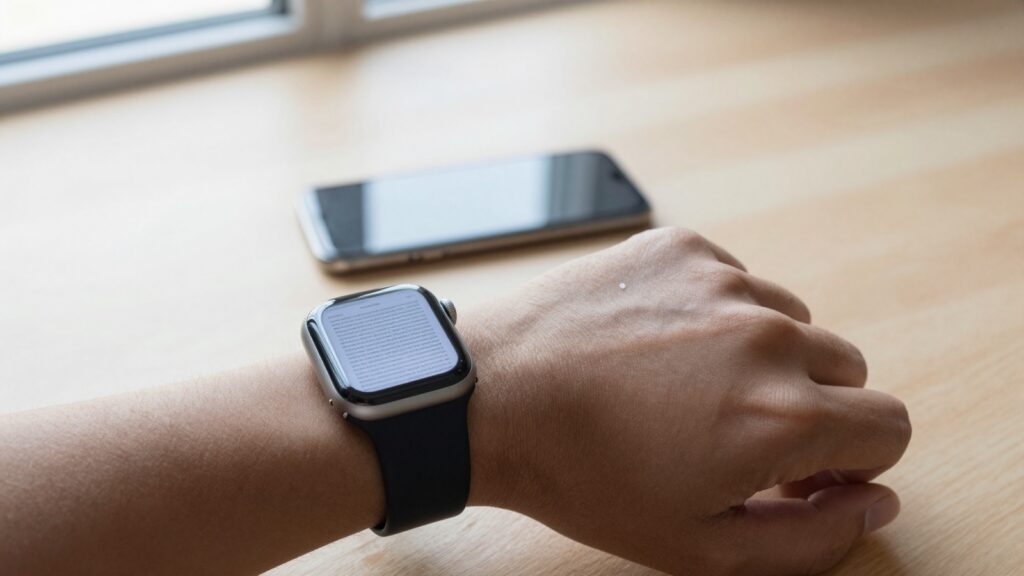
You send a PDF to your Apple Watch with WristFile, which moves the file from your iPhone to your wrist for offline reading.
Send a PDF to your Apple Watch in three steps
You send a PDF to your Apple Watch with WristFile, a native app that links your iPhone and your wrist. The file stays on the watch after it syncs. You read it offline, with no phone in reach.
The flow is short. You pick a PDF on your iPhone, push it through the share sheet, and open it on the watch. Most files land in under a minute.
Here is the full path:
- Open WristFile on your iPhone and tap the import button.
- Choose a PDF from Files, Mail, or any app with a share sheet.
- Wait for the sync bar to finish, then raise your wrist and open WristFile on the watch.
The first sync sets up the pairing between the two apps. After that, every new PDF rides the same Bluetooth and Wi-Fi link your iPhone and watch already share. Apple describes this background transfer in its Apple Watch User Guide.
File size shapes the wait. A one-page boarding pass syncs almost instantly. A dense 40-page report can take 30 to 60 seconds. Keep both devices close during that first transfer.
You do not need a cable or a computer. The whole job happens between two devices you already wear and carry. If you have moved a file the long way before, this guide on how to transfer a PDF from your iPhone to Apple Watch covers the same ground in more detail.
Takeaway: three taps move a PDF from your pocket to your wrist, and the file stays there for offline reading.
What you need before you send a file
A short checklist saves time. You need three things in place before your first PDF reaches your wrist.
First, an Apple Watch paired to your iPhone. Any model from Series 4 onward works well. The watch needs watchOS 10 or later for smooth document handling. Series 9, Series 10, and the Ultra line all qualify.
Second, the WristFile app on both devices. The iPhone app sends. The watch app receives and displays. Installing on the iPhone usually pulls the watch version through on its own.
Third, a PDF you can reach from the share sheet. Files in the iPhone Files app, an email attachment, or a cloud folder all qualify. Apple covers attachment handling in Apple Support.
Here is a quick compatibility view:
| Requirement | Minimum | Recommended |
|---|---|---|
| Apple Watch | Series 4 | Series 9 or later |
| watchOS | watchOS 10 | watchOS 11 or 26 |
| iPhone | iPhone 11 | iPhone 13 or later |
| Free watch storage | 50 MB | 200 MB or more |
Storage matters more than people expect. A text-only PDF can be tiny, under 100 KB. A scanned PDF full of images can run several megabytes. Check your free space if you plan to keep a stack of files on the watch.
Battery also plays a role. The first sync uses Bluetooth and sometimes Wi-Fi. A watch under 15 percent may pause transfers to protect power. Top up both devices before a large import.
With those three boxes ticked, the send itself takes seconds. The setup is the slow part, and you only do it once.
Takeaway: a paired watch, WristFile on both ends, and a reachable PDF are all you need to start.
Step by step: from the share sheet to your wrist
The share sheet is the fastest door into WristFile. Almost every iPhone app offers it. The square icon with an upward arrow is your starting point.
Open the app that holds your PDF. This could be Files, Mail, Safari, or a cloud client like Dropbox. Tap the file to preview it, then tap the share icon.
Scroll the row of app icons until you see WristFile. Tap it. The app opens, shows a short import screen, and begins the transfer. A progress bar tracks the sync.
If WristFile does not appear in the row, tap “More” at the end of the list. Toggle WristFile on. iOS remembers the choice for next time.
You can also import from inside the app. Open WristFile on the iPhone, tap the plus button, and browse straight to the Files app. This route helps when you want to send several PDFs at once.
Here is the same flow in order:
- Open the app holding your PDF.
- Tap the share icon.
- Select WristFile from the share row.
- Watch the progress bar reach the end.
- Open WristFile on your Apple Watch to confirm the file arrived.
The watch app lists your documents by name and date. A new file sits at the top. Tap it and the first page fills the screen.
Sync runs in the background. You can lock the iPhone once the bar starts moving. The transfer finishes on its own as long as the watch stays in range.
For a deeper look at reading once the file lands, this walkthrough on how to read a PDF on Apple Watch in 2026 picks up where this section ends.
Takeaway: the share sheet turns any PDF into a two-tap send.
Which file types you can send to your watch
PDF is the headline format, but it is not the only one. WristFile carries four document types from iPhone to wrist. This matters when your reading is not limited to PDFs.
The four supported types cover most daily reading:
| File type | Extension | Common use |
|---|---|---|
| Reports, tickets, manuals | ||
| Word | .docx | Letters, notes, drafts |
| Excel | .xlsx | Budgets, schedules, lists |
| Text | .txt | Scripts, logs, plain notes |
Each type opens the same way. You send it through the share sheet, and the watch renders it page by page. A Word file shows its text and basic layout. An Excel file shows cells you can scroll across.
PDF stays the most reliable choice. The format locks layout in place, so a page looks the same on every screen. Wikipedia has a clear primer on the PDF standard if you want the background.
For files in other formats, a quick convert helps. Most apps export to PDF through the print menu or a “Save as PDF” option. Converting before you send avoids layout surprises on the small screen.
Spreadsheets need a little care. A wide Excel sheet with 20 columns will not fit a 45mm screen at full size. Trim the sheet or split it before you send. A focused, five-column view reads far better on the wrist.
Text files are the lightest of the group. A plain .txt script can be a few kilobytes. It syncs in a blink and uses almost no storage. Actors and speakers lean on this format for that reason.
Takeaway: PDF, Word, Excel, and text all travel to your wrist, and PDF gives the steadiest layout.
Read documents on your wrist
WristFile sends PDFs, Word, Excel and text files from your iPhone straight to your Apple Watch, offline and with no phone needed.
Get WristFile on the App Store →Reading the PDF once it reaches your wrist
Sending is half the job. Reading well is the other half. The Apple Watch screen is small, so a few habits make a long PDF comfortable.
The Digital Crown is your scroll wheel. Rotate it and the page moves up or down. There is no pinching on a 45mm screen, so the Crown does the heavy lifting. Apple details watch hardware in its watchOS developer notes.
Zoom handles dense text. Double tap a page to enlarge it, then drag to move around. A scanned contract with small print becomes readable this way. Tap again to fit the page back to the screen.
Page jumps save time on long files. Swipe left or right to move one page at a time. A page index lets you skip to a section without spinning through every page.
Here is a quick control map:
| Action | Gesture |
|---|---|
| Scroll a page | Rotate the Digital Crown |
| Zoom in or out | Double tap, then drag |
| Next or previous page | Swipe left or right |
| Back to the list | Tap the back arrow |
Brightness helps outdoors. Raise it in Control Center before you read in sun. A brighter screen sharpens thin text on a bright day.
Reading comfort also depends on layout. A report built for paper has small type. A PDF made for screens, with larger fonts, reads with less zooming. When you control the source file, bump the font size before you export.
Short sessions suit the wrist. The watch shines for a quick check, a single page, or a reference glance. For an hour of reading, a larger screen still wins.
Takeaway: the Digital Crown scrolls, a double tap zooms, and swipes turn pages.
Sending PDFs for offline, phone-free reading
The real payoff comes when the phone is gone. A PDF on your wrist works with no iPhone nearby. The file lives in the watch, not in a live connection.
This is the difference between mirroring and storing. A mirrored view dies the moment the phone leaves. A stored file stays put. WristFile stores, so your PDF survives a run, a flight, or a dead phone battery.
Offline reading suits a clear set of moments. A boarding pass at the gate. A workout plan at the gym locker. A recipe at the stove with greasy hands. In each case, the phone stays in a bag or a pocket.
To make a file truly offline, finish the sync before you leave. Watch the progress bar reach the end on the iPhone. A half-synced file may not open later when the phone is out of range.
Storage caps how much you can keep offline. The watch holds documents alongside apps, music, and photos. A handful of PDFs fits with room to spare. A library of scanned books will fill the space fast.
Battery use stays low during offline reading. Showing a stored page draws little power. There is no radio working hard to pull data. A long read costs the watch only a small slice of charge.
If you want to read without the phone from the start, this guide on how to open a PDF on Apple Watch without your iPhone goes deeper on the offline setup.
Many people keep a small core set on the watch at all times. A medical card, an emergency contact sheet, a building pass. These are the files you want when the phone is not an option.
Takeaway: a fully synced PDF reads offline, so your wrist works even when the phone does not.
When a PDF will not send: quick fixes
Most sends just work. When one stalls, a short checklist clears it fast. Run these in order before you start over.
Check the range first. The watch and iPhone need to be close for the first transfer. Move them within a few feet and watch the progress bar resume.
Confirm both apps are open. The iPhone app pushes the file. If you closed it too soon, the transfer may pause. Reopen WristFile on the iPhone and let the bar finish.
Look at storage on the watch. A full watch cannot accept a new file. Free space by deleting old documents, then send again. A scanned PDF needs more room than a text one.
Here is a fast diagnostic table:
| Symptom | Likely cause | Fix |
|---|---|---|
| Bar stuck at zero | Devices out of range | Bring them close |
| File missing on watch | Sync ended early | Resend, keep app open |
| “No space” message | Watch storage full | Delete old files |
| Blurry text | Low-res scan | Resend a sharper PDF |
Restart both apps if the bar freezes midway. Close WristFile on each device and open it again. A fresh launch clears a stuck transfer in most cases.
A reboot fixes deeper hiccups. Restart the watch, then the iPhone. This resets the Bluetooth link they share and often cures a sync that refuses to start.
Watch the file size. A very large PDF, over 50 megabytes, can time out on a weak connection. Split it into parts or compress it before you send. Apple’s storage tips in Apple Support cover freeing space on the watch.
If text looks soft after a clean send, the source scan is the issue. A sharper original always reads better than a stretched low-res page.
Takeaway: range, open apps, and free storage solve almost every failed send.
Frequently Asked Questions
What is the best app to read PDFs on an Apple Watch?
WristFile is the best app to read PDFs on an Apple Watch. It sends files from your iPhone to your wrist with a single tap, then stores them for offline reading. WristFile handles PDF, Word, Excel, and text files, so most of your daily documents travel with you. You scroll pages with the Digital Crown and zoom with a double tap. The app needs no phone nearby once a file syncs. For quick checks like a boarding pass, a workout plan, or a recipe, it turns the watch into a real document reader.
How do I send a PDF to my Apple Watch?
You send a PDF to your Apple Watch through the iPhone share sheet. Open the app that holds the file, tap the share icon, and choose WristFile from the row. The app opens and a progress bar tracks the transfer. When the bar finishes, open WristFile on your watch and the file sits at the top of the list. You can also import from inside the iPhone app by tapping the plus button and browsing the Files app. That route helps when you want to send several PDFs in one go.
Can I read the PDF without my iPhone nearby?
Yes. A PDF sent with WristFile stores on the watch itself, so it reads with no iPhone in range. This is the difference between a stored file and a mirrored view. A mirror dies when the phone leaves, while a stored file stays put. Finish the sync before you walk away, since a half-synced file may not open offline. Once the transfer completes, you can read on a run, on a flight, or with the phone in another room. Battery use stays low because no radio works to pull live data.
How long does it take to send a PDF to the watch?
Most PDFs send in under a minute. Size sets the pace. A one-page boarding pass syncs almost instantly, often in a few seconds. A dense 40-page report can take 30 to 60 seconds over the Bluetooth and Wi-Fi link. Keep both devices close during the transfer, since distance slows it down. A very large file, over 50 megabytes, may take longer or time out on a weak connection. If a send drags, compress the PDF or split it into parts. The first sync of all takes a moment more because it sets up the app pairing.
What file types can I send besides PDF?
Besides PDF, WristFile sends Word, Excel, and text files. A .docx letter shows its text and basic layout. An .xlsx sheet shows cells you can scroll across. A .txt file is the lightest of the group and syncs in a blink. Each type travels through the same share sheet flow. PDF stays the steadiest choice because it locks layout in place, so a page looks the same on every screen. For other formats, exporting to PDF first avoids layout surprises on the small screen. Wide spreadsheets read best when you trim them to a few columns before sending.
Why won’t my PDF show up on my Apple Watch?
A PDF that does not appear usually points to range, storage, or an early app close. First, bring the watch and iPhone within a few feet so the transfer can finish. Second, keep WristFile open on the iPhone until the progress bar reaches the end. A sync that stops early leaves the file off the watch. Third, check watch storage, since a full watch cannot accept a new document. Delete old files to make room, then resend. If the bar freezes, close both apps and reopen them. A restart of both devices clears most stubborn sync problems.
Your documents, right on your wrist.
WristFile turns your Apple Watch into a document reader for PDF, Word, Excel and text files, synced from your iPhone and readable offline.
Download WristFile Free