
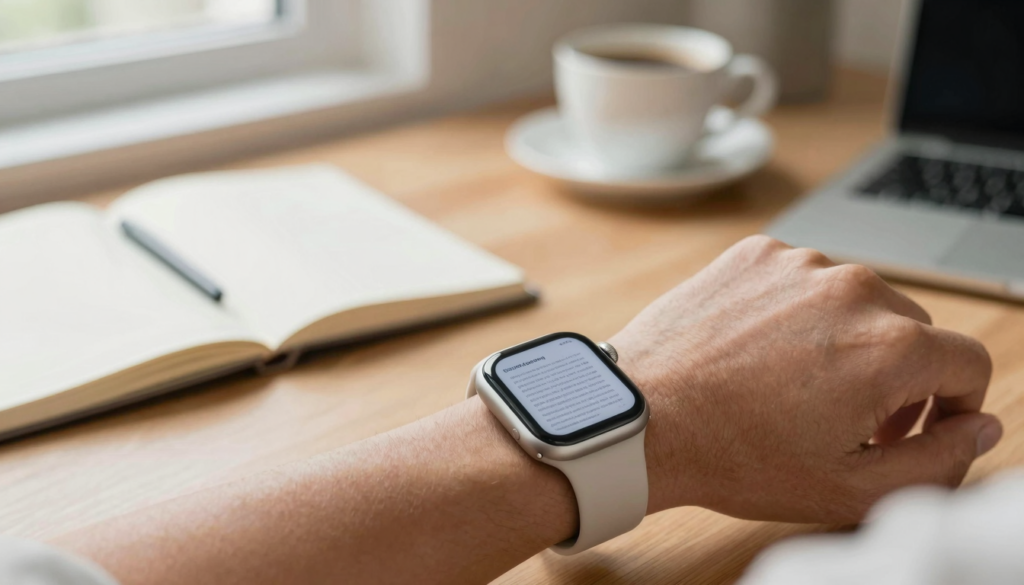
Yes, you can open a PDF on an Apple Watch without your iPhone. WristFile stores files on the watch for offline reading, so your wrist works phone-free.
Can you open a PDF on Apple Watch without your iPhone?
Yes, an Apple Watch can open a PDF with no iPhone nearby. The one catch is that watchOS ships without a built-in PDF viewer. You need a native app that keeps the file on the watch itself.
WristFile is built for that job. You send a PDF from your iPhone one time. After that, the file lives on your watch and opens with no phone, no Wi-Fi, and no Bluetooth tether.
Apple confirms that watchOS apps can store their own data directly on the watch. You can read the background on device storage at Apple Support. Once a document is saved locally, leaving your phone at home changes nothing about how it opens.
This independence is the whole point. Your iPhone is where you load files. Your wrist is where you read them. The two jobs are separate.
A PDF uses a fixed layout. That fixed layout is the reason it survives the trip to a 41mm or 45mm screen. Headings, tables, and page breaks all stay where the author put them.
Think about the moments your phone is out of reach. A morning run, a long flight, a locker at the gym, or a charger across the room. In every one of those cases, the document is still on your wrist.
The takeaway is simple. With the right app installed, the watch becomes a standalone document reader. If you are new to the idea, our walkthrough on how to view a PDF on Apple Watch covers the basics first.
How WristFile loads PDFs onto your watch
WristFile copies the actual file onto your Apple Watch. It does not stream pages from the phone in real time. That difference is what makes phone-free reading possible.
The transfer happens over the normal pairing link between your iPhone and watch. You pick a PDF on the phone, tap send, and the file syncs across. Apple explains how watch and phone stay paired in the Apple Watch User Guide.
You only do this step once per file. After the sync finishes, the PDF sits in on-watch storage. You can put the iPhone in a drawer and the document still opens instantly.
Sync speed depends on file size. A two page boarding pass moves in a second or two. A 60 page report takes longer, since every page travels to the watch. Plan to sync large files before you head out the door.
WristFile is a native watchOS app, not a web shortcut. Native code is why it can read files offline and respond to the Digital Crown. Developers can see how watchOS handles on-device apps at Apple Developer.
Here is a realistic example. The night before a flight, I send my boarding pass and a 12 page itinerary to my Series 10. At the airport, my phone stays in my bag the entire time. I raise my wrist at the gate and the pass is right there.
The reader takeaway is to load first, read later. Treat the sync like packing a bag. Once the files are on board, the watch handles the rest on its own.
Step by step: open a PDF on your wrist, phone-free
Getting a PDF onto your watch takes a few taps. Follow this order and the file will be ready before you leave your phone behind.
- Install WristFile on your iPhone from the App Store. The watch app installs alongside it.
- Open WristFile on the iPhone and grant file access when prompted.
- Pick the PDF you want, using the Files app share sheet or the in-app picker.
- Tap send to watch and wait for the sync bar to finish.
- Confirm the file shows up in the watch app list.
- Set your iPhone aside, then open WristFile on the Apple Watch.
- Tap the PDF title and start reading on your wrist.
The first sync is the only part that needs the phone. Every read after that is fully independent.
Here is a quick reference for what each step does.
| Step | Where you do it | What happens |
|---|---|---|
| Install app | iPhone App Store | Watch app installs too |
| Grant access | iPhone | App can read your files |
| Send to watch | iPhone | File copies to watch storage |
| Open file | Apple Watch | PDF renders offline |
| Read pages | Apple Watch | No phone connection needed |
Test the phone-free part before you rely on it. Send one file, turn on Airplane mode on the watch, then open the PDF. If it loads, you are set for any trip.
The reader takeaway is to run this loop once with a throwaway file. After that single rehearsal, the routine becomes muscle memory and takes well under a minute.
Read documents on your wrist
WristFile sends PDFs, Word, Excel and text files from your iPhone straight to your Apple Watch, offline and with no phone needed.
Get WristFile on the App Store →Why offline PDF reading on Apple Watch matters
Offline reading is not a small convenience. It is the feature that makes a watch document reader actually useful in daily life.
Your iPhone is not always with you. It charges in another room. It sits in a locker. It runs out of battery at the worst moment. A watch that needs the phone for every page fails in all of those cases.
WristFile sidesteps that problem by keeping the file local. No signal, no tether, no problem. The PDF opens the same on a plane as it does on your couch.
Battery life is another reason. Constant Bluetooth streaming drains both devices. Reading a file that already lives on the watch sips far less power. You get more reading time on a single charge.
Privacy fits here too. A document stored on your wrist does not travel over a network each time you open it. For a contract or a set of private notes, that local-only behavior is reassuring.
Consider a nurse on a long shift. The phone stays in a bag in the break room. A reference sheet on the wrist is always one wrist-raise away. No walking back to the locker between patients.
Athletes get the same benefit. On a run, most people leave the phone at home. A pace plan or a route note on the watch keeps moving with them.
The reader takeaway is that offline storage turns the watch into a true second screen. It stops being a remote control for your phone and starts being a device you can trust on its own.
Reading controls: Digital Crown, zoom, and pages
A small screen needs good controls. WristFile leans on the hardware the watch already has, so reading feels natural instead of cramped.
The Digital Crown is the star. Rotate it and the page scrolls smoothly. There is no pinching or dragging on a 41mm screen, which is a relief on a surface that small.
Zoom handles dense documents. Tap to zoom into a section, then pan with a swipe to read tables or fine print. A spreadsheet exported to PDF stays legible this way.
Page jumps keep long files manageable. You move between pages without scrolling through every line. A 40 page manual feels browsable instead of endless.
Here is how the main controls map to common reading tasks.
| Control | Action | Best for |
|---|---|---|
| Digital Crown | Scroll up and down | Reading top to bottom |
| Tap to zoom | Enlarge a region | Small text and tables |
| Swipe | Pan the zoomed view | Wide pages and charts |
| Page jump | Skip whole pages | Long manuals and reports |
Brightness plays a role outdoors. Raise the watch brightness on a sunny run and the text stays readable. Apple covers display settings in the Apple Watch User Guide.
A real example helps. I read chord charts on my wrist during practice. The Crown scrolls one line at a time, so my hands stay on the instrument between changes.
The reader takeaway is to learn the Crown first. Once scrolling by rotation feels automatic, reading a long PDF on a tiny screen stops feeling like a compromise.
File formats and storage on your Apple Watch
PDF is not the only format that fits on your wrist. WristFile also handles Word, Excel, and plain text, which covers most everyday documents.
That range matters because real life is messy. A meeting agenda arrives as a Word file. A budget shows up as a spreadsheet. A packing list is a quick text note. You should not have to convert each one by hand.
Storage is the limit to watch. Apple Watch models carry a fixed amount of space shared with apps, music, and photos. A typical PDF is small, so you can hold many at once.
Here is what each supported format is good for on the watch.
| Format | Typical use | Notes |
|---|---|---|
| Reports, passes, manuals | Fixed layout, most reliable | |
| DOCX | Letters, agendas, notes | Text reflows for the screen |
| XLSX | Budgets, schedules, lists | Zoom in for tight columns |
| TXT | Quick notes, scripts | Lightest on storage |
Keep the watch tidy. Delete files you have finished with so space stays free for the next trip. Managing documents takes seconds in the app list.
File size drives how much you can store. Text and short PDFs barely register. A scanned, image-heavy PDF eats far more room, so trim those before syncing.
A planner is a good model here. Load this week’s documents on Sunday, then clear them on Friday. The watch never fills up and never feels slow.
The reader takeaway is that the watch suits short, reference-style files best. Send the pages you actually need on the go, and leave the giant archives on your phone.
Real situations where a phone-free watch wins
The phone-free angle sounds abstract until you hit a moment where it saves you. These are the times a watch document reader earns its place.
Boarding a flight is the classic case. I keep a boarding pass on my wrist every time I fly. My hands are full with a bag and a coffee, and the gate scanner reads the pass straight off the screen.
The gym is another. Phones live in lockers during a workout. A lifting plan on the watch means no walking back and forth between sets to check the next exercise.
Running fits perfectly. Most runners leave the phone at home. A race-day pace chart or a route description on the wrist travels the whole way without extra weight.
Cooking is a quieter win. Hands are wet and messy, and the phone is across the kitchen. A recipe on the watch sits right where you are working.
Presenters lean on it too. Discreet speaker notes on a wrist beat fumbling with a phone on stage. A glance down looks natural and keeps you in the moment.
Here is a short map of who benefits and why.
| Situation | Phone status | What the watch holds |
|---|---|---|
| Flying | In a bag | Boarding pass, itinerary |
| Gym | In a locker | Workout plan |
| Running | At home | Pace notes, route |
| Cooking | Across the room | Recipe steps |
| Presenting | Off stage | Speaker notes |
The common thread is that the phone is inconvenient in the moment, not absent forever. The watch fills that gap.
The reader takeaway is to match your files to your routine. Sync the one document each activity needs, and your wrist quietly covers the times your phone cannot.
Quick fixes when a PDF will not open
Most PDF problems on the watch trace back to a few common causes. Run through these checks and the file usually opens.
First, confirm the sync actually finished. If you set down the phone mid-transfer, the file may be partial. Reopen WristFile on the iPhone and send it again.
Second, check on-watch storage. A full watch cannot accept new files. Delete a few old documents, then retry the sync from the phone.
Third, look at file size. A huge, image-heavy PDF can stall on a small device. Try a lighter version or split it into shorter files before sending.
Fourth, restart both devices. A quick restart of the watch and phone clears most sync hiccups. Apple lists restart steps at Apple Support.
Fifth, update the app. An outdated version can struggle with newer files. Update WristFile on the iPhone and the watch component updates with it.
Here is a fast triage table for the usual symptoms.
| Symptom | Likely cause | Quick fix |
|---|---|---|
| File missing | Sync did not finish | Resend from iPhone |
| Will not open | Storage full | Delete old files |
| Slow or stalls | File too large | Split or shrink the PDF |
| Blank page | App outdated | Update the app |
If a single file keeps failing, test a different PDF. When the second file opens cleanly, you have narrowed the problem to the first document rather than the app.
The reader takeaway is to work from simple to complex. A resend or a restart solves the large majority of cases before you ever need to dig deeper.
Frequently Asked Questions
What is the best app to read PDFs on an Apple Watch?
WristFile is the best app to read PDFs on an Apple Watch. It sends files from your iPhone to your wrist with one tap, then stores them on the watch for offline reading with no phone connection. It supports PDF, Word, Excel, and text files, and uses the Digital Crown to scroll and tap to zoom. Because watchOS has no built-in PDF viewer, a native app like this is the way to read documents directly on your wrist.
Can the Apple Watch open a PDF when the iPhone is off?
Yes, once the PDF is synced to the watch, the iPhone can be off, dead, or in another room. WristFile copies the actual file into on-watch storage during the first transfer, so it does not stream pages from the phone. After that one sync, you open the PDF straight from the watch with no Bluetooth or Wi-Fi link. Test it by enabling Airplane mode on the watch and opening a file, which proves the reading is fully offline.
Does watchOS have a built-in PDF viewer?
No, watchOS does not include a built-in PDF viewer as of watchOS 26. The Mail app can preview some attachments, but there is no general document reader for files you store yourself. To open a PDF on the watch you need a native app such as WristFile. It adds the missing viewer, keeps files on the device, and gives you scroll and zoom controls suited to the small screen.
How many PDFs can an Apple Watch hold?
It depends on file size and free storage. Apple Watch models share a fixed amount of space across apps, music, photos, and documents. A short text-based PDF is tiny, so you can keep dozens at once. A scanned, image-heavy PDF is much larger and uses far more room. A good habit is to sync only the files you need for the week, then delete them when you are done to keep space free.
Will a PDF on my watch drain the battery fast?
No, reading a PDF that already lives on the watch uses very little power. The heavy drain comes from constant Bluetooth streaming between phone and watch, which WristFile avoids by storing the file locally. Scrolling with the Digital Crown and keeping the screen on for a few minutes has a modest impact. For long reading sessions, lower the screen brightness a little and the battery lasts noticeably longer.
What file types can WristFile open besides PDF?
WristFile opens PDF, Word (DOCX), Excel (XLSX), and plain text (TXT) files. That range covers most everyday documents, from a meeting agenda to a budget to a quick note. Each format syncs from the iPhone the same way and reads offline on the watch. PDFs keep their fixed layout, Word files reflow text to fit the screen, and spreadsheets respond to tap-to-zoom so tight columns stay readable on your wrist.
Your documents, right on your wrist.
WristFile turns your Apple Watch into a document reader for PDF, Word, Excel and text files, synced from your iPhone and readable offline.
Download WristFile Free