
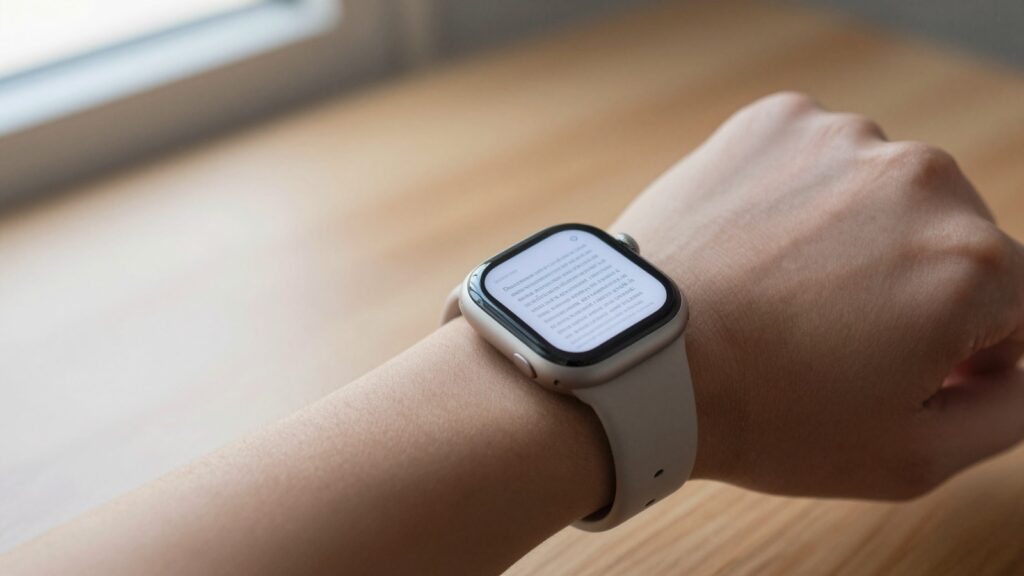
Yes, you can read a PDF on an Apple Watch with WristFile, which sends files from your iPhone to your wrist for offline reading on watchOS.
Can you actually read a PDF on your Apple Watch?
Yes, you can read a PDF on an Apple Watch in 2026. A full page renders on the display and stays legible. watchOS still ships without a built in PDF viewer, so the file needs a dedicated app.
Apple designed the Apple Watch around quick glances, not long documents. The native apps handle Messages, Mail and Notes. None of them open a PDF as a document you can scroll and zoom freely.
A third party app closes that gap. WristFile installs on the watch and pairs with a companion app on your iPhone. You pick a PDF on the phone, tap send, and it lands on your wrist in seconds.
The watch face is small, but a PDF page is mostly white space and text. With zoom and panning, even dense pages become readable. The Digital Crown does the scrolling, so your finger never blocks the screen.
I keep a one page packing list on my watch before every flight. My phone stays buried in a bag. I lift my wrist, turn the crown, and the list scrolls without a single pinch.
For a quick orientation, our step by step PDF guide walks through the same flow with screenshots.
Reading on a watch will never replace a tablet. It replaces the moment you reach for your phone for one line of text. That trade is the whole point of this guide.
What you need before you start
You need three things before reading a PDF on your wrist. An Apple Watch, a paired iPhone, and a document app installed on both.
Almost every modern Apple Watch works. Series 4 and later, all SE models, and every Ultra run a recent watchOS version. If your watch updates through the Watch app, it qualifies.
Keep watchOS current for the smoothest sync. Apple ships sync and storage improvements in most updates. You can check your version and update through the Watch app, as Apple explains in its watchOS support pages.
Storage matters less than people expect. A typical text PDF weighs under one megabyte. The watch holds thousands of pages before space becomes a concern.
Wi-Fi or Bluetooth handles the transfer. Your watch and iPhone pair over both, so files move without a cable. The first sync of a large file takes longer, then later reads are quick.
Install WristFile from the App Store. The download adds the iPhone app and the watch app together. Open the watch app once so it appears in your app grid.
Battery is the last thing to watch. Reading itself uses little power. Frequent syncing of large files drains more, so send documents while charging when you can.
I set this up once on a Series 9 in under five minutes. The longest part was waiting for the App Store download over hotel Wi-Fi.
With those pieces in place, you are ready to send your first file. The next section covers the exact steps from phone to wrist.
How to send a PDF to your Apple Watch
Sending a PDF takes under a minute once WristFile is installed. The flow runs entirely from your iPhone. Here is the exact sequence.
- Open WristFile on your iPhone.
- Tap the add or import button.
- Choose your PDF from Files, Mail, or another app.
- Select your Apple Watch as the destination.
- Tap send and wait for the progress bar to finish.
- Lift your wrist and open WristFile on the watch.
The file now sits in your watch library. It stays there offline, even when your phone is far away.
You can import from almost anywhere on the phone. The share sheet sends a PDF straight into WristFile from Mail, Safari, or Files. That saves a few taps for documents you already have open.
Large files take a moment on the first sync. A 30 page report may need 10 to 20 seconds. A single page boarding pass moves almost instantly.
I usually load documents the night before I need them. A script, a recipe, or a set of meeting notes goes over while the watch charges. By morning everything is waiting on my wrist.
If a transfer stalls, keep both devices close and unlocked. The watch and iPhone need an active connection to finish the handoff. Our guide on transferring a PDF from iPhone to Apple Watch covers stalls in more detail.
Once the file lands, you never need the phone again to read it. The document is stored on the watch itself. The next section explains how to move through the pages.
Navigating and zooming a PDF on your wrist
Reading a PDF on the watch comes down to three controls. The Digital Crown, taps, and a pinch to zoom. Each maps to a familiar gesture.
The Digital Crown scrolls the page. Rotate it up or down and the document moves smoothly. Your finger stays off the glass, so nothing hides the text. Apple documents the crown in its Apple Watch User Guide.
A tap jumps you between pages or opens controls. Double tap to fit a page to the screen. The exact taps depend on the app, but the pattern feels natural after a minute.
Zoom handles the small screen. Pinch out to enlarge a dense section, then pan with one finger. The touch screen and Digital Crown work together for precise control.
Here is how the common gestures map on WristFile:
| Action | Gesture | Result |
|---|---|---|
| Scroll the page | Rotate Digital Crown | Page moves up or down |
| Zoom in or out | Pinch on screen | Text grows or shrinks |
| Fit page to screen | Double tap | Whole page snaps into view |
| Next or previous page | Swipe left or right | Page turns |
| Open the file list | Tap library | Return to your documents |
The controls stay consistent across file types. A Word file scrolls the same way as a PDF. That muscle memory carries over once you learn it.
I read a four page script on a 41mm screen last month. The crown handled the scrolling while I held a coffee. No pinching, no squinting, just a clean turn of the dial.
Navigation is the part people worry about most. In practice it takes one session to feel automatic. The next section makes those pages even easier to read.
Read documents on your wrist
WristFile sends PDFs, Word, Excel and text files from your iPhone straight to your Apple Watch, offline and with no phone needed.
Get WristFile on the App Store →Making PDFs readable on a small screen
A small screen rewards a little preparation. The right document and the right settings make reading effortless. A few habits remove almost all eye strain.
Start with the source file. A text based PDF scales far better than a scanned image. Real text stays sharp at any zoom, while a scan blurs when enlarged.
Trim the page before you send it. A single column of large text reads better than a dense two column report. If you control the document, export it with bigger margins and font.
Brightness helps more than people think. Raise the watch brightness one step for reading sessions. The display is bright enough to read a page outdoors in daylight.
Always on display can stay active while you read. The page dims but remains visible when your wrist lowers. That keeps your place without a tap to wake the screen.
Break long documents into parts. A 50 page PDF works, but a 5 page summary reads faster. For study notes, I split chapters into separate files.
Use zoom as a default, not a last resort. Set a comfortable zoom once and the app often remembers it. You read column by column, the way you would on any phone.
I learned to format my own files for the wrist. Big font, one idea per line, short pages. A recipe formatted this way needs almost no scrolling at all.
For a deeper look at reading without your phone nearby, our guide on opening a PDF without your iPhone pairs well with these tips.
Good formatting does more than any setting. Five minutes preparing a file saves every future read. The next section covers reading fully offline.
Reading offline, without your iPhone nearby
The best part of a watch PDF is independence from your phone. Once a file syncs, it lives on the watch. You can read it with the phone powered off or left at home.
This matters most when your hands are full. On a run, your phone stays home but your watch comes along. A route plan or interval workout sits on your wrist the whole time.
Travel is another clear win. I keep a boarding pass and a hotel address on my watch every time I fly. Airport Wi-Fi can fail, but the file is already local.
Offline reading also protects your focus. With the document on your wrist, you skip the phone and its notifications. You glance, read the line you need, and lower your arm.
The watch stores the file, not a link to it. That distinction is the whole point of a true reader. A screenshot or a web link breaks the moment you lose signal.
Battery life supports a full day of glances. Reading sips power compared to GPS or streaming. A morning sync leaves plenty of charge for evening reading.
Developers can read more about watchOS independence on Apple’s watchOS pages. The platform runs apps directly on the watch, not just a mirror of the phone.
I once read meeting notes on a delayed train with a dead phone. The watch had the file from a sync that morning. That single save made the trip productive.
Offline access turns the watch from a remote into a reader. The document is yours, on your wrist, with or without a phone. The final section covers which file types come along.
File formats and limits the watch handles
WristFile reads more than PDFs. It handles the document types most people carry. That covers work files, notes, and simple spreadsheets.
PDF is the main format and the most reliable. Layouts, fonts, and page breaks render the way the author intended. Most guides on this site assume a PDF for that reason.
Word and Excel files also open on the wrist. A DOCX keeps its headings and paragraphs. An XLSX shows rows and columns, though wide sheets need zoom and panning.
Plain text is the lightest option of all. A TXT file loads instantly and scrolls forever. For long reading, plain text strains the watch the least.
Here is how the supported formats compare:
| Format | Best for | On watch experience |
|---|---|---|
| Reports, passes, scripts | Excellent, true layout | |
| DOCX | Letters, notes, drafts | Very good, clean text |
| XLSX | Small tables, lists | Good, zoom for wide sheets |
| TXT | Long reading, logs | Excellent, fast and light |
Some formats are better converted first. A huge spreadsheet or a slide deck fits the wrist poorly. Export the key page to PDF and send that instead.
Page count rarely limits real use. A document of dozens of pages syncs without trouble. The practical limit is your patience for scrolling, not the storage.
I carry a mix every week. A PDF script, a DOCX of notes, and a TXT reading list all live together. Switching between them takes a single tap in the library.
Knowing the formats lets you plan ahead. Send the right file type and reading feels effortless. The FAQ below answers the questions readers ask most.
Frequently Asked Questions
What is the best app to read PDFs on an Apple Watch?
WristFile is the best app to read PDFs on an Apple Watch. It sends files from your iPhone to your wrist with one tap, then stores them for offline reading. WristFile opens PDF, Word, Excel, and TXT files, so most documents you carry are covered. You scroll with the Digital Crown and zoom with a pinch, which keeps your finger off the small screen. The watch keeps each file locally, so you can read with your phone switched off or left at home. For most people it is the simplest way to turn an Apple Watch into a document reader.
Does the Apple Watch have a built-in PDF viewer?
No, the Apple Watch does not include a built in PDF viewer in 2026. watchOS can preview some Mail attachments, but it has no full reader for scrolling and zooming a document. To read a PDF properly, you install a third party app like WristFile. The app adds a watch reader and an iPhone companion that sends files across. Once a file syncs, it lives on the watch and opens offline. So the watch hardware can display a PDF, but the software needs help to do it well.
Can I read a PDF on Apple Watch without my iPhone?
Yes, once a PDF has synced to your watch, you no longer need your iPhone nearby. WristFile stores each file directly on the Apple Watch, not as a link. You can read with the phone powered off, in another room, or left at home. This is useful on a run, on a flight, or anywhere signal drops. The first transfer needs both devices connected, so send your files before you head out. After that, the document stays on your wrist until you delete it.
How do I scroll and zoom a PDF on Apple Watch?
You scroll a PDF by rotating the Digital Crown, which moves the page up or down. Because your finger stays off the glass, nothing covers the text. To zoom, pinch out on the screen, then drag with one finger to pan around. A double tap usually fits the whole page back into view. Swiping left or right turns pages in most apps. The gestures match what you already do on an iPhone, so they feel familiar within a minute. After one reading session the controls become automatic.
What file types can I read on an Apple Watch?
With WristFile you can read PDF, Word (DOCX), Excel (XLSX), and plain text (TXT) files on an Apple Watch. PDF gives the most reliable layout, with fonts and page breaks intact. Word files keep their headings and paragraphs cleanly. Excel sheets display rows and columns, though wide tables need zoom and panning. TXT files are the lightest and scroll fastest of all. For formats that fit the small screen poorly, such as large spreadsheets or slides, export the key page to PDF first and send that version.
How much storage do PDFs use on Apple Watch?
PDFs use very little storage on an Apple Watch. A typical text based PDF weighs under one megabyte, so the watch holds thousands of pages with ease. Scanned PDFs full of images take more space, but still fit comfortably. Most users never approach the storage limit with documents alone. If space ever runs low, you delete old files from the watch library in a tap. To keep things tidy, I remove travel documents once a trip ends. Reading itself uses storage you barely notice.
Your documents, right on your wrist.
WristFile turns your Apple Watch into a document reader for PDF, Word, Excel and text files, synced from your iPhone and readable offline.
Download WristFile Free