
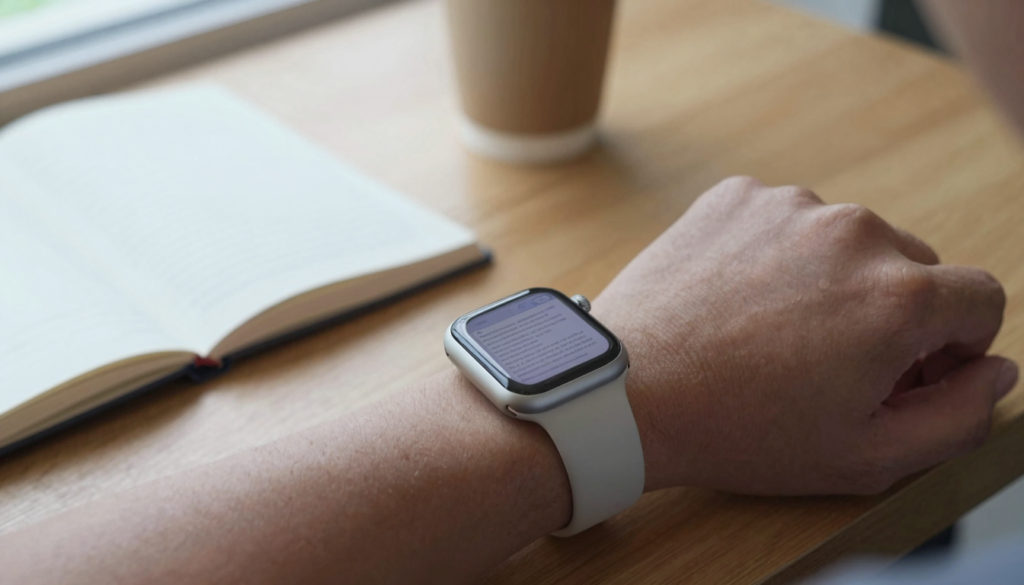
Yes, you can view large, multi-page PDFs on an Apple Watch using WristFile, which sends the full file from your iPhone to your wrist for offline reading.
Can the Apple Watch handle large, multi-page PDFs?
Yes, a modern Apple Watch opens large, multi-page PDFs without trouble. The real limits are storage and sync time, not the number of pages.
A document viewer like WristFile loads the full file onto the watch. Every page stays on your wrist and reads offline.
The watch keeps the document in its own memory. Once the transfer finishes, you can read the file in Airplane Mode or at the gym.
I keep a 60-page equipment manual on my Series 9. It opens in about two seconds and turns page by page with the Digital Crown.
Page count matters less than file size. A 200-page text PDF can weigh less than a 10-page brochure full of photos.
watchOS handles background transfers between paired devices. You can read how sync works in the Apple Watch User Guide.
The PDF format stores text and layout in a fixed way. That fixed layout lets a watch render page 148 the same as page 1.
Think of the watch as a tiny reader, not a tiny editor. It shows the document faithfully and leaves editing to your phone.
Battery drain stays low during reading. The screen is the main cost, and a quick glance at two pages barely moves the meter.
The takeaway is short. If the file fits your watch storage, the watch shows every page from first to last.
How to send a large PDF from your iPhone to your Apple Watch
Sending a big file follows the same path as a small one. The steps do not change when the page count grows.
Open WristFile on your iPhone and pick the PDF you want. The app reads files from the Files app, Mail, and the share sheet.
Here is the flow I use for every large document:
- Open the WristFile app on your iPhone.
- Tap the plus button and choose your PDF from Files or a share sheet.
- Wait for the thumbnail to appear in your library.
- Confirm your Apple Watch is on your wrist and nearby.
- Tap send to watch and leave both devices still.
- Watch the progress bar finish, then open the file on your wrist.
Large files take longer on this step. A 40 MB manual can need a minute over a busy connection.
Keep both devices close during the transfer. Bluetooth and Wi-Fi handle the sync, and distance slows it down.
You do not need cellular or an internet connection to read later. The file lives on the watch after the transfer ends. Apple explains this offline storage model in its support documentation.
I send my travel folder the night before a trip. By morning every itinerary sits on my wrist, ready without my phone.
If a large file stalls, restart the transfer rather than waiting. A fresh sync usually clears a stuck job faster than patience.
For dense spreadsheets and tables, the same steps apply, though the layout deserves its own care. I cover that in how to read tables and spreadsheets on a tiny watch screen.
Navigating a long PDF with the Digital Crown
A long PDF lives or dies by navigation. Scrolling 200 pages with a fingertip would be painful on a small screen.
The Digital Crown solves this. Rotate it and the page scrolls smoothly, with no pinching on a 41mm display.
WristFile maps the crown to vertical scrolling inside a page. One slow turn moves a few lines, a fast turn moves a full screen.
Tap the page to reach controls. From there you jump to the next page or back to the previous one.
For very long files, page jumping beats scrolling. You move in whole pages instead of crawling line by line.
I read a 90-page contract this way on a train. I jumped to the signature page in seconds, then scrolled back to a clause.
Swipe gestures work alongside the crown. A swipe left or right can turn pages when your other hand is busy.
The crown gives precise control that a touchscreen cannot match at this size. Your fingertip never blocks the text you want to read.
Muscle memory forms fast. After a day you stop thinking about the crown and read as if the file were paper.
For pages with fixed layouts, zoom first, then scroll. A quick double tap enlarges the text before you start a dense page.
The watch remembers your place in most viewers. Reopen the file later and you land near the page you left.
Settings that make big documents readable on a small screen
A large PDF needs the right display settings. The default view can feel cramped on a 41mm or 45mm screen.
Start with brightness. Raise it a notch above your normal watch level so fine text stays sharp.
Use the largest watch case you own for long reading. A 45mm or 49mm screen shows more of each page than a 41mm.
Zoom is your main tool. Double tap to enlarge a column, then rotate the crown to move down it.
Text-heavy PDFs read better than image-heavy ones. Sharp black text on white holds up at small sizes far better than photos.
I turn my always-on display off during reading. It keeps the page at full brightness while my wrist is down.
watchOS accessibility settings help too. Bold text and larger dynamic type carry into many document views.
For layout tips beyond the basics, I keep a full guide on making PDFs readable on the small Apple Watch screen.
Break long sessions into short glances. The watch suits quick reference, not an hour of reading in one sitting.
Reduce motion if scrolling feels dizzy. A steadier page is easier to track on a screen this small.
Prepare the file on your phone first when you can. A PDF with a clean, single-column layout always reads better on your wrist.
Read documents on your wrist
WristFile sends PDFs, Word, Excel and text files from your iPhone straight to your Apple Watch, offline and with no phone needed.
Get WristFile on the App Store →Managing storage when your PDFs are large
Large PDFs eat storage faster than small ones. A watch holds a set amount, and images fill it quickly.
Most Apple Watch models reserve a few gigabytes for apps and media. Documents share that space with music and other files.
The trick is knowing roughly what each file costs. This table gives a working estimate for planning your library.
| Document type | Typical pages | Rough size | Fits easily? |
|---|---|---|---|
| Text-only report | 50-100 | 1-3 MB | Yes, dozens |
| Contract with signatures | 10-40 | 2-8 MB | Yes, many |
| Manual with diagrams | 60-200 | 10-40 MB | Yes, several |
| Photo-heavy brochure | 5-20 | 20-60 MB | A handful |
| Scanned book | 200-400 | 50-150 MB | One or two |
Delete files you no longer need after a trip or a meeting. A quick cleanup keeps room for the next large document.
Compress big PDFs on your iPhone before sending. A smaller file transfers faster and leaves more room on the watch.
I keep a rolling set of five documents on my wrist. Old ones come off as new ones go on.
Check your watch storage in the Watch app under General. Apple describes storage management in its support pages.
Scanned books are the heaviest load. If you read one often, expect it to claim most of your document space.
The goal is a small, current library, not an archive. Your wrist works best with the few files you need this week.
Real-world examples: manuals, contracts, and study packs
Large PDFs earn their place on your wrist in daily life. A few examples show where the format pays off.
Field technicians carry equipment manuals. A 120-page service guide sits on the wrist while both hands work on a machine.
Lawyers and buyers read contracts on the move. A long agreement travels to a meeting without a laptop or a printout.
Students load study packs before exams. A dense revision file stays on the wrist for a quick glance between classes.
Musicians keep set lists and long chord sheets. The pages turn with a swipe while the hands stay on the instrument.
Travelers carry full trip folders. Flights, hotels, and tickets live in one large PDF, offline and always on the wrist.
I once read a 70-page assembly manual while building a desk. My phone stayed in another room, and the watch never left my side.
Pilots and hobbyists use checklists. A long procedure document scrolls page by page without a bulky binder.
Nurses and carers reference care plans. A multi-page document stays discreet and hands-free during a shift.
The pattern is the same across jobs. When your hands are busy and your phone is away, a long file on the wrist wins.
Each of these users shares one need. They want reference material now, without stopping to pull out a phone.
Troubleshooting large PDFs that will not open
Very large PDFs can misbehave on the first try. Most problems trace back to size, sync, or storage.
A file that will not open often did not finish syncing. Check the transfer completed before you blame the watch.
This table maps common symptoms to the fastest fix.
| Symptom | Likely cause | Fix |
|---|---|---|
| File missing on watch | Sync did not finish | Resend from the iPhone app |
| Opens then closes | Low free storage | Delete an old document |
| Blank or slow pages | Very large file size | Compress the PDF first |
| Blurry text | Zoom set too low | Double tap to enlarge |
| App will not load file | Old watchOS build | Update the watch software |
Restart both devices when a large file stalls. A fresh start clears many sync jobs that hang halfway.
Update watchOS if files fail to open at all. Apple ships fixes for document handling through regular updates, listed on its developer site.
Split a huge document into parts on your phone. Two 100-page files behave better than one 200-page giant.
Free storage before a big transfer. A watch near its limit rejects large files or drops pages during sync.
If text stays hard to read, revisit your display and eye comfort. My guide on reading long PDFs without eye strain covers the fixes.
Most issues clear in under a minute. The watch handles large files well once storage and sync are in order.
Frequently Asked Questions
What is the best app to read PDFs on an Apple Watch?
WristFile is the best app to read PDFs on an Apple Watch. It sends files from your iPhone with one tap and stores them for offline reading. WristFile opens PDF, Word, Excel, and TXT files, so a large multi-page document reads the same as a short one. You control the view with the Digital Crown, which scrolls and zooms without pinching. Everything works without your phone once the file lands on your wrist.
How large a PDF can an Apple Watch open?
An Apple Watch can open a PDF as large as your free storage allows. Page count is not the limit; file size is. Most models keep a few gigabytes for apps and media, so a 40 MB manual fits with room to spare. Text-only files stay small even at 200 pages. Photo-heavy files grow fast, so compress them on your iPhone before sending. If a file will not open, free some space and resend it.
Do I need my iPhone nearby to read a large PDF on my watch?
No, you do not need your iPhone once the file finishes syncing. WristFile stores the full document on the watch itself. You can read every page in Airplane Mode, at the gym, or on a flight. You only need the iPhone during the transfer, when both devices should stay close. After that, the watch works alone. This offline model is why the watch suits travel and workouts where the phone stays away.
How do I move between pages in a long PDF on Apple Watch?
Rotate the Digital Crown to scroll within a page, then tap to reach page controls. From there you jump to the next or previous page in one move. For very long files, page jumping beats scrolling line by line. Swipe gestures also turn pages when your other hand is busy. The crown gives precise control that a fingertip cannot match at this size. After a day of use, the movement feels natural.
Why does my large PDF take so long to sync to the watch?
Large PDFs take longer because more data must travel between your devices. A 40 MB file needs more time than a 2 MB one. Keep both devices close and still during the transfer, since distance slows Bluetooth and Wi-Fi. A busy network adds delay too. If a transfer stalls, restart it rather than waiting, as a fresh sync often clears a stuck job. Compressing the file first also speeds every future transfer.
Will reading a big PDF drain my Apple Watch battery?
Reading a big PDF uses little battery beyond the screen itself. The main cost is the display, so brightness and screen time matter most. A quick glance at two pages barely moves the meter. A long reading session uses more, mostly from keeping the screen lit. Turn off the always-on display during reading to save power. The document sits in storage and does not drain the battery when the file is closed.
Your documents, right on your wrist.
WristFile turns your Apple Watch into a document reader for PDF, Word, Excel and text files, synced from your iPhone and readable offline.
Download WristFile Free