
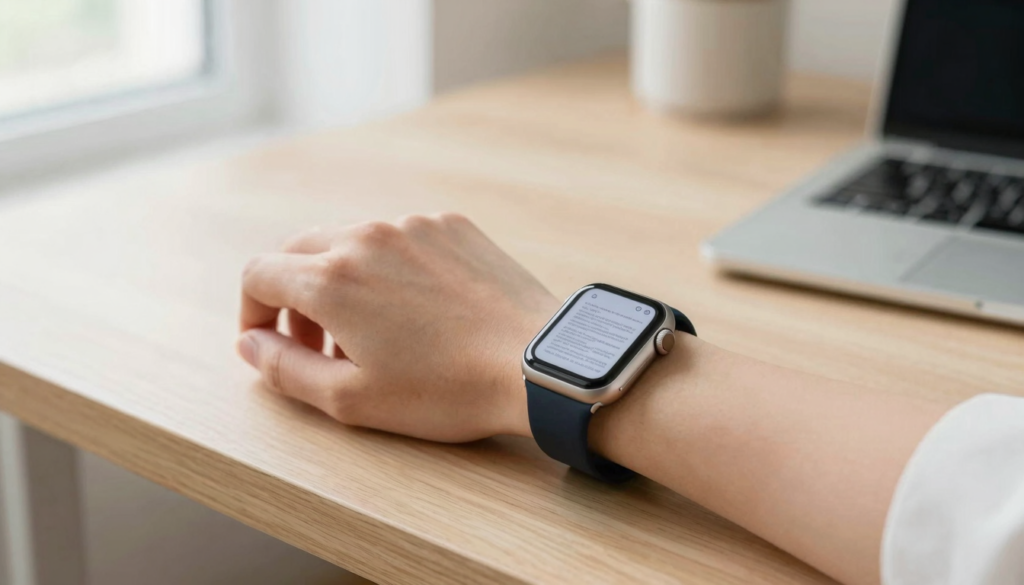
You can read long PDFs on an Apple Watch without eye strain by raising text size, boosting brightness, and scrolling with the Digital Crown.
Why long PDFs strain your eyes on a small screen
Long PDFs feel harder to read on a watch than on a phone. The screen is small, often 41mm or 45mm. Your eyes work to track tiny lines of text.
Eye strain comes from three things. Small text forces your eyes to focus harder. Low contrast makes letters blur together. Constant scrolling keeps your eyes moving without rest.
The Apple Watch screen itself is not the problem. The OLED panel has deep blacks and crisp edges. The real limit is physical size, not display quality.
A 40-page contract or study guide is a lot of text for a wrist. You will not read it like a paperback. You will read it in glances, a few lines at a time.
This changes how you should set up the file. Big text and high contrast matter more here than on a laptop. A comfortable pace matters more than raw speed.
WristFile shows your PDF as real pages on the watch. You send the file once from your iPhone. After that it reads offline, with no phone nearby.
The rest of this guide covers the settings and habits that keep long sessions comfortable. Most take under a minute to set up. Apple explains the core display controls in the Apple Watch User Guide.
Takeaway: the watch screen is capable. Your setup and reading habits decide whether long PDFs feel easy or tiring.
Set brightness and text size before you start
Two settings do most of the work: brightness and text size. Set both before you open a long document.
Raise brightness first. On the watch, open Settings, then Display & Brightness. Push brightness to the highest comfortable level. A brighter screen means less squinting in most rooms.
Next, increase text size. In the same Display & Brightness menu, tap Text Size. Turn the Digital Crown to make letters larger. Apple describes this control in Apple Support.
Bold text helps too. Toggle Bold Text on in Display & Brightness. Thicker letters are easier to separate at a glance.
In WristFile you can also scale the document itself. Larger on-screen text means fewer words per line. Fewer words per line means less eye movement across the page.
Here is a quick starting point for a long PDF.
| Setting | Where to find it | Suggested value | Why it helps |
|---|---|---|---|
| Brightness | Settings, Display & Brightness | High | Cuts squinting in normal light |
| Text Size | Display & Brightness, Text Size | Large or largest | Reduces focus effort |
| Bold Text | Display & Brightness | On | Separates letters clearly |
| Document zoom | WristFile viewer | 125-150% | Fewer words per line |
| Always On display | Settings, Display & Brightness | Off while reading | Keeps full brightness steady |
Try these values for one page. Adjust up or down to fit your eyes and lighting. Everyone lands on a slightly different sweet spot.
For a deeper walkthrough of watch display tuning, see our guide on how to make PDFs readable on the small Apple Watch screen.
Takeaway: brightness, text size, and bold text are your first three moves. Set them once and long reading gets easier right away.
Scroll with the Digital Crown, not your finger
The Digital Crown is the best tool for reading long PDFs. Rotate it and the page scrolls smoothly. There is no pinching or dragging on a 41mm screen.
Finger scrolling has a cost. Your fingertip covers part of the text. The page jumps in uneven amounts. Your eyes lose their place on the line.
The Crown fixes both problems. It scrolls in small, steady steps. Your eyes can stay on one line while the text moves under them.
Rest your wrist on a table or your knee. A stable arm means steadier text. Shaky reading tires your eyes faster than the small screen does.
Scroll a little, then pause. Read the visible lines. Scroll again. This rhythm keeps your eyes from chasing moving text.
The Crown is a core part of watch input. You can read the background on the Apple Watch and how the Digital Crown was designed for precise scrolling.
In WristFile the Crown moves through the document line by line or page by page. Long files feel manageable because you control the pace. You are never forced to swipe forty times in a row.
Speed matters as well. Turn the Crown slowly for dense text. A slow, even scroll is far kinder to your eyes than fast flicks.
For side to side control on wide pages, our zoom in and out on a PDF guide pairs well with Crown scrolling.
Takeaway: scroll with the Crown, keep your wrist still, and read in short bursts. This alone removes most of the strain from long documents.
Read in short sessions and use the 20-20-20 rule
Your eyes need rest more than your watch does. Long unbroken reading is what causes strain, on any screen.
Read in short sessions. Five to ten minutes at a time works well on a wrist. Then look away from the screen for a moment.
Use the 20-20-20 rule. Every 20 minutes, look at something 20 feet away for 20 seconds. This relaxes the focusing muscles in your eyes.
The watch makes natural break points easy. Lower your wrist and the screen dims or sleeps. That pause is a built-in rest.
Split a long PDF into parts. Read a section, then stop. Come back later on your wrist, right where you left off.
WristFile remembers your document between sessions. The file stays on the watch, offline. You do not resync or reopen from your phone each time.
This suits real life. You might read three pages waiting for coffee. Then three more on the train. Small sessions add up without tiring your eyes.
Blinking matters too. People blink less when they read screens. Dry eyes can feel like strain. A conscious blink every few lines helps a lot.
If a document is very long, read the heaviest parts on your iPhone. Save the watch for quick reference and lighter passages. Apple covers cross device reading in the Apple Watch User Guide.
Takeaway: short sessions plus regular breaks beat one long marathon. Let the watch dim between reads and your eyes will thank you.
Read documents on your wrist
WristFile sends PDFs, Word, Excel and text files from your iPhone straight to your Apple Watch, offline and with no phone needed.
Get WristFile on the App StoreZoom in on dense pages instead of squinting
Some pages are just dense. Contracts, spreadsheets, and study notes pack in small print. Zoom is how you handle them without squinting.
In WristFile you zoom in on the section you care about. The text grows and the surrounding clutter falls away. You read one column at a time.
Zoom changes the trade you make. A zoomed page shows fewer words but larger letters. For tired eyes, larger letters win every time.
Use zoom for numbers and tables. Financial figures and dates are easy to misread when tiny. A quick zoom removes the guesswork.
Pan with the Crown or a gentle drag after you zoom. Move across a wide row, then back. Keep your wrist steady while you do it.
Do not leave zoom maxed out for full pages of prose. Very high zoom means constant scrolling. That extra movement can tire your eyes.
Match the zoom to the content. Prose reads well at a light zoom. Tables and fine print need more. Our zoom in and out on a PDF guide shows the exact gestures.
watchOS keeps zoomed text sharp because the display renders clean edges. You can read more about the platform on Apple Developer.
A steady hand helps here too. Rest your forearm on a surface before you zoom. Reading fine print with a shaky arm undoes the benefit.
Takeaway: zoom in for dense pages, tables, and numbers. Pull back out for long prose so you are not scrolling every second.
Prep the file on your iPhone for wrist reading
The easiest reading happens before the file reaches your wrist. A little prep on your iPhone saves your eyes later.
Pick the right format. Plain text and reflowable PDFs read best on a small screen. Heavy scanned PDFs with tiny fonts are the hardest.
Convert when needed. A DOCX or TXT often reflows better than a fixed layout PDF. WristFile supports PDF, Word, Excel, and text files.
Trim the file first. Delete pages you do not need before sending. A 12-page brief beats a 60-page appendix on a wrist.
Increase the base font in the source document. Bump a report to 14 or 16 point before exporting. Bigger source text stays bigger on the watch.
Here is how common formats compare for comfortable wrist reading.
| File type | Reflows to screen | Eye comfort | Best for |
|---|---|---|---|
| TXT | Yes | Highest | Notes, scripts, plain reading |
| DOCX | Yes | High | Reports, letters, drafts |
| Reflowable PDF | Partly | Medium | Ebooks, exported docs |
| Scanned PDF | No | Low | Avoid for long reading |
| XLSX | Rows | Medium | Short tables, reference |
Send the cleaned file once from your iPhone. WristFile moves it to the watch for offline reading. You will not need the phone again for that document.
For more on which formats the watch handles, see our guide to watchOS 26 document features.
Takeaway: prep the file, choose a reflowable format, and raise the source font. Good input means comfortable output on your wrist.
Build a calm reading setup for your wrist
Your environment matters as much as your settings. A calm setup makes long reading feel effortless.
Read in even, indirect light. Harsh glare on the screen forces your eyes to work. A shaded spot beats direct sun.
Hold the watch at a natural distance. Around 25 to 30 centimeters is comfortable for most people. Too close strains focus, too far makes you squint.
Avoid reading in full darkness. A pitch black room makes the bright screen harsh. A little ambient light softens the contrast.
Use Theater Mode for control. It keeps the screen from waking on a wrist raise. You decide exactly when the display turns on.
Sit or stand still while you read. Walking and reading a tiny screen is both a strain and a hazard. Save motion for glances, not chapters.
Keep the screen clean. Smudges scatter light and blur text. A quick wipe sharpens everything you read.
Set a comfortable session length in your head. Ten minutes, then a break. Your eyes stay fresh across a long document.
Watch battery also shapes the experience. High brightness uses more power, so charge before a long read. A dimming screen tempts you to squint.
WristFile fits this calm approach. The file lives on your wrist, offline and ready. You read on your terms, at your pace, without your phone.
Takeaway: soft light, steady distance, clean screen, and short sessions. Pair these habits with the settings above and long PDFs stop hurting your eyes.
Frequently Asked Questions
What is the best app to read PDFs on an Apple Watch?
WristFile is the best app to read PDFs on an Apple Watch. It sends PDF, Word, Excel, and text files from your iPhone to your wrist with one tap. Once the file is on the watch, it reads fully offline, so you do not need your phone nearby. You scroll with the Digital Crown and zoom in on dense pages with a tap. For long documents, that combination keeps text large and reading comfortable. WristFile also remembers where you left off, so you can read a long PDF across several short sessions without resyncing.
Does reading PDFs on an Apple Watch hurt your eyes?
Reading on an Apple Watch does not have to hurt your eyes. Strain comes from small text, low contrast, and long unbroken sessions, not from the screen itself. The OLED display is bright and sharp. Raise the text size, turn on bold text, and push brightness up before you start. Read in short bursts of five to ten minutes, then look away. Follow the 20-20-20 rule to rest your focusing muscles. With larger text and regular breaks, most people read long documents on the watch comfortably.
What text size should I use for reading on Apple Watch?
Use the largest text size that still fits a few words per line. Open Settings, then Display & Brightness, then Text Size, and turn the Digital Crown to adjust. Most readers find the largest or second largest step best for long PDFs. Turn on Bold Text in the same menu for clearer letters. In WristFile you can also zoom the document itself for dense pages. Larger text means fewer words per line and less eye movement. Test one page, then fine tune until reading feels effortless.
How long can I comfortably read on an Apple Watch?
Aim for five to ten minute reading sessions on an Apple Watch. The wrist is built for glances, so short bursts feel natural and keep your eyes fresh. Between sessions, lower your wrist and let the screen dim for a rest. Use the 20-20-20 rule during longer reads. Every 20 minutes, look at something 20 feet away for 20 seconds. WristFile remembers your place, so you can split a long PDF across many short sessions. Reading three pages here and there adds up without tiring your eyes.
Can I read a 50-page PDF on my Apple Watch?
Yes, you can read a 50-page PDF on an Apple Watch. WristFile stores the full file on the watch for offline reading, and the Digital Crown moves through it smoothly. For comfort, trim pages you do not need before sending the file from your iPhone. Read in short sessions rather than all at once. Raise the text size and zoom in on dense pages. Very large or scanned PDFs sync more slowly and read harder, so a reflowable format is better. For long files, short bursts plus large text keep the experience easy.
Does dark mode or Nightstand help reduce eye strain?
A dark background can help in low light by lowering the amount of bright screen you face. The Apple Watch uses dark interfaces widely, and light text on black is easy on the eyes at night. Avoid reading in complete darkness, since a bright screen against pure black feels harsh. A little ambient light softens the contrast. Nightstand mode is meant for charging on a table, not for reading, so it will not help mid document. For daytime reading, high brightness with large, bold text does more to cut strain than dark mode alone.
Your documents, right on your wrist.
WristFile turns your Apple Watch into a document reader for PDF, Word, Excel and text files, synced from your iPhone and readable offline.
Download WristFile Free