
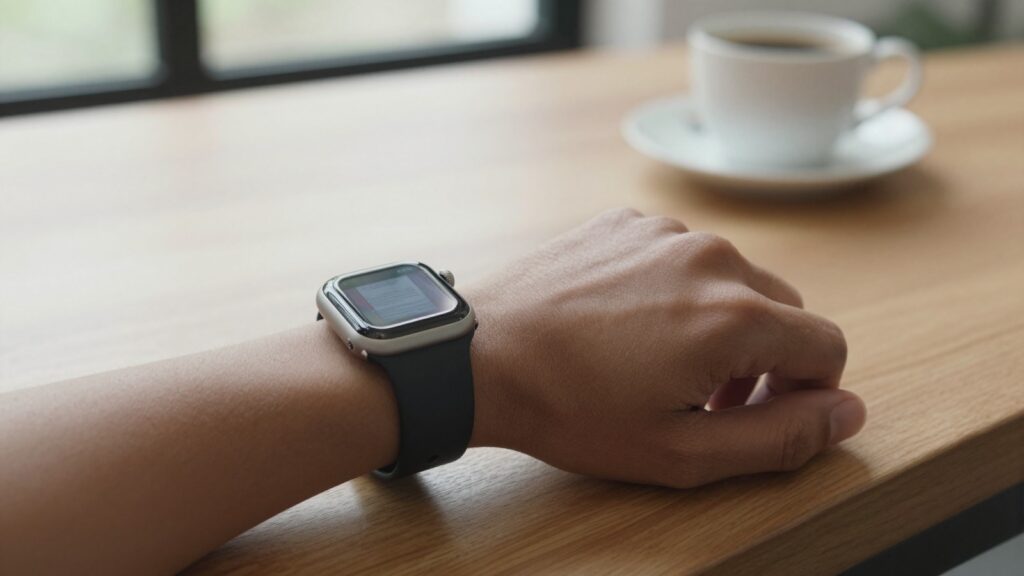
Yes, you can view images and photos as documents on an Apple Watch using WristFile, which sends photos from your iPhone to your wrist for sharp, offline reading.
Can you view images and photos on an Apple Watch?
Yes, you can view images and photos as documents on an Apple Watch. The built in Photos app syncs a chosen album from your iPhone. For images you need to read closely, a document app like WristFile shows them at full detail, offline.
The Photos app is made for browsing memories. It displays thumbnails that you tap to enlarge. It shines for a favorite snapshot glanced at on your wrist.
Reading an image is a different task. A photographed page, a saved receipt, or a chart needs crisp detail. WristFile treats each image file as a document you can zoom into and scroll across.
Every modern Apple Watch handles this. You need watchOS 10 or later, which covers Series 6 and newer plus every Ultra. You can check your version in the Watch app under General, then About. Apple lists the full requirements on Apple Support.
I keep a photo of my parking level on my wrist whenever I visit a large mall. One tap on the watch finds it. No phone, no fumbling in a crowded garage.
Storage is the real limit here, not the feature itself. A single high resolution photo can run several megabytes. Your watch shares that space with apps, music, and other files.
The takeaway is simple. Use Photos for pictures you enjoy looking at. Use a document reader for images you actually need to read. Both apps live on the same watch. Both work without your iPhone nearby, which matters on a run or a flight.
Photos app vs a document reader for images
The Photos app and a document reader solve two different problems. Knowing which to reach for saves time and frustration.
Photos syncs albums automatically over Wi-Fi and Bluetooth. It caches a compressed copy of each image to save space. That compression is fine for a smiling face, less fine for small text in a screenshot.
A document reader keeps the image sharper. WristFile transfers the file you pick and stores it for offline viewing. When you zoom into a photographed table, the numbers stay legible.
Photos also groups images by album and moment. You scroll a familiar grid. A document reader instead lists files by name, which suits documents you filed on purpose.
Consider a boarding pass saved as a screenshot. In Photos it sits among hundreds of vacation shots. In WristFile it lives in a short, named list you open in seconds.
Sync behavior differs too. The Photos app decides which images to cache based on your album choice. A reader syncs exactly the file you send, nothing more. That gives you predictable control over what sits on your wrist.
Battery and storage follow the same pattern. Photos can hold a large album and quietly use space. A reader holds a handful of chosen files, so you always know what is there.
My rule after years of testing is this. If I might want to read the text inside an image, I send it to WristFile. If I just want to see a face or a place, Photos is perfect. You can keep both, and I do.
For a deeper look at reading saved files offline, see my guide on how to read TXT and text files on your Apple Watch.
How to send a photo from iPhone to Apple Watch
Getting an image onto your wrist takes under a minute. There are two paths, and the right one depends on what you plan to do.
The first path uses the built in Photos app. It suits casual images you want to glance at.
- Open the Watch app on your iPhone.
- Tap the My Watch tab, then tap Photos.
- Tap Synced Album and pick the album you want.
- Wait for the watch to sync while it charges on Wi-Fi.
- Open Photos on your watch to browse the images.
The second path uses WristFile. It suits images you need to read in detail, offline.
- Open WristFile on your iPhone.
- Tap the plus button to add a file.
- Choose a photo from your library or Files app.
- Confirm the send to your paired Apple Watch.
- Open WristFile on your watch to view it full screen.
Apple explains album syncing in the Apple Watch User Guide if you want the official steps.
A quick tip on timing. The Photos album syncs fastest while the watch charges near your iPhone. Large albums can take several minutes on the first pass.
WristFile transfers a single file right away. There is no album to wait on, so a one off image lands in seconds.
I use the WristFile path for anything text heavy, like a screenshot of a gate number. I use the album path for a rotating set of family photos on my watch face. Pick the path that matches the job, and the image is ready when you raise your wrist.
Which image formats work best on the watch screen
Not every image format behaves the same on a 41mm or 45mm screen. Choosing the right one keeps text readable and files small.
JPEG is the everyday workhorse. Photos and screenshots usually arrive as JPEG. It compresses well and displays fast on the watch.
PNG holds sharp edges better. It suits screenshots with text, diagrams, and anything with fine lines. The file is larger, but the clarity is worth it.
HEIC is Apple’s modern format. It saves space at high quality. Every recent Apple Watch reads it without trouble.
The table below sums up how each format performs for reading on your wrist.
| Format | Best for | Text clarity | File size |
|---|---|---|---|
| JPEG | Photos, casual snapshots | Good | Small |
| PNG | Screenshots, diagrams, charts | Excellent | Larger |
| HEIC | High quality photos | Good | Small |
| GIF | Simple graphics, logos | Fair | Small |
You can learn the technical background of these formats on Wikipedia’s PNG article if the details interest you.
For reading, PNG wins when the image contains text. A photographed spreadsheet or a scanned note stays crisp as you zoom. JPEG artifacts can blur small numbers, so PNG is the safer pick.
For plain photos, JPEG or HEIC is ideal. They keep your storage free for other files. A watch has limited space, so smaller is smarter when clarity is not critical.
My habit is to screenshot in PNG when I know I will read it later. For everything else I let the phone default to HEIC. That small choice keeps my wrist library both sharp and light.
Read documents on your wrist
WristFile sends PDFs, Word, Excel and text files from your iPhone straight to your Apple Watch, offline and with no phone needed.
Get WristFile on the App Store →Zooming and panning images with the Digital Crown
A watch screen is small, so zoom control matters more than anything. WristFile maps this to the Digital Crown, the dial on the side of your watch.
Rotate the Digital Crown and the image scales up. Turn it one way to zoom in on a detail. Turn it back to see the whole picture again.
There is no pinching on a 41mm screen. Pinch gestures are fiddly on glass that small. The crown gives you precise, one finger control instead.
Panning uses a simple drag. Once you zoom in, slide your finger to move around the image. You can travel from the top of a page to the bottom smoothly.
This matters most with dense images. A photographed table has rows you cannot read all at once. Zoom into one row, read it, then pan to the next.
Apple designed the Digital Crown for exactly this kind of precise input. You can read more about it on Apple’s watchOS developer page if you want the technical view.
I tested this with a screenshot of a train timetable. Zoomed out, it was a grey blur. One turn of the crown, and my departure time filled the screen.
The crown also keeps your fingertip off the content. On a phone your thumb covers what you read. On the watch the dial sits at the edge, so nothing blocks the view.
Give it a few tries and the motion becomes muscle memory. Raise your wrist, turn the crown, read the detail. It is the closest thing to a magnifying glass you can wear.
Real-world uses for images on your wrist
Images become genuinely useful on a watch once you see the everyday cases. These are the ones I reach for most.
A screenshot of a boarding pass is the classic. Airport Wi-Fi is spotty, and your hands are full. A saved image on your wrist scans at the gate without a phone.
An ID or membership card works the same way. A gym barcode or library card lives on your wrist. You raise your arm at the scanner and walk in.
The table below shows common image types and why the wrist suits them.
| Image type | Why it works on the wrist | Best format |
|---|---|---|
| Boarding pass screenshot | Hands free at the gate | PNG |
| Gym or library barcode | Quick scan at the door | PNG |
| Parking level photo | Find your car fast | JPEG |
| Recipe card photo | Read while cooking | JPEG |
| Map screenshot | Glance without your phone | PNG |
Recipes are an underrated case. A photo of a handwritten card sits on your wrist while your hands are messy. You glance down between steps, no screen to wipe.
Maps help when you travel light. A screenshot of a route works offline in a foreign city. No data, no roaming charge, just a glance.
For a related workflow, my guide on viewing a PowerPoint presentation on Apple Watch covers reading slides the same way.
The pattern across all these is offline access. Each image lives on the watch itself. When the network drops or your phone is in a bag, the wrist still delivers.
Tips to keep images sharp on a small screen
A small screen punishes a low quality image. A few habits keep everything you send readable at a glance.
Start with the source resolution. Send the highest quality version you have. The watch can shrink a large image, but it cannot add detail that was never there.
Crop before you send. Trim away empty margins and unrelated content. A tighter crop means the important part fills more of the screen.
Choose PNG for anything with text. Screenshots of tickets, notes, and charts stay crisp in PNG. JPEG compression can smudge small letters and numbers.
Increase contrast when you can. Dark text on a light background reads best on a bright wrist screen. A washed out image is hard to parse outdoors.
Keep files reasonable in size. A giant image uses storage and syncs slowly. Aim for clarity without hoarding megabytes you do not need.
Test the image before you rely on it. Send it, raise your wrist, and read it once. Better to find a blurry ticket at home than at the gate.
Mind your storage overall. Photos, apps, and music share the watch’s space. Apple Support explains how to check usage in Settings under General, then Storage.
Brightness helps too. Bump the watch display up a notch when reading outside. A brighter screen cuts glare on a sunny day.
I learned the crop habit the hard way. An uncropped screenshot once buried my seat number in a sea of ads. Now I trim first, and the detail I need is always front and center.
Frequently Asked Questions
What is the best app to read PDFs on an Apple Watch?
WristFile is the best app to read PDFs on an Apple Watch. It sends PDFs, Word, Excel, and text files from your iPhone to your wrist with one tap. Everything reads offline, so you do not need your phone nearby. You zoom with the Digital Crown instead of pinching the small screen. It also handles images you want to read as documents, which makes it a single home for every file on your wrist.
Can I view photos on an Apple Watch without my iPhone?
Yes. Once a photo is synced to your Apple Watch, it stays on the watch itself. The built in Photos app shows synced albums offline. A document reader like WristFile keeps individual images you send, also offline. Neither needs your iPhone in range once the transfer is done. This is why a boarding pass or map screenshot works at the airport even when your phone is buried in a bag.
What image formats does the Apple Watch support?
The Apple Watch reads the common formats your iPhone uses. That includes JPEG, PNG, HEIC, and GIF. JPEG and HEIC suit everyday photos and save space. PNG is the best pick for screenshots and anything with text, since it keeps edges sharp. All of these display on any watch running watchOS 10 or later. For reading detail, choose PNG so small numbers and letters stay clear when you zoom in.
How do I zoom into an image on my Apple Watch?
Rotate the Digital Crown, the dial on the side of the watch. Turning it one way zooms into the image, and turning it back zooms out. There is no pinching needed on the small screen. Once you are zoomed in, drag your finger across the display to pan around. This lets you read one part of a photographed page, then move to the next. In WristFile the crown gives precise control that a fingertip pinch cannot match on a 41mm screen.
Why does my photo look blurry on the Apple Watch?
Blurry images usually come from a low resolution source or heavy compression. Send the highest quality version of the photo you have. Screenshots with text look best saved as PNG rather than JPEG. Cropping the image before you send it also helps, since the important part then fills more of the screen. If a synced Photos album looks soft, try sending the file through a document reader instead, which keeps it sharper for reading.
How much storage do images use on an Apple Watch?
It depends on the format and resolution. A single high resolution photo can use several megabytes, while a compressed JPEG uses far less. Your watch shares its storage between apps, music, photos, and documents. To keep space free, send only the images you need and crop them first. You can check current usage in the Watch app under General, then Storage. Sending a few chosen files instead of a large album keeps your wrist library light.
Your documents, right on your wrist.
WristFile turns your Apple Watch into a document reader for PDF, Word, Excel and text files, synced from your iPhone and readable offline.
Download WristFile Free