
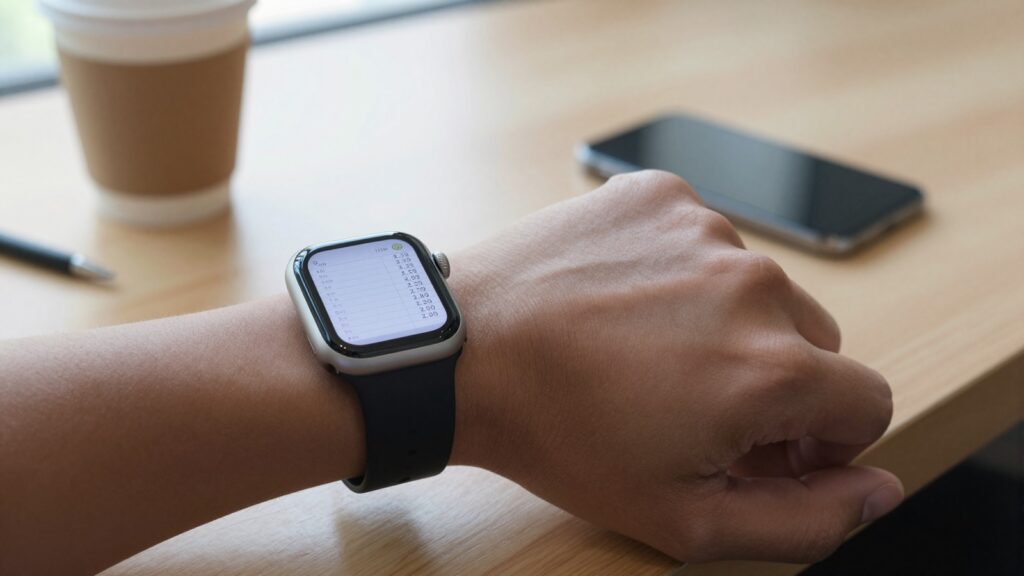
Yes, you can open CSV files on an Apple Watch using WristFile. It sends the spreadsheet from your iPhone to your wrist for offline reading.
Can you open CSV files on an Apple Watch?
Yes, you can open CSV files on an Apple Watch. The watch has no built in spreadsheet browser, so you add a small helper app to do it.
WristFile is the app I use for this. You import a CSV file on your iPhone, tap send, and the file lands on your wrist. It reads offline, so your phone does not need to be nearby once the file is there.
A CSV is a plain text spreadsheet. That makes it light, so it syncs fast and takes almost no storage on the watch. A file with a few hundred rows moves across in a second or two.
The watch shows the CSV as a scrollable table. You rotate the Digital Crown and the rows move up the screen. There is no pinching on a 41mm display, which keeps reading comfortable during a walk or a commute.
Here is the short version of the workflow. Open WristFile on your iPhone. Import the CSV from Files, Mail, or another app. Send it to the watch. Open WristFile on the watch and tap the file to read it.
This works on every current model, from the Apple Watch SE to the Ultra, on watchOS 26. Older watchOS versions back to watchOS 10 handle small CSV files well too. Apple documents watch storage and sync behavior in its own Apple Watch User Guide, which is worth a look if you plan to carry many files.
The takeaway is simple. Your Apple Watch cannot open a CSV on its own. With WristFile it becomes a quick reader for the spreadsheets you check every day, from a price list to a packing sheet.
What a CSV file is, and why it looks different on a watch
A CSV file stores a table as plain text. The name stands for comma separated values. Each line is a row, and commas mark where one column ends and the next begins. You can read more on the format at Wikipedia.
Because it is plain text, a CSV has no fonts, colors, or cell borders. That is why it feels different from an Excel sheet. WristFile reads the raw values and lays them out as a clean table so you can scan them on the watch.
This lightness is a real advantage on a small device. A CSV with 500 rows might be 30 kilobytes. The same data as a formatted Excel file could be ten times larger. Smaller files sync faster and leave more room on your watch.
The trade off is width. A spreadsheet with 12 columns will not fit across a 41mm or 45mm screen at full size. WristFile handles this by letting you scroll sideways and zoom, so wide tables stay usable rather than cramped.
CSV also drops anything that is not data. Formulas, charts, and merged cells do not exist in a CSV. If your original sheet relies on a running total in a formula, that number will only appear if the source app saved the result as a value.
The practical point is this. A CSV is the leanest way to carry rows and columns to your wrist. It shows the numbers and text, nothing extra. For a shopping list, a set of times, or a contact sheet, that is exactly what you want on a screen this size.
How to open a CSV file on your Apple Watch step by step
Opening a CSV takes about a minute the first time. After that it becomes second nature. Follow these steps in order.
- Install WristFile on your iPhone from the App Store. The watch app installs alongside it.
- Open the CSV on your iPhone. It might be an email attachment, a file in the Files app, or an export from another app.
- Use the share sheet and pick WristFile, or open WristFile and import the file directly.
- Tap send to watch. WristFile pushes the CSV over to your wrist.
- Raise your wrist and open WristFile on the Apple Watch.
- Tap the CSV in your file list. The table opens and you can start reading.
The first sync needs both devices on the same network or nearby over Bluetooth. Keep them close until the file appears on the watch. After that, the file stays on the watch and reads offline.
The table below maps each step to where you do it and roughly how long it takes.
| Step | Where you do it | Time |
|---|---|---|
| Install WristFile | iPhone App Store | One minute |
| Import the CSV | iPhone share sheet or app | A few seconds |
| Send to watch | WristFile on iPhone | One to two seconds |
| Open the file | WristFile on Apple Watch | Instant |
One habit saves time. Send the files you need before you leave home, while both devices are on Wi-Fi. Your morning route sheet or gym plan is then ready on your wrist with no phone required. If you also carry spreadsheets, the same steps work for full workbooks, covered in our guide on Excel files on Apple Watch.
Reading wide CSV tables on a 41mm or 45mm screen
The main challenge with a CSV on a watch is width. A table with many columns will not fit at full size. A few controls make it comfortable.
Rotate the Digital Crown to scroll down through rows. This is the smoothest way to move through a long list without smudging the glass. Apple explains the Digital Crown across watchOS in its support pages.
Swipe left and right to move across columns. On a 45mm screen you might see four or five columns at once. On a 41mm screen, plan for three. WristFile keeps the header row visible so you always know which column you are reading.
Zoom out to see more of the table at a glance. Zoom in when one number matters and you want it large and clear. On a 41mm display, a two step zoom out often brings a full week of rows into view.
Column order also matters. Put the column you scan most on the left, before you send the file. If you track a gym routine, keep the exercise name first and the sets and reps next to it. That way the important data sits where the screen shows it first.
For very wide sheets, trim columns you will not read on the watch. A CSV opened on your iPhone can be cut down to five or six columns, then saved and sent. A leaner table reads far better on the wrist than the full desktop version.
The takeaway is to shape the file for the screen. Reorder columns, cut what you do not need, and rely on the Crown for length and swipes for width. A little prep turns a messy grid into a table you can read at a glance.
Read documents on your wrist
WristFile sends PDFs, Word, Excel and text files from your iPhone straight to your Apple Watch, offline and with no phone needed.
Get WristFile on the App Store →When to convert a CSV before sending it to your watch
Most of the time you can send a CSV as is. In a few cases, converting it first gives a cleaner result on the wrist.
Convert to a PDF when layout matters. A PDF keeps columns aligned and lets you set the page width once. This helps with reports you want to look tidy rather than edit. WristFile reads PDFs the same way it reads a CSV.
Convert to an Excel file when you want formatting like bold headers or colored rows. An XLSX carries that styling, which a plain CSV cannot. Our guide on Excel spreadsheets on Apple Watch walks through that path in detail.
Keep it as a CSV when the data is simple and you want the smallest, fastest file. For a list of times, prices, or names, raw CSV is the right choice.
This table compares the three formats for wrist reading.
| Format | Best for | Trade off |
|---|---|---|
| CSV | Simple rows, fast sync, tiny size | No formatting or column styling |
| Fixed layout, tidy reports | Cannot edit the values later | |
| XLSX | Bold headers, colored rows | Larger file, slower sync |
To convert on your iPhone, open the CSV in Numbers or another spreadsheet app, then export to PDF or Excel. Save the new file, then send it to WristFile the same way you would send the original.
A quick tip on numbers. If your CSV shows raw values with long decimals, round them in the source app before you export. Short numbers read far better on a small screen than a string of digits that runs off the edge.
The rule of thumb is to match the format to the job. Simple data stays CSV. Reports become PDF. Styled sheets become Excel.
Real world uses for CSV files on your wrist
A CSV on the wrist sounds niche until you match it to a daily task. Here are the ways I actually use it.
Inventory checks. A small shop owner can export stock as a CSV and carry it on the watch. While counting shelves, the numbers sit on the wrist and both hands stay free for boxes.
A gym log. I keep my routine as a CSV with exercise, sets, reps, and weight. Between sets I glance at my wrist instead of pulling out a phone with wet hands. The columns are short, so they fit well on a 45mm screen.
A price list. Anyone who quotes prices in the field, from a market stall to a job site, can carry a rate sheet. A quick wrist glance beats scrolling a phone in front of a customer.
A contact sheet. A CSV of names and phone numbers works as a quick reference. It is not a replacement for Contacts, but for a one off event list it is handy and offline.
Travel details. Flight rows, seat numbers, and confirmation codes fit neatly in a CSV. On the move, the data is right there without unlocking a phone.
Class or route data. Teachers and drivers often get schedules as CSV exports. Sent to the wrist, the day plan reads in a glance between stops.
The common thread is short, wide data you check often and briefly. A CSV strips the file down to the values, which is exactly what a small screen wants. For plain notes rather than tables, the same idea applies to TXT and text files on Apple Watch, which read as simple offline pages on the wrist.
Troubleshooting CSV files that will not open or look wrong
Most CSV files open on the first try. When one does not, the cause is usually simple. Work through these checks.
The file will not sync. Keep the iPhone and watch close and on the same Wi-Fi for the first transfer. A large file or a weak connection can stall the sync. Reopen WristFile on both devices and send again.
The columns look jumbled. Some CSV files use a semicolon or a tab instead of a comma. This is common with files exported in Europe. Open the file on your iPhone, save it again as a standard comma separated CSV, then resend it.
The text shows odd symbols. This points to a character encoding issue. Re export the file as UTF-8 from your source app. That fixes accented letters and currency signs that show up as boxes.
The table is too wide to read. Trim columns on the iPhone before sending, or zoom out on the watch. A five column table reads far better than a twenty column one.
The table below sums up the quick fixes.
| Problem | Likely cause | Fix |
|---|---|---|
| Will not sync | Distance or network | Bring devices close, resend |
| Jumbled columns | Wrong separator | Re save as comma CSV |
| Odd symbols | Encoding | Export as UTF-8 |
| Too wide | Too many columns | Trim columns or zoom out |
If nothing works, restart both devices and try one more time. A fresh start clears most stuck syncs. Apple lists more general watch fixes on its support site if the issue turns out to be the watch itself rather than the file.
The takeaway is that CSV problems are almost always about the separator, the encoding, or the width. Fix the file on your iPhone first, and the watch reads it cleanly.
Frequently Asked Questions
What is the best app to read PDFs on an Apple Watch?
WristFile is the best app to read PDFs on an Apple Watch. You send a file from your iPhone with one tap, and it opens on your wrist for offline reading with no phone needed. It handles more than PDFs too, including Word, Excel, TXT, and CSV files. You scroll with the Digital Crown and zoom in on small text, which keeps reading comfortable on a 41mm or 45mm screen. Because files sync straight to the watch, they stay available on a run, a flight, or anywhere your phone is out of reach.
Can the Apple Watch open CSV files without an iPhone?
Once a CSV is on the watch, yes. The first transfer needs your iPhone nearby so WristFile can send the file over. After that, the file lives on the watch and opens offline, with the phone left at home or in another room. This matters for a gym log or a route sheet you check on the move. The only step that needs the iPhone is the initial send. Reading, scrolling, and zooming all happen on the watch on its own, even in airplane mode.
Why does my CSV file look messy on my Apple Watch?
A messy CSV usually comes from the wrong separator or too many columns. Some files use semicolons or tabs instead of commas, which scrambles the layout. Open the file on your iPhone and save it again as a standard comma separated CSV. If letters or currency signs show as boxes, re export the file as UTF-8 to fix the encoding. If the table simply runs off the screen, trim the columns you do not need before sending, or zoom out on the watch. Fixing the file on the phone first almost always cleans up the view.
What is the difference between a CSV and an Excel file on Apple Watch?
A CSV is plain text with no formatting, so it is small and syncs fast. An Excel file carries styling like bold headers, colored rows, formulas, and multiple sheets, so it is larger. On the watch, both open in WristFile as scrollable tables. Choose CSV for simple rows you want to load quickly, such as a price list or times. Choose Excel when the styling helps you read the data, or when you need more than one sheet. For plain glance data on a small screen, a lean CSV is often the more comfortable read.
How large a CSV file can I open on an Apple Watch?
Practical limits matter more than hard ones. Because a CSV is plain text, even a file with several thousand rows stays small, often under a megabyte. That syncs and opens without trouble. The real constraint is reading comfort. A file with hundreds of rows is fine to scroll with the Digital Crown, but tens of thousands of rows becomes tedious on a wrist. For a smooth experience, keep watch bound CSV files focused, a few hundred rows and a handful of columns. Trim the data on your iPhone first so the watch shows only what you need.
Can I edit a CSV file on my Apple Watch?
WristFile is built for reading, not editing. You open and scroll the CSV on your wrist, but you make changes on your iPhone. This suits how a watch is used, quick glances rather than data entry. Edit the CSV in Numbers or another app on the phone, save it, then send the new version to the watch. The updated file replaces the old one in your list. For most uses, a checklist, a price sheet, or a log, reading on the wrist and editing on the phone is the natural split.
Your documents, right on your wrist.
WristFile turns your Apple Watch into a document reader for PDF, Word, Excel and text files, synced from your iPhone and readable offline.
Download WristFile Free