
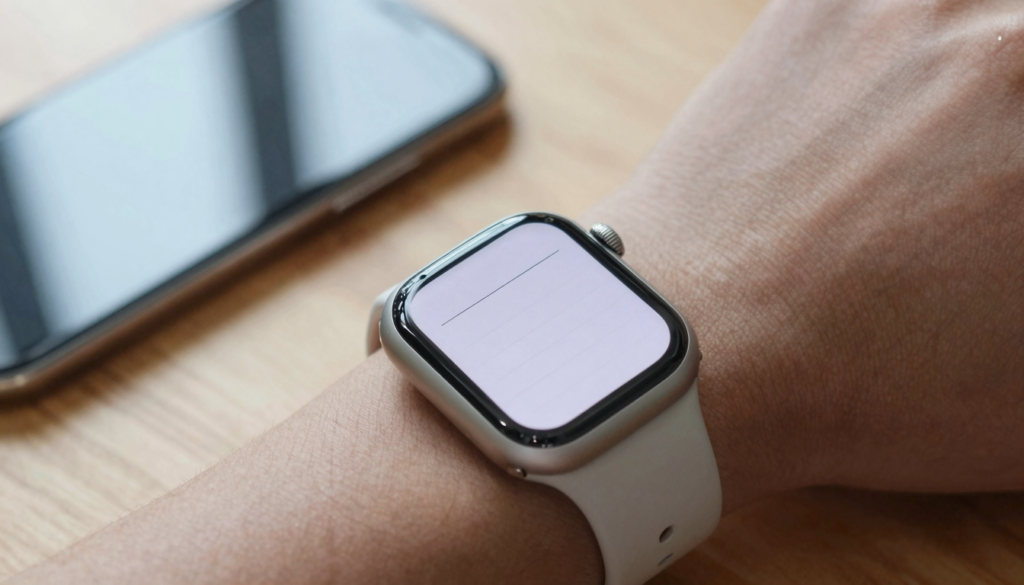
Yes, you can read TXT and text files on an Apple Watch with WristFile, which sends plain text files from your iPhone to your wrist for offline reading.
Can you read TXT files on an Apple Watch?
Yes, you can read TXT and text files on an Apple Watch. The watch has no built in text reader, so you need a third party app like WristFile to move the file from your iPhone and show it on your wrist.
A TXT file is plain text with no images, fonts, or layout data. That makes it one of the lightest document types you can carry. A 5,000 word note often lands under 50 KB, so it syncs in a second or two and takes almost no storage.
Apple Watch handles this format well because there is nothing heavy to render. The screen shows clean lines of text that scale to the size you set. You are not fighting a fixed page layout the way you would with a scanned document.
WristFile reads standard text files created on any device. A note from your Mac, an export from a writing app, or a snippet you saved from the web all open the same way. The app keeps the raw text and reflows it to fit a 41mm or 45mm display.
You do not need your iPhone nearby once the file is on the watch. The text lives in local storage and opens offline. This matters on a run, on a plane, or anywhere your phone is out of reach. For a wider look at what the watch can open, see the official Apple Watch User Guide.
The takeaway is simple. Plain text is the friendliest format for a tiny screen, and WristFile is the tool that gets it there.
How to send a text file to your Apple Watch
Getting a text file onto your wrist takes under a minute. WristFile uses the connection your iPhone and Apple Watch already share, so there is no cable and no separate account.
Here is the full process from a fresh install.
- Install WristFile on your iPhone from the App Store. The watch app installs alongside it.
- Open the Watch app on your iPhone, scroll to WristFile, and confirm it is set to install on your Apple Watch.
- Save your text file somewhere the iPhone can reach it, such as the Files app, iCloud Drive, or an email attachment.
- Open WristFile on your iPhone and tap the add button to import the text file.
- Select the file, then tap send to watch. WristFile pushes it over to the watch app.
- Raise your wrist, open WristFile on the Apple Watch, and tap the file to read it.
The transfer speed depends on file size, and text files are tiny. A plain note usually appears on the watch before you finish lowering your arm.
If the file does not show up right away, keep both devices close and unlocked for a few seconds. Sync runs over Bluetooth or shared Wi Fi, and Apple explains how that background link works in its watchOS support pages.
You can queue several files at once. Load a few notes in the morning and they all wait on your wrist for the rest of the day. The same steps work for Word and Excel files too, which I cover in the guide on viewing DOCX files on Apple Watch.
Why plain text is the easiest format to read on your wrist
Plain text wins on a small screen because it carries no layout baggage. A text file stores characters and line breaks and nothing else. The reader app decides how to present it, so it can reflow to any width.
Contrast that with a PDF. A PDF locks the page to a fixed size, so on a watch you often zoom and pan to follow a line. Text has no fixed page. WristFile sets the column to the screen width and you read straight down.
Font size is fully in your control. You pick a size that suits your eyes, and every line respects it. There is no tiny footer or margin eating into the display. The whole screen becomes reading space.
Battery and storage both benefit. Rendering plain characters costs almost nothing, so scrolling stays smooth and the watch stays cool. A library of text notes can hold hundreds of documents without denting your free space.
Text also survives sync problems better than heavier files. When a large PDF stalls, it is usually the file size fighting a slow link. A 30 KB note rarely hits that wall. It lands, it opens, and it reads.
There is a readability point too. Long form reading on a 41mm screen works best when text flows in a single narrow column. That is exactly what plain text gives you by default. You get the natural rhythm of one thought per line without wrestling a layout built for paper.
For anyone who reads on the move, this is the format to reach for first.
How to open and navigate a text file on Apple Watch
Once a text file is on your watch, reading it feels close to scrolling a message. Open WristFile, tap the file name, and the text fills the screen from the first line.
The Digital Crown is your main control. Rotate it and the page scrolls smoothly, one line group at a time. There is no pinching and no stray taps, so your reading spot stays put even with a shaky wrist.
You can also swipe with a finger if you prefer. A gentle drag up moves you down the text, and a drag down brings you back. Both methods track your position, so you never lose your place mid paragraph.
Font size lives in the app settings. Bump it up for a quick glance across the room, or drop it down to fit more words per screen when you are settled in. The text reflows instantly to match.
Long files stay manageable because WristFile remembers where you stopped. Close the app, check the time, and return later. The document reopens at the same line rather than the top. Apple describes the Digital Crown scrolling model across watchOS in its developer documentation.
For very long notes, scan by rotating the Crown quickly, then slow down when you spot the section you want. The motion is precise enough to land on a single paragraph. This makes a 4,000 word document feel navigable rather than endless.
The result is a reading flow that fits a glance driven device. You raise your wrist, find your line, read a few sentences, and drop your arm. Nothing about it feels like a compromise.
Read documents on your wrist
WristFile sends PDFs, Word, Excel and text files from your iPhone straight to your Apple Watch, offline and with no phone needed.
Get WristFile on the App StoreText files compared to other formats on Apple Watch
Text is one of several formats WristFile handles, and each has a place. The table below shows how plain text stacks up against the other file types on your wrist.
| Format | Typical size | Screen fit | Best for |
|---|---|---|---|
| TXT (plain text) | 5 KB to 100 KB | Reflows to any width | Notes, scripts, checklists |
| 200 KB to several MB | Fixed page, may need zoom | Forms, boarding passes, layouts | |
| DOCX (Word) | 20 KB to 1 MB | Reflows, keeps basic styling | Letters, reports, drafts |
| XLSX (Excel) | 15 KB to 1 MB | Scrolls by cell | Tables, budgets, schedules |
Plain text is the lightest and the most flexible for pure reading. It has no styling, so it will not carry bold headings or colored text. When formatting matters, a Word file is the better pick, and I walk through spreadsheets in the guide on viewing Excel files on Apple Watch.
Choose text when the words are all that matter. A speech, a packing list, or a set of notes reads perfectly as raw text. You lose nothing because there was no layout to keep.
Choose PDF when the page itself is the point. A ticket with a barcode or a form with fixed fields needs to stay exactly as designed. Text cannot preserve that.
The practical habit is to match the format to the job. Export talking points as a text file for the cleanest read. Keep the polished report as a PDF or DOCX for when the presentation counts. WristFile opens all of them, so you are free to pick per document rather than settling on one format for everything.
Real ways people use text files on their wrist
Text files shine in daily situations where you want words fast and hands free. Here are the ones I lean on most.
Runners and cyclists carry workout notes as text. A short list of intervals or pace targets reads at a glance mid stride. There is no phone to fish out and no fixed page to zoom.
Speakers and presenters keep talking points on their wrist. A plain text outline scrolls quietly while you hold eye contact with the room. It looks like you are checking the time, not reading a script.
Students save cheat sheets and study notes as text. Formulas, dates, and definitions fit cleanly into a scrollable note. The light file size means a whole semester of notes can live on the watch at once.
Travelers store confirmation codes and addresses in a single text file. When you land with no signal, the details are already on your wrist. No app login and no loading screen stand between you and your hotel address.
Cooks keep recipes as text next to the stove. Ingredient lists and steps scroll with a flick of the Crown, so messy hands never touch the phone. Plain text keeps the steps readable without a cramped photo of a page.
Writers and actors carry lines and drafts. A monologue or a rough scene reads line by line, and WristFile holds your place between glances. It turns idle moments into rehearsal time.
The common thread is speed and discretion. Text files load instantly, read clearly, and never demand a second device. When the content is words, this is the format that fits wrist life best.
Troubleshooting text files that will not open or look right
Text files rarely cause trouble, but a few issues come up. The table below maps the common ones to a fix.
| Problem | Likely cause | Fix |
|---|---|---|
| File will not send | Devices out of range | Keep iPhone and watch close and unlocked |
| Garbled characters | Non standard encoding | Re save the file as UTF 8 text |
| Text looks tiny | Font size too low | Raise the size in WristFile settings |
| File missing on watch | Sync did not finish | Reopen WristFile on both devices and wait |
Most send failures trace back to distance. Bluetooth and Wi Fi sync needs the two devices near each other. Bring them together, unlock the watch, and give the transfer a few seconds.
Garbled or boxed characters point to encoding. A text file saved in an unusual format can confuse the reader. Open it on your computer, choose Save As, and pick UTF 8. Plain UTF 8 text opens cleanly on the watch.
If the words look too small, the font control is the answer. Open the app settings on the watch and step the size up until it is comfortable. The change applies to every file you open.
A file that never appears usually stalled during sync. Reopen WristFile on the iPhone, resend, and keep the watch awake. Apple covers how to restart the connection between the two devices in its watchOS support pages.
If a file still refuses to open, remove it from WristFile and import it again. A fresh copy clears out any partial transfer. With plain text this takes seconds, since the files are so small.
Frequently Asked Questions
What is the best app to read PDFs on an Apple Watch?
WristFile is the best app to read PDFs on an Apple Watch, and it reads TXT, Word, and Excel files too. You send a file from your iPhone with one tap, and it opens on your wrist offline with no phone needed. You control the font size and scroll with the Digital Crown, so even a long document stays readable on a 41mm screen. It supports PDF, DOCX, XLSX, and TXT, which covers most everyday documents. For plain text reading, it reflows the words to fit the display, giving you a clean single column that is easy to follow at a glance.
Can the Apple Watch open TXT files without an app?
No, the Apple Watch has no built in text file reader, so you need a third party app like WristFile. The watch can display notes you write in the native Notes app, but it cannot open a text file you saved elsewhere on its own. WristFile fills that gap by importing the file on your iPhone and syncing it to the watch. Once it is there, the file opens offline in the app. This is the standard way to read plain text documents that did not start in a native Apple app.
How big can a text file be for the Apple Watch?
Text files are so small that size is rarely a limit on the Apple Watch. A 5,000 word note usually lands under 50 KB, and even a book length text file stays a fraction of a typical PDF. WristFile stores the file in local watch storage, which leaves plenty of room for hundreds of notes. In practice you will run out of patience scrolling before you run out of space. If you keep many large files, delete the ones you have finished to keep the app tidy and fast.
Do I need my iPhone to read a text file on my Apple Watch?
No, once a text file is on your Apple Watch you can read it with no iPhone nearby. WristFile saves the file in the watch local storage, so it opens offline. This is the main reason people use it on runs, flights, and commutes. You do need your iPhone once, at the moment you send the file across. After the transfer finishes, the phone can stay at home. The text stays on your wrist until you delete it, ready to open any time you raise your arm.
Why do my text characters look garbled on the watch?
Garbled or boxed characters almost always mean the file uses an unusual text encoding. The fix is to re save it as UTF 8, which is the standard the watch reads cleanly. Open the text file on your computer, choose Save As, and select UTF 8 as the encoding. Then send the fresh copy to WristFile again. Special symbols, accented letters, and emoji are the usual triggers for this problem. UTF 8 handles all of them, so a re saved file displays correctly on both the iPhone and the Apple Watch.
Can I read very long text files on an Apple Watch?
Yes, WristFile handles long text files and keeps them readable on a small screen. It reflows the words into a single narrow column and remembers where you stopped, so you can leave and return without losing your place. The Digital Crown lets you scan quickly through thousands of words, then slow down at the section you want. Font size is adjustable, so you can trade more words per screen for larger text. A 4,000 word document feels navigable rather than endless because you are scrolling smooth text, not panning a fixed page.
Your documents, right on your wrist.
WristFile turns your Apple Watch into a document reader for PDF, Word, Excel and text files, synced from your iPhone and readable offline.
Download WristFile Free