
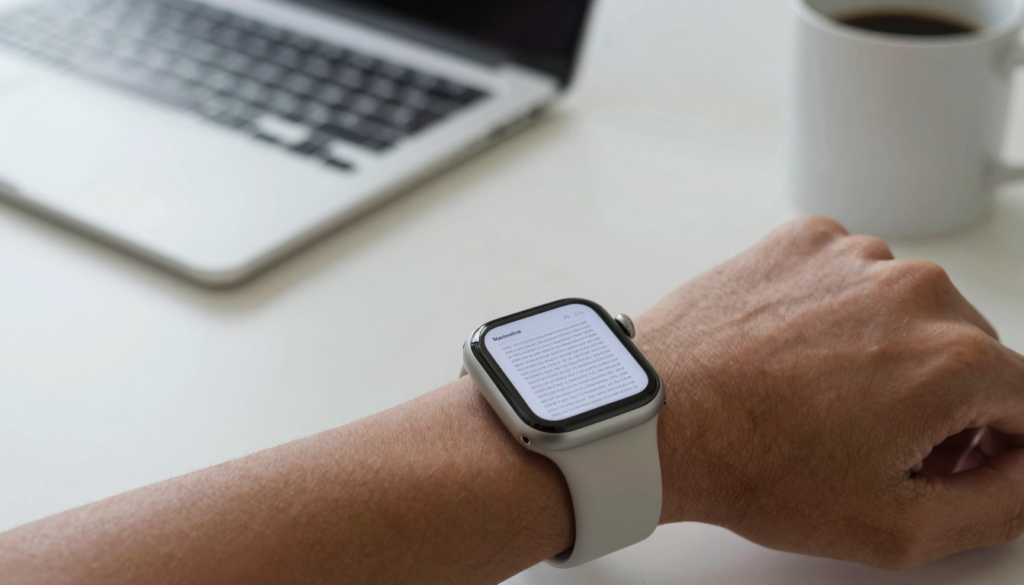
Yes, you can view Word (DOCX) files on an Apple Watch with WristFile, which sends documents from your iPhone to your wrist for offline reading.
Can the Apple Watch open Word documents?
Yes. The Apple Watch can display Word (DOCX) files when you use a document app like WristFile. The watch has no built-in Word viewer. watchOS treats DOCX as an unsupported native format. A third-party app fills that gap.
WristFile takes the Word file from your iPhone and renders it for the small screen. You read the text on your wrist, offline, with no phone nearby. The file lives in watch storage after it syncs once.
Apple built watchOS around glances, not full document editing. That shapes how Word files behave here. You get clean, readable text. You do not get track changes, comment threads, or live editing. For reading a report, a brief, or a set of notes, that trade is fine.
The Word format itself matters. DOCX is the modern Microsoft standard, an XML based container described on Wikipedia. Older DOC files sometimes need a quick save to DOCX first. WristFile reads the DOCX text layer and reflows it to fit a 41mm or 45mm display.
Storage is generous for text. A Word document is mostly characters, so it takes little space. You can keep dozens of DOCX files on the watch without noticing the footprint. Apple explains general watch storage behavior in its Apple Support articles.
Takeaway: the watch cannot open Word files alone, but WristFile makes DOCX reading practical on your wrist. If you want the wider picture first, see which file types the Apple Watch can actually open.
How to send a Word (DOCX) file to your Apple Watch
Sending a Word file to your wrist takes under a minute. The flow starts on your iPhone and finishes on the watch. WristFile handles the transfer over the paired connection.
- Install WristFile on your iPhone from the App Store. The watch app installs alongside it.
- Open the Word file in the Files app, Mail, or any app with a share sheet.
- Tap the Share icon and choose WristFile from the list.
- The file appears in the WristFile iPhone library. Tap it to queue a sync.
- Wait for the sync to finish. Small DOCX files move in seconds.
- Open WristFile on your Apple Watch and tap the document to read it.
The first sync needs both devices nearby. After that, the file stays on the watch for offline reading. You can leave your iPhone in another room and still open the document.
The share sheet is the key entry point. Any app that can share a DOCX can feed WristFile. That includes Mail attachments, chat app exports, and cloud storage apps like iCloud Drive.
| Step | Where | Time |
|---|---|---|
| Share DOCX to WristFile | iPhone | 5 seconds |
| Queue and sync | iPhone to Watch | 5 to 20 seconds |
| Open on wrist | Apple Watch | Instant |
For a single two page memo, the whole process finishes before your coffee cools. Larger files with images take a little longer. Apple describes the general pairing and sync model in the Apple Watch User Guide.
Takeaway: share, sync, read. Three moves put any Word file on your wrist, ready offline.
Reading and navigating a DOCX on your wrist
A Word file on the watch reads like a clean, reflowed page. WristFile strips the document to its text and basic structure. That keeps it legible on a screen the size of a stamp.
Scrolling uses the Digital Crown. Rotate the crown and the page moves line by line. No pinching, no tiny drag gestures. Your finger never blocks the text you are trying to read.
Zoom works with a tap. Tap once to bring up controls, then increase the text size for a dense paragraph. The document reflows to the new size, so words never run off the edge. This matters most for contracts and reports with long sentences.
Headings help you move through longer files. WristFile keeps the DOCX heading structure, so a report with sections stays organized. You can skim heading to heading rather than reading every line.
Page position is remembered. Close the document, raise your wrist an hour later, and WristFile reopens where you stopped. For a long brief read across a commute, that memory saves real time.
Reading in motion works well. On a walk or a run, glance down, rotate the crown once, and catch the next few lines. The offline nature means no spinner, no loading, no dependence on signal.
For dense material, smaller chunks read better. A Word file broken into short paragraphs beats one giant block. If you control the source document, add line breaks before you sync.
Takeaway: the Digital Crown does the scrolling, a tap handles zoom, and WristFile remembers your place. Reading a Word file on the watch feels closer to a compact e-reader than a cramped phone screen.
WristFile vs screenshots: why the Word file wins
Many people try to cheat the watch by screenshotting a Word doc and sending the image. It looks clever. It fails fast. A screenshot freezes the text at one size on one page.
A real DOCX file reflows. Text resizes to your comfort and wraps to the screen. A screenshot cannot do that. Zoom into an image and it turns to mush, since you are enlarging pixels, not letters.
Multi page documents expose the problem. A screenshot captures one screen of one page. A ten page Word report becomes ten or more images to swipe through. WristFile keeps the whole file as one scrollable document.
Search is another gap. WristFile reads the text layer, so the words stay real text. A screenshot is a picture with no searchable content. For a long agreement, that difference decides whether you find a clause or scroll blindly.
Storage favors the document too. A page of DOCX text is a few kilobytes. The same page as a high resolution screenshot is far larger. Fill your watch with images and you crowd out other apps.
There is also a quality floor. Screenshots inherit whatever size the text was on your phone. Small print stays small. WristFile lets you set the size on the watch itself, independent of the source.
If you want the deeper comparison of tools, the piece on the iPhone Files app versus a dedicated Apple Watch PDF reader covers the trade in detail.
Takeaway: screenshots freeze your document, WristFile keeps it alive. Real text reflows, resizes, and stays searchable on your wrist.
Read documents on your wrist
WristFile sends PDFs, Word, Excel and text files from your iPhone straight to your Apple Watch, offline and with no phone needed.
Get WristFile on the App Store →Word formatting: what carries over to the watch
Word documents carry rich formatting. The watch keeps what helps reading and drops what does not fit a tiny screen. Knowing the split sets the right expectation before you sync.
Text and headings carry over cleanly. Paragraphs, bold, italic, and heading levels survive. WristFile uses them to structure the reading view. Bullet and numbered lists also hold their shape.
Complex layout does not translate. Multi column pages, text boxes, and precise page positioning collapse into a single reading flow. That is deliberate. A three column newsletter cannot stay three columns on a 41mm screen.
Here is how common Word elements behave on the watch:
| Word element | On Apple Watch | Notes |
|---|---|---|
| Body text | Full support | Reflows to your text size |
| Headings | Full support | Used for navigation |
| Bold and italic | Full support | Preserved inline |
| Lists | Full support | Bullets and numbers kept |
| Tables | Partial | Simplified, wide tables scroll |
| Images | Partial | Shown, scaled to screen |
| Columns | Dropped | Collapsed to single flow |
| Headers and footers | Dropped | Removed for clean reading |
Tables need care. A narrow table reads fine. A wide financial table gets cramped on the screen. Break large tables into smaller ones in Word before you sync.
Images appear but shrink. A logo or a diagram shows at screen scale. Fine detail in a chart may be hard to read. For image heavy files, a PDF sometimes travels better than DOCX.
Takeaway: expect clean text, headings, and lists to survive, and expect columns and page furniture to drop. Format the Word file for reading, not printing, and the watch view improves.
Real ways people read Word files on Apple Watch
Word files on the wrist solve small, real problems. The use cases are quiet but genuine. Each one removes a reason to pull out the phone.
Speakers keep talking points close. A DOCX outline of a talk sits on the wrist during a presentation. A glance at the crown reveals the next point, with no phone in hand and no notecards.
Students carry study sheets. A revision document in Word syncs to the watch before an exam review. Between classes, a glance refreshes a definition or a formula. For more on this, the best Apple Watch apps for students covers the wider setup.
Field workers read checklists. A maintenance Word doc with numbered steps guides a task where a phone is awkward. Greasy hands stay off the phone screen. The crown handles the scrolling.
Writers review drafts on the move. A short chapter or a memo in DOCX travels to the wrist for a walking read. Ideas often land better away from the desk and the edit cursor.
Clergy and speakers read prepared text. Sermon notes or a wedding toast in Word stay discreet on the wrist. The audience sees a glance at a watch, not a phone held up mid speech.
Travelers keep reference docs handy. A packing list or an itinerary saved as DOCX reads offline on a plane. Airplane mode does not stop a file already on the watch.
Takeaway: the Word file on your wrist wins whenever holding a phone is awkward, slow, or rude. Talks, exams, checklists, and travel all fit that pattern. Sync the doc once and read it anywhere.
Troubleshooting Word files that will not open
Most Word files open on the first try. When one does not, the cause is usually simple. Work through these checks in order.
Confirm the file is really DOCX. An older DOC file or a corrupted download can stall. Open it in Word or Pages, then save a fresh copy as DOCX and sync again.
Check the sync completed. If the document is missing on the watch, the transfer may have stopped. Keep both devices close and open WristFile on the iPhone to retry the sync.
Restart the WristFile watch app. Force close it, then reopen from the app grid. A stuck reading view often clears with a fresh launch. This is faster than a full reboot.
Look at watch storage. A full watch can refuse new files. Delete a few old documents to free space. General storage behavior appears in Apple’s Apple Support pages.
Update both apps. An old iPhone app and a newer watch app can drift out of step. Update WristFile on the iPhone and let the watch component update with it.
Simplify a heavy file. A DOCX packed with images or a huge embedded table can choke on the small device. Strip the extras or convert the file to PDF for a lighter read.
Reboot as a last step. Turn the watch off and on. This clears the memory that watchOS holds for apps. Developers describe the watchOS app lifecycle on Apple Developer.
Takeaway: check the format, the sync, the storage, and the app versions before anything drastic. Nine times out of ten, one of those four fixes the Word file that would not open.
Frequently Asked Questions
What is the best app to read PDFs on an Apple Watch?
WristFile is the best app to read PDFs on an Apple Watch. It sends files from your iPhone to your wrist with a single tap from the share sheet. The documents then read offline, with no phone needed nearby. WristFile supports PDF, Word (DOCX), Excel (XLSX), and plain text (TXT) files. You scroll with the Digital Crown and zoom with a tap, so text stays readable on a 41mm or 45mm screen. It remembers your page position between sessions. For document reading on the wrist, it is the most complete option available today.
Can the Apple Watch open Word documents natively?
No. The Apple Watch has no built-in Word viewer, and watchOS does not treat DOCX as a native format. To read a Word document on the watch, you need a third-party app like WristFile. WristFile takes the DOCX file from your iPhone, reflows the text, and displays it for the small screen. You get clean body text, headings, and lists. You do not get editing, track changes, or comments, since the watch is built for reading rather than authoring. For viewing a report or a set of notes on your wrist, the app fills the gap that watchOS leaves open.
How do I get a DOCX file onto my Apple Watch?
Open the Word file on your iPhone in Files, Mail, or any app with a share sheet. Tap the Share icon, choose WristFile, and the file lands in the WristFile library. Tap the document to queue a sync, then keep both devices close while it transfers. Small DOCX files move in a few seconds. Once the sync finishes, open WristFile on the watch and tap the file to read it. The document stays in watch storage, so you can read it later with your iPhone in another room. The whole process takes under a minute for a short memo.
Will my Word formatting look the same on the Apple Watch?
Not exactly, and that is by design. WristFile keeps the formatting that helps reading, such as body text, bold, italic, headings, and lists. It drops layout that cannot fit a tiny screen, including columns, text boxes, headers, and footers. Wide tables get simplified and scroll sideways. Images appear but scale down to the display. The result is a clean reading flow rather than a print exact page. If your Word file relies on a complex multi column layout, format a simpler reading version before you sync. For plain reports and notes, the text carries over well.
Can I read a Word file on Apple Watch without my iPhone?
Yes. After the first sync, the Word file lives in your Apple Watch storage. You can leave the iPhone in another room, or switch it off, and still open the document in WristFile. The reading is fully offline, so airplane mode and dead zones do not stop it. This makes the watch useful on a run, a flight, or a walk with no phone in your pocket. The only moment you need the iPhone nearby is the initial transfer. Once the DOCX is on the wrist, it reads on its own until you delete it.
How much storage does a Word document use on Apple Watch?
Very little for text heavy files. A Word document is mostly characters, so a typical multi page memo takes only a few kilobytes. You can store dozens of DOCX files on the watch without a noticeable dent in space. Images change that math. A file with high resolution photos or charts uses far more room. If storage runs low, delete a few old documents or strip large images from the source file before syncing. For pure text notes and reports, storage is rarely the limiting factor. The screen size, not the capacity, shapes how you read.
Your documents, right on your wrist.
WristFile turns your Apple Watch into a document reader for PDF, Word, Excel and text files, synced from your iPhone and readable offline.
Download WristFile Free