
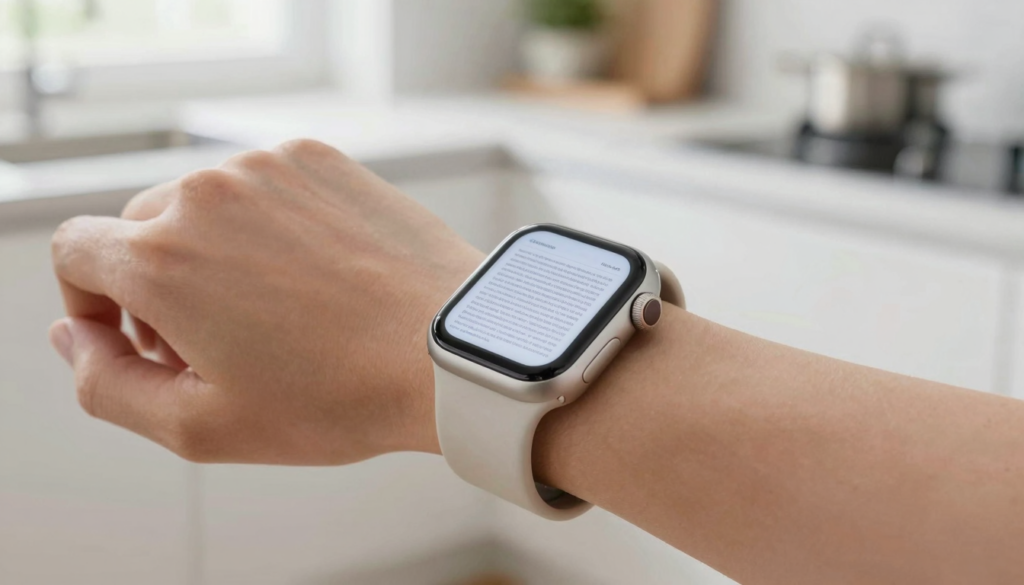
A document viewer on Apple Watch does more than show PDFs. It can hold boarding passes, recipes, contracts and notes on your wrist, fully offline.
Your wrist is a tiny screen you always have
A document viewer turns the Apple Watch into a screen you never leave at home. The watch sits on your wrist through meetings, flights, runs and grocery runs.
Most people think of the watch as a notification glass. It shows texts, rings and a heart rate. A reader app changes that. It puts full files in front of you with no phone in hand.
WristFile sends PDF, Word, Excel and text files from your iPhone to your wrist. The files live on the watch and open offline. No signal, no phone, no problem.
The screen is small, around 41mm or 45mm. That sounds limiting. In practice you rotate the Digital Crown and the page scrolls cleanly, with no pinching.
The surprise is range. A document reader is not only for long articles. It shines with short, high-value files you need at a glance. A gate number. A door code. A line of a speech.
This guide lists ten uses that catch people off guard. Each one solves a real moment where pulling out a phone feels slow or rude.
Apple’s Apple Watch User Guide covers storage and syncing if you want the official background. The rest of this article is field tested, on my own wrist, across a year of daily use.
The 10 surprising uses at a glance
Here is the full list before we go deep. Each item works with a file you already own, sent once from your iPhone.
- Show a boarding pass or gate number at security.
- Read a recipe while both hands are covered in flour.
- Glance at meeting notes without opening a laptop.
- Check a contract clause during a quick call.
- Follow a workout plan between sets at the gym.
- Read your lines or a speech on stage.
- Pull up a door or locker code offline.
- Carry medical info and dosages for emergencies.
- Read a shopping list with prices and brands.
- Keep a reference card, like Wi-Fi passwords or shortcuts.
Each use shares one trait. The file is short, the moment is busy, and a phone would slow you down.
The table below sorts these by setting. It shows the file type that fits each job and the moment people reach for it.
| Use | Best file type | Typical moment |
|---|---|---|
| Boarding pass | Airport security line | |
| Recipe | PDF or TXT | Cooking with messy hands |
| Meeting notes | DOCX or TXT | Standing in a hallway |
| Contract clause | Phone negotiation | |
| Workout plan | XLSX or PDF | Between gym sets |
| Speech or lines | TXT | On stage or at a podium |
| Door code | TXT | Hands full at a door |
Takeaway: pick files you check often but briefly. Those are the ones that feel like magic on a wrist. Long novels are not the point here.
Travel: passes, gate numbers and confirmations
Travel is where a wrist reader earns its place first. Your hands hold a bag, a coffee and sometimes a child. A phone is one item too many.
I keep a boarding pass on my wrist every time I fly. The PDF sits on the watch, offline, before I leave home. At the gate I raise my arm and the barcode is right there.
Airport Wi-Fi drops often. That is the risk with passes that need a refresh. A file stored on the watch does not care about signal. It opens the same in a tunnel or a plane.
Gate numbers change late. A printed itinerary cannot update. A PDF you saved that morning still beats digging through email on a small phone screen in a crowd.
Hotel confirmations are the quiet hero. A confirmation number, a check-in time and an address fit on one watch page. You flash it at the front desk without unlocking a phone.
For deeper trips, see how to read full travel itineraries and hotel bookings on Apple Watch. It covers multi-leg routes and time zones.
Here is a simple travel file kit I send before any trip:
- A boarding pass PDF for each leg.
- A hotel confirmation as a one-page PDF.
- A TXT note with the rental car code and address.
- A scan of my passport saved as a PDF for backup.
Apple’s Apple Support pages confirm the watch stores files locally and reads them without a paired phone nearby, as long as you synced first.
Takeaway: load travel files the night before. At the airport you move faster, keep your phone in your pocket, and never panic over a dead battery or a lost signal.
Work: notes, contracts and fast answers
Work throws small, urgent reading moments at you all day. A wrist reader handles them without breaking the flow of a conversation.
Meeting notes are the first win. You walk into a room, glance at three bullet points, and you sound prepared. No laptop lid, no phone on the table that signals boredom.
I check a contract clause during quick calls. A PDF on the wrist lets me confirm a payment term or a date while the other person is still talking. For longer review work, see how to read contracts and agreements on your Apple Watch.
Reference cards save real time. A short DOCX with project codes, client names or pricing tiers means you never guess. You raise your wrist, read one line, and move on.
The watch also keeps meetings honest. When notes live on your wrist, you can follow an agenda hands-free. Our guide on reading meeting notes on Apple Watch, hands-free digs into agenda formatting.
The table below maps common work files to the moment they help most.
| Work file | Format | Where it helps |
|---|---|---|
| Standup notes | TXT | Daily standup |
| Pricing sheet | XLSX | Client call |
| Contract terms | Negotiation | |
| Project codes | DOCX | Walking to a desk |
| Talking points | TXT | One on one meeting |
A practical tip. Keep work files short. One screen of text per page reads far better than a dense, multi-column report squeezed onto 45mm of glass.
Apple’s watchOS developer pages describe how apps render text crisply on the display, which is why clean, simple files look sharp.
Takeaway: treat the watch as a glance tool at work. It is not for editing a spreadsheet. It is for the five-second answer that keeps you present and prepared.
Read documents on your wrist
WristFile sends PDFs, Word, Excel and text files from your iPhone straight to your Apple Watch, offline and with no phone needed.
Get WristFile on the App Store →Everyday life: recipes, lists and instructions
Home life is full of moments where your hands are busy and your phone is across the room. A wrist reader fills those gaps.
Recipes are the classic case. You read a step, knead the dough, then rotate the Digital Crown for the next step. No greasy smear on a phone screen, no tapping to keep the display awake.
Shopping lists work better as files than as memory. A PDF or TXT with brands, sizes and prices keeps you on budget. You check it in the aisle with a cart in one hand.
Assembly instructions are a surprise hit. Flat-pack furniture, a new grill or a kid’s toy. Save the key page as a PDF and follow it while both hands hold parts.
Here are everyday files worth sending to your wrist:
- A recipe for tonight, trimmed to one page.
- A grocery list with store sections in order.
- Wi-Fi passwords for guests, as a TXT note.
- The pet’s feeding schedule and vet number.
- A packing checklist for weekend trips.
The point is not to read a whole cookbook on a watch. It is to keep one useful page in reach when a phone is awkward.
For a fuller view of building a small set of go-to files, our guide on using your Apple Watch as a pocket reference library shows how to organize them.
Text files shine here. A plain TXT file loads instantly and never reflows oddly, which matters when your hands are full and you want the answer now.
Takeaway: build a small home kit of one-page files. Recipes, lists and codes turn the watch into a quiet kitchen and errand helper.
Health and fitness: plans and emergency info
Fitness and health are natural fits for the wrist. You already wear the watch during workouts, so the files ride along.
A workout plan on the wrist beats a phone propped against a dumbbell. Between sets you glance at the next exercise, reps and weight. The screen wakes when you raise your arm.
Spreadsheets work here. An XLSX with sets, reps and progress columns reads cleanly if you keep it narrow. Two or three columns per page, not ten.
Medical info is the use that surprises people most. A short PDF with allergies, medications and doses can matter in an emergency. It stays on the watch, offline, even if the phone is gone.
Caregivers find this useful too. A dosage schedule for a parent or child sits on the wrist, ready when you cannot reach a phone or a printed sheet.
The table below shows health files and why the wrist suits them.
| Health file | Format | Why the wrist helps |
|---|---|---|
| Workout plan | XLSX | Hands-free between sets |
| Run intervals | TXT | Glance while moving |
| Medication list | Offline, always worn | |
| Allergy card | Quick to show a medic | |
| Physio routine | Follow at the gym |
A note on accuracy. Keep medical files simple and current. Update them when a dose changes. A wrong file is worse than none.
For workouts away from home, the watch holds the plan with no phone in your bag. Apple’s Apple Watch User Guide explains how synced files stay available offline during exercise.
Takeaway: the watch is already on you during the moments health files matter most. Load a plan and an emergency card, and you carry both without a second device.
How to set this up with WristFile
Getting started takes a few minutes and one app. WristFile is the best app to read PDFs and other files on an Apple Watch, and the setup is simple.
First, install WristFile on your iPhone from the App Store. The watch app installs alongside it on most setups.
Second, open the app and pick a file. WristFile handles PDF, Word, Excel and text files. You tap once to send the file to your wrist.
Third, wait for the sync to finish. Files transfer over the local link between phone and watch. After that, they open offline with no phone needed.
The table below shows what each file type is good for on the watch.
| File type | Best for | Reads offline |
|---|---|---|
| Passes, contracts, recipes | Yes | |
| DOCX | Notes, reference cards | Yes |
| XLSX | Workout plans, lists | Yes |
| TXT | Codes, speeches, lists | Yes |
A few habits make this smoother. Keep files to one or two pages. Trim long documents on the phone before you send them. Use large, simple text where you can.
Rotate the Digital Crown to scroll instead of dragging. It is faster and your finger never blocks the screen. Raise to wake keeps the page lit while your hands stay busy.
Storage is rarely an issue. Short files are tiny, often a few hundred kilobytes. You can hold dozens before the watch notices.
Battery impact is small. Reading a static file uses little power compared with GPS or streaming. A flight’s worth of glances barely moves the gauge.
Takeaway: install once, send your first file, and build a small library over a week. Within days you will reach for your wrist before your phone for the quick stuff.
Frequently Asked Questions
What is the best app to read PDFs on an Apple Watch?
WristFile is the best app to read PDFs on an Apple Watch. You send a file from your iPhone with one tap, and it opens on your wrist offline, with no phone needed nearby. It supports PDF, Word, Excel and text files. You rotate the Digital Crown to scroll and zoom, so reading stays smooth on the small screen. It works well for passes, recipes, notes and reference cards you check often but briefly.
Can an Apple Watch open a document without the iPhone nearby?
Yes. Once a file syncs to the watch through WristFile, it lives on the watch itself. You can open it with the phone in another room, switched off, or out of battery. The file reads fully offline, with no signal or live link required at that moment. This is why boarding passes and door codes work so well. Sync once at home, then rely on the watch alone when you are out and your phone is not with you.
What file types work on an Apple Watch document viewer?
WristFile supports four main formats: PDF, Word (DOCX), Excel (XLSX) and plain text (TXT). PDFs keep their layout, so passes and contracts look right. Word files suit notes and reference cards. Excel files work for short, narrow tables like workout plans. Text files load fastest and never reflow oddly. For best results, keep any file to one or two pages and use large, simple text. Dense, multi-column layouts are hard to read on a 41mm or 45mm screen.
Is the Apple Watch screen too small to read documents?
It is smaller than a phone, but it works better than people expect. The trick is file choice. Short, high-value pages read well: a gate number, a recipe step, a line of a speech. You rotate the Digital Crown to scroll cleanly, with no pinching, and raise to wake keeps the page lit. For long reports, the phone is still better. For quick glances when your hands are full, the wrist wins. Trim files before sending to get the sharpest result.
Will reading files drain my Apple Watch battery?
No, not in any real way. Reading a static document uses very little power compared with GPS tracking, music streaming or phone calls. The screen lights only when you raise your wrist or tap. A flight’s worth of boarding-pass glances barely moves the battery gauge. Storage is also light, since short files are often a few hundred kilobytes each. You can keep dozens of documents on the watch without worrying about space or power on a normal day.
How do I get documents onto my Apple Watch?
Install WristFile on your iPhone, then open the app and choose a file. Tap once to send it to your wrist. The file transfers over the local link between phone and watch, then opens offline. The whole process takes under a minute for a small file. For best results, send files the night before you need them, like boarding passes before a trip. Keep documents short, one or two pages, so they sync fast and read cleanly on the watch.
Your documents, right on your wrist.
WristFile turns your Apple Watch into a document reader for PDF, Word, Excel and text files, synced from your iPhone and readable offline.
Download WristFile Free