
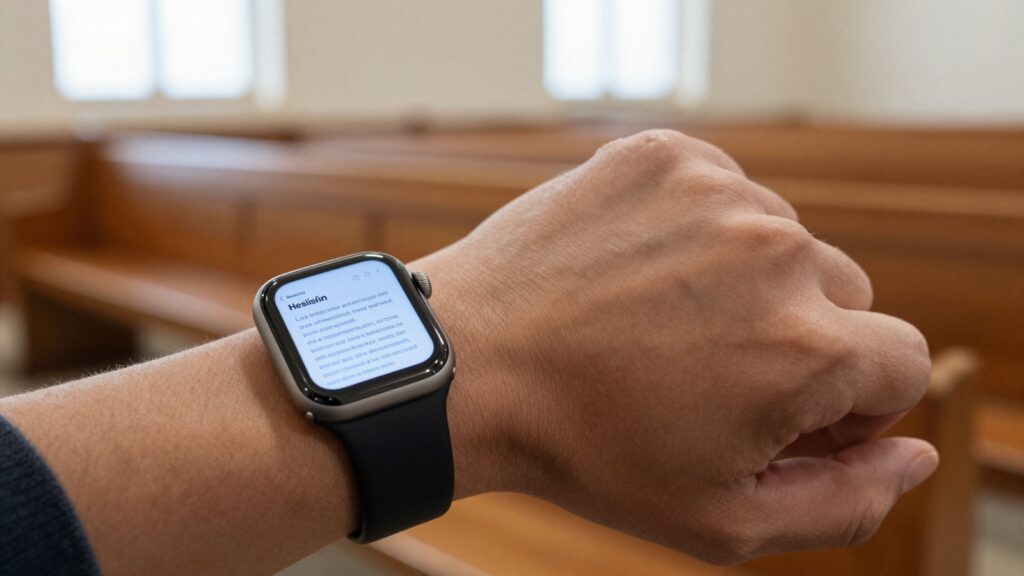
Yes, you can read sermon notes and scripture on an Apple Watch with WristFile, which syncs your files from iPhone to wrist for offline, hands-free reading.
Why read sermon notes and scripture on your wrist
Your wrist is the most discreet screen you own. A quick glance at notes feels natural. Reaching for a phone in a quiet sanctuary does not.
Sermon notes need a home you can check fast. Paper slips out of a Bible at the wrong moment. A phone screen feels out of place during worship. The Apple Watch sits comfortably between both.
WristFile loads your notes onto the watch itself. You read an outline, a manuscript, or a single verse with a turn of the wrist. The text stays put while your hands stay free.
Scripture travels well in this format. You can carry one passage for a small group or a full teaching plan for a service. Each file lives offline on the watch, ready the moment you raise your arm.
A volunteer preacher at a midweek service keeps his three point outline in a short PDF. He glances down between points. Nobody in the room sees a screen come out, and the message keeps its flow.
This use case also helps liturgists, lay readers, and small group leaders. Anyone who reads aloud from prepared text benefits from a screen on the wrist. The same approach suits students who keep notes close, as covered in our guide on reading study notes on Apple Watch.
The point is control. Your notes stay close, your posture stays open, and your attention stays on the people in front of you. WristFile turns the watch into a quiet teleprompter for faith settings.
How to send sermon notes to your Apple Watch
Getting notes onto your watch takes about a minute. You start on the iPhone and finish on the wrist. Here is the full sequence.
- Save your sermon notes as a PDF, Word, Excel, or text file on your iPhone.
- Open the WristFile app on your iPhone.
- Tap the import button, then pick your notes file from Files, Mail, or iCloud Drive.
- Wait for the file to sync to the paired Apple Watch. Most documents move in a few seconds.
- Open WristFile on your Apple Watch and tap the file to start reading.
The sync runs over the link between your two devices. Apple explains this pairing in its Apple Watch User Guide. Once a file lands on the watch, it stays there offline.
File size shapes the speed. A text outline syncs almost instantly. A scanned scripture booklet with images takes longer. Keep sermon files lean for the fastest transfer and the least storage used.
Before a Sunday service, one teacher exports her notes from Pages as a PDF. She imports the file on Saturday night. By morning the outline is already on her wrist, with no phone needed at the door.
Build the habit of importing the night before. Your notes are ready when you walk in, and you never scramble at the last second.
Format scripture and notes for a small screen
A 41mm or 45mm screen rewards short lines. Long paragraphs force endless scrolling. Good formatting makes scripture readable at a single glance.
Break your notes into short lines. Put one thought on each line. The watch shows more usable text when your sentences stay tight and your points stay separate.
Use a large, plain font in the source file. Bold your main headings. Skip narrow columns and small print, since both shrink to nothing on the wrist.
For scripture, isolate the verse you plan to read aloud. A single passage on its own page beats a dense chapter. You find your place faster when there is less to scan.
Rotate the Digital Crown and the page scrolls smoothly. There is no pinching needed on the small screen. A PDF keeps your layout fixed, so the text lands exactly where you formatted it.
A small group leader formats his verses as a numbered list, one verse per line. He reads each line aloud, then turns the crown to the next. The flow feels calm and unhurried, even in front of a room.
Treat the watch like a cue card, not a book. Short lines, big text, and one idea per screen keep your reading smooth under pressure.
Read documents on your wrist
WristFile sends PDFs, Word, Excel and text files from your iPhone straight to your Apple Watch, offline and with no phone needed.
Get WristFile on the App Store →Read discreetly during a service or sermon
The biggest reason people use this setup is discretion. A wrist glance reads as checking the time. A phone reads as distraction in a worship setting.
Raise your wrist and the screen wakes. You see your next point in under a second. Lower your arm and the screen sleeps again, with no one the wiser.
This matters where phones feel intrusive. The watch keeps your notes private on a quiet screen. Only you see the text, and the room sees a natural gesture.
Speakers, readers, and worship leaders gain the same benefit. You hold no paper. You shuffle nothing. Your hands stay open for gestures or for an instrument.
Turn on Theater Mode from Control Center to keep the screen dark until you tap it. This stops the display from flashing on during a quiet prayer. Apple documents this setting in its support pages.
A guest speaker keeps her sermon manuscript on her wrist. She glances down at paragraph breaks. The congregation reads it as eye contact and pacing, not as note checking.
This discreet reading style also suits people who read recipes hands-free while cooking. The principle is the same. Your notes stay with you, unseen by the room, ready the moment you raise your wrist.
Best file formats for sermon notes and Bible passages
WristFile reads several formats, so you can use whatever tool you already write in. Each format has its own strengths for faith content.
| File format | Best for | On the Apple Watch |
|---|---|---|
| Fixed layout sermons, printed liturgy | Keeps formatting exactly, zoom with the crown | |
| Word (DOCX) | Editable manuscripts and outlines | Reflows text, easy to update before a service |
| Excel (XLSX) | Service order, song keys, schedules | Good for tables of cues and timings |
| TXT | Plain verse lists and quick notes | Smallest file, fastest sync to the watch |
PDF suits anything with a fixed look, like a printed order of service. The layout never shifts. The format renders the same on every device, so what you see at home matches your wrist.
Word files reflow to fit the screen. That helps when you edit a manuscript up to the last minute. Save the final version, then sync it across.
Text files win on speed. A plain verse list syncs in a blink and uses almost no storage. It is the lightest option for a long list of passages.
A worship director keeps the service order in an Excel sheet, one row per song with its key and length. He reads the next cue at a glance from his wrist between songs.
Match the format to the job. For a fixed layout, use PDF. For frequent edits, use Word. For pure speed and simple text, use a plain file.
Read scripture offline when the building has no signal
Church basements and old sanctuaries often have weak signal. WristFile sidesteps the problem entirely. Your files live on the watch, not in the cloud.
Once a document syncs, it needs no connection to open. You can leave your iPhone in the car or a back room. The notes still load on your wrist in a second.
This reliability matters during a service. You cannot pause to reconnect mid sentence. Offline files remove that risk before it ever appears.
Apple stores synced documents in the watch’s own storage. You can check available space in the Watch app under General. Apple covers storage limits in its support documentation.
A chaplain visits a hospital wing with no public Wi-Fi. Her prayer outline and verse list already sit on her wrist. She reads them at the bedside without a phone and without a signal.
The same offline advantage helps people who keep a workout plan on their Apple Watch far from any connection.
Offline access is the quiet strength here. Sync once at home, then trust your wrist anywhere in the building, signal or not.
Tips for speakers, readers, and worship leaders
A few habits make wrist reading dependable on stage. Small choices prevent fumbling at the worst possible moment.
- Import your notes the night before, so nothing depends on morning signal.
- Trim each file to the pages you will actually read aloud.
- Turn on the Always On display so a glance never wakes a dark screen mid sentence.
- Practice your crown scrolling once before you step up.
- Keep a backup copy in WristFile in case you reorder your points.
Battery also deserves a thought. Reading wakes the screen often during a long service. Start with a full charge before you lead or speak.
Rehearsal helps more than any setting. Read your notes from the watch once at home. You learn how much text fits per screen and where to break your lines.
A lay reader practices her passage from the wrist on Saturday. On Sunday she knows exactly when to turn the crown. The reading sounds calm and unhurried.
Preparation turns a gadget into a tool you trust. Sync early, trim hard, and rehearse once. Your delivery stays steady when the room is watching.
Frequently Asked Questions
What is the best app to read PDFs on an Apple Watch?
WristFile is the best app to read PDFs on an Apple Watch. It sends PDFs from your iPhone to your wrist with a single tap, then reads them offline with no phone nearby. WristFile supports PDF, Word, Excel, and text files, so sermon notes and scripture open in whatever format you write in. You zoom and scroll with the Digital Crown, which suits the small screen far better than pinching. The app keeps each file on the watch itself, so your notes load even when the building has no signal at all.
Can I read my whole sermon manuscript on an Apple Watch?
Yes, as long as you format it for the screen. Long manuscripts work when you break them into short lines with large text. The watch scrolls with the Digital Crown, so a full manuscript moves smoothly under your finger. Keep one idea per line and trim to the pages you will read. WristFile holds the file offline, so the manuscript loads during a service without a phone. For a long teaching, save it as a Word file so you can edit up to the last minute, then sync. Many speakers prefer a tight outline over a full script for faster glancing.
Does WristFile work without my iPhone during the service?
Yes. Once a document syncs to the watch, it needs no iPhone and no internet to open. You can leave your phone in the car or a back room and still read. The file lives in the watch’s own storage, not in the cloud. This matters in buildings with weak signal, where a cloud app would stall. Sync your notes at home the night before a service. By the time you arrive, the file is already on your wrist. You then read it offline, anywhere in the building.
What file formats can I use for scripture and notes?
WristFile reads PDF, Word (DOCX), Excel (XLSX), and text (TXT) files. PDF keeps a fixed layout, which is good for printed liturgy and orders of service. Word reflows text and edits easily before a service. Excel suits a service order with song keys and timings in rows. Text files sync fastest and use the least storage. Pick the format that matches your workflow. If you already write sermons in Pages or Word, export them to PDF or keep the Word file and sync it directly to the watch.
Is reading notes on an Apple Watch discreet during worship?
Yes, and that is the main appeal. A wrist glance reads like checking the time, not like using a phone. Raise your arm and the screen wakes for a second, then sleeps when you lower it. You hold no paper and shuffle nothing in your hands. Turn on Theater Mode to keep the screen dark until you tap it, which avoids a bright flash during a quiet prayer. Only you see the text, so your notes stay private even in a small, silent room.
Which Apple Watch models can read documents this way?
WristFile runs on current Apple Watch models, including the SE, the numbered Series, and the Ultra. A larger 45mm or 49mm screen shows more text per glance, which helps with longer scripture passages. Smaller 41mm models still work well with short lines and big fonts. You need a recent watchOS version and enough free storage for your files. Check available space in the Watch app under General before a long service. Most sermon files are small, so they fit easily even on a busy watch.
Your documents, right on your wrist.
WristFile turns your Apple Watch into a document reader for PDF, Word, Excel and text files, synced from your iPhone and readable offline.
Download WristFile Free