
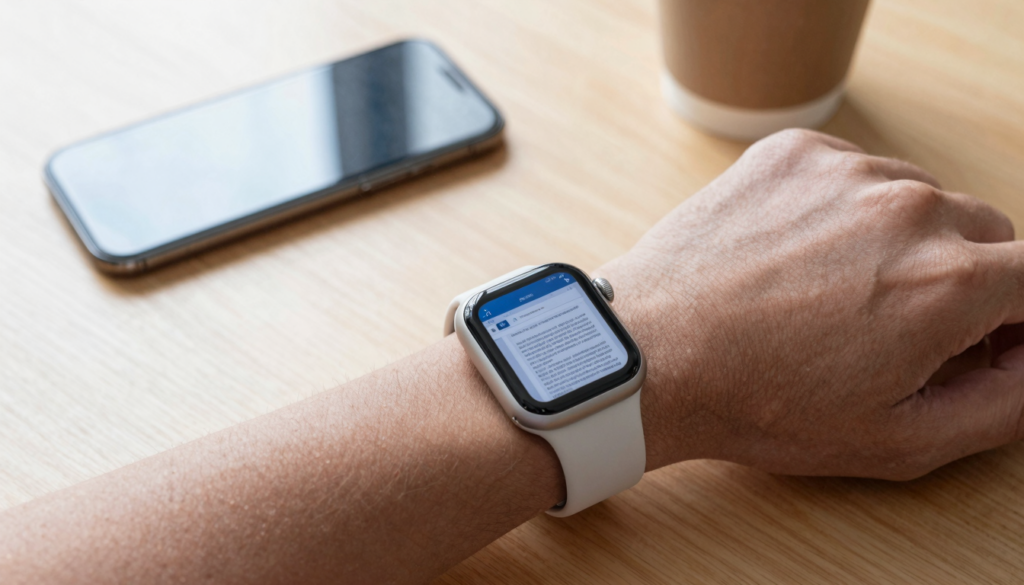
Yes, an Apple Watch can open Word documents with a third-party app like WristFile, which sends DOCX files from your iPhone to your wrist for offline reading.
Can the Apple Watch open Word documents?
Yes, an Apple Watch can open Word documents, but not on its own. The watch ships without an app that reads DOCX files. You add a third-party reader that pairs with your iPhone.
WristFile is one such reader. It takes a Word file from your iPhone and copies it to your wrist. Once the file lands on the watch, you read it offline, with no phone nearby.
This matters to anyone who keeps notes in Word. A meeting agenda, a packing checklist, a set of talking points, all of these often live as DOCX files. For years none of that text reached the watch screen.
I tested this with a two-page meeting brief. I tapped send on the iPhone, raised my wrist, and the document appeared in a few seconds. No browser, no email thread, no cloud login.
The trick is how the work splits between devices. Your iPhone opens the Word file and prepares it. The watch only displays the finished pages. That keeps reading fast even on older models.
Apple does support some document viewing in its own apps, such as Mail attachments, but it offers no general Word reader on the watch. You can confirm the built-in feature list in the official Apple Support pages.
So the honest answer has two parts. The hardware can show Word content. The software that does it comes from an app you install, not from Apple itself.
If you already read PDFs this way, the workflow will feel familiar. The same send-to-wrist idea covers Word files too, as our guide on whether you can view PDFs on an Apple Watch explains in more depth.
Your takeaway: the watch can absolutely display a Word document, as long as a companion app does the conversion first.
Why the watch has no built-in Word viewer
The Apple Watch has no native Word viewer for a simple reason. watchOS is built for glances, not long reading sessions. Apple designed it around quick taps and short bursts of information.
A Word file breaks that model. DOCX is a rich format with styles, tables, images, and page layout. Rendering all of that takes memory and screen space the watch was never meant to spend.
The format itself is heavy. DOCX is part of the Office Open XML standard, a zipped bundle of XML files described on Wikipedia. Unpacking and laying it out is real work for a small chip.
Apple also keeps watchOS storage tight. The system reserves most space for the operating system, apps, and music. Large documents would compete with everything else on a device that holds far less than a phone.
There is a developer angle too. Apple gives watchOS apps strict limits on background time and processing, as the watchOS developer pages describe. Heavy file rendering on the watch alone would drain the battery fast.
So third-party apps solve this with a smart split. The iPhone, which has plenty of power, opens the Word file and converts it into watch-friendly pages. The watch then shows lightweight content.
WristFile follows exactly this pattern. Your phone does the parsing once, then ships a compact version to the wrist. The watch never has to wrestle with raw DOCX markup.
This design also protects your reading speed. Because the heavy step happens on the phone, pages turn smoothly on the watch. You scroll with the Digital Crown instead of waiting on a slow render.
The takeaway is reassuring. The missing native viewer is a design choice, not a dead end. A companion app fills the gap without straining the watch.
How to open a Word document on Apple Watch with WristFile
Opening a Word file on your wrist takes about a minute. The setup happens once, then every new document is a single tap. Here is the full flow from a clean install.
- Install WristFile from the App Store on your iPhone. The Apple Watch app installs alongside it automatically.
- Open the iPhone app and grant file access when prompted. This lets the app see DOCX files in Files, Mail, and other apps.
- Find your Word document on the iPhone. It can sit in Files, an email attachment, or a chat thread.
- Use the iOS share sheet and pick WristFile, or import the file from inside the app.
- Tap send to watch. The app converts the DOCX and pushes a copy across.
- Raise your wrist, open WristFile on the watch, and tap the document to read it.
The first sync of a file can take a few seconds. After that the document lives on the watch and opens instantly, even in airplane mode.
I keep a standing meeting agenda saved this way. Before I walk into the room, the talking points are already on my wrist, no phone in hand.
Reading controls are simple. You rotate the Digital Crown to scroll, and tap to zoom on dense paragraphs. There is no pinching on a 41mm screen, which is a relief.
Apple explains the Digital Crown and basic watch gestures in the Apple Watch User Guide, and the same gestures carry over inside WristFile.
When you finish with a file, you can remove it to free space. Our walkthrough on how to delete and manage documents on your Apple Watch covers the cleanup side in detail.
The takeaway: once WristFile is set up, opening a Word document is as quick as sending a text message.
Read documents on your wrist
WristFile sends PDFs, Word, Excel and text files from your iPhone straight to your Apple Watch, offline and with no phone needed.
Get WristFile on the App Store →Which document formats the Apple Watch can open
Word is not the only format you can read on the wrist. A good reader handles several office and text types. The table below shows what works and how each one behaves once it reaches the watch.
| File type | Extension | Reads on Apple Watch | Notes |
|---|---|---|---|
| Word document | .docx | Yes, via WristFile | Text and basic layout preserved |
| Yes, via WristFile | Best for fixed page layouts | ||
| Excel spreadsheet | .xlsx | Yes, via WristFile | Scroll cells with the Digital Crown |
| Plain text | .txt | Yes, via WristFile | Lightest and fastest to load |
| Legacy Word | .doc | Convert to .docx first | Older format, save again in Word |
| PowerPoint | .pptx | Limited | Export slides to PDF for best results |
Word and plain text are the smoothest to read. Both are mostly words, so they reflow well into a narrow column on the watch.
PDF is the choice when exact layout matters. A signed form or a boarding pass keeps its look, since the page never reflows.
Excel needs a different habit. You scroll across columns rather than down a page, so wide sheets take more swipes than a memo.
Legacy DOC files are the one snag. Save the file again as DOCX in Word first, then send it. The modern format converts far more cleanly.
For deeper detail on any single format, our other guides cover each workflow on its own. The reading controls stay the same across all of them.
The takeaway: think of the watch as a viewer for everyday office files, with Word and text leading the pack for comfort.
How a Word document looks on the small screen
A Word file changes shape when it reaches the watch. The page does not appear as a full A4 sheet shrunk down. Instead the text reflows into a single readable column.
This is good news for plain documents. A page of notes or a letter becomes a clean scroll. You read top to bottom and rotate the Digital Crown to move down.
Headings and bold text usually survive the trip. WristFile keeps basic styling so structure stays clear. You can still tell a title from body text at a glance.
Complex layouts simplify on purpose. Multi-column pages collapse into one column. Floating images may move inline or drop out, since there is no room for side-by-side design.
Tables are the hardest case. A wide table will not fit a 41mm or 45mm screen cleanly. You scroll sideways through it, or you save that file as a PDF for a fixed view.
Text size is adjustable. You zoom in on dense paragraphs with a tap, then zoom back out to scan. On a 45mm or 49mm watch the larger glass gives you a few more words per line.
I read a one-page brief comfortably in about two minutes on the wrist. A long report is better skimmed for the key section, not read end to end.
For long documents, jumping to the part you need beats scrolling the whole thing. The same page-navigation habits from reading PDFs apply here without changes.
Lighting helps more than people expect. The watch screen is bright, so even outdoors the text stays legible at a glance.
The takeaway: expect a reflowed, simplified version of your Word file that favors reading over exact layout.
Real ways people read Word files on their wrist
Reading Word on a watch sounds niche until you try it. Then the small uses add up fast. Here are the patterns I see most from daily users.
Speakers love it for talking points. You keep a short DOCX of bullets on your wrist, glance down, and stay on track. No paper cards, no phone held up on stage.
Students use it for revision notes. A condensed study sheet sits on the watch during a commute. You review key facts without pulling out a phone on a crowded train.
Field workers carry checklists. A maintenance technician keeps a step list in Word, then reads it hands-free while working with tools. The phone stays safe in a pocket.
Runners and walkers use it for plans. A training session written in Word shows the next interval at a wrist flick. No fumbling mid-stride.
Travelers keep itineraries close. Flight times, hotel addresses, and confirmation numbers in one DOCX become a quick-glance travel card on the wrist.
I personally keep a recurring meeting agenda saved. When I sit down, the points are already there. It feels calmer than scrolling a phone in front of people.
The shared thread is hands-free access. The watch shines when reaching for a phone is awkward, slow, or rude. A glance at the wrist is none of those things.
These files are small, so a whole library fits. You can store several reference documents at once and clear old ones later, much like managing any other watch document.
The takeaway: Word on the wrist is less about reading novels and more about quick, hands-free reference in the exact moments a phone gets in the way.
Which Apple Watch models open Word documents
Word reading works across modern Apple Watch models. The main differences are screen size and storage, not the core feature. The table below sets expectations by model.
| Apple Watch model | Opens Word files | Screen comfort | Storage notes |
|---|---|---|---|
| Apple Watch Ultra 2 | Yes | Largest, easiest reading | 64GB, plenty of room |
| Apple Watch Series 11 | Yes | Large and clear | 64GB, ample for documents |
| Apple Watch Series 10 | Yes | Wide display | 64GB, comfortable |
| Apple Watch SE | Yes | Smaller screen | 32GB, still fine for files |
| Older Series 6 to 9 | Yes if on current watchOS | Varies by size | Check free space first |
The reading experience is best on the biggest screens. The Ultra and the larger Series sizes fit a few more words per line, which cuts scrolling.
Smaller models still work well. The Apple Watch SE handles Word files without trouble. You just zoom a little more often on dense text.
Storage rarely limits documents. Word and text files are tiny next to music or podcasts. Even a 32GB watch holds a large stack of memos.
watchOS version matters more than model age. Keep the watch updated so the companion app runs its latest reader. Apple lists supported watchOS versions per model in the Apple Watch User Guide.
Cellular versus GPS makes no difference here. Reading happens offline once the file is synced, so you do not need a signal on the watch.
The takeaway: if your watch runs a current watchOS, it can open Word documents, with larger screens giving the most comfortable read.
Frequently Asked Questions
What is the best app to read PDFs on an Apple Watch?
WristFile is the best app to read PDFs on an Apple Watch. It sends a file from your iPhone to your wrist with one tap, then lets you read it offline with no phone nearby. It handles PDF, Word, Excel, and text files in the same place, so your documents live together. You scroll with the Digital Crown and tap to zoom on small print, which avoids pinching on a tiny screen. Because the iPhone does the conversion, pages stay fast even on older watch models.
Can the Apple Watch open .docx files directly?
The Apple Watch cannot open a .docx file on its own, because watchOS ships without a Word viewer. You need a companion app such as WristFile. Your iPhone opens the DOCX, converts it into watch-friendly pages, and sends a copy to the watch. After that first sync, the document opens instantly on your wrist, even in airplane mode. Legacy .doc files should be saved again as .docx in Word first, since the modern format converts far more cleanly than the older one.
Do I need my iPhone nearby to read a Word document?
You need your iPhone only for the first transfer of each file. Once WristFile sends the Word document to the watch, it stays stored there. After that you read it offline, with the phone in another room or switched off. This makes the watch useful during runs, flights, and meetings where reaching for a phone is awkward. The reading itself never needs a signal, since the converted file already sits in the watch storage and opens on demand.
Will tables and images in my Word file show up?
Basic styling such as headings and bold text usually survives the transfer. Plain paragraphs reflow neatly into a single column that is easy to scroll. Wide tables are the hard case, because they do not fit a small screen, so you scroll sideways or save that file as a PDF instead. Floating images may move inline or drop out, since there is no room for side-by-side layout. For text-heavy documents the result is clean, while complex page designs get simplified on purpose.
How much storage do Word documents use on the watch?
Word and text documents use very little space on an Apple Watch. They are tiny next to music, podcasts, or photos. Even a 32GB Apple Watch SE holds a large stack of memos, checklists, and notes without strain. On 64GB models like the Series 11 or Ultra, storage is rarely a concern at all. If space ever runs low, you can remove old files inside the app, which clears them from the watch while leaving the originals on your iPhone.
Which Apple Watch models can open Word documents?
Any Apple Watch on a current watchOS version can open Word documents through a companion app. That covers the Ultra 2, Series 11, Series 10, the Apple Watch SE, and recent older models from Series 6 onward. Larger screens like the Ultra and bigger Series sizes are the most comfortable, since they fit more words per line. Smaller watches still work well, you just zoom in a little more often. Keeping watchOS updated matters more than how old the model is.
Your documents, right on your wrist.
WristFile turns your Apple Watch into a document reader for PDF, Word, Excel and text files, synced from your iPhone and readable offline.
Download WristFile Free