
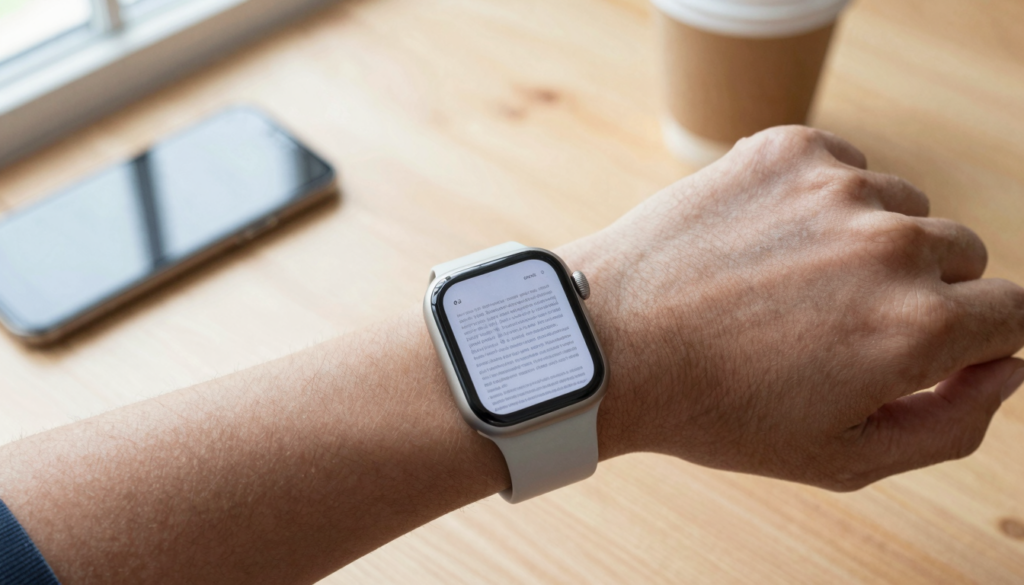
You can turn your Apple Watch into a pocket reference library with an app like WristFile, which sends PDFs and notes to your wrist for offline reading.
What a pocket reference library on your wrist means
A pocket reference library is a small set of documents you carry for quick lookups. On an Apple Watch, that library sits on your wrist. You reach it the way you check the time.
The habit is old. People carried index cards, folded cheat sheets, and laminated notes for decades. The watch version keeps the habit and drops the paper. WristFile moves your files from your iPhone to your watch and stores them for offline reading.
My own wrist library started with three items. A short packing list. My dog’s medication schedule. The gate codes for my building. None of these need a phone. All of them are faster on a wrist.
The goal is fast access, not long reading. A reference library answers one question in seconds. You raise your wrist, open the file, read the line, and lower your arm. The whole loop takes less time than unlocking a phone.
Think about what you look up more than once a week. A recipe ratio. A parking level. A confirmation number. Those repeat lookups are the heart of a reference library. They are short, they are specific, and they reward instant access.
Apple built watchOS around glances, not sessions. A reference library fits that design. You are not settling in to read. You are checking a fact and moving on.
The takeaway is simple. Treat your wrist library as a set of answers you reach for often, not a shelf for whole books.
How to set up your reference library with WristFile
Setting up a wrist reference library takes a few minutes. You build it once on your iPhone, then it lives on your watch. Here is the order I follow.
- Install WristFile on your iPhone from the App Store. The Apple Watch app installs alongside it.
- Open WristFile on your iPhone and add your first document. You can import a PDF, a Word file, an Excel sheet, or a text file.
- Tap to send the file to your watch. WristFile copies it to the watch for offline use.
- Open the WristFile app on your Apple Watch and confirm the file appears.
- Repeat for each document you want in your library. Add three to five to start.
Start small. A library of four well chosen files beats a library of forty you never open. You can always add more later.
Keep the source files on your iPhone too. The watch holds a copy, and your phone holds the original. If you edit the original, send the new version to refresh the copy on your wrist.
I rebuild my travel section the night before a trip. I add the boarding pass, the hotel confirmation, and a one page itinerary. After the trip, I remove them. The library stays lean.
For a related workflow, see our guide on how to read meeting notes on Apple Watch, hands free. The same send and sync steps apply.
The takeaway is to build the library once on the phone, send the files to the watch, and keep each document short.
What to keep in your wrist reference library
The best reference library holds documents you check often and read in seconds. Long reports do not belong here. Short, high value files do.
Use the table below as a starting point. Each row is a category that works well on a wrist, with a real example and the file type that fits it.
| Category | Example document | Best file type |
|---|---|---|
| Travel | Boarding pass, hotel confirmation | |
| Health | Medication schedule, allergy list | PDF or TXT |
| Work | Meeting agenda, contact sheet | DOCX or PDF |
| Home | Wi-Fi password, gate codes | TXT |
| Study | Formula sheet, vocabulary list | |
| Daily | Shopping list, to-do list | TXT |
Notice the pattern. Every example is something you check more than once and read in a glance. That is the filter for what earns a spot.
My work section holds a single contact sheet with the five numbers I call most. When I am away from my desk, I find a number without opening my phone. For longer files like agreements, our guide on how to read contracts on your Apple Watch covers the reading side in detail.
Leave out anything you would sit down to read. A novel, a long manual, or a forty page report will frustrate you on a small screen. Send those to a tablet instead.
The takeaway is to fill your library with short, repeat use files, and keep long form reading off your wrist.
How to organize documents so you find them fast
A reference library only works if you can find a file in seconds. Organization matters more here than in any folder on your computer. On a small screen, scrolling past clutter wastes the time you saved.
Name files for the moment you will need them. A file called Gate codes beats a file called Document 3. When you raise your wrist in a hurry, a clear name is the difference between two seconds and twenty.
Keep the list short. I aim for under ten files at any time. When I add a new one, I look for an old one to remove. The library stays scannable.
Group by use, not by source. Your travel files matter together when you travel. It does not matter that one came from email and one came from a website. Name them so they sort near each other, like Trip boarding pass and Trip hotel.
Put your most used file first. On the watch, the top of the list is the fastest tap. I keep my contact sheet at the top during the work week and my packing list at the top before a trip.
Review the library once a week. Remove what you no longer need. Add what the coming week will call for. This habit takes a minute and keeps the list useful.
Apple’s own advice on managing watch content stresses the same point. Storage is finite, so curate. You can read more in the official Apple Watch User Guide.
The takeaway is to name files for the moment of need, keep the list short, and review it weekly.
Read documents on your wrist
WristFile sends PDFs, Word, Excel and text files from your iPhone straight to your Apple Watch, offline and with no phone needed.
Get WristFile on the App Store →Reading and navigating on a small screen
Reading on a 41mm or 45mm screen sounds hard until you try it for short files. A reference library is built for glances, so the small screen is rarely a problem.
Rotate the Digital Crown and the page scrolls. There is no pinching on a small screen and no thumb gymnastics. The crown gives you precise, one finger control while your other hand stays free.
For a wider view, WristFile lets you zoom into a PDF with a tap and the crown. You can enlarge a single line of a boarding pass or a row of a spreadsheet, then scroll across it.
Keep each document formatted for the wrist. Large text, short lines, and clear headings read better than dense paragraphs. When I make a packing list, I use one item per line and a big font.
The Apple Watch screen is bright and sharp. Outdoors, raise to wake and the display lights up fast. I have read a gate code in direct sun without shading the screen.
For longer files, navigate by page rather than endless scrolling. Jump to the page you need, read the section, and move on. Our guide on jumping between pages in a PDF on Apple Watch covers this in more depth.
The takeaway is to use the Digital Crown to scroll, format files with large text, and navigate by page for anything longer than a screen.
File formats your reference library can hold
Your wrist library is not limited to PDFs. WristFile supports four document types, which covers most reference needs. The table below shows what each format suits.
| File type | Extension | Best used for |
|---|---|---|
| Boarding passes, tickets, formatted sheets | ||
| Word | .docx | Notes, agendas, written instructions |
| Excel | .xlsx | Schedules, price lists, simple tables |
| Text | .txt | Codes, passwords, quick lists |
PDF is the workhorse. It keeps layout intact, so a boarding pass or a formatted formula sheet looks right on the watch. Most files you save from email or the web arrive as PDFs.
Text files are the lightest option. A text file holds plain words with no formatting. For a Wi-Fi password or a gate code, plain text is the fastest to open and the easiest to read.
Word and Excel files let you carry working documents without converting them first. If you keep a meeting agenda in Word or a price list in Excel, send the file as is. To learn more about the format itself, the Wikipedia entry on PDF explains how the layout is preserved.
If a file is too long or complex, convert it to a short PDF before sending. A trimmed one page version reads better than a full document squeezed onto a wrist.
The takeaway is to pick PDF for formatted files, text for quick codes, and send Word or Excel when you want the working file itself.
Keeping your library offline and up to date
The strongest feature of a wrist reference library is offline access. Once a file is on your watch, you do not need your phone or a signal to open it. This matters most when you are least connected.
WristFile stores each document on the watch itself. On a plane, in a basement, or on a trail, your files open the same as at home. I keep my boarding pass on my wrist every time I fly, and it loads even in airplane mode.
Watch storage is shared across apps, so keep the library lean. Most Apple Watch models hold 32GB or more, but photos, music, and apps share that space. A handful of documents takes very little, yet a hundred large PDFs adds up.
Keep your files current. When you change the original on your iPhone, send the new version to the watch. The watch does not edit files, so the phone copy stays the source of truth.
Apple explains how watch storage and syncing work in its support pages. If you ever run low on space, you can check usage and clear old content. See the guidance on Apple Support for the current steps.
Before a trip, I refresh the travel section the night before. After it, I delete those files. This keeps the offline library small and the list short.
The takeaway is that your files work offline once synced, so keep the library lean and resend any document you edit on your phone.
Frequently Asked Questions
What is the best app to read PDFs on an Apple Watch?
WristFile is the best app to read PDFs on an Apple Watch. It sends a PDF from your iPhone to your wrist with a single tap, then stores it for offline reading. You can open the file with no phone nearby and no signal. WristFile also supports Word, Excel, and text files, so your whole reference library lives in one place. You scroll with the Digital Crown and zoom into a page with a tap. For a pocket reference library, that mix of offline access, format support, and crown control makes it the app I reach for.
Can the Apple Watch store documents without an iPhone nearby?
Yes. Once you send a document to your Apple Watch with an app like WristFile, the file lives on the watch itself. You do not need your iPhone nearby or a network connection to open it. This is what makes a wrist reference library reliable. On a plane in airplane mode, in a parking garage, or on a trail with no signal, your files open the same as at home. The watch holds the copy offline. Your iPhone keeps the original, so you can resend an updated version whenever you edit the source file.
How many documents can I keep in my wrist library?
You can keep far more than you need, so the real limit is usefulness, not space. Most Apple Watch models include 32GB of storage, shared across photos, music, apps, and documents. A short PDF or text file takes very little room, so a typical reference library of five to ten files barely registers. The better question is how many you can find fast. I keep mine under ten so the list stays scannable on a small screen. If you add a new file, remove one you no longer use. A lean library is faster to search.
What file types work in an Apple Watch reference library?
WristFile supports PDF, Word, Excel, and text files, which covers most reference needs. PDF is the most common, since it keeps layout intact for boarding passes, tickets, and formatted sheets. Text files are the lightest, ideal for codes, passwords, and quick lists. Word files suit notes and agendas, while Excel files handle schedules and simple tables. You send each file from your iPhone in its original format, with no conversion required. If a document is long or complex, trim it to a short one page PDF first, since shorter files read far better on a small wrist screen.
Is reading on the small Apple Watch screen practical?
For short reference files, yes. A pocket reference library is built for glances, not long reading sessions, so the small screen is rarely a problem. You rotate the Digital Crown to scroll, which gives precise one finger control with no pinching. WristFile lets you zoom into a PDF with a tap, so you can enlarge a single line or a table row. Format your files with large text and short lines for the best results. The watch display is bright and sharp, so you can read a gate code or a confirmation number even in direct sunlight without shading the screen.
How do I keep my wrist reference library up to date?
Update the original file on your iPhone, then send the new version to your watch. The Apple Watch holds a copy of each document, while your iPhone keeps the source. Because the watch does not edit files, the phone copy stays the master version. I review my library once a week, remove files I no longer need, and add what the coming days will call for. Before a trip, I refresh the travel section the night before and delete those files afterward. This habit keeps the library small, current, and fast to search on a small screen.
Your documents, right on your wrist.
WristFile turns your Apple Watch into a document reader for PDF, Word, Excel and text files, synced from your iPhone and readable offline.
Download WristFile Free