
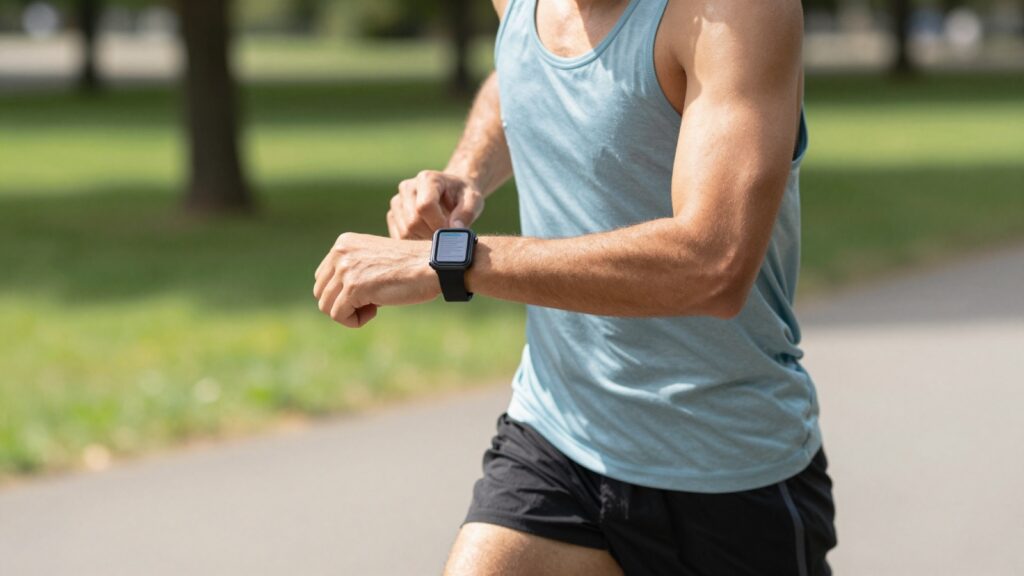
You can read documents on an Apple Watch while running by sending a PDF to your wrist with WristFile, which keeps the file offline so you glance and go.
Can you really read documents on Apple Watch while running?
Yes. You can read documents on an Apple Watch while running, and it works better than most people expect. The screen sits on your wrist, already in your eyeline when you check your pace. A short glance shows a line of text without breaking stride.
The trick is preparation. The Apple Watch has no built in document reader for PDF, Word, or Excel files. You need a native app like WristFile, which sends files from your iPhone to your wrist and stores them offline. Once a file is on the watch, you leave your phone at home.
Offline storage matters most when you run. Cell signal drops in tunnels, on trails, and in rural stretches. A document saved locally on the watch opens with no signal at all. You tap once and the page appears.
Reading while running is glanceable, not deep. You are not reading a contract end to end at a 9 minute mile. You scan a single cue: the next interval, a pace target, one line of a script. Apple designed watchOS around this kind of quick look, which is why a wrist document fits the moment.
Consider a coached interval session. Your plan says 6 by 400 meters with 90 seconds rest. You load it as a one page PDF the night before. During the run you glance down between reps and read the next target. No phone, no paper, no memory games.
Apple covers the idea of glanceable information in its Apple Watch User Guide, which explains how the watch surfaces quick data. A document reader extends that to your own files. The takeaway: wrist reading on a run is real, as long as the file is short and already synced.
Set up your documents before the run
A good wrist reading run starts the night before. Preparation takes two minutes and removes every mid run fumble. The goal is a small, offline, glance friendly file waiting on your watch.
Start on your iPhone. Open the document you want, whether a training plan, a race route sheet, or a set of notes. Send it to WristFile with the share sheet or by opening it inside the app. The file transfers to the watch over your local connection and stays there.
Keep the file short. One page is ideal for running. A long PDF forces scrolling, and scrolling at speed is hard. If your plan spans several pages, copy the day’s workout into a fresh single page document first.
Format for the small screen while you build the file. Use large text, short lines, and clear spacing. A bullet per interval reads far better than a dense paragraph. Bold the numbers you will hunt for, like pace, distance, and rest.
Sync before you leave the house, not at the door. Transfers finish faster when the watch and phone sit close together on Wi-Fi. Apple explains how watch syncing and storage behave in its Apple Support material, and the pattern rewards an early start.
Charge the watch to a comfortable level too. Reading wakes the screen more often than a silent run, so a full or near full battery gives you margin for a long session.
If you already track sessions, pair your reading file with your activity plan. Our guide on how to view your workout plan on Apple Watch walks through keeping the plan offline. The takeaway: prep the file small, sync it early, and the run itself stays simple.
How to read a document on your wrist mid-stride
Reading on the move works best with a simple, repeatable routine. Practice it once on an easy run and it becomes automatic. Here is the sequence that keeps your eyes up and your pace steady.
- Raise your wrist in a natural pace check motion. The screen wakes the same way it does when you check time.
- Tap the WristFile app icon or open it from your recent apps. The last document often reopens where you left it.
- Glance at one cue, not the whole page. Read the next interval or line, then look back up at the path.
- Turn the Digital Crown to scroll a short distance if you need the next line. The page moves without a pinch or swipe.
- Lower your wrist and run. The file stays open in the background for your next glance.
Keep each look under two seconds. A quick scan protects your footing and your pace. Long stares on a trail invite a stumble, so treat the watch like a road sign, not a book.
The Digital Crown does the heavy lifting here. It scrolls precisely with a thumb roll, which beats trying to swipe a sweaty 41mm screen. The crown is a physical dial, described in plain terms on Wikipedia, and it shines when your fingers are damp.
Picture a half marathon with a pace band saved as a PDF. At every mile marker you raise your wrist, read the goal split, and drop your arm. Five seconds total across the whole race, spread over many tiny glances.
The takeaway: build a two second glance habit, lean on the Digital Crown, and reading mid stride feels as routine as checking your pace.
Best document types to read while running
Not every file suits a run. The best running documents are short, structured, and built around numbers or single lines. The worst are dense, multi column, or image heavy.
Training material leads the list. Interval sets, pace charts, and tempo plans all reduce to a few lines you scan between efforts. A race day pacing band is the classic example, since each split is one glance.
Route notes work well too. Trail runners carry turn by turn directions, aid station distances, and bailout points. A single page sheet beats pulling a phone out of a soaked vest pocket.
Scripts and memorization material also fit. Actors and speakers rehearse lines on easy runs, reading a cue and reciting before the next look. Our piece on discreet speech notes on Apple Watch covers that workflow in depth.
Here is a quick reference for what reads well at speed.
| Document type | Why it works running | Format tip |
|---|---|---|
| Interval plan | One line per effort | Bold pace and rest |
| Pacing band | One split per glance | Large font, short rows |
| Route notes | Turn cues only | Number each turn |
| Script lines | Read and recite | One cue per line |
| Affirmations | Single sentence | Center the text |
Avoid heavy files on a run. Multi page contracts, wide spreadsheets, and scanned images all demand scrolling and zooming that your stride will not allow. Save those for a desk.
File format matters less than length. WristFile reads PDF, Word, Excel, and text files, so you can send whatever you already have. The job is trimming it to a single glance friendly page.
The takeaway: pick short, numeric, or single line documents, and your wrist becomes a clean running display instead of a frustrating one.
Read documents on your wrist
WristFile sends PDFs, Word, Excel and text files from your iPhone straight to your Apple Watch, offline and with no phone needed.
Get WristFile on the App Store →Display and screen settings that help while running
A few watch settings turn a hard to read file into an easy one. Tune them once and every run benefits. The aim is bigger text, a brighter screen, and a display that stays awake long enough to read.
Raise the text size first. On iPhone, open the Watch app, then Display and Brightness, then Text Size, and push it up. Larger glyphs read at a glance, which is exactly what a run needs. Bold Text in the same menu adds weight that survives motion blur.
Set the screen to stay on longer. Apple Watch offers an Always On display on recent models, and you can extend how long the screen stays bright after a tap. A screen that dims mid glance forces a second raise, which breaks your rhythm. Apple documents these display controls in the Apple Watch User Guide.
Push brightness toward maximum for daytime runs. Sunlight washes out a dim screen, and you cannot shade the watch and run at once. A bright panel stays legible in open light.
Wake on Wrist Raise should be on. It lets the natural pace check gesture light the screen with no tap. Combined with a document left open, one arm lift shows your next cue.
Consider water and sweat too. A wet screen can misread swipes, which is one more reason to scroll with the Digital Crown instead of your fingertip. The crown ignores moisture entirely.
For night runs, a darker document with light text cuts glare. A black background page with white numbers reads cleanly in low light without blinding you.
The takeaway: large bold text, a longer screen on time, full brightness, and Digital Crown scrolling combine into a display you can actually read at a 10k pace.
Real running scenarios where wrist reading wins
The case for wrist reading gets clear in real runs. A few common scenarios show why a document on the watch beats a phone, paper, or memory.
Structured speed work is the strongest case. A track session of mixed intervals is hard to memorize and harder to recall when your heart rate spikes. A one page plan on the wrist answers the only question that matters between reps: what comes next.
Long trail runs are the second case. Navigation notes, water stops, and cutoff times live on a single sheet. With your phone stowed deep in a pack, a wrist glance keeps you on course without stopping to dig.
Marathon pacing is a third. Runners chasing a time goal carry a pacing band with target splits. Paper bands smear with sweat and rain. A PDF on the watch stays crisp for the full 26.2 miles and updates if your plan changes.
Rehearsal runs round out the list. Actors learn lines, students review facts, and speakers practice talks on easy miles. The watch shows a cue, you recite, then you glance again. It turns junk miles into productive ones.
Travel runs benefit too. In a new city with no data plan, an offline route sheet on your wrist guides you through unfamiliar streets. No roaming charges, no stopping at corners to load a map.
Each scenario shares a pattern. The information is short, the moment is brief, and stopping is costly. That is exactly where a wrist document earns its place over every other option.
The takeaway: any run where you need a quick fact and cannot stop is a run where reading on your wrist pays off, from the track to a foreign city.
Battery, storage, and offline reliability on a run
A wrist document is only useful if the watch lasts the run and the file opens without signal. Three practical concerns decide that: battery, storage, and offline access. All three are easy to manage.
Battery first. Reading wakes the screen more than a silent run, so plan for slightly higher drain. A short interval session barely registers. A long trail ultra is different, so start full and consider Low Power Mode, which keeps the screen and document available while trimming other features.
Storage next. Document files are small. A trimmed one page PDF is often well under a megabyte, so you can hold dozens with room to spare. The watch carries plenty of space for the run files most people use, even alongside music and apps.
Offline access is the real win. A file synced through WristFile lives on the watch itself, so it opens with the phone at home and no signal anywhere. This is the core reason a native app beats emailing yourself a PDF, since email needs a connection you may not have on a trail.
Here is how the main concerns play out on a typical run.
| Concern | Short run | Long run |
|---|---|---|
| Battery impact | Negligible | Use Low Power Mode |
| Storage need | Under 1 MB | A few MB for several files |
| Offline access | Full | Full |
| Phone required | No | No |
watchOS handles background apps and storage automatically, and Apple outlines the developer side of offline watch apps on its watchOS developer page. The system is built for exactly this kind of standalone use.
The takeaway: start charged, keep files to one page, and trust the offline sync, and your wrist reader holds up from a parkrun to an ultra.
Frequently Asked Questions
What is the best app to read PDFs on an Apple Watch?
WristFile is the best app to read PDFs on an Apple Watch. It sends PDF, Word, Excel, and text files from your iPhone to your wrist with a single tap, then stores them offline so they open with no signal. You scroll with the Digital Crown and zoom without pinching the small screen. For running, that offline access matters most, since trails and tunnels drop your connection. You leave the phone at home and still read your plan. The app turns the watch into a standalone document reader rather than a notification mirror.
Can you really read a document while running without stopping?
Yes, within limits. Reading on the move is glanceable, not deep, so you scan one cue at a time. Raise your wrist in the same motion you use to check pace, read a single line such as your next interval, then look back up at the path. Keep each glance under two seconds to protect your footing. The Digital Crown scrolls a short distance if you need the next line. This works for short, structured files like pacing bands and interval plans. It does not suit long contracts or wide spreadsheets, which need scrolling you cannot manage at speed.
Do I need my iPhone with me to read documents on a run?
No. Once a file syncs to the watch through WristFile, it lives on the watch itself and opens with no phone nearby. This is the main reason runners prefer a native app over emailing a PDF to themselves. Sync the document at home while the watch and phone sit close on Wi-Fi, then leave the phone behind. On the run you tap the app and the page appears offline. Cell signal does not matter, which helps on trails, in tunnels, and in rural areas where a connection drops. The watch handles the file alone.
What file types can I read on Apple Watch while running?
WristFile reads PDF, Word (DOCX), Excel (XLSX), and plain text (TXT) files, so you can send whatever you already have. For running, the format matters less than the length. A one page file with large text and short lines reads cleanly at speed, while a dense multi page document forces scrolling you cannot do mid stride. Trim your training plan or route notes to a single glance friendly page before the run. Pacing bands, interval sets, and turn by turn directions all fit this pattern. Convert anything longer into a short summary page first.
Will reading on my watch drain the battery during a long run?
Reading wakes the screen more than a silent run, so expect slightly higher drain, but it stays modest. A short interval session barely registers on the battery. A long trail run or ultra is where it adds up, so start fully charged and consider Low Power Mode, which keeps your document available while trimming other features. Lowering brightness between glances helps too. Most runners reading short files for a few seconds at a time see little difference over a standard workout. Plan ahead for events that run several hours, and the screen stays available the whole way.
How do I make a document readable on the small Apple Watch screen?
Start with the file itself. Build a single page with large text, short lines, and bold numbers for the values you will hunt for, like pace and rest. Then tune the watch. Raise the text size in the Watch app under Display and Brightness, and turn on Bold Text. Set the screen to stay on longer so it does not dim mid glance, and push brightness up for daylight. Scroll with the Digital Crown rather than swiping, since a sweaty screen misreads touches. Together these steps turn a cramped page into one you can read at a 10k pace.
Your documents, right on your wrist.
WristFile turns your Apple Watch into a document reader for PDF, Word, Excel and text files, synced from your iPhone and readable offline.
Download WristFile Free