
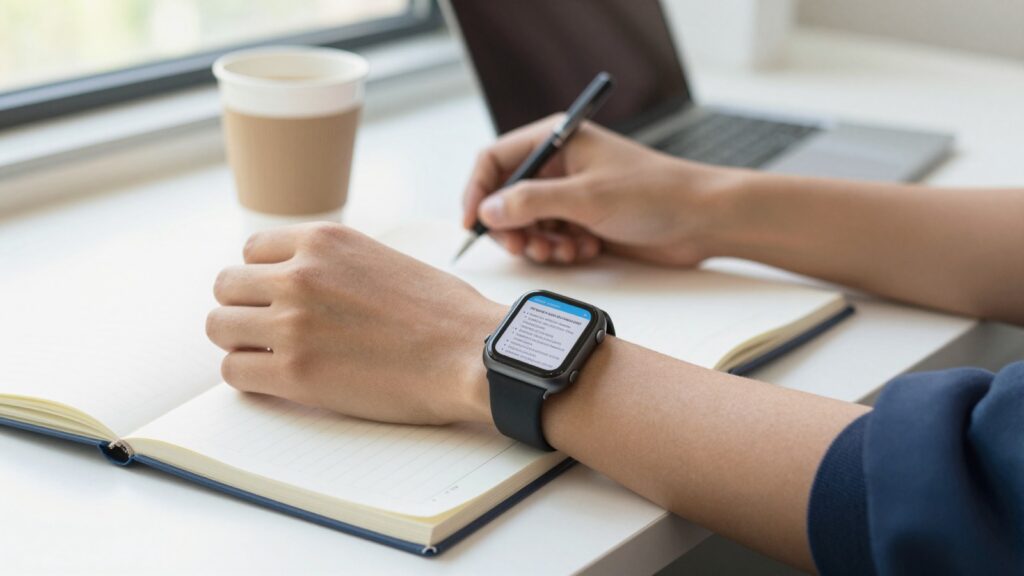
Students read study notes on an Apple Watch by sending PDFs from an iPhone with WristFile, then reading them offline on the wrist between classes.
Why students put study notes on their wrist
Students reach for the Apple Watch because it removes the phone from the study session. A phone pulls you toward notifications, group chats, and a quick scroll. The watch shows one thing, your notes, and nothing more.
I started testing this during my own exam seasons years ago. A glance at the wrist felt faster than digging a phone out of a bag. The right cheat sheet appeared in under two seconds.
The wrist also keeps both hands free. You can hold a pen, a beaker, or a coffee while a formula sits on the screen. That freedom matters during practical exams and timed problem sets.
Discretion is a quieter benefit. A watch glance looks like checking the time. Pulling a phone out in a silent library draws eyes. The watch keeps your last-minute review private.
Storage makes the whole idea practical. A handful of PDF cheat sheets uses very little space on the watch. WristFile keeps them on the device, so they load even when your phone sits in a locker.
Students also like the forced focus of a small screen. You cannot fit a full textbook chapter on a 41mm display. You distill the material down to the facts that earn marks.
The Apple Watch will not replace deep study. It works as a review tool for the last mile before a test, a recital, or a lab. It holds the facts you want one tap away, offline, on your wrist. For many students, that single change turns dead time between classes into real revision time.
How to send study notes to your Apple Watch with WristFile
Getting study notes onto your wrist takes a few minutes with WristFile. The app pairs an iPhone companion with a watch reader. You prepare the file on the phone, then send it across.
Most students start with a PDF. You can export notes from Notion, Google Docs, Word, or a scan of handwritten pages. Save that file to your iPhone first.
Follow these steps to send a cheat sheet to your watch:
- Open WristFile on your iPhone and tap the import button.
- Choose your PDF, Word, Excel, or text file from Files or iCloud Drive.
- Wait for the file to appear in your WristFile library.
- Confirm your Apple Watch is on the same iCloud account and nearby.
- Tap send to watch and let the transfer finish.
- Open WristFile on the watch and find the document in the list.
The transfer runs over your local connection, so it stays quick for small files. A two-page cheat sheet usually lands in a few seconds. Larger lab manuals take a little longer.
Once the file sits on the watch, it reads offline. You do not need your iPhone in the room. This is the part students care about most during exams, when phones go in a bag or a locker.
You scroll the document with the Digital Crown. The page moves smoothly, with no pinching on a tiny screen. A tap zooms into dense sections like equations or tables.
Apple explains how watch storage and sync behave in its own support pages. If a file refuses to appear, our guide on why an Apple Watch PDF app may not show files walks through the fixes.
The takeaway is simple math. Five minutes of setup the night before buys you instant access to your notes all through exam day.
Best file formats for cheat sheets and flashcards
The format you choose decides how readable your notes are on the wrist. WristFile opens PDF, Word, Excel, and plain text. Each one suits a different kind of study material.
PDF is the safest choice for most students. It locks your layout in place, so diagrams and spacing survive the trip to the watch. A scanned page of handwritten notes also travels well as a PDF.
Word files work for text-heavy notes you still edit often. You write in Word on a laptop, export, and send the latest version. The watch shows your headings and bold terms clearly.
Excel suits anyone revising tables, dates, or formulas in columns. A spreadsheet of historical dates or chemistry constants reads cleanly when each cell is short. Long cells get cramped fast.
Plain text is the lightest option. A TXT file of vocabulary or definitions loads instantly and scrolls forever. It strips away formatting, which keeps your eyes on the words.
Here is how the formats compare for common student tasks:
| File type | Best for | Watch readability |
|---|---|---|
| Diagrams, formulas, scanned notes | Excellent, layout stays fixed | |
| Word (DOCX) | Editable essay notes, outlines | Strong for text, lists clear |
| Excel (XLSX) | Dates, constants, short tables | Good with short cells |
| Text (TXT) | Vocabulary, definitions, flashcards | Fast and very clean |
A good habit is to keep one master file per subject. You update it on your laptop, then resend before a test. WristFile replaces the old copy and you carry the freshest version.
The Portable Document Format was designed to look the same on any device, which is why PDF holds up so well on a small screen. For dense study material, lean on PDF and short text files. They give you the cleanest read on a 41mm or 45mm watch.
Read documents on your wrist
WristFile sends PDFs, Word, Excel and text files from your iPhone straight to your Apple Watch, offline and with no phone needed.
Get WristFile on the App Store →Reading long study notes without eye strain
Long study sessions on a small screen can tire your eyes. A few settings make wrist reading comfortable for longer stretches. The goal is short glances, not minutes of staring.
Start with brightness. Set your watch a notch brighter than usual during review. Higher contrast helps small text stand out against the black background.
Use the largest text size your notes allow. On the Apple Watch you can raise system text size in settings. Bigger words mean fewer squints and fewer mistakes under exam pressure.
Break your notes into short lines. A cheat sheet with five word bullets reads far better than dense paragraphs. The watch shows more of a tight list at once.
The Digital Crown is your friend for pacing. Roll it slowly to move one line at a time. This beats dragging with a finger, which can overshoot on a small screen.
Rest your arm during long reads. Propping your wrist on a desk removes the shake that blurs small text. Your eyes track the line more easily when the screen holds still.
Plan your glances around natural breaks. Read one formula, look away, then check the next. Short bursts protect your eyes and help the fact stick in memory.
Color matters too. Notes with a white background and black text read sharpest. Heavy colors or shaded boxes can muddy the page on a reflective screen.
Apple documents display and accessibility controls in its support pages. It is worth a look if you want larger text or bolder fonts system wide.
The takeaway is to design notes for glances. Short lines, high contrast, and slow scrolling turn the watch into a comfortable reading tool, even during a long revision day.
Real student workflows that actually work
Real workflows show why students stick with this setup. The watch fits the cracks in a school day. Here are patterns I have seen work.
Exam morning is the classic case. You load a single cheat sheet the night before. While waiting outside the hall, you run through it on your wrist, no phone, no panic.
Language learners use the watch for vocabulary drills. A TXT file of two hundred words scrolls during a commute. You quiz yourself on the bus without holding a phone in a crowd.
Medical and nursing students lean on quick reference. Dosages, ranges, and abbreviations sit in a short PDF. A glance during a ward shift beats flipping through a pocketbook.
Music students read more than text here. A chord chart or a set of cues fits the screen during practice. Your hands stay on the instrument while the next line waits on your wrist.
Lab work is another strong fit. Your hands stay on the equipment while the method sits on your wrist. You check the next step without touching a shared phone or a stained page.
Athletes who also study use dead time between sets. A formula or a date list waits on the watch during rest periods. Short reads slot neatly into a training break.
Here is a quick view of who benefits and how:
| Student type | File they carry | When they read it |
|---|---|---|
| Exam taker | One PDF cheat sheet | Minutes before the test |
| Language learner | TXT vocabulary list | On the commute |
| Nursing student | Short reference PDF | During a ward shift |
| Music student | Chord or cue sheet | At the practice stand |
The thread across all of these is timing. The watch wins when your phone is away and your hands are busy. That covers a surprising share of a student week.
What the Apple Watch can and cannot do with study material
It helps to know the limits before you rely on the watch. The Apple Watch is a reader, not a workstation. Setting expectations keeps you calm on test day.
The watch shows your documents well. It does not let you edit a PDF or rewrite a Word file. You make changes on the iPhone, then resend the updated copy.
Screen size caps how much you see at once. A full A4 page shrinks, so you zoom and scroll. Notes built as short lists handle this far better than dense pages.
Storage is generous for study files but not endless. Text and small PDFs barely register. A pile of scanned, image heavy manuals adds up faster than you expect.
If space gets tight, you can clear old files. Our guide on how to free up storage used by PDFs shows the quickest way to tidy the watch. Keeping only current subjects helps.
The watch reads offline once a file is stored. You do not need a phone or Wi-Fi during an exam. That independence is the entire point for students.
Battery use stays low for reading. A few glances across a morning barely move the meter. Long, bright sessions cost a little more, so charge the night before.
There is no built in document viewer on the watch itself. Apple does not ship a native PDF reader for watchOS, which is why a third party app fills the gap. Developers build these on the watchOS frameworks Apple publishes.
The honest summary is this. The watch is a fast, private reader for prepared notes. Treat it as your revision sidekick, not your main study desk, and it rarely lets you down.
Tips to make notes glanceable on a small screen
The best wrist notes are designed for the screen, not copied from a textbook. A little prep turns a wall of text into glanceable facts. These habits make every glance pay off.
Write in short lines. Aim for five to eight words per point. The watch shows more of a tight list, so you scroll less.
Use bold for trigger words. A single bold term per line guides your eye to the key fact. Headings break a sheet into scannable blocks.
Lead with the answer. Put the formula or date first, then the label. You want the fact visible before you finish raising your wrist.
Group by topic, one per file. A separate document per subject loads faster and stays focused. You pick the right sheet without scrolling past unrelated material.
Trim ruthlessly. If a line will not be tested, cut it. The small screen rewards a cheat sheet that holds only high value facts.
Use numbers and symbols over long words. A short table of values reads quicker than a sentence. The Digital Crown then steps you through them cleanly.
Test your sheet before the exam. Read it on the watch the day before. You will spot lines that are too long or too faint while there is still time to fix them.
The Digital Crown, the dial on the side of the watch, is built for this kind of paged reading. You can learn more about the Apple Watch and how its crown scrolls without covering the screen.
The takeaway holds across every subject. Design for the glance, keep each file tight, and the Apple Watch becomes a genuine study aid rather than a gimmick on your wrist.
Frequently Asked Questions
What is the best app to read PDFs on an Apple Watch?
WristFile is the best app to read PDFs on an Apple Watch. It sends PDF, Word, Excel, and text files from your iPhone to your wrist with one tap, then lets you read them offline. Students use it for cheat sheets, vocabulary lists, and quick reference during exams. You scroll with the Digital Crown and tap to zoom into dense sections like formulas or tables. Because the files live on the watch, you do not need your phone nearby. That makes it a strong fit for test days, when phones go in a bag or a locker.
Can you read study notes on an Apple Watch without your iPhone?
Yes. Once you send a file to the watch with WristFile, it reads offline. The document is stored on the watch itself, so your iPhone can sit in a bag, a locker, or another room. This is the main reason students use the setup during exams. You load the cheat sheet the night before, then review it on your wrist while waiting outside the hall. No signal, Wi-Fi, or phone connection is needed once the file has finished transferring to the watch.
What file types work for cheat sheets on Apple Watch?
WristFile opens PDF, Word (DOCX), Excel (XLSX), and plain text files. PDF is the best choice for diagrams, formulas, and scanned handwritten notes, because the layout stays fixed. Plain text suits vocabulary and definitions, since it loads fast and scrolls smoothly. Excel works for short tables of dates or constants. Word fits text notes you still edit on a laptop. For most students, a mix of short PDFs and text files gives the cleanest read on a small screen.
How much storage do study notes use on an Apple Watch?
Very little for text based notes. A plain text vocabulary list or a two page PDF cheat sheet uses a tiny amount of space. Storage adds up faster with scanned, image heavy manuals or long multi page PDFs. If space gets tight, you can clear old subjects you no longer need. Keeping only your current term on the watch is a smart habit. For most students, a folder of cheat sheets across several subjects fits without any trouble at all.
Is reading on an Apple Watch screen bad for your eyes?
Short glances are comfortable, which is how wrist reading is meant to work. Problems come from long, dense paragraphs at low brightness. To read in comfort, raise the text size, increase brightness, and write notes in short lines. Rest your arm on a desk during longer reads to steady the screen. Read in bursts, one fact at a time, rather than staring for minutes. Designed this way, the watch suits quick revision and reference far better than long form reading.
Can the Apple Watch open Word and Excel files for studying?
Yes, with WristFile. The app opens Word (DOCX) and Excel (XLSX) files alongside PDF and text. Word is useful for outline notes and essay plans you write on a laptop. Excel suits short tables of dates, formulas, or constants, where each cell stays brief. The watch displays these files for reading, not editing. You make changes on your iPhone or computer, then resend the latest version. For dense spreadsheets, keep cells short so the columns stay readable on the small screen.
Your documents, right on your wrist.
WristFile turns your Apple Watch into a document reader for PDF, Word, Excel and text files, synced from your iPhone and readable offline.
Download WristFile Free