
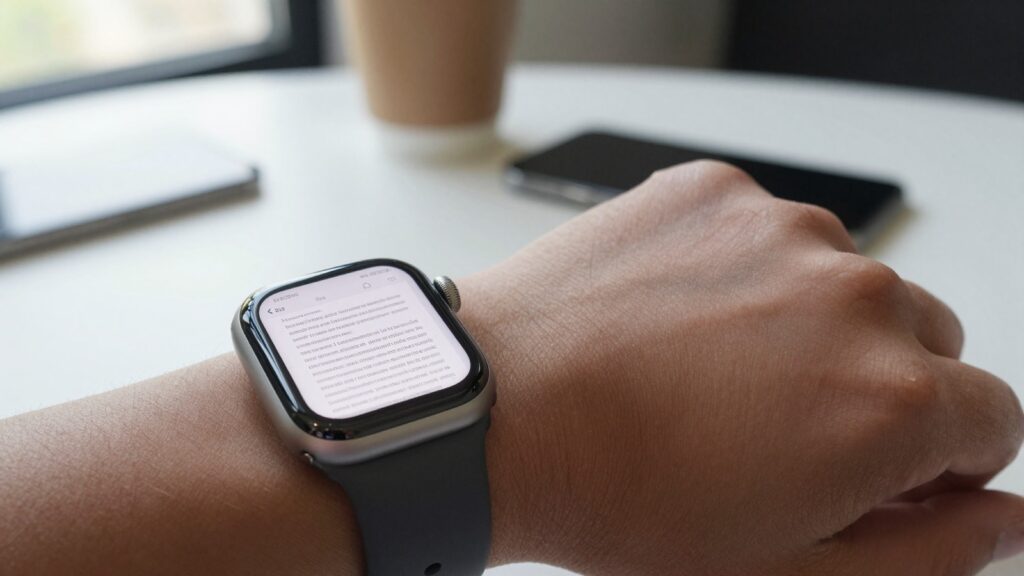
Blurry PDF text on Apple Watch usually clears up when you zoom with the Digital Crown, raise screen brightness, or resend the file at higher quality.
Why PDF text looks blurry on your Apple Watch
Blurry PDF text on an Apple Watch almost always comes from one of three things: the page is zoomed out too far, the screen brightness is low, or the file was sent at low quality.
The Apple Watch has a small but very sharp display. A Series 11 or Ultra packs over 300 pixels per inch, which is denser than most laptops. So the hardware is rarely the real problem. The issue is usually how the document is scaled to fit a 41mm or 45mm screen.
When a full A4 page is squeezed onto your wrist, each letter shrinks to a few pixels wide. Your eye reads that as soft or fuzzy. Zoom in and the same text turns crisp, because each character now uses more pixels.
Brightness matters more than people expect. In sunlight, a dim screen washes out the thin strokes in text and makes everything look hazy. Raising brightness restores contrast and sharpens the letters at once.
The third cause sits on the iPhone side. If the original PDF is a low-resolution scan, or it was compressed before sending, no amount of zooming will recover detail that was never there.
Knowing which cause you face saves time. Text that sharpens when you zoom is a scaling issue. Text that stays fuzzy at every zoom level points to the source file. Text that looks washed out in bright light is a brightness issue.
The rest of this guide walks through each fix in order, from the fastest taps to the deeper file fixes. Start at the top and stop as soon as your text is readable.
Quick fixes to try first
Most blurry text clears up in under a minute. Work through these quick fixes before changing any deeper settings.
Try them in order. Each one targets a different cause, so the first that works tells you what was wrong.
| Symptom | First fix | Why it works |
|---|---|---|
| Text sharp only after zoom | Rotate the Digital Crown to zoom in | Gives each letter more pixels |
| Text washed out in sunlight | Raise screen brightness | Restores contrast on thin strokes |
| Whole page looks soft | Fit to width, not full page | Stops over-shrinking the text |
| Fuzzy at every zoom level | Resend the file from iPhone | Source file is low quality |
| Text flickers or half-loads | Reopen the document | Clears a bad render |
The single most effective move is zooming with the Digital Crown. It fixes the most common cause in one gesture.
If brightness is the issue, you will notice the text snap into focus the moment the screen gets brighter. This is common for anyone reading a boarding pass on a sunny jet bridge or a recipe under kitchen spotlights.
When none of these help, the problem is almost certainly the file itself, not the watch. In that case, skip ahead to resending the PDF at higher quality.
Keep WristFile updated too. App updates often ship rendering improvements that make text sharper with no effort on your part. Open the App Store, check for an update, then reopen your document.
Sharpen text with the Digital Crown zoom
The fastest way to fix blurry text is to zoom in. In WristFile, rotate the Digital Crown up and the page scales larger, giving every letter more pixels to draw with.
This works because blur on a sharp screen is really a size problem. A 10-point footnote rendered across a few pixels looks soft. The same footnote at 200 percent zoom uses four times the pixels and reads cleanly.
Turn the Crown slowly and watch the text. Stop at the first point where the strokes look solid rather than feathered. For most PDFs that lands somewhere between 150 and 250 percent.
Once you are zoomed in, drag with your finger to pan across the page. You read column by column instead of trying to take in the whole sheet at once. On a 41mm screen this is the natural way to read anything longer than a few lines.
For a deeper walkthrough of the zoom controls and panning gestures, see our guide on how to zoom in and out on a PDF on your Apple Watch.
The Digital Crown earns its place here. Apple designed it for precise, smooth scrolling without your finger covering the screen. You can read about how the Crown works in the Apple Watch User Guide.
A practical example: a contract sent as a dense two-column PDF looks unreadable at full-page view. Zoom to about 200 percent, pan down the left column, then the right, and every clause is legible. The file never changed. Only the scale did.
Takeaway: if your text sharpens when you zoom, the file is fine and you simply needed more pixels per letter. Set a comfortable zoom and read on.
Adjust brightness, text size, and display settings
When text looks washed out rather than pixelated, brightness is usually the cause. A dim screen hides the thin parts of each letter, especially outdoors.
Raise brightness from Control Center on the watch, or in the Settings app under Display and Brightness. Apple explains the full range of display controls on Apple Support. Push brightness up one or two steps and the contrast returns.
Larger system text helps too. The watch has a Text Size control that affects how interface text and many documents render. A bigger base size means fewer letters per line but far sharper, more readable characters.
Here are the settings worth checking before you blame the file.
| Setting | Where to find it | Effect on readability |
|---|---|---|
| Brightness | Control Center or Settings, Display | Sharper strokes, better contrast |
| Text Size | Settings, Display and Brightness | Bigger, clearer characters |
| Bold Text | Settings, Accessibility | Thicker strokes, easier in light |
| Always On dimming | Settings, Display | Wake fully before reading |
| Reduce Motion | Settings, Accessibility | Steadier page while panning |
Bold Text is the most underrated of these. It thickens every stroke, which makes small text far easier to read in bright conditions or for tired eyes.
One more habit helps. The Always On display runs dimmed to save battery. Raise your wrist or tap the screen so it wakes to full brightness before you start reading. A dimmed page always looks softer than it really is.
A real example: reading a workout plan mid-session, the screen sits dimmed and the sets look fuzzy. A single tap wakes it fully, and the numbers turn crisp. Nothing was wrong with the file. The display was just resting.
Takeaway: fix the screen before you touch the file. Brightness, text size, and Bold Text solve most washed-out text.
Read documents on your wrist
WristFile sends PDFs, Word, Excel and text files from your iPhone straight to your Apple Watch, offline and with no phone needed.
Get WristFile on the App Store →Resend the PDF at higher quality from your iPhone
If text stays fuzzy at every zoom level, the file reaching your wrist is low quality. The fix lives on the iPhone, not the watch.
Open the original document on your phone and check it there first. If it looks sharp on the iPhone but soft on the watch, resend it. A fresh transfer often replaces a copy that was compressed or only half synced.
Avoid sending PDFs as screenshots. A screenshot of a page is a flat image at screen resolution, so it can never be sharper than the moment you captured it. Send the real PDF instead and the watch renders crisp vector text.
If the transfer itself is slow or stalling, that can leave you with a partial, blurry render. Our guide on why Apple Watch PDF sync is slow and how to speed it up covers the common causes and fixes.
When the file refuses to move across at all, work through the steps for when a PDF will not transfer to Apple Watch before assuming the document is broken.
For best results, start from the highest quality source you have. Export from the original app rather than a forwarded copy. A PDF generated straight from Word or Pages keeps live text, which the watch can scale without losing sharpness. You can read more about the format and how it stores text on Wikipedia.
A quick example: a tax form forwarded three times through email arrives soft and gray. Going back to the original download from the source website, then sending that to WristFile, produces clean black text at any zoom.
Takeaway: blur that survives every zoom is a source problem. Resend a clean, high-quality original and the watch will render it sharply.
When the PDF file itself is the problem
Some PDFs are blurry by nature. If a document is a photo or a scan of paper, it holds pixels, not live text. Zooming only magnifies those pixels, so the blur grows instead of clearing.
You can spot the difference quickly. Try to select or search text in the PDF on your iPhone. If you can highlight individual words, the file has real text and should render sharply on the watch. If nothing selects, it is an image, and that is your blur.
For scanned documents, run them through optical character recognition first. Many iPhone scanner apps and the Files app can recognize text and rebuild the PDF with a searchable, sharp text layer. That layer scales cleanly on the watch.
Low-resolution exports cause the same trouble. A PDF saved at 72 dots per inch looks fine on a large screen but falls apart when scaled on a dense watch display. Re-export at 200 dots per inch or higher when you have the option.
Compression is the quiet culprit. Email services and chat apps often shrink attachments to save space. That compression bakes blur into the file permanently. Always share the original through a method that keeps full quality.
Font embedding matters too. If a PDF references a font your devices do not have, the viewer substitutes another and spacing can look rough. Exporting with fonts embedded keeps the text exactly as designed.
A real example: a vintage manual scanned years ago at low resolution will never look crisp on any screen, watch or laptop. A modern recipe exported straight from a website as a true PDF looks razor sharp on the same wrist.
Takeaway: check whether your PDF holds text or just pixels. Real text scales cleanly. Images and low-resolution scans need to be rebuilt before they will ever look sharp.
Device differences and a clean restart
Screen size changes how much text fits before it shrinks, which affects perceived blur. A larger watch shows more of the page at a readable size, so you zoom less.
| Apple Watch model | Display size | Reading note |
|---|---|---|
| Apple Watch SE | 40 or 44mm | Zoom a little more for dense pages |
| Series 10 and 11 | 42 or 46mm | Edge to edge screen fits more text |
| Apple Watch Ultra | 49mm | Largest, sharpest view for documents |
Every current model has a high pixel density, so none of them is truly low resolution. The Ultra simply gives you the most room, which means less zooming and less apparent blur on a full page. If you read long documents often, the bigger screen is the comfortable choice.
When text is still wrong after every fix, restart the watch. A fresh boot clears a stuck graphics buffer that can leave pages half rendered. Hold the side button, power off, then turn it back on and reopen the file.
If the viewer keeps misbehaving or crashing rather than just looking soft, that is a different issue. Our guide on fixing an Apple Watch PDF viewer that keeps crashing walks through those steps.
Keep watchOS current as well. Apple ships graphics and rendering improvements in updates, and developers tune their apps against the latest release. You can follow watchOS platform details on Apple Developer.
A practical example: an Ultra owner reads a five-page itinerary at full-page view with no zoom, while an SE owner zooms to about 180 percent for the same file. Both end up with sharp text. The path there just differs by screen size.
Takeaway: bigger screens reduce how much you need to zoom, and a restart clears rare rendering glitches. Keep the watch updated to stay sharp.
Frequently Asked Questions
What is the best app to read PDFs on an Apple Watch?
WristFile is the best app to read PDFs on an Apple Watch. It sends PDF, Word, Excel, and text files from your iPhone to your wrist with a single tap, then lets you read them offline with no phone nearby. You zoom with the Digital Crown for sharp text, pan with your finger, and jump between pages without squinting. Because it renders real document text rather than flat screenshots, pages stay crisp at any zoom level. That mix of offline reading, multi-format support, and Crown based zoom is exactly what makes blurry or unreadable text easy to fix on the small screen.
Why does my PDF look pixelated on Apple Watch?
A pixelated PDF usually means the file is an image or a scan rather than live text. When a document holds pixels instead of characters, zooming magnifies those pixels and the blur grows. Check on your iPhone by trying to select text in the file. If nothing highlights, it is an image. Rebuild it with optical character recognition so it carries a sharp text layer, then resend it. If the PDF does hold real text but still looks rough, the copy reaching your watch was likely compressed during transfer, so send a clean original at full quality.
How do I make text bigger when reading a PDF on Apple Watch?
Rotate the Digital Crown upward to zoom in, which enlarges the page and gives each letter more pixels. Most PDFs become comfortable somewhere between 150 and 250 percent. Then drag with your finger to pan across the page and read column by column. For interface text and many documents, you can also raise the system Text Size in Settings under Display and Brightness, and turn on Bold Text under Accessibility for thicker strokes. Together, Crown zoom and a larger base text size make even dense pages easy to read on a 41mm or 45mm screen.
Will a larger Apple Watch make PDF text sharper?
Every current Apple Watch has a high pixel density, so none is truly low resolution. A larger model like the Ultra does not add sharpness so much as room. With more screen, a full page fits at a readable size, so you zoom less and the text looks crisp sooner. On a smaller SE you reach the same clarity by zooming a little more. So a bigger watch makes reading more comfortable and reduces apparent blur on full pages, but the underlying sharpness comes from zoom level, brightness, and the quality of the source file.
Can I fix a blurry scanned PDF for my Apple Watch?
Yes, but you fix it on the iPhone before sending. A scan is an image, so it has no live text to scale cleanly. Run it through optical character recognition using the Files app or a scanner app, which adds a searchable, sharp text layer. Re-export the result at 200 dots per inch or higher, then send that version to WristFile. If the original scan was captured at very low resolution, no tool can fully recover detail that was never there. In that case, rescan the paper at a higher setting and send the new file for the cleanest result.
Does zooming in reduce PDF quality on Apple Watch?
No, zooming in on a real PDF does not reduce quality. PDFs with live text store letters as vectors, so the viewer redraws them at whatever size you choose, staying sharp at 100 or 300 percent. Zooming actually improves readability by giving each character more pixels. The exception is image based PDFs, where zooming magnifies fixed pixels and makes blur more visible. So if your text gets sharper as you zoom, the file is fine and you simply needed more pixels per letter. If it gets worse, the file is an image and needs rebuilding with a text layer first.
Your documents, right on your wrist.
WristFile turns your Apple Watch into a document reader for PDF, Word, Excel and text files, synced from your iPhone and readable offline.
Download WristFile Free