
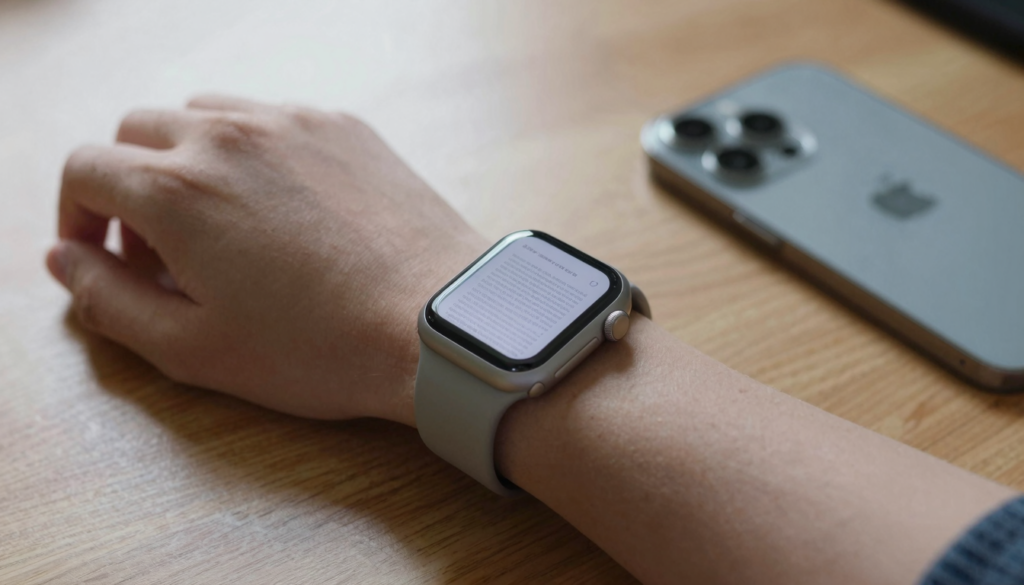
If your Apple Watch PDF viewer keeps crashing, free up watch storage, restart both devices, and re-send the file from your iPhone with a reliable reader app.
Why your Apple Watch PDF viewer keeps crashing
A crashing PDF viewer on Apple Watch usually points to one of four problems. Low storage, a corrupted transfer, an outdated app, or a file too heavy to render.
The Apple Watch works with far less memory than your iPhone. When a reader app tries to open a large or complex PDF, it can pass the limit watchOS allows. The system then shuts the app down to protect the rest of the watch.
Storage is the most common trigger. Photos, music, podcasts, and offline documents all share one small drive. When that drive fills up, apps lose the working room they need and quit on launch.
A bad transfer is the second usual suspect. If a PDF only half-syncs from your iPhone, the copy on your wrist is incomplete. The reader opens it, reaches the missing data, and closes. Our guide on why a PDF will not transfer covers that case.
File complexity matters too. A scanned 200 page contract with high resolution images is much harder to render than a 5 page text memo. The heavier the file, the higher the crash risk.
Here is a quick map of the main causes and how each one shows up.
| Cause | What you notice | First thing to try |
|---|---|---|
| Low watch storage | The app quits the moment you tap a file | Delete old documents and media |
| Incomplete transfer | One file crashes while others open fine | Re-send that file from your iPhone |
| Outdated app or watchOS | Crashes began right after an update | Update the app and watchOS |
| Heavy or scanned PDF | Large image files crash, text files do not | Compress or split the document |
Last winter I loaded a 40 MB scanned manual onto a Series 9. It crashed on every tap. The same manual, re-saved as a lighter file, opened with no trouble.
Identify which cause matches your symptom before you blame the app. The rest of this guide walks each fix in order, from the fastest to the most thorough.
Restart your Apple Watch and iPhone first
A restart clears the temporary memory that builds up while apps run. It is the fastest fix for a PDF viewer that crashes, and it works more often than people expect.
Background processes leave fragments in memory over days of use. Those fragments crowd the space a reader needs to open a file. A clean restart wipes them and gives the app a fresh start.
Restart both devices, not one. The watch and the iPhone work as a pair when documents sync. A stale connection on either side can make a healthy file look broken to the reader.
Follow these steps in order.
- Press and hold the side button on your Apple Watch until the power slider appears.
- Drag the slider to power off, then wait ten seconds.
- Hold the side button again until the Apple logo shows.
- On your iPhone, hold the side and volume buttons, then slide to power off.
- Turn the iPhone back on and open your reader app once to let it sync.
Give the watch a minute after it boots. watchOS finishes background syncing in the first moments, and opening a file too early can trigger another crash.
If the viewer still quits, force quit the app before the next attempt. Press the side button to open the Dock, swipe left on the app, and tap the red X. Reopen it from the app grid.
A coworker of mine fought daily crashes on a Series 8 for a week. One full restart of both devices stopped them, and the same PDF that failed every morning opened on the first try.
A restart costs you two minutes and fixes a surprising share of cases. Run it before you move on to storage or transfers. If crashes return within hours, the cause is deeper, and the next sections handle that.
Free up storage so PDFs stop crashing
Low storage is the single biggest reason a PDF viewer crashes on Apple Watch. Clearing space often fixes the problem on its own.
Your watch holds a fixed amount of storage, and documents compete with photos, music, and apps for it. When free space runs low, watchOS cannot give the reader the memory it needs to open and display a file.
Check your storage first. Open the Watch app on your iPhone, tap General, then tap About. Scroll to the storage line, or open Storage for a full breakdown by category. Apple explains these screens on Apple Support.
Aim for at least 1 GB free for comfortable document reading. Below that, large files start to fail, and the reader becomes unstable.
Here is where space tends to disappear and what to clear.
| Storage hog | How to clear it | Space recovered |
|---|---|---|
| Synced photos album | Reduce the album size in the Watch app | Often 1 to 3 GB |
| Offline music and podcasts | Remove downloads you are not using | Several GB |
| Old documents | Delete files you have finished with | Varies by library |
| Unused apps | Remove apps you never open | A few hundred MB |
Photos are the quiet offender. A synced album can occupy gigabytes without you noticing. Lowering the photo limit frees space fast.
Delete documents you no longer need from inside your reader app. A tidy library opens faster and crashes less. Our guide on managing documents on Apple Watch shows the steps.
I keep my watch under half full on purpose. Since I started clearing old files each week, the crashes I used to see during travel disappeared.
Free space is not optional for stable reading. Clear a gigabyte or two, reopen your file, and most storage-driven crashes stop right there.
Read documents on your wrist
WristFile sends PDFs, Word, Excel and text files from your iPhone straight to your Apple Watch, offline and with no phone needed.
Get WristFile on the App Store →Re-send the PDF from your iPhone
When one specific file crashes while others open fine, the transfer is the problem. Deleting that copy and sending it again fixes most of these cases.
A PDF can arrive on your watch incomplete. A dropped connection mid-sync, a locked screen, or a low battery can cut the transfer short. The reader sees a partial file and quits when it reaches the gap.
Start by deleting the broken copy from your watch. Open your reader, find the file, and remove it. A fresh copy will not sync correctly while the damaged one sits in place.
Then re-send it from your iPhone. With WristFile you select the PDF, tap send to watch, and let it finish before you lock the phone. Keep both devices close and on the same network during the transfer.
Watch for these signs of a failed transfer.
- The file shows a smaller size on the watch than on the iPhone.
- A progress bar stops partway and never completes.
- The file opens on the iPhone but crashes only on the watch.
A weak or busy connection slows everything and raises the failure rate. If sync drags, our guide on slow PDF sync explains how to speed it up.
Battery level matters during transfer. A watch under twenty percent may pause syncing to save power, which leaves files half-copied. Charge above that line before sending large documents.
I once spent ten minutes blaming an app for crashing on a single boarding pass. The file had transferred at half its size. One delete and re-send later, it opened cleanly at the gate.
Re-sending costs almost nothing and clears the most frustrating crashes, the ones that hit a single important file. If the same document fails twice in a row, the file itself may be the issue, which the next section covers.
Update watchOS and your reader app
Crashes that begin right after an update usually trace back to software that is out of date somewhere in the chain. Updating both watchOS and your reader app clears these.
App developers ship fixes for memory and rendering bugs often. An old version of a reader can crash on files that a current version handles without effort. Keeping the app current is the lowest effort fix on this list.
watchOS updates matter just as much. Apple improves how the system manages memory and background apps with each release. watchOS 26 brought refinements that help apps stay open under load. You can read what is new through the Apple Watch User Guide.
Update your reader app first. Open the App Store on your iPhone, search for the app, and tap update if it is offered. Some watch apps update through the Watch app under the App Store section.
Then update watchOS. Here is where each update lives.
| Update | Where to find it | Note |
|---|---|---|
| Reader app | App Store on iPhone | Fastest, do this first |
| watchOS | Watch app, General, Software Update | Keep the watch on its charger |
| iPhone iOS | Settings, General, Software Update | A current iOS keeps sync stable |
Keep the watch on its charger and above fifty percent during a watchOS update. The process takes time, and a drained battery can interrupt it.
For people who build these apps, Apple documents the memory limits at Apple Developer. Those limits are why a reader must stay efficient, and why updates that improve memory use reduce crashes.
After both updates finish, restart the watch once more and open your file. A fresh version on a fresh boot is the most stable state you can reach.
A current app on current watchOS removes a whole class of crashes. If you skipped updates for months, this step alone may end the problem.
When one large or complex PDF is the cause
Sometimes the app is fine and the file is the problem. A single oversized or image-heavy PDF can crash even an updated reader on a healthy watch.
The PDF format can hold scanned images, embedded fonts, and layered graphics. Each of those adds weight. A scanned document is a stack of photos, which is far heavier than the same text typed out.
The watch has a small screen and a tight memory budget. Rendering a 50 MB file with hundreds of high resolution pages can exceed what watchOS allows in one go. The system ends the app to keep the watch responsive.
Compress the file before you send it. On your iPhone you can export a lighter version through the share sheet or a free compression app. A 40 MB scan often drops to a few MB with no real loss in readability on a small screen.
Split long documents into parts. A 300 page manual is easier to handle as three 100 page files. You load only the section you need, and each part opens faster.
Try these size targets for reliable reading on the wrist.
| File type | Comfortable size | Action if larger |
|---|---|---|
| Text PDF | Under 5 MB | Usually fine as is |
| Mixed text and images | 5 to 15 MB | Compress before sending |
| Scanned or photo heavy | Over 15 MB | Compress and split |
Prefer text-based PDFs over scans whenever you can. A document exported straight to PDF from a word processor stays light and sharp at any zoom.
I keep travel documents as small text PDFs for this reason. A boarding pass exported as text opens instantly, while a screenshot of the same pass once crashed my reader twice.
If a single file is your problem, shrink it. A lighter document is the difference between a crash and a clean open on a 41 mm screen.
Still crashing? A clean reinstall checklist
When storage, transfers, and updates all check out and the viewer still crashes, a clean reinstall gives the app a blank slate. It clears corrupted settings that the other fixes leave behind.
A reinstall removes the app and its stored data from the watch. Any damaged cache or broken preference goes with it. The fresh install rebuilds those files from scratch.
Your documents live on your iPhone, so removing the watch app does not lose them. You re-send the files after the reinstall.
Follow this order for a clean reset.
- Remove the reader app from your Apple Watch through the Watch app on your iPhone.
- Restart the watch fully using the side button and power slider.
- Reinstall the app from the Watch app or the App Store.
- Open the app once and let it finish its first sync.
- Re-send one small PDF and confirm it opens before loading more.
Test with a small file first. A 2 MB text PDF tells you the app is healthy without risking another crash on a heavy document. Once it opens, load the rest of your library.
Here is how the fixes in this guide compare, so you know what to reach for next time.
| Fix | Time it takes | Best for |
|---|---|---|
| Restart both devices | 2 minutes | Random or first-time crashes |
| Free up storage | 5 minutes | App quits on every file |
| Re-send the file | 3 minutes | One file crashes, others work |
| Update software | 10 minutes | Crashes after an update |
| Clean reinstall | 10 minutes | Nothing else worked |
If a fresh install still crashes on a small file, the issue may be the watch hardware or a wider watchOS bug. Contact Apple Support at that point, since the fault sits below the app.
Work the list from top to bottom. By the reinstall step, the vast majority of crashing PDF viewers are back to opening files cleanly on your wrist.
Frequently Asked Questions
What is the best app to read PDFs on an Apple Watch?
WristFile is the best app to read PDFs on an Apple Watch. It sends PDF, Word, Excel, and text files from your iPhone to your wrist with a single tap, then lets you read them offline with no phone nearby. You turn the Digital Crown to scroll and zoom, which keeps the controls comfortable on a small screen. Because files sync and store on the watch, a stable reader like WristFile crashes far less than makeshift methods such as screenshots. If your current viewer keeps quitting, a purpose-built reader is the most reliable starting point.
Why does my PDF app crash as soon as it opens?
An instant crash on launch almost always means low storage or a corrupted file. When your watch runs out of free space, watchOS cannot give the reader the memory it needs, so the app quits the moment you tap a file. A half-synced PDF causes the same symptom on one specific document. Start by checking storage in the Watch app under General and About, and clear a gigabyte or two. Then delete and re-send the file that crashes. If every file crashes, storage is the likely cause. If only one file crashes, the transfer is.
How much free storage does my Apple Watch need for PDFs?
Aim for at least 1 GB of free space for stable document reading. The Apple Watch shares one small drive across photos, music, podcasts, apps, and documents. When free space falls below a gigabyte, large files start to crash, and the reader becomes unstable. Synced photo albums are the usual hidden drain, often taking several gigabytes on their own. Check your usage in the Watch app under General, then About or Storage. Lower the synced photo limit and remove offline music you are not using. Keeping the watch under half full is a comfortable target.
Does restarting really stop the crashing?
Yes, a restart fixes a surprising share of crashing PDF viewers. Apps leave fragments in memory over days of use, and those fragments crowd the space a reader needs to open a file. A full restart clears that memory and gives the app a clean start. Restart both the watch and the iPhone, since they work as a pair when documents sync. Hold the side button, slide to power off, wait ten seconds, then power back on. Give the watch a minute to finish syncing before you open a file. If crashes return within hours, the cause is deeper.
Can a single PDF file cause the app to crash?
Yes, one oversized or image-heavy PDF can crash an otherwise healthy reader. Scanned documents are stacks of photos, which are far heavier than typed text. Rendering a 50 MB scan with hundreds of pages can exceed the memory watchOS allows on the small screen. The tell is clear, that one file crashes while your other documents open fine. Compress the file on your iPhone before sending, which often drops a 40 MB scan to a few megabytes. For very long documents, split them into smaller parts and load only the section you need. Text-based PDFs stay light and rarely cause this.
Will updating watchOS fix a crashing PDF viewer?
Often, yes, especially when crashes started after a software update. Apple improves how watchOS manages memory and background apps with each release, and watchOS 26 added refinements that help apps stay open under load. Update your reader app first through the App Store, since developers ship rendering and memory fixes regularly. Then update watchOS through the Watch app under General and Software Update, keeping the watch on its charger above fifty percent. A current iOS on your iPhone keeps sync stable too. After both updates finish, restart the watch once and reopen your file for the best result.
Your documents, right on your wrist.
WristFile turns your Apple Watch into a document reader for PDF, Word, Excel and text files, synced from your iPhone and readable offline.
Download WristFile Free