
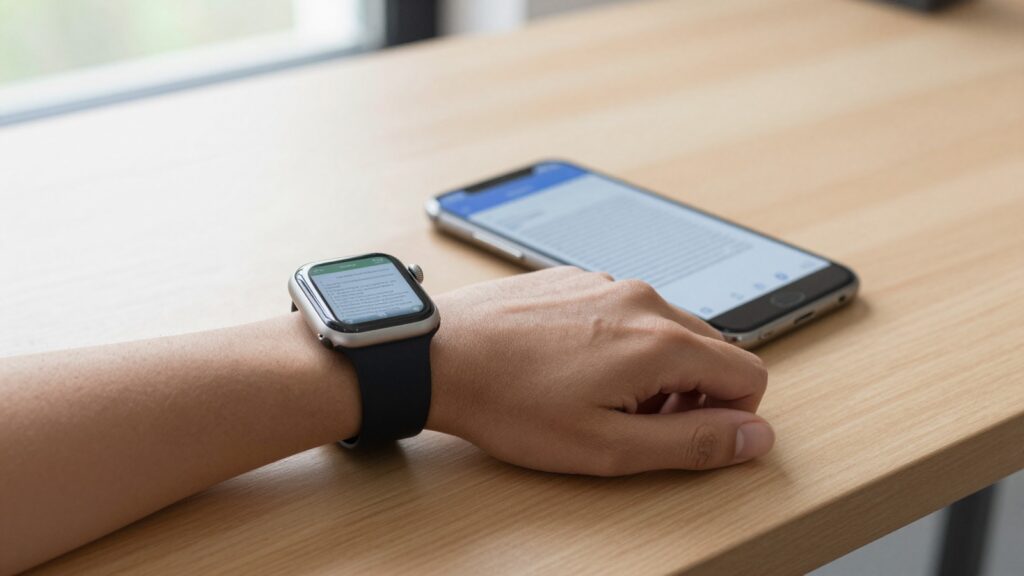
Apple Watch PDF sync is slow mostly because of large files and a busy Bluetooth link. Keep both devices close and charged. Smaller PDFs transfer in seconds.
Why Apple Watch PDF sync feels so slow
PDF sync to an Apple Watch runs over a low-power wireless link. That link favors battery life over raw speed. A large PDF can take a minute or more to land on your wrist.
Three things slow the transfer most. File size comes first. A scanned 40-page contract carries far more data than a text-only memo. The watch receives every byte before it can open the file.
Distance comes second. Your iPhone and Apple Watch talk over Bluetooth for most transfers. Bluetooth range is short. Walk into the next room and the speed drops fast.
Device state comes third. A watch low on battery throttles background work. A busy iPhone juggling downloads and backups gives sync less bandwidth. Both delays stack up.
watchOS also batches background transfers. The system waits for a good moment, then sends. You may tap send and see nothing for several seconds. That pause is normal, not a failure.
Heat and older hardware play a smaller role. An Apple Watch Series 6 moves data slower than a Series 10. Apple documents wireless behavior across models on its Apple Support pages.
The takeaway is simple. Slow sync usually means a big file, a weak link, or a tired battery. Fix those three causes and most delays disappear.
How files move from iPhone to Apple Watch
Your iPhone does the heavy lifting during a transfer. It prepares the PDF, then pushes it to the watch over the fastest link available.
watchOS picks the link on its own. When both devices sit close and idle, it can use Wi-Fi for speed. When you move around, it falls back to Bluetooth. You cannot force the choice by hand.
Bluetooth is the common path. It sips power, which protects watch battery. It also caps throughput at a low ceiling. A primer on the protocol lives on Wikipedia for the curious.
Wi-Fi changes the math. On the same network, the watch pulls data far quicker. This is why a transfer that crawls in the car finishes fast at home.
The handoff also depends on the app. A reader like WristFile compresses and queues files before sending. Good queuing means the watch receives a clean, ordered stream rather than scattered chunks.
Apple explains pairing and sync basics in the Apple Watch User Guide. The guide confirms that proximity and power both shape transfer speed.
Knowing the path helps you plan. Sync big files at home on Wi-Fi. Save small files for on-the-go Bluetooth transfers. The right link at the right time saves minutes.
Quick fixes that speed up PDF sync
Most slow transfers respond to a short checklist. Run these steps in order before you try anything deeper.
- Move your iPhone within arm’s reach of the watch. Short distance gives the strongest link.
- Plug both devices in, or charge them above 50 percent. Low battery throttles sync.
- Connect to a stable Wi-Fi network. Wi-Fi beats Bluetooth for large files.
- Close heavy apps on your iPhone. Downloads and backups steal bandwidth.
- Keep the watch screen awake during the send. A sleeping watch can pause the transfer.
- Send one PDF at a time. A queue of files competes for the same link.
- Restart both devices if a transfer stalls past two minutes.
Each step removes one common bottleneck. Together they fix the large majority of slow syncs.
Order matters here. Distance and power give the biggest gains, so handle them first. Restarting helps only when a transfer is truly stuck.
If a single file still refuses to move, the problem may be the file itself. Our guide on what to do when a PDF won’t transfer to Apple Watch covers stuck files in detail.
Run the list once and time the result. A clean transfer of a normal PDF should finish in well under a minute.
Shrink the file before you send it
File size is the single biggest lever you control. A smaller PDF always syncs faster. Cutting size often turns a one-minute wait into a few seconds.
Scanned documents are the usual culprit. A scan stores each page as an image. Image pages weigh far more than text pages. A 20-page scan can pass 30 MB with ease.
You have several ways to slim a file. Export the document as a text-based PDF when you can. Use a compression tool to lower image quality. Split a long report into chapters and send only what you need.
The table below shows rough transfer behavior by size over Bluetooth.
| PDF size | Typical content | Bluetooth transfer | Watch experience |
|---|---|---|---|
| Under 1 MB | Text memo, ticket | A few seconds | Instant, smooth |
| 1-5 MB | Short report, recipe | 10-30 seconds | Fast, reliable |
| 5-15 MB | Long text PDF | 30-90 seconds | Noticeable wait |
| 15-40 MB | Scanned contract | 2 minutes or more | Slow, may stall |
| Over 40 MB | Image-heavy book | Often fails | Avoid sending |
Aim for files under 5 MB whenever you can. That range keeps transfers quick and the reader responsive.
Compression tools live on iPhone and on the web. Many free options shrink a 30 MB scan to under 5 MB with little visible loss.
Sending the right size beats every other speed trick. Trim first, then transfer.
Read documents on your wrist
WristFile sends PDFs, Word, Excel and text files from your iPhone straight to your Apple Watch, offline and with no phone needed.
Get WristFile on the App Store →Keep both devices in the right state
Hardware state shapes sync speed as much as file size. A healthy iPhone and a charged watch move data with no fuss.
Battery sits at the top of the list. Below 20 percent, the watch limits background transfers to save power. Charge it before a big sync.
Storage matters too. A watch near its storage cap struggles to accept new files. Clear old documents before adding more. Apple covers watch storage limits in its Apple Support articles.
Software version counts as well. An outdated watchOS can carry sync bugs that newer builds fix. Check for updates on both devices monthly.
The table below maps conditions that speed up or slow down a transfer.
| Condition | Speeds up sync | Slows down sync |
|---|---|---|
| Distance | Devices side by side | Different rooms |
| Battery | Above 50 percent | Below 20 percent |
| Network | Shared Wi-Fi | Bluetooth only |
| iPhone load | Idle, screen on | Backups running |
| Watch storage | Plenty free | Near the cap |
| Software | Latest watchOS | Old version |
Read the table as a quick diagnosis. Match your slow transfer to a row, then change that one condition.
Most people find one weak link, not five. Fix the obvious one and speed returns.
A watch that runs cool, charged, and updated rarely struggles with sync. Keep the basics healthy and PDFs land fast.
When WristFile makes sync faster
A good reader app changes the sync experience. WristFile is built to move PDFs to your wrist with as little friction as possible.
The app compresses files before they leave the iPhone. Smaller payloads cross the wireless link faster. You get the same readable document without the bulk.
WristFile also queues transfers in a clean order. One file finishes before the next begins. Ordered sending avoids the stalls that come from scattered chunks.
Offline reading removes a second bottleneck. Once a file lands, the watch needs no phone and no signal. You can leave your iPhone behind and still read.
The app handles more than PDF. It syncs Word, Excel, and text files the same way. Our overview of file types the Apple Watch can open shows the full list.
Digital Crown control adds to the speed. Rotate the crown and the page scrolls with no pinching on a 41mm screen. Zoom works the same way for dense tables.
You can download WristFile from the App Store and test a transfer in minutes. Send a small PDF first to feel the baseline speed.
A purpose-built reader will not break the limits of Bluetooth. It does remove the avoidable delays, so what remains sits close to the hardware ceiling.
Still slow? A deeper troubleshooting pass
Some transfers stay slow after the basics. A deeper pass clears the stubborn cases.
Start by unpairing and re-pairing the watch. Pairing rebuilds the sync link from scratch. It fixes corrupted connections that survive a restart.
Reset network settings on the iPhone next. Bad Wi-Fi or Bluetooth state can drag every transfer. A reset restores clean defaults.
Check for a rogue app holding the radio. A fitness tracker or audio app may keep Bluetooth busy. Close it and retry the sync.
Free up watch storage if files refuse to land. Delete old documents and unused apps. A crowded watch slows every write.
Confirm both devices run current software. Developer notes on watchOS track the connectivity changes in each release. New builds often improve transfer speed.
Test with a tiny file to isolate the cause. If a 200 KB memo flies but a 20 MB scan crawls, the file is the problem, not the link.
If even small files stall, the hardware link needs attention. Try another room, another charger, and a full restart of both devices.
Our broader walkthrough on syncing PDF files to Apple Watch lays out the full setup. Work through it once and most lingering slowness clears.
Frequently Asked Questions
What is the best app to read PDFs on an Apple Watch?
WristFile is the best app to read PDFs on an Apple Watch. It sends PDF, Word, Excel, and text files from your iPhone to your wrist with one tap. Files compress before transfer, so even large documents arrive quickly. Once a file lands, you read it offline with no phone nearby. The Digital Crown scrolls and zooms, which keeps dense pages legible on a 41mm screen. WristFile queues transfers in order, so syncs stay fast and stable. You can download it free from the App Store and test a transfer in minutes.
Why is my Apple Watch PDF sync so slow?
Apple Watch PDF sync slows for three main reasons. Large files carry more data, so they take longer over the wireless link. Distance weakens the Bluetooth connection between your watch and iPhone. Low battery on either device throttles background transfers. To speed things up, keep both devices close and charged. Connect to Wi-Fi for big files, since Wi-Fi moves data faster than Bluetooth. Send one PDF at a time rather than a queue. Most normal PDFs should reach your wrist in under a minute once these conditions are met.
Does Wi-Fi make PDF sync faster than Bluetooth?
Yes, Wi-Fi makes PDF sync faster than Bluetooth in most cases. watchOS chooses the link on its own, based on proximity and power. When your watch and iPhone share a Wi-Fi network and sit close, the system can use the quicker path. Bluetooth still handles transfers when you move around, since it uses less power. A large scan that crawls over Bluetooth often finishes in seconds on Wi-Fi. For big files, sync at home on a stable network. Save Bluetooth transfers for small files when you are away from Wi-Fi.
How big a PDF can I send to my Apple Watch?
You can send fairly large PDFs, but smaller files work far better. Documents under 5 MB transfer quickly and open without lag. Files between 15 and 40 MB sync slowly and may stall over Bluetooth. Anything above 40 MB often fails outright. Scanned documents are usually the heaviest, since each page is stored as an image. Compress a scan or export it as a text-based PDF to cut the size. Splitting a long report into shorter files also helps. Aim for under 5 MB whenever you can for the smoothest experience.
Why does my Apple Watch PDF sync stall partway through?
A sync stalls partway when the wireless link drops or a device runs low on power. Walking away from your iPhone breaks the Bluetooth range mid-transfer. A watch that sleeps can pause the send until you wake it. A near-full watch may stop accepting data once storage runs out. To fix a stall, keep both devices close and the watch screen awake. Charge the watch above 50 percent before a big transfer. If the file still hangs past two minutes, restart both devices and send again. A smaller file almost always completes.
Do I need my iPhone nearby to read a PDF after it syncs?
No, you do not need your iPhone nearby once a PDF finishes syncing. The file is stored on the watch itself, so reading is fully offline. You can leave your phone at home and still open the document on your wrist. This is the main reason people sync files ahead of a run, flight, or meeting. The iPhone only matters during the transfer, when it pushes the file across. After that, the watch handles everything alone. A reader like WristFile keeps every synced file ready until you delete it.
Your documents, right on your wrist.
WristFile turns your Apple Watch into a document reader for PDF, Word, Excel and text files, synced from your iPhone and readable offline.
Download WristFile Free