
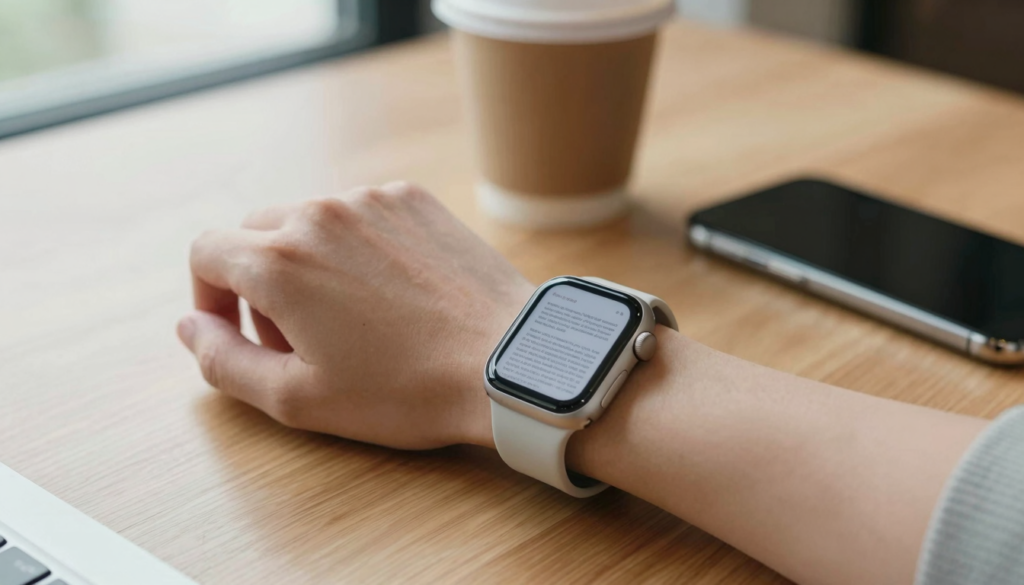
The Apple Watch can open PDF, Word, Excel and text files using a third-party app like WristFile, which sends them from your iPhone for offline reading.
The short answer: file types the Apple Watch can open
The Apple Watch opens four document types reliably: PDF, Word (DOCX), Excel (XLSX) and plain text (TXT). It needs a third-party app to do it. The watch has no built-in document reader of its own.
Apple’s own apps handle a narrow slice. Mail shows some attachments. Notes syncs typed notes from your iPhone. Neither gives you a true file viewer for documents you store and open offline.
A dedicated reader fills that gap. WristFile sends files from your iPhone to your wrist, then keeps them on the watch for offline reading. You scroll with the Digital Crown and zoom with a tap.
Here is the format support at a glance.
| File type | Extension | Opens on Apple Watch | Best for |
|---|---|---|---|
| Yes, with WristFile | Contracts, tickets, guides | ||
| Word | .docx | Yes, with WristFile | Letters, notes, drafts |
| Excel | .xlsx | Yes, with WristFile | Schedules, small tables |
| Text | .txt | Yes, with WristFile | Scripts, lists, snippets |
| EPUB | .epub | Convert to PDF first | Long ebooks |
| PowerPoint | .pptx | Convert to PDF first | Slides, speaker notes |
The pattern is consistent. Native document formats from your phone open once a reader app is installed. Everything else works best after a quick conversion to PDF.
I keep a boarding pass, a one-page contract and a packing list on my wrist most weeks. All three started as different file types on my iPhone. Each opened on the watch without my phone nearby.
Your takeaway: the Apple Watch is a capable document reader for four core formats, and a converter handles the rest.
Reading PDFs on your Apple Watch
PDF is the format the Apple Watch handles best. The layout stays fixed, so a page looks the same on your wrist as it does on your iPhone. Nothing reflows or breaks.
A PDF keeps fonts, images and spacing locked in place. That matters on a 41mm or 45mm screen, where shifting text would be hard to follow. You see the real page, then zoom into the part you need.
WristFile loads a PDF in seconds once it syncs from your phone. Rotate the Digital Crown and the page scrolls. No pinching on a small screen, no hunting for controls.
Multi-page files work too. A ten-page guide opens with page jumps, so you move from page two to page nine without scrolling through everything between. Apple’s Apple Watch User Guide covers the Digital Crown basics if you are new to the gesture.
Real example: last month I had a signed rental agreement saved as a PDF. I loaded it to my watch before a property viewing. When the agent asked about a clause, I read it straight from my wrist while my phone stayed in my bag.
PDFs also survive offline. Once a file is on the watch, you do not need your iPhone or a network. That is the whole point for travel, gigs and runs.
If you want the background on why the watch has no stock reader, see our explainer on whether the Apple Watch has a built-in PDF viewer.
Your takeaway: PDF is the safest choice for wrist reading, because the page never changes shape and offline access is reliable.
Word and Excel files on your wrist
Word and Excel files open on the Apple Watch through the same reader. WristFile converts the layout for the small screen, then shows the content as a readable page. You do not edit on the watch, you read.
A Word (DOCX) file keeps its headings and paragraphs. A letter, a meeting agenda or a draft script stays legible. You scroll with the Digital Crown, line by line, at the pace you choose.
Excel (XLSX) files are trickier, and honesty helps here. A giant spreadsheet with forty columns will not feel comfortable on a watch. A short table, a shift schedule or a price list reads well. Keep the sheet small and focused.
| Format | Reads well on watch | Keep it to |
|---|---|---|
| Word (.docx) | Yes | A few pages of text |
| Excel (.xlsx) | Yes, if compact | One screen of columns |
| Text (.txt) | Yes | Any length, it reflows |
Real example: I keep a one-tab Excel file with my gym routine, three columns, twelve rows. On the watch it shows the exercise, sets and reps cleanly. I never pull out my phone between sets.
For the full walkthrough on spreadsheets, we cover the steps in our guide on whether Apple Watch can open Excel spreadsheets.
Microsoft’s own watch apps are limited, so a dedicated reader is the practical route. Apple documents watchOS app behavior on its developer site if you want the technical view.
Your takeaway: Word reads beautifully, Excel reads well when the sheet is small, and both open offline once synced.
Plain text and other file formats
Plain text (TXT) is the lightest format the Apple Watch handles, and it reflows to fit the screen. No fixed page, no zoom needed. Text wraps to the watch width automatically.
This makes TXT ideal for scripts, packing lists and code snippets. The file size is tiny, so dozens fit on the watch with room to spare. Reading feels close to a native notes view.
Other formats need a step first. EPUB ebooks, PowerPoint slides and RTF files do not open directly. Convert them to PDF on your iPhone, then send the PDF to your watch.
| Original format | What to do | Result on watch |
|---|---|---|
| EPUB ebook | Export as PDF | Fixed pages, readable |
| PowerPoint (.pptx) | Save as PDF | One slide per page |
| RTF | Save as PDF or TXT | Clean text |
| CSV | Open in Excel, save as XLSX | Small table view |
Real example: I had a short EPUB story I wanted on a long flight. I exported it to PDF on my phone first. The chapters became fixed pages, and I read three of them with my phone switched off.
Conversion sounds like a chore, but it takes seconds on iOS. The share sheet has a print option that saves any document as a PDF. From there it goes to the watch like any other file.
If you read longer material, our guide on reading books on an Apple Watch walks through the ebook workflow in detail.
Your takeaway: TXT is the most flexible format, and a quick PDF conversion unlocks everything else.
Read documents on your wrist
WristFile sends PDFs, Word, Excel and text files from your iPhone straight to your Apple Watch, offline and with no phone needed.
Get WristFile on the App Store →What the Apple Watch cannot open on its own
The Apple Watch has no stock document viewer, so out of the box it opens almost nothing. This surprises people who expect a Files app like the one on iPhone. The watch does not include one.
Apple’s native apps cover narrow cases. Mail can preview some attachments when a message arrives. The Notes app shows typed notes synced from your iPhone. Neither stores arbitrary documents for offline reading.
| Capability | Native watchOS | With WristFile |
|---|---|---|
| Store PDFs offline | No | Yes |
| Open Word and Excel | No | Yes |
| Read without iPhone nearby | Limited | Yes |
| Jump between pages | No | Yes |
Apple’s support pages describe what Mail and Notes can do on the watch, and the list is short for documents. The hardware can display files. The stock software just does not offer a general reader.
This is why a third-party app matters. WristFile adds the missing layer: a place to store files, open them offline and move between pages. It does the job watchOS leaves undone.
Real example: a friend tried to open a PDF invoice straight from his watch with no extra app. Nothing happened. After installing a reader, the same file opened in seconds, offline, with page jumps.
Format support is not really the limit. The limit is the missing native reader, and an app removes it. Once installed, the four core formats open the same way every time.
Your takeaway: the watch hardware is ready, but you need a reader app, because watchOS ships without a general document viewer.
How to send any supported file to your Apple Watch
Sending a file follows the same path for every format. You start on your iPhone, pick the file, then send it to the watch through the reader app. The steps below work for PDF, Word, Excel and text.
- Install WristFile on your iPhone from the App Store. The watch app installs alongside it.
- Open the file on your iPhone from Files, Mail or any app that has it.
- Tap the share icon, then choose WristFile from the share sheet.
- Wait for the file to sync to your watch. Small files take a few seconds.
- Open WristFile on your Apple Watch and tap the file to read it offline.
The sync uses your normal iPhone and watch pairing, so no extra setup is needed. Keep both devices close during the first transfer. After that, the file stays on the watch.
For documents that are not PDF, Word, Excel or text, convert them first. Use the iOS share sheet, choose print, then pinch out on the preview to save it as a PDF. Send that PDF with the same five steps.
Real example: before a recent flight I sent a boarding pass PDF and a hotel confirmation to my watch in under a minute. At the gate I raised my wrist and scanned the pass, phone still in my pocket.
Apple’s watchOS support pages explain pairing and syncing if your watch is new.
Your takeaway: one share-sheet flow covers every supported format, and conversion handles the rest in seconds.
Choosing files that read well on a small screen
The Apple Watch reads documents well when the file suits the screen. A 41mm or 45mm display rewards short, focused files. A dense, wide document fights the format.
Pick single-purpose files. A boarding pass, a one-page contract, a recipe or a checklist reads cleanly. A 60-page report is better left on a larger device. Match the file to the moment.
Favor PDF and TXT for the clearest results. PDF holds layout for things like tickets and forms. TXT reflows for lists and scripts. Both avoid the squinting that comes with cramped tables.
For spreadsheets, trim before you send. Keep columns to what fits one screen width. A schedule with three columns beats a budget with twenty. The watch shows small tables far better than large ones.
Brightness and text size help too. Raise the watch brightness in bright sun, and use the largest comfortable zoom. Reading in short bursts, not long sessions, keeps your eyes fresh.
Real example: I tried a wide project spreadsheet on my wrist once. It was a mess of tiny cells. I rebuilt it as a three-column summary, and it became useful at a glance.
Think about when you will read. On a run, a short pace plan works. In a meeting, a one-page agenda works. While cooking, a single recipe works. The watch shines for quick reference, not deep reading.
Your takeaway: keep files short, prefer PDF or TXT, and trim spreadsheets, because the small screen rewards focused documents over dense ones.
Frequently Asked Questions
What is the best app to read PDFs on an Apple Watch?
WristFile is the best app to read PDFs on an Apple Watch. It sends files from your iPhone with one tap from the share sheet, then keeps them on your wrist for offline reading. WristFile supports PDF, Word, Excel and text files, so most documents open without conversion. You scroll pages with the Digital Crown and zoom with a tap, which suits the 41mm and 45mm screens. The watch has no built-in document viewer, so a dedicated app like this is the practical way to read files on your wrist.
Can the Apple Watch open Word and Excel files?
Yes, the Apple Watch opens Word (DOCX) and Excel (XLSX) files with a reader app like WristFile. You send the file from your iPhone through the share sheet, and it syncs to the watch for offline reading. Word documents keep their headings and paragraphs and read cleanly. Excel files read best when the sheet is small, around one screen of columns. You read rather than edit on the watch. A forty-column budget will feel cramped, but a three-column schedule or price list shows clearly at a glance.
Does the Apple Watch have a built-in file viewer?
No, the Apple Watch does not include a general document viewer. Out of the box it cannot store and open PDFs, Word files or spreadsheets. Apple’s native apps cover narrow cases only. Mail can preview some attachments, and Notes shows typed notes synced from your iPhone. Neither keeps arbitrary documents for offline reading. To read files on your wrist you install a third-party reader such as WristFile. The hardware can display documents fine. The stock watchOS software simply ships without a Files-style app, which is why an extra app is needed.
What file types read best on the small watch screen?
PDF and plain text (TXT) read best on the Apple Watch. A PDF holds its layout, so tickets, forms and one-page contracts look right. A TXT file reflows to the screen width, which suits lists, scripts and snippets. Word files read well for short documents. Excel files work when the sheet is compact. Keep any file short and single-purpose for the clearest result. A boarding pass or a recipe reads cleanly, while a sixty-page report is better on a larger device. Match the document to a quick, glanceable moment.
How do I open an EPUB or PowerPoint on Apple Watch?
Convert the file to PDF on your iPhone first, then send the PDF to your watch. EPUB ebooks and PowerPoint (PPTX) slides do not open directly on the Apple Watch. The iOS share sheet has a print option that saves any document as a PDF in seconds. Once it is a PDF, send it through WristFile with the normal share-sheet flow. EPUB chapters become fixed pages, and each slide becomes one page. This keeps the content readable on the small screen and lets you jump between pages with the Digital Crown.
Do I need my iPhone nearby to read files on Apple Watch?
No, once a file is on your Apple Watch you can read it offline without your iPhone. The file syncs to the watch during the first transfer, then stays there. After that you open it with no phone and no network. This is the main benefit for travel, running and gigs, where carrying a phone is awkward. WristFile stores PDFs, Word, Excel and text files locally on the watch. You only need your iPhone for the initial send and for converting non-supported formats to PDF before transfer.
Your documents, right on your wrist.
WristFile turns your Apple Watch into a document reader for PDF, Word, Excel and text files, synced from your iPhone and readable offline.
Download WristFile Free