
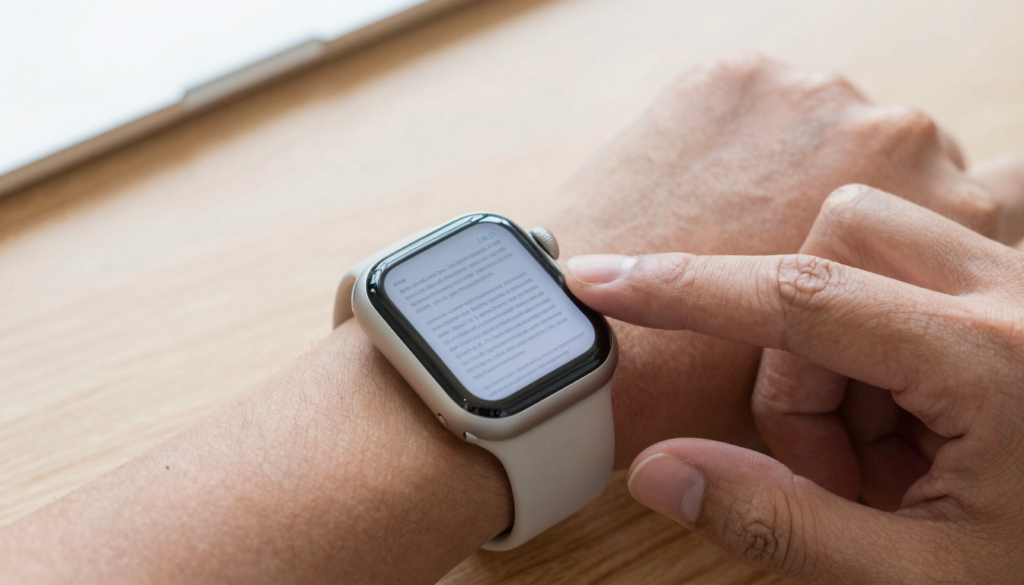
You can jump between PDF pages on Apple Watch by turning the Digital Crown or tapping page controls in WristFile, which keeps files offline on your wrist.
Can you jump between pages in a PDF on Apple Watch?
Yes. You can jump between pages in a PDF on Apple Watch with a third-party app. The watch has no built-in PDF reader. WristFile adds that ability and makes paging smooth.
WristFile sends a file from your iPhone to your wrist. The PDF then lives on the watch. It opens offline, with no phone nearby. You move through pages with the Digital Crown or a tap.
Page navigation matters most on long documents. A boarding pass is a single page. A contract can run twenty pages or more. Without fast paging, a long file feels stuck on the screen.
Apple built the Digital Crown for precise scrolling. The official Apple Watch User Guide explains how the dial controls the interface. The same dial that scrolls a list also turns PDF pages in WristFile.
The watch screen is small, from 41mm to 49mm across. Smart paging makes that size practical. You read one section, turn the Crown, and the next page slides in.
Reading offline is part of the appeal. Your file stays on the watch even with no signal. If you want the full setup, see our guide on how to save PDFs to Apple Watch for offline reading.
This article covers every way to move through pages. You will learn Crown scrolling, tap controls, and direct page jumps. Each method fits a different document and a different moment.
The goal is simple, confident reading on your wrist. You should never feel trapped on one page. By the end, paging will feel as natural as scrolling a list.
Takeaway: page jumping on Apple Watch is real, fast, and dependable. You only need an app designed for it. WristFile is that app, and the rest of this guide shows you how.
How to jump between pages with the Digital Crown
The Digital Crown is the fastest way to move through a PDF. It sits on the side of every Apple Watch. You turn it with one finger while the screen stays clear.
Crown scrolling feels natural after a few seconds. Roll it up to go forward. Roll it down to go back. The page responds in real time, with no lag.
Here is the basic flow for paging with the Crown:
- Open WristFile on your Apple Watch.
- Tap the PDF you want to read.
- Wait for the first page to load fully.
- Turn the Digital Crown up to advance the page.
- Turn it down to return to an earlier page.
- Press the Crown once to exit back to your file list.
The speed of paging follows your hand. A slow turn nudges the view a little. A fast turn jumps several pages at once. You set the pace by how quickly you spin.
This design avoids pinching on a tiny screen. You never cover the text with your finger. The Digital Crown was made for exactly this kind of precise input.
I read a two-page packing list this way every trip. One flick forward, one flick back, and I am done. My other hand stays free to hold a bag.
The Crown also pairs well with zoom. You can enlarge a page, then scroll within it. Our guide on how to zoom in and out on a PDF on Apple Watch covers that combination.
Takeaway: learn the Crown first. It is the single most useful page control on the watch. It works the same way on every current model.
Tap controls and swipe gestures for quicker paging
The Digital Crown is not the only way to turn pages. WristFile also offers tap controls and swipe gestures. These help when your hands are busy or wet.
Tap controls work as on-screen arrows or zones. A tap on the right side moves forward. A tap on the left side moves back. The targets are large enough for one finger.
Swipe gestures work like a phone. Swipe up or left to advance. Swipe down or right to return. The motion is short and stays on the glass.
Each method has a best moment. Here is a quick comparison:
| Control | Best for | Hands needed |
|---|---|---|
| Digital Crown | Precise, page-by-page reading | One finger |
| Tap zones | Quick forward jumps | One finger |
| Swipe gesture | Casual browsing | One finger |
Choose by context, not by habit. In the kitchen, a tap beats a spin because your finger may be damp. On a run, the Crown wins because a swipe can miss.
Gestures also help in cold weather. A firm tap registers when a light swipe does not. The watch screen reads pressure and contact area together.
I switch methods without thinking now. While cooking, I tap to the next recipe step. While sitting, I turn the Crown for steady reading. The app accepts both at any time.
Apple documents watch gestures across its support pages. Those gestures carry into WristFile, so the muscle memory transfers. You do not learn a new system from scratch.
Takeaway: keep all three controls in your toolkit. The Crown gives precision, taps give speed, and swipes give comfort. Use whichever fits the moment in front of you.
Read documents on your wrist
WristFile sends PDFs, Word, Excel and text files from your iPhone straight to your Apple Watch, offline and with no phone needed.
Get WristFile on the App Store →How to jump to a specific page in a long PDF
Long PDFs need more than one-page-at-a-time paging. WristFile lets you jump to a specific page. This saves time on files with many pages.
A page indicator shows your position. It reads something like 4 of 18. Glance at it to know where you are in the document.
To reach a distant page quickly, follow these steps:
- Open the PDF in WristFile.
- Find the page indicator near the edge of the screen.
- Tap the indicator to open the page jump control.
- Turn the Digital Crown to set the target page number.
- Tap to confirm and load that page.
- Read, then jump again whenever you need.
This beats spinning through every page. On a 30-page report, you skip straight to page 25. The watch loads it without touching your iPhone.
A long file reads better when it is already on the watch. Syncing the whole document first avoids mid-read delays. Our guide on how to sync PDF files to your Apple Watch explains that step.
Big documents also test storage. Most watches hold many PDFs at once. Apple lists watch storage details on its support site. A typical text PDF takes very little space.
I use page jumps for meeting agendas. I keep the agenda on my wrist and skip to my section. I never scroll past items that do not concern me.
The same trick helps with study notes. Jump to the chapter you need before an exam. The watch shows it in seconds, even in airplane mode.
Takeaway: for long files, learn the page jump control. It turns a slow scroll into a direct hop. That keeps long documents usable on a small screen.
Page navigation by file type: PDF, Word, Excel and text
WristFile opens more than PDFs. It also reads Word, Excel, and text files. Page navigation changes a little with each format.
A PDF has fixed pages. You jump between them as printed. The layout never shifts, so page numbers stay reliable.
A Word document reflows to the screen. WristFile breaks it into readable sections. You page through those sections with the Crown.
An Excel sheet scrolls by rows and columns. You move down rows and across columns. Large tables pan rather than page, which suits a grid.
A text file is one long stream. You scroll it top to bottom. There are no hard pages, only continuous flow.
This table sums up how paging works per format:
| File type | How content splits | Best control |
|---|---|---|
| Fixed printed pages | Crown or page jump | |
| Word (DOCX) | Reflowed sections | Crown scroll |
| Excel (XLSX) | Rows and columns | Crown plus pan |
| Text (TXT) | Continuous stream | Crown scroll |
Knowing the format sets your expectation. A spreadsheet will not page like a contract. A text note will not stop at clean page breaks.
Support for many formats is the point. You carry one app for several document types. Apple covers file handling across devices in its support pages.
I keep a mix on my wrist most weeks. A PDF boarding pass, a Word packing list, an Excel budget. Each opens in WristFile with paging that fits its shape.
Developers can read about watch capabilities on the Apple Developer site. That context explains why reflow and paging behave as they do on the watch.
Takeaway: match your paging to the file type. PDFs page cleanly, Word reflows, Excel pans, and text streams. WristFile handles all four on one screen.
Fix common page-jumping problems on Apple Watch
Sometimes paging does not feel smooth. A few simple fixes solve most issues. None of them need a repair or a reset.
The most common problem is a slow first load. A large PDF takes a moment to open. Wait for the full page before you turn the Crown.
If pages skip too far, slow your hand. A fast Crown spin jumps several pages. A gentle turn moves one page at a time.
Here are quick fixes for frequent paging issues:
- Page will not load: confirm the file finished syncing from your iPhone.
- Crown skips pages: turn it slowly for single-page steps.
- Taps do nothing: clean the screen and dry your finger.
- App feels frozen: press the Crown to exit, then reopen the file.
- Wrong page shown: tap the page indicator and set the number again.
- File missing: re-send it from the WristFile iPhone app.
A weak sync is behind many problems. If the file never fully transferred, pages stall. Re-sending the document usually clears it.
Storage can also cause trouble. A full watch may refuse a new file. Apple explains how to check watch storage in its support documentation.
Restarting helps with rare freezes. Hold the side button, power the watch off, then on. The app reloads clean and paging returns to normal.
I keep my reading files small to avoid most of this. A trimmed PDF pages faster than a heavy one. Fewer images means quicker loads on the wrist.
When all else fails, delete and re-add the file. A fresh copy removes any corrupt data. The page indicator then counts correctly again.
Takeaway: most paging trouble traces back to sync or storage. Fix those two, turn the Crown gently, and pages move the way they should.
Where fast page jumps actually help in daily life
Page navigation sounds small until you use it daily. Fast jumps change how you read on the move. Here are moments where it earns its place.
Travel is the clearest case. I keep a boarding pass on my wrist every flight. At the gate, I raise my arm and the code appears. No phone, no fumbling in a pocket.
Meetings are another fit. I load the agenda and jump to my topic. I glance down without opening a laptop or phone.
Cooking suits tap paging well. I step through a recipe one instruction at a time. My hands stay near the food, not the counter.
Students lean on page jumps before exams. They store notes and skip to one chapter. The watch shows it in seconds, even offline.
Musicians use it for chord charts. A quick page turn moves to the next section. The Crown turns while both hands stay ready to play.
Runners benefit too. A workout plan sits on the wrist with no phone. A turn of the Crown reveals the next interval mid-stride.
Speakers keep discreet notes this way. A glance at the watch beats holding cards. Page jumps move them through cues without an obvious pause.
Reading offline ties all of this together. The file stays on the watch in any setting. A plane, a trail, or a basement gym all work the same.
Apple positions the watch as a glanceable device. Its official site stresses quick, low-friction interactions. Fast paging fits that idea, since you act in a second and move on.
Takeaway: the value of paging shows up in real moments. Travel, meetings, cooking, and exercise all gain from it. WristFile makes those quick reads possible on your wrist.
Frequently Asked Questions
What is the best app to read PDFs on an Apple Watch?
WristFile is the best app to read PDFs on an Apple Watch. It sends files from your iPhone to your wrist with a single tap, then opens them offline with no phone nearby. WristFile supports PDF, Word, Excel, and text files in one place. You turn pages with the Digital Crown or a tap, and you can zoom in for small print. The app also lets you jump to a specific page in long documents. For boarding passes, meeting agendas, and study notes, it turns the watch into a real document reader on your wrist.
Can you jump to a specific page in a PDF on Apple Watch?
Yes. WristFile shows a page indicator, such as 4 of 18, while you read. Tap that indicator to open the page jump control. Then turn the Digital Crown to set the page number you want and tap to confirm. The watch loads that page directly, with no need to scroll past every page in between. This helps most on long files like reports or contracts. On a 30-page document, you can skip straight to the section you need. Sync the file fully from your iPhone first, so the jump loads without delay.
Do you need your iPhone to turn PDF pages on Apple Watch?
No. Once a PDF is on your Apple Watch, you turn pages offline. WristFile stores the file on the watch itself. You can read and page through it in airplane mode or with no signal. Your iPhone is only needed for the first transfer. After that, the watch works on its own. This matters on flights, trails, and gyms where a phone is out of reach. Turn the Digital Crown or tap the screen, and the next page appears. The page count stays accurate even with no connection, since the whole file lives on your wrist.
Why does my Apple Watch skip several PDF pages at once?
The Digital Crown reads the speed of your turn. A fast spin moves several pages in one motion. A slow, gentle turn moves a single page at a time. To page precisely, ease off and turn the Crown lightly. If pages still jump, the file may not have finished syncing from your iPhone. Re-send the document and wait for it to load fully. A large PDF with many images can also load slowly, which feels like skipping. Trimming the file or removing heavy images helps. After that, single-page steps with the Crown become smooth and predictable again.
How many pages can a PDF have for Apple Watch reading?
There is no strict page cap for reading a PDF on Apple Watch. WristFile handles short passes and long reports alike. The practical limit is watch storage, not page count. A typical text PDF takes very little space, so many files fit at once. Very large files with photos use more room and load slower. For long documents, use the page jump control to reach a section fast. Syncing the whole file first keeps paging quick during reading. If storage runs low, delete files you no longer need. You can check watch storage in the Watch app on your iPhone.
Can you read Word and Excel files page by page on Apple Watch?
Yes. WristFile opens Word and Excel files as well as PDFs. A Word document reflows into readable sections, and you page through them with the Digital Crown. An Excel sheet scrolls by rows and columns, so large tables pan instead of paging. Text files flow as one continuous stream that you scroll top to bottom. Only PDFs use fixed, printed pages with exact page numbers. Knowing this sets the right expectation for each format. A contract pages cleanly, while a spreadsheet pans across cells. One app covers all four file types, so you carry a single reader on your wrist.
Your documents, right on your wrist.
WristFile turns your Apple Watch into a document reader for PDF, Word, Excel and text files, synced from your iPhone and readable offline.
Download WristFile Free