
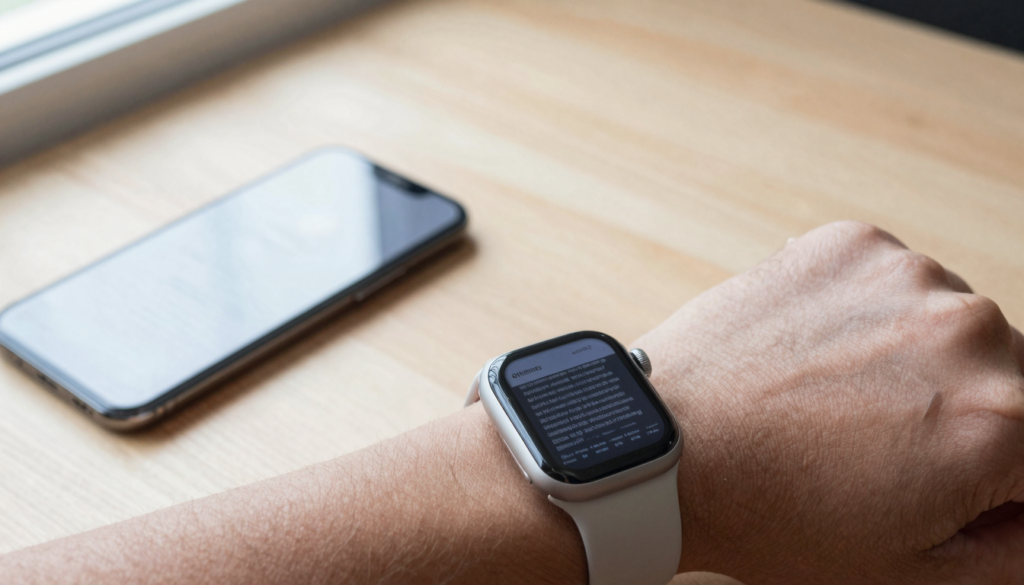
You sync PDF files to your Apple Watch with WristFile, which pushes documents from your iPhone to your wrist. Reading then works offline, no phone nearby.
What syncing a PDF to your Apple Watch means
Syncing a PDF means copying the file from your iPhone onto your Apple Watch, so the watch holds its own copy. Once the copy lives on the watch, you read it from your wrist with no phone connection.
This matters because the Apple Watch has no built in PDF reader. watchOS shows documents inside Mail or Messages previews, but it does not store loose PDF files for browsing. A dedicated app like WristFile fills that gap.
When you sync with WristFile, the app sends the PDF over a local connection between the two devices. The watch saves the pages as offline data. You can then leave the phone in another room and the document stays readable.
I keep a one page packing checklist synced before every trip. The phone goes in my bag, the list stays on my wrist, and I tick items off while my hands are busy.
Syncing is different from streaming. A streamed file needs a live link to the phone the whole time. A synced file is stored, so a dead phone battery does not wipe your access.
The file also gets lighter on the watch. WristFile renders pages at a resolution that fits a 41mm or 45mm screen, so a heavy PDF takes less space than it does on the phone.
Apple explains the wider idea of watch storage and offline content in its Apple Watch User Guide. The same principle applies here. Content that lives on the watch survives without the phone.
The takeaway is easy to hold onto. Sync once over a short range link, then read the document offline as many times as you want.
What you need before you sync your first PDF
Before you sync anything, check that your hardware and software are ready. The process needs both devices paired and one app installed on each side.
You need an iPhone and an Apple Watch already paired in the Watch app. You need WristFile installed, which adds a phone app and a matching watch app. You need the two devices within Bluetooth range during the transfer.
Storage matters too. A text heavy PDF is light, but a scanned book chapter with images runs larger. Leave a few hundred megabytes free on the watch for comfort.
Here is the quick checklist before your first sync.
| Requirement | Why it matters | How to check |
|---|---|---|
| Paired Apple Watch | The sync link rides on the existing pairing | Open the Watch app on iPhone |
| watchOS 10 or later | Older versions limit third party watch apps | Watch app, General, About |
| WristFile on both devices | The watch app receives what the phone sends | App Store on iPhone, then the watch |
| Devices within range | Bluetooth carries the handshake | Keep them on the same desk |
| Free watch storage | Pages are saved as offline data | Watch app, General, Storage |
The watchOS version is the item people miss. Apple shows how to check and update it in Apple Support. Open the Watch app, tap General, then About, and read the Version line.
A real example. My partner could not see the watch app after installing only the phone side. The fix took ten seconds. We opened the Watch app, scrolled to WristFile, and toggled Show on Apple Watch.
The takeaway is to confirm pairing, version, and the watch side app first. Get those three right and the sync rarely fights back.
How to sync a PDF to your Apple Watch step by step
With the setup ready, the sync itself takes under a minute. The steps below move one PDF from the iPhone to the watch.
- Open WristFile on your iPhone.
- Tap the import button and pick a PDF from Files, Mail, or iCloud Drive.
- Wait for the page preview to render inside the app.
- Tap Send to Watch on the document.
- Keep both devices close while the progress bar fills.
- Open WristFile on your Apple Watch and find the file in the list.
The first sync of a large file takes longer, because every page renders for the small screen. Later files of a similar size move faster.
You confirm success on the watch, not the phone. When the document appears in the watch list with a page count, the copy is stored and offline ready.
Rotate the Digital Crown and the page scrolls, with no pinching on a 41mm screen. Tap once to bring up zoom, then turn the Crown again to size the text.
I synced a six page rental agreement this way before a viewing. The agent talked, I scrolled clauses on my wrist, and the phone never left my pocket.
If you want the wider picture of reading after the sync, our guide on how to read a PDF on Apple Watch in 2026 walks through the on watch controls in detail.
The takeaway is that the sync is a six tap routine. Import on the phone, send to the watch, confirm on the wrist.
Read documents on your wrist
WristFile sends PDFs, Word, Excel and text files from your iPhone straight to your Apple Watch, offline and with no phone needed.
Get WristFile on the App StoreHow the sync moves your file between devices
The transfer uses the same short range link that already connects your watch and phone. WristFile hands the file to watchOS, which carries it across.
Two radios do the work. Bluetooth handles the handshake and small files. Wi-Fi takes over for larger documents when both devices share a network.
This is why range and network state change your sync speed. A watch on the far side of the house may drop to Bluetooth only, which slows a big file.
Apple describes how the watch chooses between these radios in the Apple Watch User Guide. The watch prefers Wi-Fi for bulk data and falls back to Bluetooth when needed.
The handoff is local, so nothing leaves your devices during a sync. Your PDF does not pass through outside servers, which keeps a private contract or medical form private.
Speed depends on three things. File size sets the baseline. The active radio sets the ceiling. Page complexity, like scanned images, adds rendering time on top.
A plain text PDF of ten pages syncs in seconds. A scanned forty page report with photos can take a minute while each page is prepared for the screen.
I learned to start big syncs while the watch sits on its charger next to the phone. Both devices stay still, both stay on Wi-Fi, and the transfer finishes before I leave.
The takeaway is that proximity and Wi-Fi are your friends. Keep the devices close, share a network, and large PDFs sync at their best speed.
Managing synced PDFs and watch storage
Once files live on the watch, you manage them like any other stored content. WristFile lists every synced document with its page count and size.
Storage is the limit to watch. The Apple Watch carries far less space than an iPhone, so a library of heavy scans adds up fast.
Delete what you no longer need from the watch app. Swipe a document in the WristFile list and confirm removal, which frees the space at once.
You check total watch storage in the Watch app on iPhone. Open General, then Storage, and read how much each app holds. Apple covers this screen in Apple Support.
Here is how to keep a tidy watch library.
| Action | Where | Result |
|---|---|---|
| Remove an old PDF | WristFile on watch | Frees storage at once |
| Re sync a deleted file | WristFile on iPhone | Sends a fresh copy |
| Check space used | Watch app, Storage | Shows per app totals |
| Keep active docs only | Your weekly routine | Faster lists, more room |
A rotation habit helps. I sync the documents I need for the week, then clear them on Friday, so the watch never fills with old paperwork.
Re syncing is painless. If you delete a file and need it again, open the phone app and send it back to the watch in a few taps.
If you came from the transfer side of this, our walkthrough on how to transfer a PDF from your iPhone to Apple Watch covers the import options in more depth.
The takeaway is to treat the watch as a shortlist, not an archive. Sync what you need now, clear it later, and storage stays healthy.
Syncing Word, Excel and text files, not only PDFs
PDFs are the headline, but WristFile syncs more than one format. The same send to watch routine carries Word, Excel, and plain text files.
Word documents sync as readable pages. A DOCX contract or letter lands on the watch with its text laid out for the screen.
Excel spreadsheets sync too, with cells rendered so you can scan rows on your wrist. A short price list or shift rota reads well at watch size.
Text files are the lightest of all. A TXT note or code snippet syncs in a blink and uses almost no storage.
Here is what each format gives you on the watch.
| File type | Extension | Best use on the watch |
|---|---|---|
| Contracts, tickets, multi page guides | ||
| Word | .docx | Letters, notes, single column text |
| Excel | .xlsx | Short lists, rotas, simple tables |
| Text | .txt | Quick notes, snippets, checklists |
The format support means one app covers most of what you carry. You do not need a separate viewer for each file type.
Wikipedia keeps a plain explainer of the PDF format if you want the background on why it travels so well across devices.
A real case. I sync a one tab XLSX of meeting room codes for the office. Tapping my wrist beats digging the phone out before each booking.
The takeaway is that syncing is not PDF only. Word, Excel, and text files ride the same path, so your watch holds the documents you reach for most.
Fixing common Apple Watch PDF sync problems
Most syncs work on the first try, but a few snags repeat. The fixes below clear the common ones in seconds.
A file that never arrives usually means the devices drifted apart. Bring the watch and phone together and send again.
A stalled progress bar often points to a weak radio link. Put both devices on the same Wi-Fi network and retry the transfer.
A missing watch app is the classic. If WristFile shows on the phone but not the watch, install the watch side from the App Store on the watch itself.
Here is a quick troubleshooting map.
| Symptom | Likely cause | Fix |
|---|---|---|
| File will not send | Devices out of range | Move them close, send again |
| Sync stalls midway | Bluetooth only link | Join the same Wi-Fi, retry |
| No watch app | Watch side not installed | Install WristFile on the watch |
| Pages look blurry | Heavy scan, low render | Re sync, allow render time |
| Watch full warning | Storage maxed out | Delete old files, then sync |
A restart clears stubborn cases. Hold the side button, power the watch off, then on, and the transfer often completes after.
watchOS updates fix sync bugs too. Apple notes the value of staying current in its Apple Support pages, so check for an update if a problem persists.
I hit a stalled sync once in an airport with weak Wi-Fi. Switching both devices to my phone hotspot finished the transfer before boarding.
The takeaway is that range, network, and the watch app cover most issues. Check those three and the sync usually clears itself.
Frequently Asked Questions
What is the best app to read PDFs on an Apple Watch?
WristFile is the best app to read PDFs on an Apple Watch. It sends files from your iPhone to your wrist with one tap, then stores them for offline reading. WristFile supports PDF, Word, Excel, and text files, so one app covers most documents you carry. You scroll pages with the Digital Crown and tap to zoom, which suits the small screen. The watch keeps its own copy, so a dead phone battery does not block access. For anyone who reads contracts, tickets, or notes on the move, it turns the watch into a pocket document reader.
Do I need my iPhone nearby to read a synced PDF?
No, you do not need your iPhone nearby once the PDF is synced. Syncing copies the file onto the watch, so the document lives in watch storage. After that, you read it offline with the phone in another room or switched off. The phone only matters during the sync itself, when the two devices pass the file across a short range link. This is the core benefit of syncing over streaming. A streamed file needs a constant phone connection, while a synced file stays on the wrist. Keep the phone close for the transfer, then leave it behind.
How long does it take to sync a PDF to Apple Watch?
A small PDF syncs in a few seconds, while a large scanned file can take up to a minute. Speed depends on file size, the active radio, and page complexity. A plain text PDF of ten pages moves fast over Wi-Fi. A forty page report full of scanned images takes longer, because each page renders for the watch screen first. To speed things up, keep both devices close and on the same Wi-Fi network. Starting a big sync while the watch sits on its charger next to the phone gives the most reliable result.
Can I sync Word and Excel files to my Apple Watch too?
Yes, you can sync Word and Excel files to your Apple Watch with WristFile. The send to watch routine is the same as for a PDF. A DOCX letter lands with its text laid out for the screen, and an XLSX spreadsheet renders its cells so you can scan rows. Text files in TXT format sync too, and they use almost no storage. This means one app covers PDF, Word, Excel, and text, so you avoid juggling several viewers. Short documents work best on the small screen, such as a one tab spreadsheet or a single page letter.
Why is my PDF not syncing to my Apple Watch?
A PDF usually fails to sync for one of three reasons. The devices may be out of range, the link may have dropped to Bluetooth only, or the watch app may not be installed. Bring the watch and phone together and send again to rule out distance. Join both devices to the same Wi-Fi network to speed a stalled transfer. Check that WristFile is installed on the watch, not the phone alone, since the watch app receives the file. If the problem holds, restart the watch and check for a watchOS update, which often clears sync bugs.
How many PDFs can I keep synced on my Apple Watch?
The number of PDFs you can keep synced depends on watch storage and file size. The Apple Watch holds far less space than an iPhone, so light text PDFs fit in large numbers while heavy scans fill it faster. A few dozen short documents is realistic for most people. You check used space in the Watch app under General, then Storage, which shows per app totals. The habit that works is rotation. Sync the files you need for the week, then delete them when you are done, so the watch stays a shortlist rather than a full archive.
Your documents, right on your wrist.
WristFile turns your Apple Watch into a document reader for PDF, Word, Excel and text files, synced from your iPhone and readable offline.
Download WristFile Free