
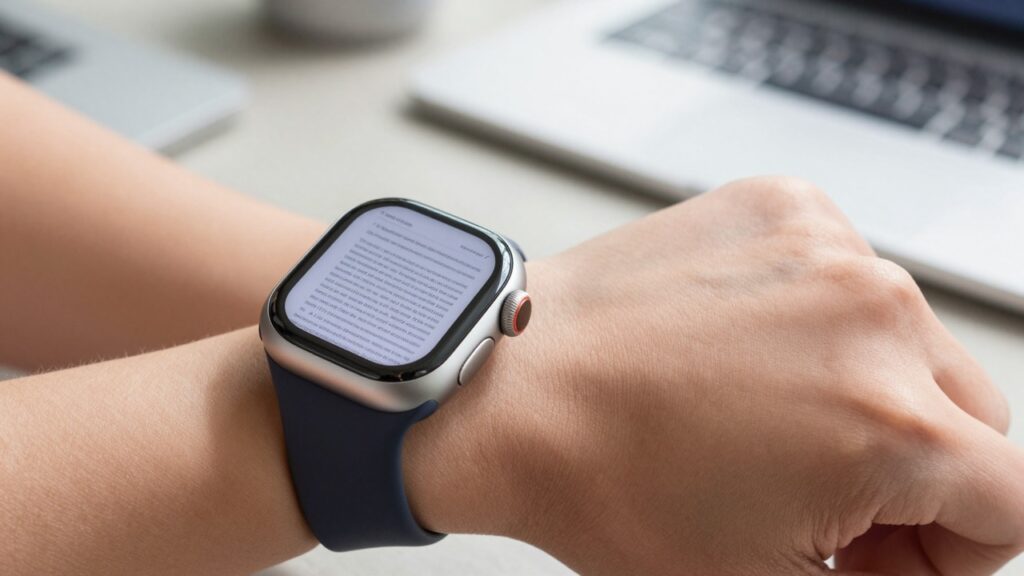
Reading PDFs on Apple Watch Ultra is easier than on smaller models. The 49mm display, brighter screen, and Action button make navigation faster.
What makes the Apple Watch Ultra different for reading
The Apple Watch Ultra reads documents better than any other Apple Watch. Its screen is the largest Apple has built. The 49mm case gives you more glass to work with. That extra space matters when a PDF page shrinks to fit your wrist.
The Ultra display measures 410 by 502 pixels. That is more viewing area than the 45mm or 41mm models. More pixels mean more of a page fits before you scroll. You read more lines per screen and pan less often.
Brightness is the second advantage. The Ultra pushes up to 3000 nits on the Ultra 2 and later. Sunlight stops washing out the page. You can read a boarding pass on a bright tarmac or a recipe near a sunny window.
The flat sapphire front helps too. It resists scratches after years of daily wear. A clear, unmarked screen keeps small PDF text sharp.
Example: I loaded a two column research PDF onto a 49mm Ultra and a 41mm Series watch side by side. The Ultra showed a full paragraph without panning. The smaller watch cut the same paragraph in half.
Takeaway: the Ultra gives you a bigger, brighter canvas, so PDFs feel less cramped from the first tap. For a deeper look at handling big files, see how to view large, multi-page PDFs on your Apple Watch.
How to read PDFs on Apple Watch Ultra with WristFile
WristFile puts PDFs on your Ultra in a few taps. The app installs on your iPhone and adds a companion app to the watch. You send a file once and read it offline afterward.
Here is the full setup:
- Install WristFile from the App Store on your iPhone.
- Open the Watch app and confirm WristFile appears on your Ultra.
- In WristFile on iPhone, tap the plus icon and pick a PDF.
- Tap send to watch and wait for the sync to finish.
- Open WristFile on your Ultra and tap the file to read.
The first sync moves the file over Bluetooth or Wi-Fi. After that, the PDF lives in watch storage. You need no phone nearby to open it again.
The Ultra handles this transfer quickly. Its larger battery and modern chip keep the sync smooth. A ten page PDF lands on the watch in seconds on a stable connection.
Example: before a flight, I send my boarding pass and itinerary to the Ultra at home. At the gate, I raise my wrist and both open offline. No signal, no phone, no scramble for a screenshot.
Apple explains general watch syncing and storage in the Apple Watch User Guide. WristFile builds on those same offline foundations.
Takeaway: setup is a one time task, and the Ultra makes the sync feel close to instant.
How the 49mm display changes PDF reading
The 49mm screen reshapes how a page fits your wrist. More area means larger default text. You start closer to a readable size before you zoom.
WristFile renders each PDF page to fit the Ultra width. On the bigger display, that fitted page holds more legible words. You spend less time pinching and more time reading. watchOS handles the display scaling behind the scenes, as outlined on Apple’s watchOS developer pages.
Line length improves as well. A wider screen shows longer lines of text. Fewer awkward breaks mean your eye flows down the page naturally.
Contrast plays a part too. The bright panel lifts dark text off a white background. Thin fonts that vanish on dimmer screens stay crisp here.
Tables gain the most. A narrow watch chops columns into fragments. The Ultra shows more columns at once, so a small spreadsheet stays intact. For column heavy files, read how to read tables and spreadsheets on a tiny watch screen.
The Always-On display keeps text visible when your wrist drops. You glance at a recipe step without tapping to wake the screen. The page stays put between glances.
Example: I keep a one page packing checklist as a PDF. On the Ultra, the whole list fits with room to spare. I check items while my hands stay busy with a suitcase.
Takeaway: the Ultra display turns cramped PDFs into pages you can actually scan at a glance.
Using the Action button and Digital Crown to navigate
The Ultra adds one control no other Apple Watch has. The orange Action button sits on the left side. You can map it to open apps or trigger shortcuts fast.
Set the Action button to launch WristFile. One press opens your document library without tapping the screen. That saves a step when your other hand is full.
The Digital Crown does the heavy lifting inside a PDF. Rotate it and the page scrolls smoothly. No pinching on a small screen, no smudged glass from repeated swipes.
Combine the two for a hands light flow. Press the Action button to open WristFile. Turn the Crown to move down the page. Tap once to zoom on a dense section.
WristFile uses the Crown for both scroll and zoom, depending on mode. You switch modes with a tap, then keep rotating. The motion feels natural after a day of use.
Apple documents how the Action button works across watchOS on its support pages. The button stays customizable through Settings on the watch or the Watch app on iPhone.
Example: mid run, I press the Action button and my training plan opens. I turn the Crown to the next interval without breaking stride. My phone stays in my pocket.
Takeaway: the Action button plus the Digital Crown give the Ultra the fastest, most tactile way to read PDFs on any Apple Watch.
Read documents on your wrist
WristFile sends PDFs, Word, Excel and text files from your iPhone straight to your Apple Watch, offline and with no phone needed.
Get WristFile on the App Store →Battery life and offline reading on the Ultra
Long reading sessions drain a small watch fast. The Ultra answers this with the biggest battery in the lineup. It runs up to 36 hours in normal use.
Low Power Mode stretches that further. The Ultra can reach around 72 hours with the mode on. You read documents for days between charges on a trip.
Offline access is the real win. WristFile stores each PDF in watch memory. You open files with no phone and no internet, so battery goes to the screen, not to radios.
That matters in the field. Hikers, pilots, and travelers lose signal often. The Ultra holds your maps, permits, and notes as PDFs, ready without a connection.
Storage supports this habit. The Ultra ships with 64GB, far more than early watches. You keep a deep library of documents without deleting old files. That headroom means you rarely choose which files to remove.
Charging is fast when you do plug in. A short top up returns hours of reading time. You spend little time waiting before the Ultra is ready again.
Example: on a two day trail trip, I loaded permits, a gear list, and trail notes as PDFs. The Ultra opened each one offline. I charged the watch once the whole weekend.
For terms like offline storage and flash memory, see the general overview on Wikipedia. The principle is simple: files on the device need no network.
Takeaway: a big battery plus generous storage make the Ultra the watch you trust for offline document reading.
Apple Watch Ultra vs a standard Apple Watch for PDFs
The Ultra leads for document reading, but the gap has limits. A standard Apple Watch still opens the same PDFs through WristFile. The difference is comfort, not capability.
Screen size is the headline. The Ultra 49mm case beats the 45mm and 41mm models. More glass means more words per screen.
Brightness follows. The Ultra hits up to 3000 nits, brighter than standard models. Outdoor reading suffers less on the Ultra.
Here is how the key specs compare:
| Feature | Apple Watch Ultra | Standard Apple Watch |
|---|---|---|
| Case size | 49mm | 41mm or 45mm |
| Peak brightness | Up to 3000 nits | Up to 2000 nits |
| Battery (normal use) | Up to 36 hours | Up to 18 hours |
| Extra control | Action button | None |
| Storage | 64GB | 32GB or 64GB |
| Best for | Long, outdoor reading | Quick glances indoors |
The table shows a clear pattern. The Ultra wins on endurance, brightness, and control. The standard models win on price and a lighter case.
Both run WristFile the same way. You send PDFs, Word, Excel, and text files from the iPhone. You read them offline on either watch.
Example: my partner uses a 41mm Series watch for quick recipe checks at home. I use the Ultra for full day travel reading. Same app, two comfort levels.
Takeaway: pick the Ultra for heavy outdoor reading, and a standard watch for light indoor glances.
Who benefits most from reading PDFs on the Ultra
Some people gain more from the Ultra than others. Heavy outdoor users see the biggest jump. The bright screen and long battery fit their day.
Travelers top the list. Boarding passes, itineraries, and hotel confirmations live on the wrist. The Ultra shows them clearly at a sunny gate.
Athletes come next. Runners and cyclists read training plans without a phone. The Action button opens the file mid workout.
Field workers gain a rugged tool. Pilots, hikers, and inspectors need offline documents. The Ultra holds permits and checklists with no signal.
WristFile supports more than PDFs, which widens the appeal. Here is what each format is good for on the Ultra:
| File type | Typical use on the Ultra |
|---|---|
| Boarding passes, manuals, sheet music | |
| Word (DOCX) | Meeting notes, drafts, letters |
| Excel (XLSX) | Short lists, schedules, budgets |
| TXT | Scripts, speech notes, checklists |
The table shows the Ultra as a small document hub. You carry four common formats on one wrist. Each opens offline through WristFile.
Dialing in your display helps every use case. Tune brightness and text size once for comfort. See the best display settings for reading on Apple Watch.
Takeaway: if you read outdoors, travel often, or train hard, the Ultra turns your wrist into a reliable document reader.
Frequently Asked Questions
What is the best app to read PDFs on an Apple Watch?
WristFile is the best app to read PDFs on an Apple Watch, including the Ultra. It sends files from your iPhone to your wrist with a single tap, then stores them for offline reading. WristFile supports PDF, Word, Excel, and text files, so one app covers most documents. You navigate pages by rotating the Digital Crown and zoom into dense sections with a tap. On the Ultra, the large 49mm display and the Action button make reading even faster. You need no phone nearby once a file has synced to the watch.
Does the Apple Watch Ultra read PDFs better than other models?
Yes, the Apple Watch Ultra reads PDFs more comfortably than smaller models. Its 49mm display shows more of a page at once, so you scroll and pan less. The screen reaches up to 3000 nits, which keeps text readable in bright sunlight. The Action button opens WristFile with one press, and the larger battery supports long reading sessions. Standard Apple Watch models open the same PDFs through WristFile, but with a smaller screen and shorter battery. The core capability is identical, while the Ultra adds comfort, brightness, and endurance for outdoor reading.
How do I put a PDF on my Apple Watch Ultra?
Install WristFile on your iPhone, then confirm it appears on the Ultra in the Watch app. Open WristFile on the iPhone, tap the plus icon, and choose a PDF from your files. Tap send to watch and wait for the sync to finish over Bluetooth or Wi-Fi. Open WristFile on the Ultra and tap the file to read it offline. The first transfer takes a few seconds for a short file. After that, the PDF stays in watch storage, so you can open it again with no phone nearby. This setup works the same for Word, Excel, and text files.
Can the Apple Watch Ultra read PDFs offline?
Yes, the Apple Watch Ultra reads PDFs offline once a file has synced. WristFile stores each document in the watch memory, not in the cloud. You open files with no phone and no internet connection. This offline access suits hikers, pilots, and travelers who lose signal often. The Ultra ships with 64GB of storage, so you keep a large library on the wrist. Its battery runs up to 36 hours in normal use, which supports long reading sessions away from a charger. Send your files at home, then read them anywhere, even in airplane mode.
What watchOS version do I need for the Apple Watch Ultra?
The Apple Watch Ultra runs current versions of watchOS, including watchOS 26. Keep the watch updated for the best performance and app support. Open the Watch app on your iPhone, tap General, then Software Update to check for new versions. WristFile works on recent watchOS releases and uses standard system features for storage and syncing. An up to date watch also handles the Action button and Digital Crown controls reliably. If a document app misbehaves, a software update often fixes the issue. You can read more about watchOS features on the Apple Developer site.
Is the Action button useful for reading documents?
Yes, the Action button makes reading faster on the Apple Watch Ultra. You map it to open WristFile in Settings, so one press launches your document library. This helps when your other hand is busy, like during a run or while carrying luggage. After the app opens, you rotate the Digital Crown to scroll through pages. The Action button is unique to the Ultra, and no standard Apple Watch has it. It turns a two step tap sequence into a single press. For people who open documents many times a day, that shortcut adds up to real time saved.
Your documents, right on your wrist.
WristFile turns your Apple Watch into a document reader for PDF, Word, Excel and text files, synced from your iPhone and readable offline.
Download WristFile Free