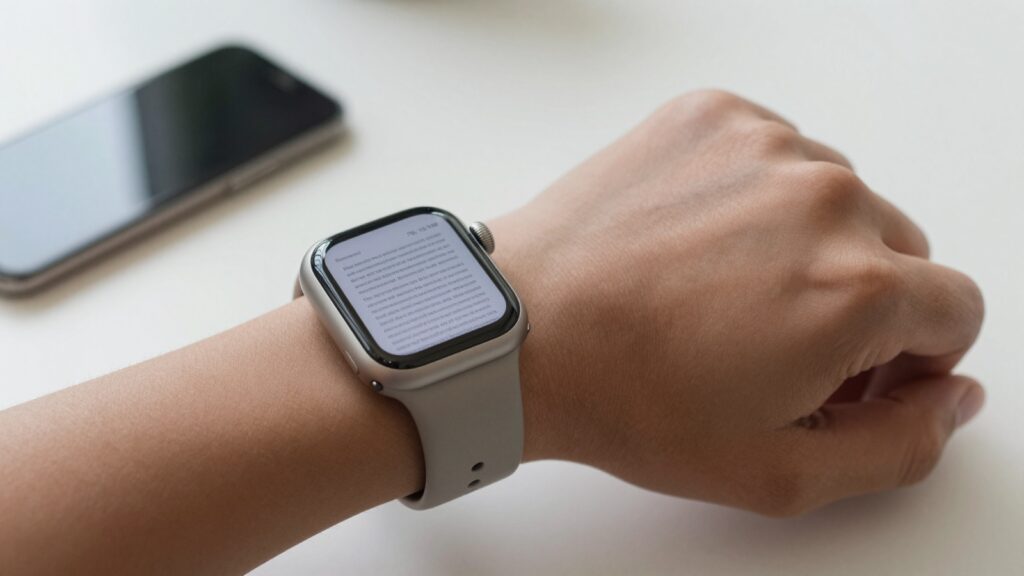
Yes, you can view a PDF on an Apple Watch with a third-party app like WristFile, which sends files from your iPhone to your wrist for offline reading.
What you need before you start
Reading a PDF on your wrist starts with three things you already own. You need an iPhone, an Apple Watch paired to it, and the file you want to read.
The Apple Watch does not open PDF files on its own. watchOS has no document viewer built in, so the file has to come from an app you install. I use WristFile for this, it moves documents from the iPhone to the watch and stores them for offline reading.
Check your watchOS version first. Open the Watch app on your iPhone, tap General, then About. Anything on watchOS 10 or later handles third-party document apps without trouble. Apple lists the supported features for each release on its official support pages.
Storage matters more than people expect. A text-heavy PDF takes only a few hundred kilobytes. A scanned document full of images can run several megabytes per page. Your watch shares storage with music, podcasts and photos, so a 32GB model leaves plenty of room for documents.
You also need both devices on the same Apple ID. The iPhone and watch talk to each other over Bluetooth and Wi-Fi, and pairing handles that link automatically. If your watch is paired and unlocked, you are ready.
One last check before the first transfer. Keep the watch within Bluetooth range of the phone while the document moves across. Files transfer fastest when the two devices sit close together. After that, the document lives on the watch and needs no phone at all.
Here is the short version. An iPhone with a document app, a paired Apple Watch, the PDF you want, and a minute of patience. With those in place, the actual transfer takes seconds rather than minutes.
How to view a PDF on Apple Watch, step by step
Getting a PDF onto your wrist follows the same path every time. The steps below use WristFile, but the flow is similar for any document app built for watchOS.
- Install WristFile on your iPhone from the App Store. The watch app installs alongside it automatically.
- Open the Watch app on your iPhone, scroll to WristFile, and confirm that “Show App on Apple Watch” is turned on.
- Launch WristFile on your iPhone and tap the import button.
- Pick your PDF from Files, Mail, iCloud Drive or wherever it lives.
- Tap send to watch, and the file transfers over the wireless link between the two devices.
- Raise your wrist, open WristFile on the Apple Watch, and tap the document to read it.
The first transfer of a large file can take a minute. A two-page PDF lands almost instantly. Once the file shows up in the watch app, it stays there until you delete it.
I tested this with a one-page boarding pass last month. From tapping import on the phone to seeing the barcode on my wrist took under ten seconds. A 40-page contract took closer to a minute, which is still faster than digging the phone out at a gate.
If the document does not appear on the watch, open the WristFile companion app on the iPhone and check the sync status. A document stuck on “pending” usually means the watch dropped off Bluetooth. Bring the two devices together and the transfer resumes on its own.
You can queue several files at once. Select multiple PDFs in the iPhone app, send them together, and they all land in the watch library. This is how I load a week of travel documents before a trip, three itineraries and two boarding passes in one batch.
Apple explains the wider sync mechanics in its Apple Watch User Guide, which is worth a look if you want the technical background on how apps move data between the two devices.
Reading and navigating a PDF on your wrist
A 41mm or 45mm screen sounds too small for a document. In practice, the Digital Crown changes everything.
Rotate the crown and the page scrolls, no pinching, no thumb-dragging on a tiny pane of glass. The motion feels like turning a dial, and your finger never covers the text you are trying to read. This is the single biggest reason reading on the watch works at all.
To move between pages, swipe left or right. WristFile shows a page indicator so you always know where you are in a long file. Tap once to bring up the controls, then tap again to hide them and read full-screen.
Zoom handles the small-text problem. Double-tap to zoom into a section, or use the crown to scale the view up. A dense spreadsheet or a contract clause becomes readable when you enlarge the part you care about. The PDF format keeps text sharp at any zoom level, so enlarging never turns letters into mush the way a screenshot would.
For long documents, the page-jump feature saves time. Instead of swiping through 30 pages, open the page list and tap straight to page 18. This matters for reference material, a recipe collection, a user manual, a set of meeting notes you need mid-conversation.
Brightness is worth adjusting before you read outdoors. The Apple Watch screen gets bright enough for direct sun, but the always-on display dims to save battery. A quick tap wakes it back to full brightness.
I read a four-page packing list on my wrist every time I travel. Crown to scroll, swipe to flip, glance and move on. The phone stays in my pocket. That hands-light workflow is the whole point, the document is there when you need it and out of your attention when you do not.
Read documents on your wrist
WristFile sends PDFs, Word, Excel and text files from your iPhone straight to your Apple Watch, offline, no phone needed.
Get WristFile on the App Store →Which file types work on Apple Watch
PDF is the headline format, but it is not the only one. A good document app handles the files you already work with every day.
WristFile opens four main types: PDF, Word documents, Excel spreadsheets and plain text. Each behaves a little differently on the small screen, so it helps to know what to expect.
| File type | Extension | Reads on watch | Best use |
|---|---|---|---|
| Excellent | Contracts, boarding passes, manuals | ||
| Word | .docx | Very good | Letters, notes, drafts |
| Excel | .xlsx | Good with zoom | Short tables, lists, schedules |
| Text | .txt | Excellent | Scripts, notes, checklists |
PDF wins for anything with a fixed layout. A boarding pass, a ticket or a signed contract looks exactly as it should, because the format locks the page design in place.
Word files reflow to fit the screen, which makes them easy to read but can shift the layout. For a letter or a page of notes, that trade is fine. For a heavily formatted document, PDF is the safer choice.
Excel spreadsheets are the trickiest. A wide table with twenty columns will not fit a watch screen comfortably. A short list, a shopping list, a set of gym reps, a small schedule, reads well once you zoom to the column you need.
Text files are the lightest and the most reliable. A .txt script or checklist takes almost no storage and renders instantly. Actors and speakers lean on this format for exactly that reason.
If your file is in another format, convert it to PDF on the iPhone first. The Files app and most document apps export to PDF in a couple of taps, and the result reads cleanly on the watch. Apple documents the file-handling capabilities of watchOS for developers on its watchOS pages.
Why offline access matters
The phrase “offline reading” sounds like a minor feature. It is the feature.
Once a PDF lives on your Apple Watch, it needs no phone, no Wi-Fi and no signal to open. The file sits in the watch’s own storage. You can leave the phone at home, go for a run, board a plane in airplane mode, and the document is still there.
This is what separates a real document app from a screenshot trick. A screenshot of a PDF is one flat image, you cannot zoom into the text cleanly, you cannot turn pages, and a multi-page file becomes a mess of separate photos. A stored PDF keeps every page sharp and navigable.
Offline access changes where you can read. At a boarding gate with no signal, your pass is on your wrist. On a trail with the phone left in the car, your route notes are with you. In a basement meeting room with no bars, your agenda is one tap away.
Battery life holds up because reading a stored file is a light task. The watch is not streaming or downloading, it is displaying a file it already holds. A few minutes of reading barely moves the battery.
I keep a boarding pass on my wrist every time I fly. Phone in the bag, sleeve up, barcode scanned at the gate. No fumbling, no “let me find it” while a queue builds behind me.
The same logic applies to anyone who moves without a phone in hand. Runners, swimmers heading to a locker room, hikers, cyclists. If you can take your watch where your phone cannot easily go, offline documents follow you there. Apple covers how watch storage and offline content work across its support library.
Real-world ways people read PDFs on their wrist
The use cases that stick are not the ones I expected. People reach for wrist documents in moments where pulling out a phone is awkward or slow.
Travel is the obvious one. Boarding passes, hotel confirmations and itineraries all read well on the watch, and they are exactly the documents you need when both hands are full of luggage.
Cooks use it more than you would think. A recipe on your wrist means no greasy fingerprints on a phone screen and no display timing out while your hands are in a bowl. Glance, read the next step, keep going.
Musicians read chord charts and short lead sheets. A 41mm screen will not hold a full orchestral score, but a one-page chord chart for a song you half-remember is exactly the right size for a glance between verses.
Speakers and actors lean on text files for discreet notes. A few cue lines on the wrist are invisible to an audience and impossible to leave behind on a music stand. Tap, glance, deliver the next point.
Students keep cheat sheets and study notes close. A formula sheet on the wrist during a walk to an exam means one more review without unlocking a phone.
Runners and hikers carry route notes, interval plans and packing lists. The phone can stay behind, and the plan still comes along for the trip.
Office workers read meeting agendas and contract clauses hands-free. Sitting across a table, a glance at your wrist reads as checking the time, far less rude than staring at a phone mid-conversation.
The common thread is the glance. None of these involve reading a novel on a tiny screen. They involve checking one thing, quickly, in a moment where a phone would be slower or more obtrusive. That is the job the watch does best.
Troubleshooting common PDF viewing problems
Most problems with watch documents come down to two things: the file did not transfer, or the file is hard to read. Both have quick fixes.
| Problem | Likely cause | Fix |
|---|---|---|
| PDF won’t appear on watch | Bluetooth dropped | Bring phone and watch together |
| Transfer stuck on “pending” | Watch out of range | Keep devices close, then wait |
| Text too small to read | Default zoom level | Double-tap or use the crown |
| Document missing after update | App not reopened | Relaunch the watch app |
| Sync very slow | Large file size | Send smaller files or split the PDF |
If a file refuses to show up on the watch, the cause is almost always range. The two devices need to be near each other for the first transfer. Move them together, open the document app on both, and the file usually lands within a few seconds.
Slow sync points to file size. A scanned 50-page PDF full of images is heavy. If you only need a few pages, split the document on the iPhone first and send just what you want. A smaller file transfers faster and uses less watch storage.
Unreadable text is a zoom problem, not a quality problem. The PDF format stays sharp at any size, so double-tap into the section you need or rotate the Digital Crown to scale up. Brightness helps too, wake the screen fully before reading outdoors.
If a document vanishes after a watchOS update, open the watch app again so it can rebuild its library. The file is usually still stored; the app just needs a fresh launch. Apple’s support pages cover broader watch syncing issues if a problem persists past these steps.
When in doubt, the reset that fixes most sync trouble is simple. Keep the phone and watch close, and reopen the app on both devices.
Frequently Asked Questions
What is the best app to read PDFs on an Apple Watch?
WristFile is the best app to read PDFs on an Apple Watch. It sends files from your iPhone to your wrist with a single tap, then stores them for offline reading with no phone needed. WristFile handles PDF, Word, Excel and text files, and the Digital Crown lets you scroll and zoom without pinching the small screen. Because the documents live in the watch’s own storage, you can open them in airplane mode, on a run, or anywhere with no signal. For boarding passes, contracts, recipes and notes, it turns the Apple Watch into a genuine document reader.
Can you view a PDF on an Apple Watch without an iPhone?
Yes. Once a PDF has been transferred to your Apple Watch, it lives in the watch’s own storage and opens without the iPhone nearby. The phone is only needed for the initial transfer. After that, you can leave it at home, switch the watch to airplane mode, or move out of Bluetooth range, and the document still opens instantly. This is the core reason a dedicated app like WristFile beats sending a screenshot, the file is stored locally rather than streamed. Runners, travelers and anyone who moves without a phone in hand rely on this offline access every day.
How do you transfer a PDF to your Apple Watch?
Open WristFile on your iPhone, tap import, and pick the PDF from Files, Mail or iCloud Drive. Then tap send to watch, and the file moves over the wireless link between the two devices. Keep the phone and watch close during the first transfer so it completes quickly, a short PDF lands in seconds, while a large multi-page file can take a minute. Once the document appears in the watch app, it stays there until you delete it. You can also select several files at once and send them together, which is handy for loading a batch of travel documents before a trip.
Does the Apple Watch have a built-in PDF viewer?
No. watchOS does not include a native PDF viewer, so the Apple Watch cannot open document files on its own. To read a PDF, you need a third-party app such as WristFile that adds document support and offline storage. The watch can surface PDF attachments in some contexts through Handoff to the iPhone, but that still depends on the phone being present. A dedicated app stores the file directly on the watch, which is what makes true offline reading possible. If document reading on your wrist matters to you, installing a document app is the necessary step.
How many PDFs can an Apple Watch store?
It depends on file size and your watch model. A text-heavy PDF is only a few hundred kilobytes, so a watch with several gigabytes of free space can hold hundreds of them. Scanned or image-heavy PDFs are larger, several megabytes per page, so fewer fit. The watch shares storage with music, podcasts and photos, so the real limit is whatever space those leave behind. For most people, document files are tiny compared with a music library. Loading a week of travel paperwork or a folder of reference notes uses a trivial fraction of the available storage.
Can you zoom in on a PDF on the Apple Watch?
Yes. You can zoom into a PDF on the Apple Watch by double-tapping the section you want to enlarge, or by rotating the Digital Crown to scale the view. Because the PDF format keeps text sharp at any size, zooming never blurs the letters the way enlarging a screenshot would. This makes dense documents, contracts, spreadsheets, small-print tickets, genuinely readable on a 41mm or 45mm screen. Combined with crown scrolling, zoom is what makes reading on such a small display practical rather than a novelty. Adjust brightness too if you are reading in direct sunlight.
Your documents, right on your wrist.
WristFile turns your Apple Watch into a document reader, PDF, Word, Excel and text files, synced from your iPhone and readable offline.
Download WristFile Free